Western Digital is a well-known brand when it comes to computer storage. They offer a range of hard drives, solid-state drives (SSDs), and other storage solutions. If you own a Western Digital disk, you may be wondering why you need to clone it, and what are the best options available.
Cloning is the process of creating an exact copy of your disk, including all the data and settings. In this article, we will discuss why you need to clone your WD disk and recommend you the best way to enable the hard drive cloning task.
Why clone your WD disk?
There are several reasons why you may want to clone your WD disk. Here are some of the most common ones:
As a backup: Cloning your WD disk is an excellent way to create a backup of all your data. If your disk fails or gets corrupted, you can simply replace it with the cloned disk and continue working without losing any data.
Upgrade to a larger and faster one: If you want to upgrade your WD disk to a larger capacity or a faster speed, cloning is a convenient way to transfer all your data and settings to the new disk without having to reinstall everything.
Migration to new PC: If you are switching to a new computer, you can clone your WD disk to the new computer and have all your data and settings transferred over without having to start from scratch.
Having known the possible reasons why you need to clone your WD disk to another one, or clone one disk to WD disk instead, you can continue reading the following content to gain the best option.
What is the best WD disk clone option?
Now, when it comes to choosing the best Western Digital cloning software, we’ve researched and compared some of the most popular options, based on their ease of use, reliability, compatibility, and performance.
Firstly, Western Digital provides its own cloning software called Acronis True Image WD Edition, which is available as a free download for WD drive owners. This tool allows you to clone your disk, create backups, and recover data easily. However, it only works with Western Digital drives, so if you have a non-WD disk, you’ll need to look elsewhere.
AOMEI Backupper Standard: This is another third-party software that is highly recommended for cloning WD disks. This software is user-friendly, reliable, and compatible with various Windows versions (including Windows 11/10/8.1/8/7/Vista/XP). It also offers other useful features, such as backup, restore, sync, and bootable media creation.
Among the two options, we recommend AOMEI Backupper Standard as the best choice for cloning Western Digital disks. Here’s why:
- User-friendly interface: AOMEI Backupper Standard has a simple and intuitive interface that makes it easy for anyone to use, even if you have never cloned a disk before.
- Range of features: AOMEI Backupper Standard provides a range of features, including disk clone, system clone, and partition clone to meet your various needs.
- Support many disk types: It supports both HDDs and SSDs, MBR and GPT disks with various disk brands such as WD, Crucial, and Kinston, and can clone disks/partitions sector-by-sector.
Clone WD disks with AOMEI Backupper without data loss
Step 1. Download, install and start AOMEI Backupper Standard. Click Clone, and select Disk Clone. If you just want to clone a disk without OS, such as clone Windows 10 to new hard drive, you can choose System Clone instead.
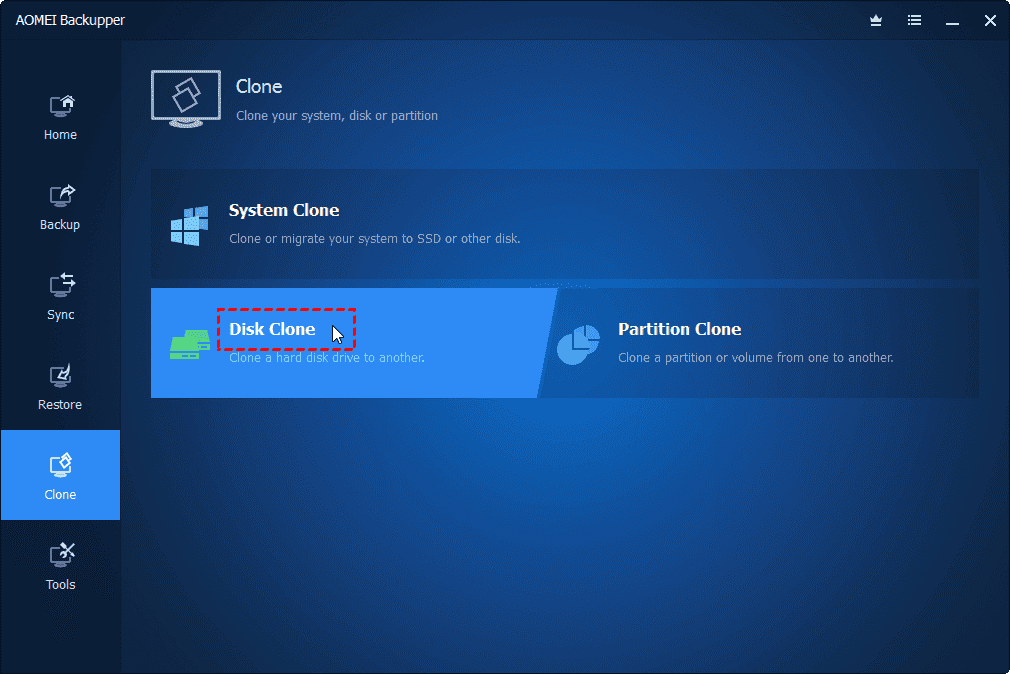
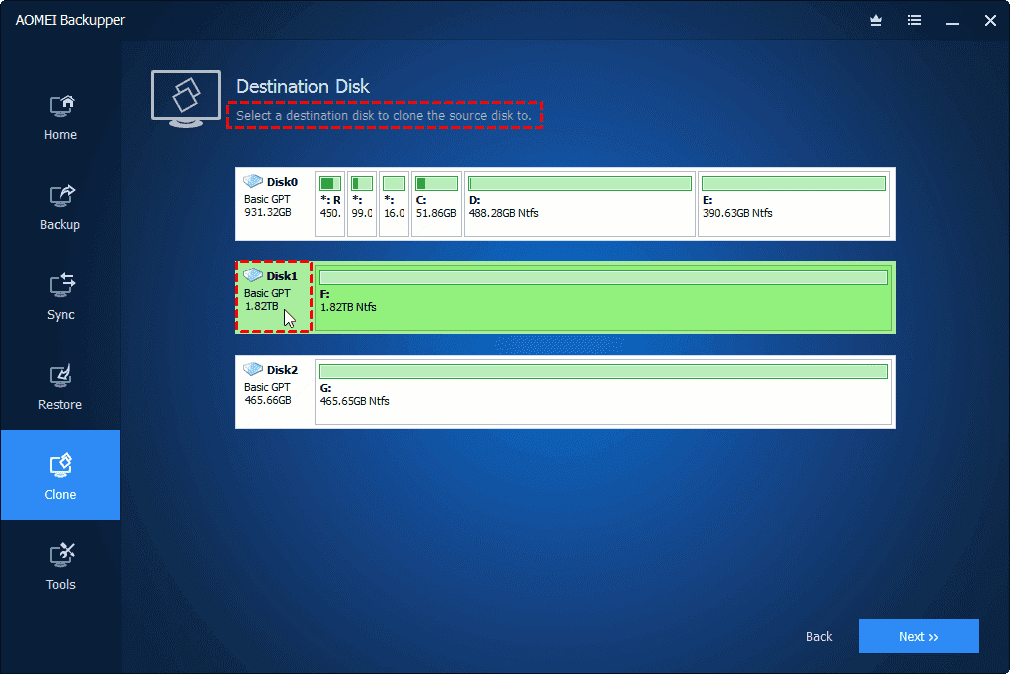
Step 2. Select the original WD disk as the source disk, and then click on Next.

Step 3. Select the new disk as the destination path.
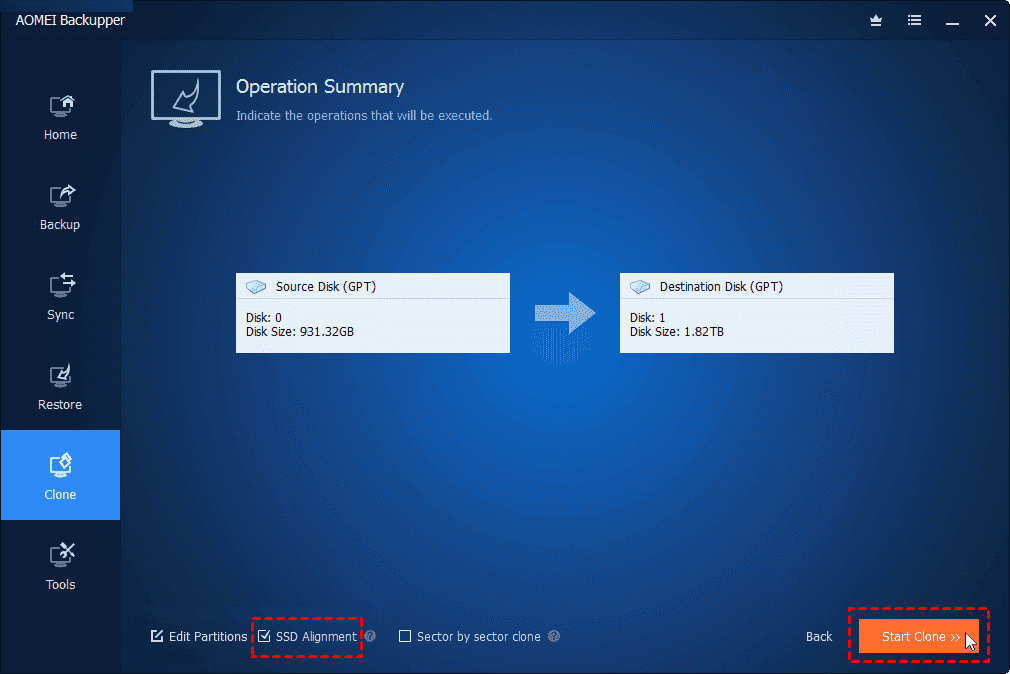
Step 4. Check SSD Alignment option to improve the writing and reading speed of SSD disk, then click Start Clone.
Summary
Cloning your WD disk or cloning your disk to WD is an excellent way to create a backup of all your data, upgrade your disk, or migrate to a new computer. There are several options available for cloning your WD disk, but we highly recommend AOMEI Backupper Standard. It is user-friendly, provides a range of features, and is reliable and efficient.
What’s more, it is also embedded with various powerful features to protect your data. Whether you would like to create a Windows backup, create a bootable USB, or sync folders on Windows 11, it can meet your needs. So try it right now