YouTube TV local channels might not be working due to geo-restrictions or app glitches. Another reason could be outdated software.
Local channels play a significant role in providing news, sports, and entertainment tailored to your region. Experiencing issues with YouTube TV can be frustrating, especially when these channels are essential for staying updated. Geo-restrictions often prevent access to local content, depending on your location.
App glitches or outdated software can also disrupt streaming services. Ensuring your app and device software are current can help mitigate some of these issues. Checking your geo-location settings and confirming your subscription details might also resolve the problem. Understanding these potential causes can help you troubleshoot and restore your viewing experience efficiently.

YouTube TV’s Local Channel Issues
YouTube TV is a popular streaming service. It offers a variety of channels. But many users face problems with local channels. This can be frustrating. Let’s dive into why this happens.
The Importance Of Local Channels
Local channels are essential for viewers. They provide news and weather updates. They also show local sports and events. Missing these channels can be a big problem. Many viewers rely on them daily.
Common Complaints From Viewers
Users often report missing local channels. Here are some common complaints:
- Blank screens on local channels
- Local channels not loading
- Missing favorite shows
- Problems with live sports broadcasts
These issues can disrupt the viewing experience. They can make users unhappy. Understanding the problem is the first step to fixing it.
Potential Causes of Disruption
YouTube TV local channels might not work for various reasons. Understanding these causes can help you troubleshoot and fix the issue.
Geo-locating Errors
Geo-locating errors can disrupt your YouTube TV local channels. Your device might not detect your correct location. This can prevent local channels from loading. Ensure your device settings allow location access. Check if your VPN or proxy is causing issues. Disabling them might resolve the problem.
Licensing And Broadcast Rights
Licensing and broadcast rights can limit access to local channels. Networks negotiate these rights with YouTube TV. If agreements change, channels may become unavailable. Sometimes, content is restricted to specific regions. This can affect your access to certain local channels.
Technical Glitches And Outages
Technical glitches and outages can also cause disruptions. Server issues on YouTube TV’s end can lead to outages. Regular maintenance might temporarily affect service. Check YouTube TV’s status page for updates on any ongoing issues. Restarting your device or app might resolve minor glitches.
| Potential Causes | Description |
|---|---|
| Geo-Locating Errors | Device location settings or VPN issues |
| Licensing and Broadcast Rights | Region-specific content restrictions |
| Technical Glitches and Outages | Server issues or maintenance |
Address these issues to restore your local channels. Identifying the cause is key to finding a solution. If problems persist, contact YouTube TV support for help.
Troubleshooting Step by Step
If your YouTube TV local channels are not working, don’t worry. Follow these simple troubleshooting steps to fix the issue quickly. These steps will help you enjoy your favorite local channels again.
Checking Internet Connection
A stable internet connection is crucial for streaming YouTube TV. To check your connection:
- Ensure your Wi-Fi is turned on.
- Restart your router and modem.
- Test your connection speed using an online speed test tool.
- Move your device closer to the router.
If the internet speed is too slow, contact your ISP.
Updating Youtube Tv App
An outdated app may cause issues. Update the YouTube TV app to the latest version:
- Open the app store on your device.
- Search for YouTube TV.
- Click on ‘Update’ if available.
- Restart the app after updating.
Keeping the app updated ensures it runs smoothly.
Adjusting Location Settings
Location settings can affect which local channels you receive. To adjust your location settings:
- Open your device settings.
- Go to ‘Location’ or ‘Privacy’.
- Ensure location services are turned on.
- Set the location mode to ‘High accuracy’.
These steps help YouTube TV detect your correct location.
Alternative Solutions And Methods
Experiencing issues with local channels on YouTube TV can be frustrating. Fortunately, there are alternative solutions and workarounds to consider. This section explores various methods to resolve the issue and enjoy your favorite local channels seamlessly.
Using A VPN For Location Issues
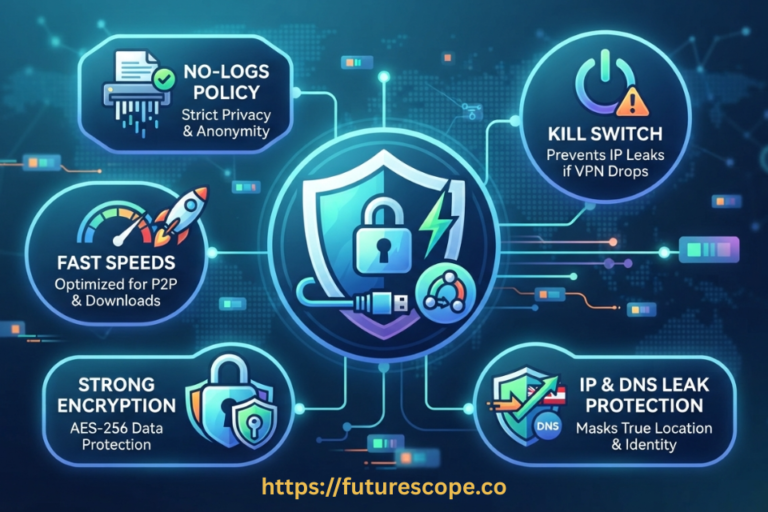
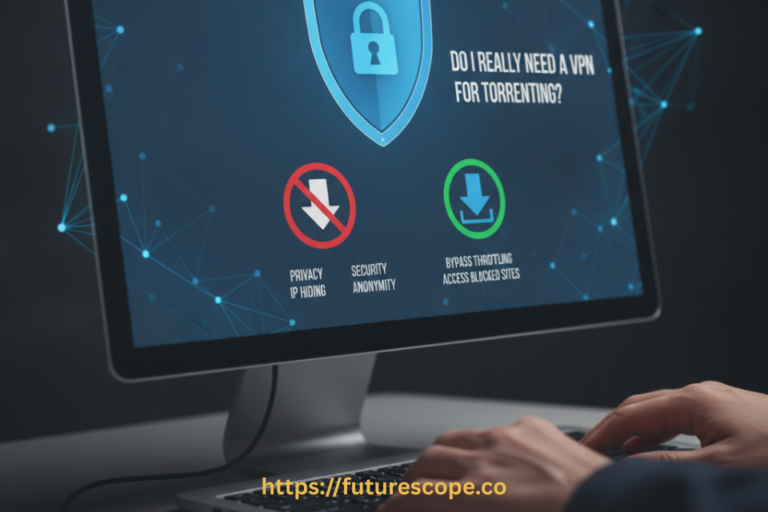
Sometimes, YouTube TV might not recognize your location correctly. Using a VPN can help you bypass this problem. A VPN, or Virtual Private Network, allows you to change your device’s location. This can trick YouTube TV into thinking you are in a different area.
Here’s how to use a VPN:
- Choose a reliable VPN service.
- Download and install the VPN app.
- Select a server in your desired location.
- Connect to YouTube TV and check your local channels.
Contacting Customer Support
If local channels are still not working, consider contacting YouTube TV customer support. They can provide specific guidance and troubleshoot the issue.
Steps to contact support:
- Open the YouTube TV app or website.
- Navigate to the Help section.
- Choose the Contact Us option.
- Describe your issue clearly and provide necessary details.
Exploring Other Streaming Services
If the issue persists, exploring other streaming services might be a viable option. There are several alternatives to YouTube TV that offer local channels.
| Service | Local Channels |
|---|---|
| Sling TV | Varies by location |
| Hulu + Live TV | Available in most areas |
| FuboTV | Extensive local coverage |
These services offer free trials, allowing you to test them before committing.
Frequently Asked Questions
Why Are All The Local Channels Not Working?
Local channels may not work due to signal issues, subscription problems, or outdated equipment. Contact your provider for assistance.
How Do I Unlock Local Channels On Youtube Tv?
Unlock local channels on YouTube TV by enabling location services on your device. Confirm your home area in settings.
Why Can’t I Watch My Local Team On Youtube Tv?
Local blackout restrictions may prevent you from watching your local team on YouTube TV. Check local listings for alternatives.
How Do I Get My Local Channels Back On Youtube?
To get local channels back on YouTube, check your location settings. Update your zip code if needed. Ensure your subscription includes local channels. Reinstall the YouTube app if problems persist.
Conclusion
Experiencing issues with YouTube TV local channels can be frustrating. Ensure your device and app are updated. Check your internet connection and location settings. For persistent problems, contacting YouTube TV support may be necessary. Stay informed to enjoy uninterrupted local channels and enhance your streaming experience.