To recover a deleted Excel file, check the Recycle Bin first. If not found, use Excel’s built-in AutoRecover feature.
Losing an important Excel file can be stressful, especially if it contains critical data. Fortunately, there are ways to recover it. Start by checking the Recycle Bin on your computer. Files deleted recently often end up there. If the file isn’t in the Recycle Bin, Excel’s AutoRecover feature can be a lifesaver.
This feature automatically saves versions of your work at regular intervals. You can access these saved versions through Excel’s settings. For more advanced recovery, specialized file recovery software can help. Always remember to save your work frequently and back up important files to avoid future data loss.
How To Recover A Deleted Excel File?
Accidentally deleting an Excel file can be frustrating. There are some initial steps you can take to recover it. These steps are simple and quick. You don’t need advanced technical knowledge.
Check The Recycle Bin
The Recycle Bin is the first place to look. Deleted files often go there. Follow these steps:
- Open the Recycle Bin on your desktop.
- Look for your deleted Excel file.
- Right-click on the file and choose Restore.
This will return the file to its original location. If you don’t find it there, don’t worry. There are other options.
Use File History Feature
Windows has a File History feature. It helps you recover lost files. To use it, follow these steps:
- Go to the Control Panel.
- Click on System and Security.
- Select File History.
- Click on Restore personal files.
- Find your Excel file in the list.
- Click the green Restore button.
This will restore the file to its original folder. Ensure your File History feature is turned on to use this method.
By following these initial steps, you can easily recover a deleted Excel file. Stay calm and follow each step carefully.
Use Data Recovery Tools
Accidentally deleting an Excel file can be frustrating. Thankfully, data recovery tools can help. These tools are designed to retrieve lost files. Let’s explore how to use them effectively.
Selecting The Right Tool
Choosing the right data recovery tool is crucial. There are many options available. Here are a few popular ones:
- Recuva: Known for its user-friendly interface.
- Disk Drill: Offers advanced recovery features.
- EaseUS Data Recovery: Great for beginners.
Ensure the tool supports Excel file recovery. Read user reviews and check compatibility with your system. Free trials are available for most tools.
Step-by-step Recovery Process
Once you’ve selected a tool, follow these steps to recover your deleted Excel file:
- Download and Install: Install the chosen data recovery tool on your computer.
- Launch the Tool: Open the application and start a new recovery session.
- Select File Type: Choose Excel files (usually .xls or .xlsx) as the target file type.
- Scan Your Drive: Select the drive where the file was stored and initiate the scan.
- Preview and Recover: Once the scan is complete, preview the results. Select your deleted Excel file and click ‘Recover’.
The process is usually quick and straightforward. Always save the recovered file to a different location. This avoids overwriting any other potential recoverable data.
Using data recovery tools can save you from losing important Excel files. Following these steps can help you recover your data efficiently.
Try With Excel’s Built-in Features
Excel offers various built-in features to help recover deleted files. These features can save you time and effort. Let’s explore these useful tools below.
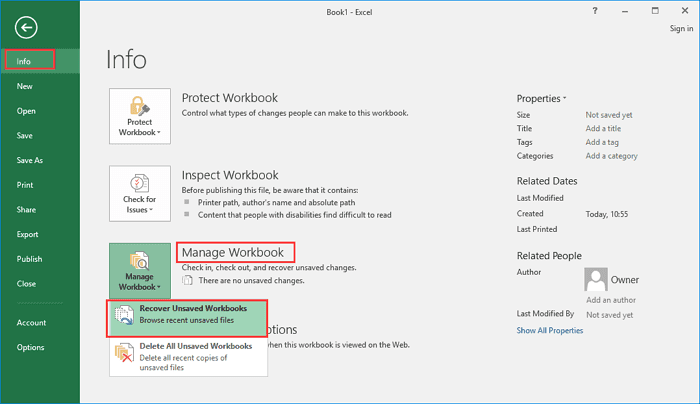
Recover Unsaved Workbooks
If you accidentally close Excel without saving, there’s hope. Excel has an AutoRecover feature that can help.
- Open Excel and go to the File tab.
- Click on Info.
- Select Manage Workbook.
- Choose Recover Unsaved Workbooks.
A list of unsaved files will appear. Select the one you need and click Open. Save it to avoid losing it again.
Restore To Previous Versions
If you saved over an important file, don’t worry. Excel allows you to revert to earlier versions.
- Go to the File tab.
- Click on Info.
- Choose Version History.
A list of previous versions will appear. Select the version you want to restore and click Open. Save this version to keep your changes.
These built-in features make data recovery simple and quick. Always check these tools before panicking. Excel has your back!
Preventive Measures For Future
To avoid the stress of recovering a deleted Excel file, take preventive steps. These measures can save you time and hassle.
Regular Backups
Make a habit of regular backups. This ensures you always have a copy of your important files.
Use the built-in backup features of Excel. Follow these steps:
- Open Excel and go to File.
- Select Options.
- Click on Save.
- Check the box for Save AutoRecover information every X minutes.
- Set the time interval as per your need.
Additionally, consider using external hard drives or USB sticks for extra security. Create a schedule to back up your files weekly or monthly.
Utilizing Cloud Sync
Using cloud sync services keeps your files safe and accessible.
Popular cloud storage options include:
- Google Drive
- OneDrive
- Dropbox
These services automatically save and sync your files across devices. Here’s how you can set up OneDrive for Excel:
- Download and install OneDrive.
- Open Excel and go to File.
- Select Save As.
- Choose OneDrive as your save location.
- Sign in with your Microsoft account.
Now, your Excel files will sync to the cloud automatically. This way, you can access your files from any device, anytime.
Frequently Asked Questions
Can I Restore A Deleted Excel File?
Yes, you can restore a deleted Excel file. Check the Recycle Bin first. Use file recovery software if needed. Backup services like OneDrive and Google Drive offer recovery options.
How Can I Recover A File I Accidentally Deleted?
Check your Recycle Bin or Trash. Use file recovery software like Recuva or Disk Drill. Restore from a backup.
How To Recover Deleted Excel Files In Windows 10 For Free?
Use Windows File Recovery tool. Open Microsoft Store, search for “Windows File Recovery,” install it. Follow on-screen instructions to recover Excel files.
How To Recover Permanently Deleted Files?
Use data recovery software like Recuva or Disk Drill. Check cloud backups or contact a professional recovery service.
Conclusion
Recovering a deleted Excel file is crucial for data integrity. Utilize built-in recovery tools and check your recycle bin. Regular backups can save you from data loss. Remember to save your work frequently. With these steps, you can minimize the chances of permanent data loss in Excel.