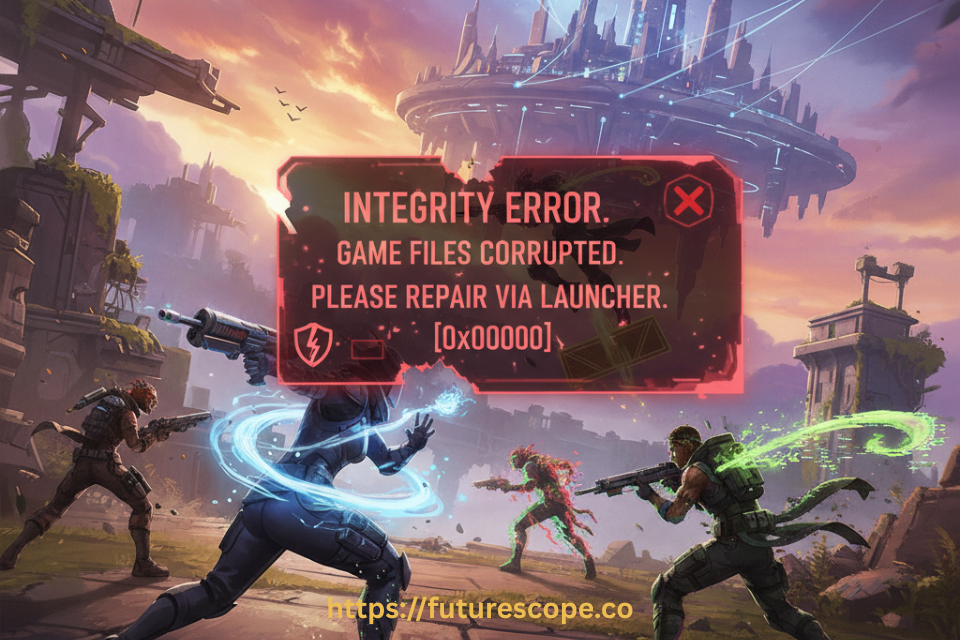

You clicked Launch on Apex Legends. The screen flickered. And instead of the lobby, you got a cold pop-up: “Apex exited due to a failure of game integrity.” Game closed. Nothing else. Just you, an error code, and a growing frustration.
The Apex Legends integrity error is one of the most reported — and most misunderstood — launch failures in the game’s history. It is not a ban. It is not a cheat detection (usually). And it is not a sign that your PC is broken. In most cases, it is a solvable conflict between Apex’s anti-cheat software and something else on your system.
This guide explains exactly what is happening, decodes the two error codes you are most likely seeing, and walks you through seven fixes in order from fastest to most thorough. Work through them top to bottom — most players fix this within the first three steps.
| Fast Fact: The Apex Legends integrity error spiked significantly after the January 14, 2026 update, with hundreds of players on Steam forums reporting it overnight. The root cause was Easy Anti-Cheat flagging virtual drive driver residue — particularly from Daemon Tools — as badware. Most cases were resolved within 24 hours using the fixes in this guide. |
What Is the Apex Legends Integrity Error?
The integrity error is triggered by Apex’s anti-cheat system, Easy Anti-Cheat (EAC). EAC runs at the kernel level — deep inside Windows — and checks that the game and your system environment are unmodified before allowing you into a match.
When something fails that check, the game exits immediately and logs one of two error codes. Understanding which one you have tells you where to start:
| 0x8000001 — Apex exited due to a failure of game integrity This is the file integrity check failure. EAC is detecting that one or more Apex Legends game files are missing, corrupted, or have been altered since installation. Common causes: interrupted game updates, partial downloads, antivirus quarantining game files, or disk errors. Fix priority: verify game files first. |
| 0x8000002 — Apex exited due to external tools that jeopardize gameplay integrity This is the badware detection failure. EAC detected a program running on your system that it considers a threat — even if that program is not a cheat. Common causes: gamepad remapping software, controller emulators, overlays, virtual disk drivers (Daemon Tools), macro tools, or AutoHotkey scripts. |
Both errors share one thing: they are almost always fixable without reinstalling the game. Let us go through the solutions.
Quick Reference: All 7 Fixes at a Glance!
Use this table to pick your starting point based on your error code and how much time you have:
| Fix | Works For | Difficulty | Time Required |
| Verify Game Files | Corrupted / missing files (0x8000001) | Easy | 3-10 min |
| Reinstall Easy Anti-Cheat | EAC failures, false detections | Easy | 5 min |
| Clean Boot Windows | Third-party software conflicts (0x8000002) | Medium | 10 min |
| Close Background Apps / Overlays | Overlay conflicts flagged by EAC | Easy | 2 min |
| Run SFC / DISM Scan | Corrupted Windows system files | Medium | 15-30 min |
| Remove Daemon Tools Residue | Virtual drive driver conflicts | Medium | 10-20 min |
| Reinstall Apex Legends | All else failed | Easy | 60+ min (download) |
How to Fix Apex Legends Integrity Error: Step-by-Step
FIX 1 Verify Game Files (Best First Step for 0x8000001)
- EA App users: Open the EA App > Library > find Apex Legends > click the three-dot icon > select Repair.
- Steam users: Right-click Apex Legends in your library > Properties > Local Files > Verify integrity of game files.
- Wait for the process to complete — it may replace several files. Then relaunch Apex Legends. If it finds and repairs files, try launching the game again before moving to the next fix.
Note: This is the official EA-recommended first step for 0x8000001 and resolves the majority of integrity failures caused by corrupted or incomplete game files.
FIX 2 Reinstall Easy Anti-Cheat (Most Effective for Persistent Cases)
- Navigate to your Apex Legends installation folder (typically C:\Program Files (x86)\EA Games\Apex Legends\).
- Open the EasyAntiCheat subfolder.
- Right-click EasyAntiCheat_Setup.exe and select Run as administrator. In the EAC setup window, select Apex Legends from the game dropdown and click Uninstall. Once uninstalled,
- click Install in the same window. Alternatively: delete the EasyAntiCheat folder entirely, then use EA App Repair or Steam Verify to let it reinstall fresh.
Note: Do not download EAC from third-party sources. Always use the EasyAntiCheat_Setup.exe already in your Apex folder.
FIX 3 Close All Background Apps and Overlays (Critical for 0x8000002)
Before launching Apex, close these known EAC-triggering applications:
- Discord overlay (disable in Discord Settings > Overlay > turn off Enable in-game overlay)
- NVIDIA GeForce Experience overlay (Settings > General > In-Game Overlay off)
- Xbox Game Bar (Settings > Gaming > Xbox Game Bar > off)
- MSI Afterburner, RTSS (RivaTuner), OBS, Streamlabs
- DS4Windows, reWASD, JoyToKey, AutoHotkey, or any controller remapper
- Any virtual drive software (Daemon Tools, WinCDEmu, Virtual CloneDrive) After closing everything, launch Apex without them running.
Note: Re-enable these applications one at a time after Apex launches successfully to identify the specific conflicting program.
FIX4 Remove Daemon Tools or Virtual Drive Residue
This fix specifically addresses the 0x8000002 error reported widely after the January 2026 update.
- Even if you uninstalled Daemon Tools previously, driver residue may remain in Device Manager.
- Open Device Manager (Win + X > Device Manager).
- Expand each category and look for any entry containing ‘SPTD’, ‘Daemon Tools’, ‘Virtual Drive’, or ‘StarWind’.
- Right-click each and select Uninstall Device > check ‘Delete the driver software for this device’ > confirm.
- Restart your PC after removing all entries.
Community-confirmed fix: installing Daemon Tools Lite fresh and then uninstalling it via Revo Uninstaller (with leftover removal) has also cleaned residual drivers successfully.
Note: This exact sequence was the verified fix for dozens of players on the January 2026 Steam discussion thread.
FIX 5 Run a Clean Boot to Identify Conflicting Software
- Press Win + R, type msconfig, and press Enter.
- Go to the Services tab. Check ‘Hide all Microsoft services’. Click ‘Disable all’.
- Important: Re-enable any Steam, EA, Epic Games, or Easy Anti-Cheat services you can see.
- Go to the Startup tab and click ‘Open Task Manager’. Disable every non-Microsoft startup item.
- Click OK in msconfig and restart your PC.
- Launch Apex Legends.
If it works, a third-party startup item was the culprit. Re-enable startup items one by one to identify which program triggered the error.
Note: Do not disable any EasyAntiCheat or EA-related services in the Services tab — they are required for Apex to launch.
FIX 6 Repair Windows System Files with SFC and DISM
- Press Win + S, type ‘cmd’, right-click Command Prompt, and select Run as administrator.
- Type the following command and press Enter: DISM /Online /Cleanup-image /Restorehealth
- Wait for DISM to complete (may take 10-20 minutes). Then run: sfc /scannow
- Let the System File Checker finish.
- Restart your PC when prompted.
Also update Visual C++ Redistributables: download the latest all-in-one package from techpowerup.com/download/visual-c-redistributable-runtime-package-all-in-one.
Note: This addresses underlying Windows system file corruption that can prevent EAC from initializing properly — a less common but real cause of 0x8000001.
FIX 7 Full Reinstall of Apex Legends (Last Resort)
- Uninstall Apex Legends via EA App or Steam (do not just delete the folder).
- After uninstalling, manually navigate to the installation directory and delete any remaining Apex folder.
- Also delete: C:\Program Files (x86)\EasyAntiCheat (if it still exists after uninstall).
- Restart your PC before reinstalling.
- Download and reinstall Apex Legends fresh from EA App or Steam.
- Launch after installation — do not add any mods or third-party tools before confirming it launches cleanly.
Note: A full reinstall resolves every file-related integrity issue. If this does not work, contact EA Support — your account or EAC installation may have a server-side issue.
Expert Tips: Prevent the Error From Coming Back
| Tip 1: After any Apex update, verify game files immediately via EA App or Steam before launching. Updates sometimes create partial file states that trigger integrity errors on first launch. |
| Tip 2: Keep overlays off during gameplay sessions — even legitimate overlays like Discord can be flagged by EAC updates. Re-enable them only if you confirm they pass without triggering an error. |
| Tip 3: If you use a controller remapper (DS4Windows, reWASD), check their websites for Apex-specific compatibility patches after major game updates. EAC sensitivity to these tools often increases after patches. |
Frequently Asked Questions
Is the Apex Legends integrity error the same as a ban?
No. The integrity error (0x8000001 or 0x8000002) is a technical launch failure, not a ban. If you were banned, you would see a different message and your EA account would show a penalty record. The integrity error means Easy Anti-Cheat failed to verify the game or detected a flagged program — both of which are fixable. If you believe you have been wrongly banned, contact EA Support at help.ea.com.
Why does the error happen after a game update?
Major Apex updates sometimes replace or modify game files in a way that leaves EAC’s cached verification state out of sync. Additionally, EAC itself receives updates that change which background programs it flags — a tool that worked fine before an update can be flagged after one. This is why the 0x8000002 error spiked immediately after the January 14, 2026 patch. Verifying game files or reinstalling EAC after major updates typically resolves this.
Can my antivirus cause the Apex integrity error?
Yes, definitely. Antivirus software — including Windows Defender — can quarantine or block EasyAntiCheat files or Apex game files, triggering the 0x8000001 integrity check failure. If you suspect this, temporarily disable real-time protection before launching Apex, or add both the Apex installation folder and the EasyAntiCheat folder to your antivirus exclusions list. Re-enable protection after confirming the game launches.
Does the integrity error affect Xbox and PlayStation players?
The 0x8000001 and 0x8000002 integrity errors are specific to the PC version of Apex Legends, where Easy Anti-Cheat runs at the operating system level. Console players do not encounter these specific error codes because the console’s platform integrity system handles anti-cheat differently. Console players may encounter other error codes, but not these.
What should I do if none of the fixes work?
If all seven fixes have failed, contact EA Support directly at help.ea.com/en/articles/apex-legends/error-codes. Provide your error code, a description of what you have tried, and your PC specifications. In rare cases, the issue is a server-side flag on your account or a corrupted EAC installation that requires EA’s backend team to resolve. You can also post in the EA Forums (answers.ea.com) where community members and EA moderators actively help with persistent integrity errors.
Get Back to the Ring. Your Squad is Waiting.
One of the fixes above has worked for thousands of players. Work through them in order, and you will be dropping into Kings Canyon before you know it.
STILL STUCK? CONTACT EA SUPPORT AT HELP.EA.COM