
You launch your game. Top right corner of your screen: an NVIDIA icon blinking at you. A notification reminding you to press Alt + Z. Sometimes a little FPS counter. Sometimes a recording indicator. All of it, uninvited, sitting in your eyeline while you are trying to aim.
For millions of PC gamers, the NVIDIA Overlay is the answer to ‘what is that thing on my screen?’ — and ‘how do I get rid of it?’
The good news: disabling it takes under 60 seconds once you know where to look. The better news: you have four different methods depending on how thorough you want to be. And the actually useful news — which most guides skip — is that whether you should disable it depends on your system and how you use it.
This guide covers all of it. Let us get into it.
| Quick Fact: In some games — particularly Forza Horizon 5 — having the NVIDIA overlay active can reduce FPS by up to 10% or more. For competitive titles, the overlay’s background processes add CPU and GPU overhead that your frames cannot afford. |
What Is the NVIDIA Overlay, Exactly?
The NVIDIA Overlay — officially called the In-Game Overlay — is a feature bundled with two pieces of NVIDIA software:
- GeForce Experience — the original companion app that handles driver updates, game optimization, and screenshots/recording. The overlay here is triggered with Alt + Z.
- NVIDIA App (2026) — the newer unified platform replacing GeForce Experience. It consolidates drivers, overlay, and system monitoring into a single redesigned interface.
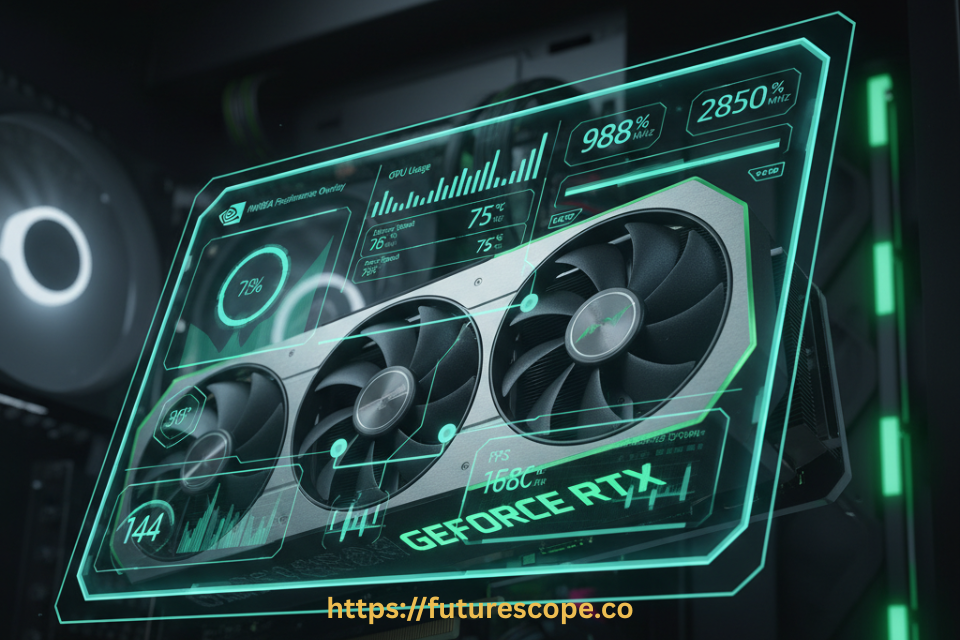
When active, the overlay gives you a heads-up display that includes:
- Real-time FPS counter and frame timing
- GPU temperature, utilization, and VRAM usage
- CPU temperature and usage metrics
- One-click access to ShadowPlay recording and Instant Replay
- Ansel photo mode for compatible games
- Live streaming to Twitch and YouTube
It is genuinely useful software — if you use it. If you do not, it is background overhead your system is paying a tax on every time you game.
The Performance Impact: What the Numbers Say
Here is the honest data on what the overlay costs — and when it matters:
| Overlay State | FPS Impact | CPU Overhead | GPU Overhead | Recommendation |
| Fully OFF | Baseline (max) | Minimal | Minimal | Best for competitive gaming |
| ON — Idle (no record) | ~1-3% loss | Very low | <1-3% GPU load | Acceptable for modern rigs |
| ON — Recording active | 3-10% loss | Moderate | 3-10% frame cost | Disable if GPU is bottleneck |
| ON — 4K60 recording | Up to 15% loss | High | Significant VRAM use | Strongly consider disabling |
| ON — Streaming active | Variable | High | Depends on NVENC | Use NVENC, lower bitrate |
The key takeaway: the overlay’s impact scales with what it is doing. An idle overlay on a modern RTX system costs almost nothing. An active recording session at 4K/60 fps on a mid-range GPU is a different story entirely. Know your use case before deciding.
| TRENDING IN 2026: The new NVIDIA App introduced per-game overlay settings, meaning you can now leave the overlay globally enabled but automatically suppress it for specific titles — like competitive shooters where every frame counts — without disabling it system-wide. |
4 Methods to Disable the NVIDIA Overlay
Choose the method that matches how completely you want the overlay gone:
| Disable via GeForce Experience / NVIDIA App Settings The fastest and most complete method. Works for 95% of users. |
- Right-click the NVIDIA icon in your system tray (bottom-right taskbar) and open GeForce Experience or the NVIDIA App
- Click the Settings gear icon in the top-right corner of the application window
- Navigate to the General tab (GeForce Experience) or Features tab (NVIDIA App)
- Find In-Game Overlay and toggle the switch to OFF
- Close the application — no restart required
That is it. Press Alt + Z in-game to confirm: nothing should appear. The overlay icons in the corner of your screen will also vanish.
| Disable for a Specific Game Only Best if you want the overlay for some games but not others — like keeping it for casual games, disabling it for ranked play. |
- Open GeForce Experience and click the Settings gear
- Go to the Games tab
- Select the specific game you want to suppress the overlay for
- Toggle In-Game Overlay to OFF for that title only
This is the approach the new NVIDIA App’s per-game overlay settings have made easier in 2026 — you can set different overlay behaviors per title from the game library screen.
| Kill NVIDIA Background Processes via Task Manager Use when the overlay persists despite being ‘disabled’ — or for an immediate fix before a gaming session. |
- Press Ctrl + Shift + Esc to open Task Manager
- Click the Processes or Details tab
- Search for: NVIDIA Share, nvcontainer.exe, or NVIDIA ShadowPlay Helper
- Right-click each NVIDIA overlay process and select End Task
Note: these processes may restart on the next boot. For a permanent fix, combine this with Method 1. For a gaming session fix right now, this is the fastest route.
| Disable NVIDIA Services via Windows Services Manager The deepest-level method — prevents overlay processes from launching at startup entirely. |
- Press Windows + R, type services.msc, and hit Enter
- Locate NVIDIA Display Container LS and NVIDIA LocalSystem Container
- Right-click each, select Properties
- Change Startup Type to Disabled and click Stop
- Restart your PC to apply
This is the nuclear option. It prevents any NVIDIA overlay or ShadowPlay component from running at system level. Only use this if Methods 1-3 have not resolved a persistent overlay problem.
When Should You Actually Keep the Overlay ON?
Disabling the overlay is not always the right move. Keep it on if:
- You record clips: ShadowPlay uses NVIDIA’s NVENC encoder — hardware-accelerated recording that typically costs only 1-5 FPS. It is one of the most efficient recorders available, often better than OBS on lower-end systems.
- You stream to Twitch or YouTube: The overlay’s broadcast mode uses NVENC similarly and is simpler to configure than OBS for casual streaming.
- You use Instant Replay: Never miss a highlight again. The overlay buffers your last 5-30 minutes continuously — press Alt + F10 to save the last clip automatically.
- You troubleshoot performance: The in-game stats overlay (FPS, GPU temp, frame time) is one of the fastest ways to diagnose performance issues without a separate tool.
Frequently Asked Questions
Does disabling the NVIDIA overlay improve FPS?
It depends on your system. On modern high-end rigs with the overlay idle (not recording), the impact is typically 1-3% — often unmeasurable in real gameplay. On mid-range or older systems, especially when the overlay’s recording or Instant Replay features are active, disabling it can recover 5-15% FPS. For games like Forza Horizon 5 that are known to be overlay-sensitive, users have reported up to 10%+ FPS recovery. Test with and without the overlay using an FPS counter to see your specific difference.
Will disabling the overlay stop ShadowPlay and recording?
Yes. The In-Game Overlay toggle controls all overlay-based features including ShadowPlay, Instant Replay, broadcasting, and Ansel. Disabling it turns all of these off. If you want to keep recording but remove the visual overlay indicators, use Method 2 (per-game) or turn off only the Status Indicators inside the overlay’s own Preferences menu rather than disabling the entire overlay.
How do I re-enable the NVIDIA overlay if I change my mind?
Follow Method 1 in reverse: open GeForce Experience or the NVIDIA App, click the Settings gear, go to General (or Features), and toggle In-Game Overlay back ON. It takes about 10 seconds. If you disabled services via Method 4, go back to services.msc and set NVIDIA Display Container LS and NVIDIA LocalSystem Container back to Automatic startup, then restart your PC.
The overlay is still appearing after I disabled it — what now?
This usually means a Windows update or a GeForce Experience update re-enabled the overlay — this happens because NVIDIA applications reset overlay settings after major updates. Re-toggle it off via Method 1. If it persists, use Method 3 (Task Manager) to kill the active NVIDIA Share process, then re-confirm the setting is off in GeForce Experience. As a permanent fix for this recurring issue, consider combining Methods 1 and 4.
Is the NVIDIA overlay causing game crashes or conflicts?
In some cases, yes. The overlay hooks into game processes at a low level, which can conflict with anti-cheat software (Riot Vanguard, Easy Anti-Cheat), other overlay applications (Discord overlay, Steam overlay, MSI Afterburner), or specific DX12 and Vulkan implementations. If you are experiencing game crashes, freezes, or launch failures, disabling the NVIDIA overlay is one of the first troubleshooting steps to try — alongside disabling other overlays one by one.
Reclaim Your FPS. Master Your Settings.
You now have every method to disable the NVIDIA overlay and every reason to know when to keep it on. Take control of your GPU experience — your frames are waiting.
UPDATE YOUR DRIVERS & OPTIMIZE NOW — NVIDIA.COM