Yes, Google Voice works on a laptop. You can access it through a web browser or use its Chrome extension.
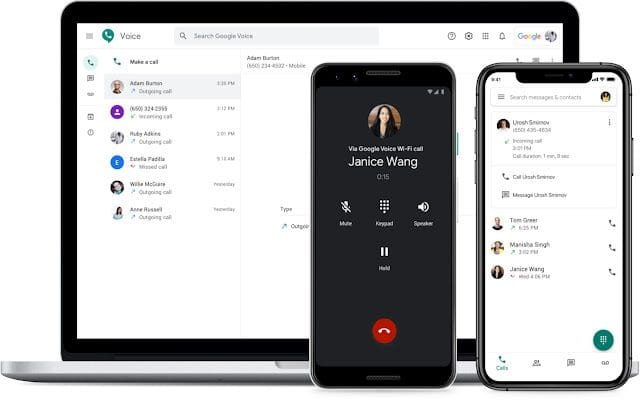
Google Voice is a versatile communication tool that integrates seamlessly with laptops and desktops. Users can easily make calls, send texts, and receive voicemail through the Google Voice web interface or by installing the Google Voice extension for the Google Chrome browser.
This service offers a convenient way to manage communications without the need for dedicated hardware, tapping into the power of internet telephony. The platform syncs effortlessly across devices, ensuring that you can switch between your phone and laptop without missing important messages or calls. Google Voice is particularly beneficial for those who require a flexible and accessible phone system for personal or business use, providing a unified number that can reach you on any device.
What Is Google Voice?
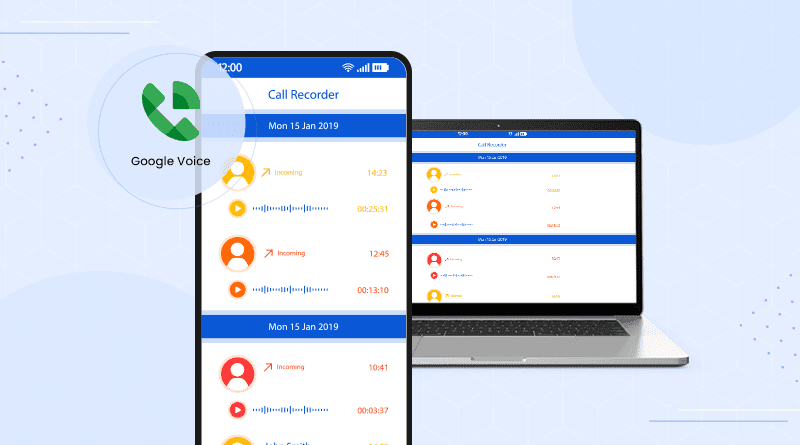
Google Voice is a cloud-based VoIP (Voice over Internet Protocol) service that provides a free phone number linked to your Google account. It allows you to make calls, send texts, receive voicemails, and manage contacts—all online. While originally designed for smartphones, Google Voice is fully compatible with laptops and desktop browsers, making it a great tool for cross-platform communication.
Google Voice: Connecting Devices
Imagine talking to friends from any device you have. That’s what Google Voice does. It lets you call, text, and check voicemail from your laptop too!
Cross-platform Communication Via Google Voice
Google Voice connects people across many devices. You can jump from your phone to your laptop without missing a beat.
- Text from your tablet
- Call from your computer
- Check messages on the go
Why Choose Google Voice For Your Laptop
Using Google Voice on a laptop brings you lots of benefits.
- Easier multitasking
- Bigger screen for messages
- Full keyboard for faster typing
You can chat while working on projects. It’s super handy!
Google Voice makes staying connected simple. All you need is a web browser or the Google Voice app. Your laptop becomes a communication power tool!
Can You Use Google Voice on a Laptop?
Yes, You Can Use It on Windows, macOS, Linux & Chromebooks
Google Voice works seamlessly on laptops through any modern web browser such as Google Chrome, Firefox, Edge, or Safari. There’s no need to install any software or extensions (though a Chrome extension is available for added convenience). The platform is accessible by visiting voice.google.com.
Whether you use Windows 11, macOS Ventura, Ubuntu, or ChromeOS, as long as you have internet access and a microphone, you can make calls, send texts, and check voicemail right from your laptop.
How to Use Google Voice on a Laptop (Step-by-Step)
Google Voice’s seamless integration with laptops opens up a world of possibilities. Stay connected on the go without a phone. Enjoy free voice calls, text messages, and voicemail services. All you need is a quick setup on your laptop!
- Sign in to Your Google Account
Visit voice.google.com and log in using your Google account credentials. - Choose a Google Voice Number
Select a U.S.-based number if you’re signing up for the first time. You can link this number to your existing mobile or landline phone if needed. - Set Up Calling Preferences
In settings, configure audio input/output to use your laptop’s mic and speakers or external headphones. - Make and Receive Calls
Use the dial pad or contact list to start a call directly from your browser. - Send SMS or Check Voicemail
Use the left sidebar for messaging, calling history, and voicemail transcription—just like on a phone. - Adding a Shortcut for Convenience
- To add Google Voice to your Google Apps launcher, go to voice.google.com, click the Google Apps icon (a grid) in the top right, and select “Add a shortcut” under Voice.
- This makes accessing Google Voice quicker from your Google ecosystem.
| Action | Steps | Requirements |
|---|---|---|
| Sign Up for Google Voice | Go to voice.google.com, sign in, select a number, follow instructions | Google Account, supported browser |
| Make/Receive Calls | Enter number and click call; keep voice.google.com open to receive calls | Internet connection, microphone, speakers |
| Send/Receive Texts | Click Messages tab, select New Message, enter number | Internet connection |
| Check Voicemails | Click Voicemail tab, play audio or read transcript | Internet connection |
| Install PWA | Click Install icon in Chrome address bar at voice.google.com | Chrome browser |
| Pin Tab for Calls | Right-click Voice tab in Chrome, select Pin Tab | Chrome browser |
Optimizing Settings For Laptop Use
- Configure the audio by selecting the correct microphone and speakers.
- Enable notifications to get alerts for calls and messages.
- Customize voicemail greetings for a personal touch.
- Set Do Not Disturb hours to manage availability.
- Test the setup by making a call or sending a message.
System Requirements
Google Voice is compatible with most modern laptops running Chrome OS, macOS, or Microsoft Windows. It supports the following web browsers:
| Browser | Compatibility |
|---|---|
| Google Chrome | Fully supported |
| Mozilla Firefox | Fully supported |
| Microsoft Edge | Fully supported |
| Safari | Fully supported |
| Other browsers | Limited functionality |
A working microphone and speaker are required for calls, though texting and voicemail management only require an internet connection. For users with laptops lacking built-in audio hardware, a headset is a practical solution.
Google Voice Integrations And Usability
Many users wonder about using Google Voice on different devices. Google Voice works seamlessly on laptops, providing flexibility in communication. The ‘Integrations and Usability’ section highlights how Google Voice integrates with other services. This enhances productivity and usability. Let’s explore these benefits in detail.
Syncing With Other Google Services
Google Voice connects well with other Google services. This sync offers a smooth experience across platforms.
- Contacts: Your Google Contacts integrate with Google Voice. This allows easy access to all your contacts.
- Calendar: Google Voice works with Google Calendar. You can manage calls and appointments together.
- Email: Receive voicemail transcripts in Gmail. This keeps all communication in one place.
This integration means you never miss important calls or messages.
Application Synergy: Enhancing Productivity
Using Google Voice alongside other applications boosts your efficiency. Here’s how:
- Multiple Devices: Use Google Voice on your Desktop, laptop, tablet, or phone. Your conversations stay updated across all devices.
- Collaborative Tools: Google Docs and Sheets work with Voice. You can discuss changes in real-time while editing.
- Task Management: Set reminders and create tasks from your calls. Google Keep and Tasks help manage your to-do list.
These integrations mean Google Voice isn’t just for calls. It’s a tool that helps you stay on top of your game.
Troubleshooting Common Issues
Running into snags while using Google Voice on your laptop? It happens. This quick guide dives into some frequent issues and how to fix them. Keep your conversations smooth with these handy tips.
Resolving Audio Problems
Is your Google Voice too quiet or no sound at all? Let’s resolve that so you can get back to clear calls.
- Check Volume Settings: Make sure your laptop’s audio isn’t muted or too low.
- Update Audio Drivers: Outdated drivers can cause sound issues. Update them through your device manager.
- Reboot: Sometimes a simple restart fixes audio hiccups.
Still no luck? Test your microphone and speakers separately to isolate the issue.
Connectivity Challenges And Solutions
Connectivity is key for Google Voice operations. Here’s how to ensure you stay connected:
| Issue | How to Fix |
|---|---|
| Slow Internet: | Consider closing other tabs or applications hogging bandwidth. |
| WiFi Drops: | Move closer to the router or restart it for a better connection. |
| VPN Conflict: | Disable VPN services as they might interfere with Google Voice. |
Check Network Settings: Ensure your firewall isn’t blocking Google Voice.
With these tools, your Google Voice should run without a hitch on your laptop.
Benefits of Using Google Voice on a Laptop
Using Google Voice on a laptop offers several advantages, making it a compelling choice for both personal and business use:
- Portability: As an internet-based service, Google Voice can be used from any laptop with an internet connection, making it ideal for remote work, travel, or managing communications on the go.
- Cost-Effective: Calls to the US and Canada are generally free, though some calls may cost 1 cent per minute. International calls are available at low rates, which can be found at Google Voice Rates.
- Convenience: Manage all your communications—calls, texts, and voicemails—from a single platform without needing to switch devices. Integration with Gmail and other Google services enhances usability.
- Advanced Features: Google Voice offers call screening, spam protection, voicemail transcription, and the ability to block unwanted callers, providing a robust communication experience.
- Privacy: Use a Google Voice number to keep your personal phone number private, which is particularly useful for business or online transactions.
Important Notes and Limitations
- U.S. Phone Number Required: Google Voice only provides U.S. numbers by default.
- No Emergency Calls: You cannot call 911 using Google Voice.
- Limited MMS Support: While SMS works well, support for multimedia messages (photos/videos) is limited.
- Browser Must Stay Open: Incoming calls only work if your browser tab is active or notifications are allowed.
Frequently Asked Questions
How Do I Use Google Voice On My Laptop?
To use Google Voice on your laptop, visit the Google Voice website, sign in with your Google account, and you can start making calls or sending messages directly from your browser.
Why Is Google Voice Not Working On My Laptop?
Google Voice may not work on your laptop due to outdated browser issues, disabled microphone permissions, or network connectivity problems. Ensure your browser is updated, microphone access is allowed, and you have a stable internet connection.
Can I Use Google Voice Without A Phone Number?
No, you cannot use Google Voice without a phone number. Google requires verification with an existing US-based mobile or landline phone number to use its Voice service.
How Can I Make Free Calls From My Laptop Without A Phone?
Use internet-based communication services like Skype, Google Voice, or Zoom. These platforms allow free voice and video calls directly from your laptop, requiring only an internet connection.
Conclusion
Navigating the virtual landscape, we’ve explored Google Voice’s adaptability for laptop users. With seamless integration and user-friendly functionality, embracing this tool can enhance communication efficiency. Remember, with a stable internet connection and the right setup, your laptop transforms into a powerful conduit for Google Voice.
Embrace innovation, and expand your communication horizons.