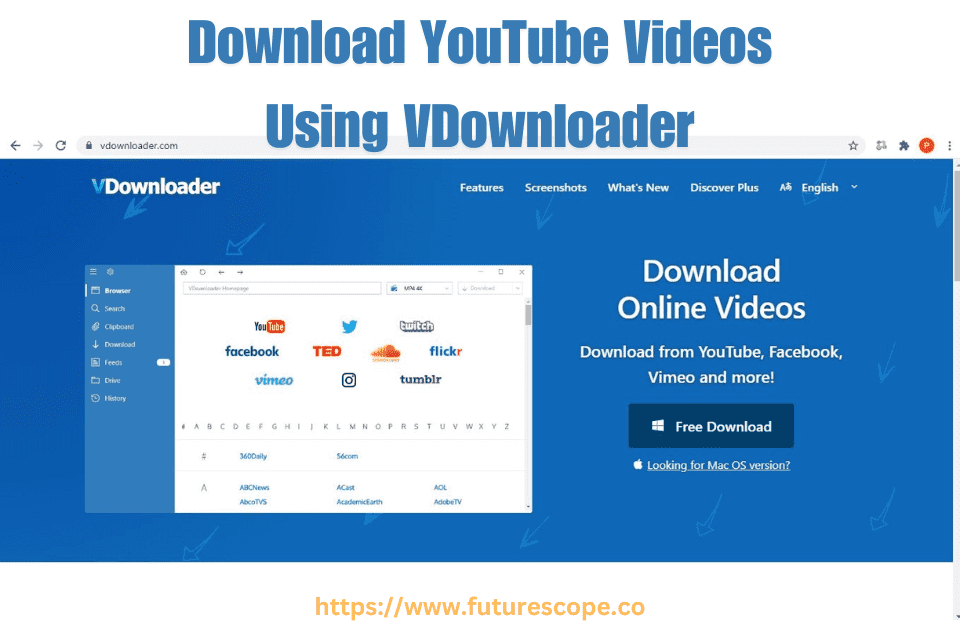

In an age where online content is consumed at lightning speed, having offline access to YouTube videos is incredibly useful for students, travelers, content creators, and professionals alike. One powerful tool that makes this possible is VDownloader—a robust software designed to download and convert YouTube videos with ease.
VDownloader is a popular tool for saving videos from YouTube and other platforms. It allows users to download videos in various formats and resolutions. This utility is user-friendly, catering to people who want to watch videos offline or back them up.
With VDownloader, you can also convert downloaded videos to different file types, making it convenient to view them on multiple devices. Ensuring your downloads are legal and comply with YouTube’s terms of service is crucial. VDownloader provides a straightforward solution for accessing your favorite content without an internet connection, enhancing your multimedia library effortlessly.
In this post, we’ll explain exactly how to use VDownloader, highlight its top features, and discuss why it’s considered one of the best desktop downloaders available.
What is Vdownloader?
VDownloader is a feature-rich software application available for Windows that enables users to download videos from YouTube and dozens of other platforms, including Vimeo, Facebook, TikTok, Instagram, and Dailymotion. Unlike browser-based tools, VDownloader offers greater flexibility, batch downloads, higher resolutions, and built-in conversion tools.
Key Features of VDownloader:
- Supports 8K, 4K, Full HD, and 360p downloads
- Downloads entire playlists or channels
- Converts videos to MP4, AVI, MKV, MP3, and more
- Built-in search engine for finding videos directly in-app
- Schedule downloads and set bandwidth limits
Why Vdownloader Stands Out?
- Multiple Format Options: Save videos in MP4, AVI, or MP3 formats.
- High Resolution: Download videos in up to 4K quality.
- Speed: Features fast download speeds.
- Batch Downloads: Download several videos at once.
Setting Up Vdownloader
Setting up VDownloader is the first step to enjoying your favorite YouTube videos offline. This user-friendly software offers a seamless experience for downloading videos. Follow the simple steps below to get started with VDownloader.
System Requirements
Before diving into the installation process, ensure your computer meets these requirements:
- Operating System: Windows 7 or higher.
- Processor: 1GHz or faster.
- Memory: At least 1GB RAM.
- Hard Disk Space: 100MB free space.
- Internet Connection: Required for video downloads.
Installation Process
Installing VDownloader is straightforward. Follow these steps:
- Visit the official VDownloader website.
- Click on the Download button.
- Locate the downloaded file and double-click it.
- Follow the on-screen instructions to complete the setup.
- Launch VDownloader and start downloading videos!
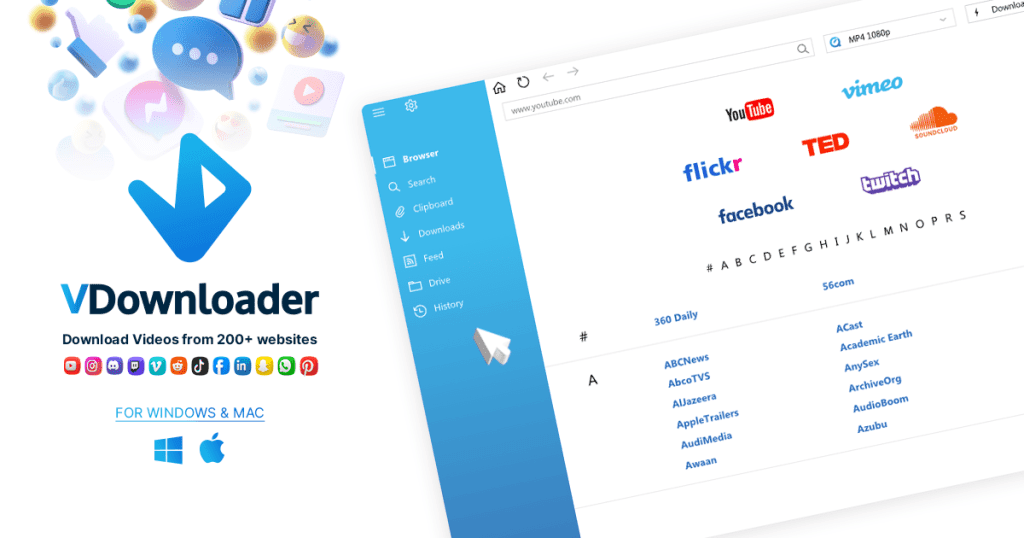
How to Download YouTube Videos Using VDownloader
Here’s a step-by-step guide to help you download videos from YouTube quickly and efficiently using VDownloader:
Step 1: Download and Install VDownloader
Visit the official website: https://vdownloader.com
Click “Download for Windows” and follow the installation steps. It’s lightweight and installs in under a minute.
⚠️ Always download from the official site to avoid counterfeit or adware-laced versions.
Step 2: Copy the YouTube Video URL
Go to YouTube and open the video you want to save. Copy the video URL from the browser’s address bar.
Example: https://www.youtube.com/watch?v=dummyvideo123
Step 3: Paste the Link in VDownloader
Open VDownloader and paste the copied link into the search/download bar. The software will automatically analyze the URL and show available formats and resolutions.
Step 4: Choose Format, Quality & Destination
Select your desired output format (MP4 for video, MP3 for audio), preferred resolution (such as 1080p or 4K), and the folder where you want the file saved.
VDownloader also offers options like:
- Auto-conversion after download
- Batch downloading of playlists or multiple URLs
Step 5: Click Download
Once your settings are confirmed, hit the “Download” button. You can monitor progress via the download manager panel and even pause/resume as needed.
Customizing Download Settings
With VDownloader, you can tailor your downloads to fit your needs. Follow these steps:
- Access Settings: Find this option in the main menu.
- Select Format: Choose from MP4, AVI, or other formats.
- Resolution: Pick the quality, from HD to lower resolutions.
- Download Path: Set where you want to save your files.
| Setting | Options | Description |
| Format | MP4, AVI, etc. | Choose the video format. |
| Resolution | 1080p, 720p, etc. | Select the video quality. |
| Path | Device specific | Set the save location. |
>>>> Directly Download Video from Youtube>>>> The Safest Downloader for YouTube
Is VDownloader Safe to Use?
Yes, VDownloader is safe and ad-free if downloaded from the official site. It does not bundle unwanted software and offers privacy options, like proxy support and encrypted connections.
✅ Tip: Keep your antivirus on and only use legal downloads. Avoid pirated or copyrighted content.
Troubleshooting Common Issues
Encountered a snag while trying to download YouTube videos with VDownloader? Let’s iron out those wrinkles and get your downloads running smoothly with some troubleshooting tips.
Resolving Download Failures
Download failures can be a real headache. Here are steps to fix this:
- Check your internet connection. A stable connection is a must.
- Ensure the video URL is correct. Copy and paste it again if needed.
- Look for updates to VDownloader. An outdated app may cause issues.
- Clear your cache. Sometimes, this simple step can work wonders.
- Restart VDownloader. It’s the age-old fix that often does the trick.
Updating Vdownloader
Using the latest version of VDownloader is crucial:
- Open VDownloader.
- Go to the ‘Help’ or ‘About’ section.
- Check for an ‘Update’ option and select it.
- Follow the prompts to install the latest update.
- Restart the app and try downloading again.
Is VDownloader safe to use?
VDownloader is a tool designed for downloading videos from various online platforms. Its safety can be assessed by considering a few key aspects:
- Source of Download: Always download software from its official website or a reputable source to avoid potentially malicious versions.
- Reviews and Reputation: Check user reviews and ratings on trusted tech review sites to get an idea of other users’ experiences.
- Security Software: Use antivirus or antimalware software to scan the downloaded file before installation.
- Permissions: Be cautious of the permissions the software requests during installation. Unnecessary permissions could be a red flag.
- Adware/Additional Software: Some free software includes adware or additional programs. Pay attention during the installation process to opt-out of these if possible.
For a more assessment, you can look up recent user reviews, user experiences and reports from tech forums and security websites to check if there are any known issues or concerns with VDownloader.
Frequently Asked Questions
How To Download Videos From Vdownloader?
Download videos using VDownloader by following these simple steps: Install VDownloader, open the program, paste the video URL, choose the format, and click ‘Download’.
How Can I Directly Download Video From Youtube?
To directly download videos from YouTube, you can use third-party apps like 4K Video Downloader. Simply copy the video URL, paste it into the app, and click ‘Download’. Always ensure you comply with YouTube’s terms of service when downloading videos.
What Does Vdownloader Do?
VDownloader is a software tool that downloads videos from various online platforms. It allows users to save videos in different formats and resolutions for offline viewing.
Can VDownloader Helps You Download Videos Off The Internet?
Yes, VDownloader is designed to help users download videos from various online platforms, such as YouTube, Vimeo, Facebook, and many others. It typically offers the following features:
- Video Downloading: Allows you to download videos in different formats and resolutions, depending on the source platform.
- Batch Downloading: Supports downloading multiple videos at once.
- Conversion: Converts videos into various formats suitable for different devices and purposes.
- Playlist Downloading: Enables downloading entire playlists from platforms that support this feature.
- Scheduling: Some versions may offer the ability to schedule downloads at specific times.
When using VDownloader or any similar tool, be mindful of the legal and ethical considerations, such as respecting copyright laws and the terms of service of the websites from which you are downloading content.
Is Downloading YouTube Videos Legal?
According to YouTube’s Terms of Service, downloading videos is only allowed if:
- The video is available for offline use via YouTube Premium
- It is in the public domain
- The creator has granted permission or licensed it under Creative Commons
Always ensure your use complies with copyright laws.
Why Use VDownloader Over Browser Tools?
- Higher resolutions & better quality support
- Supports full channel or playlist downloads
- Background downloading without interrupting browsing
- Supports multiple platforms, not just YouTube
- Built-in conversion and compression tools
These advantages make VDownloader ideal for power users, educators, marketers, and content archivers.
Final Thoughts
If you’re looking for a reliable, professional-grade YouTube downloader, VDownloader is a top choice. With its user-friendly interface, broad format compatibility, and support for ultra-HD video, it’s the perfect tool for anyone who needs to save online videos for offline use. Whether you’re prepping for a presentation, collecting training material, or simply building your offline media library, VDownloader gets the job done efficiently.
Pro Tip: Upgrade to the VDownloader Pro version for advanced features like unlimited downloads, higher speeds, and ad-free experience.