
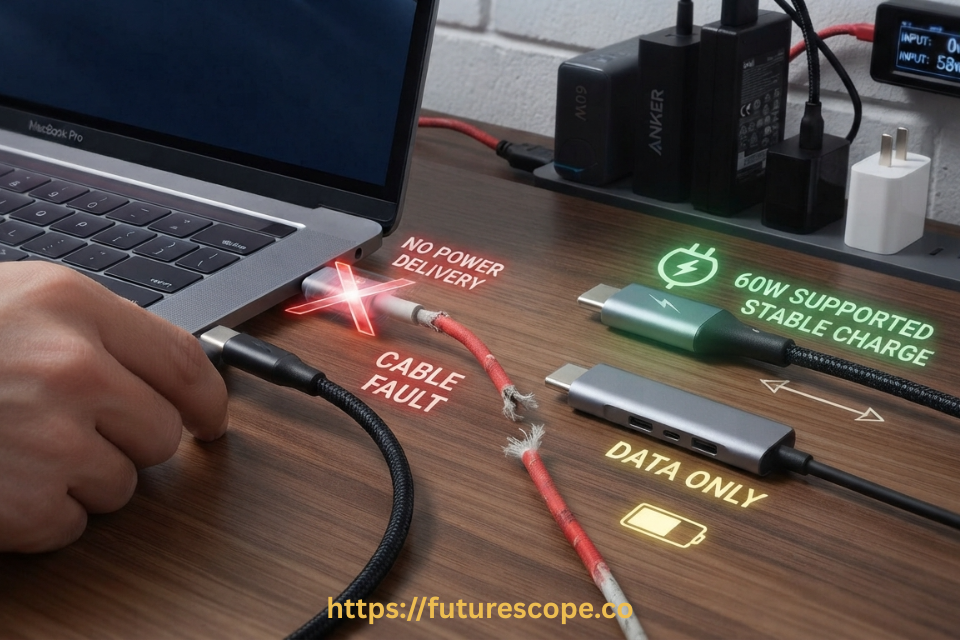

USB-C was supposed to be the cable that ends all cable confusion. One connector shape for phones, laptops, headphones, and everything in between. And for the most part, that’s true. But when it comes to actually charging a laptop, plugging in any random USB-C cable and expecting full, fast charging is where things can go wrong.
The short answer is: not every USB-C cable can charge every laptop, at least not properly. Here’s why that shape doesn’t tell the whole story, and how to pick a cable that actually works for your setup.
The Connector Doesn’t Guarantee the Capability
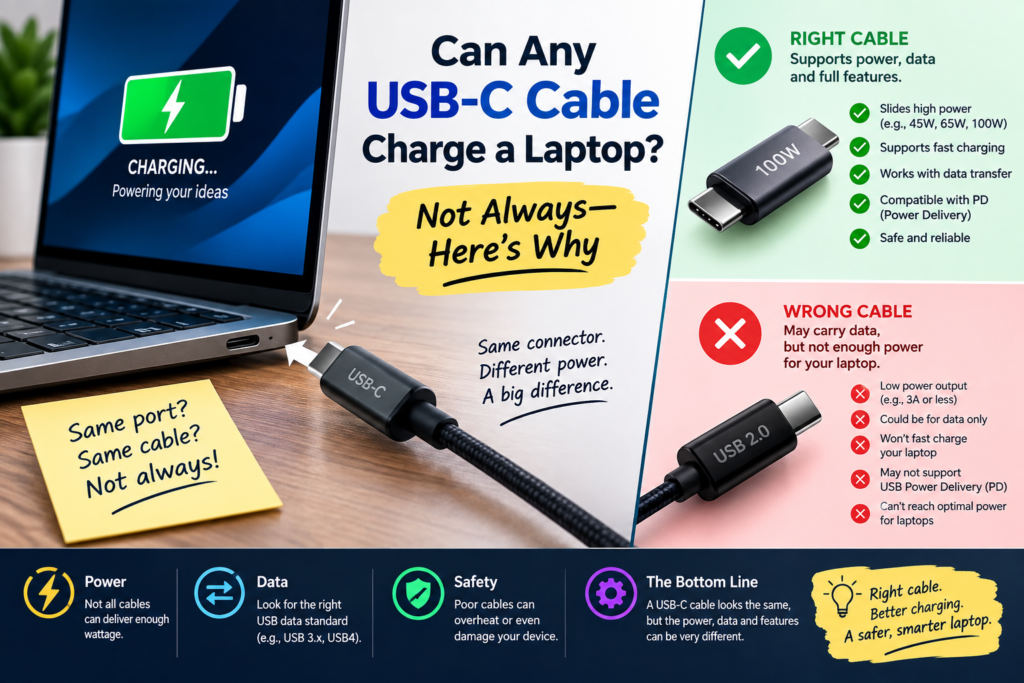
USB-C refers to the physical shape of the connector, the reversible oval plug that’s replaced older USB shapes. But that shape says nothing about what the cable can actually do inside.
- Two cables can look completely identical and still support very different power levels.
- Some USB-C cables are built mainly for charging phones or transferring data, not for pushing enough power to run and charge a laptop.
- There’s no visual way to tell a cable’s power rating just by looking at it, which is exactly why this mix-up happens so often.
USB Power Delivery: The Feature That Makes Laptop Charging Possible
Laptops generally need more power than phones or tablets, and that’s where USB Power Delivery, or USB PD, comes in. USB PD is a charging standard that allows a cable, charger, and device to communicate and agree on how much power to send.
- Without USB PD support, a cable may only deliver a small amount of power, enough for a phone but not nearly enough for a laptop.
- USB PD allows for higher wattages, which is what lets USB-C charge power-hungry devices like laptops in the first place.
- All three parts of the setup (cable, charger, and laptop) need to support USB PD for higher-power charging to actually happen.
Cable Power Ratings: 60W, 100W, and Beyond
USB-C cables are built to handle different maximum power levels. The most common ratings you’ll see are:
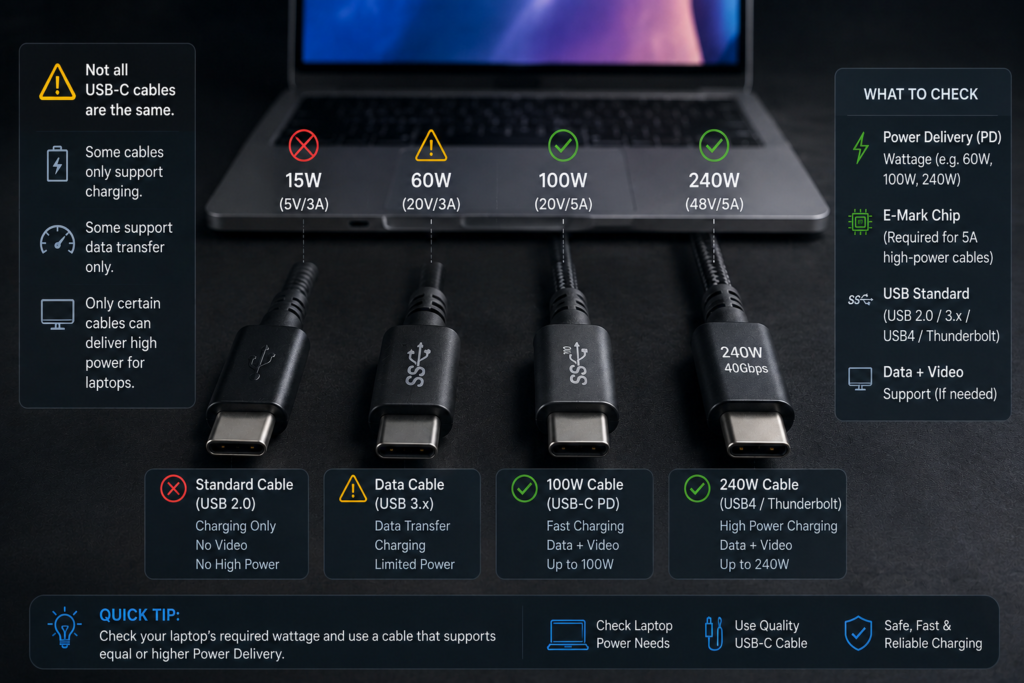
- 60W cables. These are common with standard USB-C cables and work fine for smaller laptops, tablets, and most phones, but they can bottleneck a larger laptop that needs more power.
- 100W cables. These are the standard for most higher-power laptops and are usually labeled as such by the manufacturer.
- 140W and higher cables. Found with some newer, more power-hungry laptops, these require cables specifically rated for that higher wattage.
If your laptop needs 100W to charge properly, but you’re using a cable only rated for 60W, it will still work, just not to its full potential.
How Voltage, Current, and Wattage Actually Affect Charging
You don’t need an electronics degree to understand this part. Just three simple building blocks:
- Voltage is the pressure pushing power through the cable.
- Current is the amount of power flowing at any given moment.
- Wattage is voltage multiplied by current, and it’s the number that really matters for charging speed.
A cable rated for lower wattage simply can’t carry as much power, regardless of what your charger is capable of providing. Think of it like a garden hose: even with full water pressure at the source, a thin, narrow hose limits how much water actually gets through.
Why Some Cables Are Built Mainly for Data, Not Power
Not every USB-C cable is designed with charging in mind. Some are built primarily to transfer data quickly between a phone and computer, or to connect an accessory, and only support minimal charging power as a side feature.
- These cables often come bundled with phones, USB drives, or accessories, and quietly get repurposed as laptop chargers because the connector fits.
- A data-focused cable might handle file transfers perfectly while still being a poor choice for charging anything larger than a phone.
- If a cable doesn’t list a wattage or power rating anywhere, it’s often a sign it wasn’t built with higher-power charging in mind.
Cable Quality, Length, and the E-Marker Chip
A few physical factors also affect how much power a cable can safely handle.
- Build quality matters. Thicker internal wiring and better shielding allow a cable to carry more power safely and consistently.
- Length plays a role too. Longer cables generally need thicker wiring to maintain higher power levels, which is why some long cables are limited to lower wattages.
- Cables rated above 60W are required to include a small chip called an e-marker. This chip tells your charger and laptop exactly how much power the cable can safely handle, allowing them to negotiate the right amount.
- A cable without an e-marker chip will typically be capped at 60W, no matter how capable your charger or laptop is.
The Charger and Laptop Also Have to Support the Power You Need
A great cable alone isn’t enough. Charging speed depends on all three parts of the setup working together.
- The charger needs to be capable of outputting the wattage your laptop requires. A 30W charger simply can’t push 100W, no matter what cable you use.
- The laptop’s USB-C port needs to support charging at that power level in the first place, since not all USB-C ports on a laptop are built for charging.
- The cable, charger, and laptop essentially negotiate with each other, and the final charging speed is limited by whichever part supports the lowest power level.
What Happens When a Cable Can’t Provide Enough Power?
Using an underpowered cable doesn’t usually damage your laptop, but it does create some noticeable downsides:
- Slow charging. The battery fills up much more slowly than it should.
- Charging while idle only. Some laptops will charge slowly when off or sleeping but fail to gain charge at all while you’re actively using demanding programs.
- Battery drain during use. If the laptop is drawing more power than the cable can supply, the battery can actually drain even while it’s plugged in.
- Reduced performance. Some laptops automatically limit processing speed when they detect insufficient charging power, to balance performance with battery health.
How to Check Your Laptop’s Charging Requirements?
Before buying a cable, it only takes a few minutes to find out exactly what your laptop needs.
- Check the original charger that came with your laptop. The wattage is usually printed directly on the charger’s label.
- Look in your laptop’s settings or specifications page, often under Battery or Power settings, for its charging wattage.
- Search the manufacturer’s website using your laptop’s exact model number for official charging specifications.
- Once you know the wattage your laptop needs, choose a cable rated for that amount or higher.
Practical Tips for Buying and Using USB-C Cables
- Buy from reputable brands. Established cable and electronics brands are more likely to accurately label wattage and include proper safety components.
- Look for the wattage printed on the cable or its packaging, rather than assuming based on price or appearance.
- Match the cable to your highest-power device. If you use one cable across multiple gadgets, choose one rated for your most demanding device.
- Keep an eye on cable condition. Fraying, exposed wiring, or a loose connector are signs it’s time to replace a cable, regardless of its original rating.
- When in doubt, check reviews or product pages mentioning USB PD and wattage specifically, rather than just the words “fast charging.”
Frequently Asked Questions
Can a 60W USB-C cable charge a 100W laptop?
It can charge it, but only up to 60W, even if your charger and laptop both support 100W. This usually means slower charging, and possibly no charging gains at all during heavy use.
Can a 100W USB-C cable charge any laptop?
It can charge most laptops, but the actual charging speed still depends on your charger’s output and your laptop’s maximum supported wattage. A 100W cable simply won’t be the bottleneck in that setup.
Does every USB-C laptop support USB Power Delivery?
No. Some laptops with USB-C ports are designed only for data transfer or video output on that port and use a separate, proprietary connector for charging. Always check your laptop’s specifications to confirm USB PD support.
Do USB-C cables affect charging speed?
Yes, significantly. A cable’s wattage rating, build quality, and whether it includes an e-marker chip all directly affect how much power it can safely deliver, which in turn affects charging speed.
What is an e-marker chip?
It’s a small chip built into higher-power USB-C cables that communicates the cable’s power rating to your charger and laptop. It’s required for any cable rated above 60W, and without it, charging is typically capped at 60W.
Can a USB-C cable damage a laptop?
A reputable, properly rated cable is safe to use. Damage is more of a concern with poorly made, uncertified cables that lack proper safety components. Using an underpowered cable won’t damage your laptop, though it will charge more slowly.
How do I know how many watts my laptop needs?
Check the wattage printed on your laptop’s original charger, look in your laptop’s power or battery settings, or search the manufacturer’s website using your exact model number.
Is a Thunderbolt or USB4 cable better for laptop charging?
Thunderbolt and USB4 cables often support higher power levels and faster data speeds, and they typically include an e-marker chip. They can be a solid choice, but you still need to confirm the specific cable’s wattage rating rather than assuming based on the Thunderbolt or USB4 label alone.
Check Before You Charge
A USB-C cable that fits your laptop’s port isn’t automatically the right one for the job. Wattage ratings, USB PD support, and e-marker chips all play a real role in whether your laptop charges quickly, slowly, or barely at all. Before you rely on any USB-C cable for your laptop, take a few minutes to check your laptop’s power needs, confirm your charger can meet them, and pick a cable rated to match. It’s a small step that saves you from slow charging, guesswork, and unnecessary frustration down the road.