

Yes, you can connect a fibre optic cable to a wireless router. You need a modem or ONT to do so.
As internet speeds continue to evolve, fiber optic broadband is becoming the gold standard for ultra-fast and reliable internet connections. Many users often wonder: Can I connect a fibre optic cable directly to my wireless router? The answer isn’t as straightforward as a simple yes or no—it depends on the type of router, the fiber setup, and the kind of connection your ISP (Internet Service Provider) provides.
Fibre optic broadband require a modem or Optical Network Terminal (ONT) to connect to your wireless router. This setup ensures that the ultra-fast fibre optic internet can be distributed wirelessly throughout your home. The modem or ONT converts the fibre optic signal into a form that your router can understand.
Most modern routers are compatible with fibre optic connections, but always check compatibility before purchasing. Setting up your fibre optic connection properly will maximize your internet speed and reliability. It is essential for seamless streaming, gaming, and other high-bandwidth activities.
This article explains in detail how fiber optic connections work with wireless routers, what equipment you need, and how to set it up properly.
What Are Fibre Optic Cables and How Do They Work?
Fibre optic cables are the backbone of modern internet infrastructure. They deliver faster and more reliable connections than traditional cables. Understanding their importance can help you make better decisions for your home network.
Basics Of Fibre Optics
Fibre optic cables use light to transmit data. This method allows for high-speed data transfer over long distances. These cables are made of thin strands of glass or plastic.
Light travels through these strands, carrying data in the form of photons. This is different from copper cables, which use electrical signals. Fibre optic cables are less prone to interference and signal loss.
Understanding Fiber Optic Internet
Fiber optic internet transmits data using light through glass or plastic fibers, allowing for gigabit speeds, low latency, and high bandwidth—ideal for 4K streaming, gaming, and smart homes. Unlike DSL or cable connections, fiber requires specialized hardware to convert light signals into data your devices can use.
Benefits Of Using Fibre Optics
High-Speed Internet: Fibre optics offer much faster speeds than traditional cables. This is essential for activities like streaming and gaming.
Reliable Connection: Fibre optic cables provide a more stable connection. They are less affected by weather and electromagnetic interference.
Long Distance Transmission: These cables can transmit data over long distances without losing signal quality. This makes them ideal for both urban and rural areas.
Future-Proof: Fibre optic technology is continually evolving. Investing in fibre optics ensures your network is ready for future advancements.
| Feature | Fibre Optic Cable | Copper Cable |
|---|---|---|
| Speed | High | Medium |
| Reliability | High | Low |
| Distance | Long | Short |
| Interference | Low | High |
Understanding Wireless Routers
Wireless routers are essential for connecting multiple devices to the internet. They enable wireless communication within a home or office. Understanding wireless routers is crucial for setting up an efficient network.
Types Of Wireless Routers
There are different types of wireless routers. Each type offers unique features.
- Single-Band Routers: Operate on one frequency band, usually 2.4 GHz.
- Dual-Band Routers: Use both 2.4 GHz and 5 GHz bands. They offer better performance.
- Tri-Band Routers: Include a third band for more connected devices. They provide the best performance.
Functions Of A Wireless Router
Wireless routers serve multiple functions. They manage network traffic and provide security.
| Function | Description |
|---|---|
| Routing Data | Directs data between devices and the internet. |
| Wireless Connectivity | Enables wireless connections for multiple devices. |
| Network Security | Provides firewalls and encryption to protect data. |
| Quality of Service (QoS) | Prioritizes traffic to ensure smooth performance. |
Choosing the Right Router for Fibre Optic Internet
Not all routers are equal when it comes to fibre optic connections. For the best performance:
- Opt for Wi-Fi 6 or 6E: These standards support speeds up to 6 Gbps and handle multiple devices efficiently.
- Check Port Speeds: Ensure the router has gigabit or multi-gig WAN and LAN ports to match fibre’s potential.
- Consider MU-MIMO: Multi-user, multiple-input, multiple-output technology improves performance for busy networks.
- Verify ISP Compatibility: Confirm the router supports your ISP’s protocols (e.g., VLAN tagging for IPTV). If unsure, consult your ISP or choose a router recommended for fibre, like the TP-Link Archer AX6000.
What Is an ONT and Why Is It Needed?
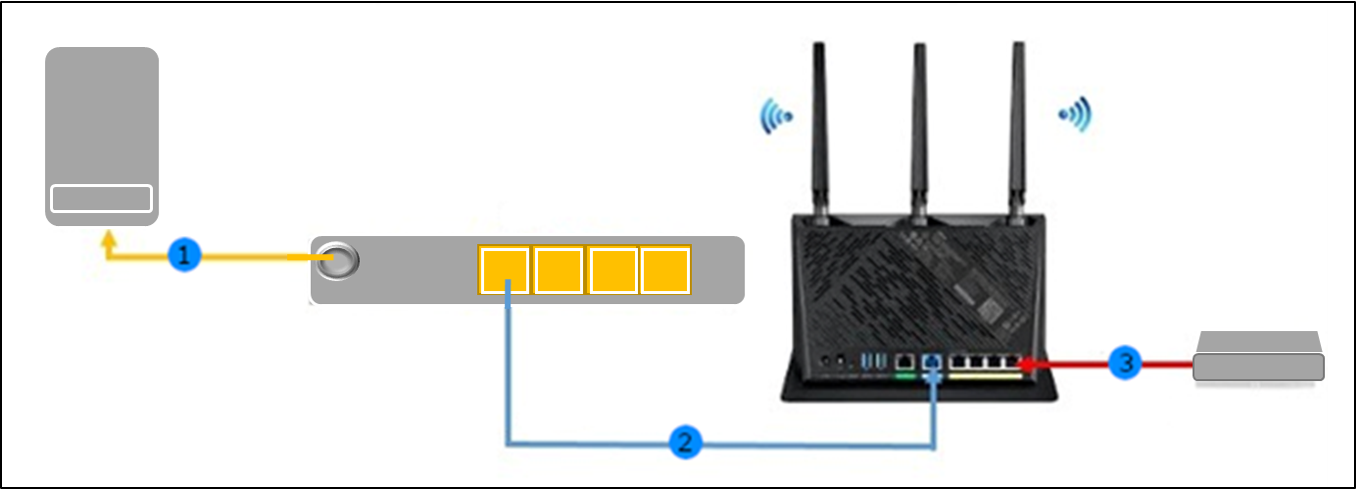
An ONT (Optical Network Terminal) is provided by your ISP and acts as a modem for fiber optics. It converts the optical signal into an RJ45 Ethernet output that your wireless router can understand. ONTs are typically wall-mounted or included as part of your ISP’s installation package.
Some advanced routers, like enterprise-grade models or high-end Ubiquiti/Netgear routers, support SFP modules that allow direct fiber connections—but these are rare and usually overkill for average users.

How to Connect Fiber Internet to a Wireless Router (Step-by-Step)?
Connecting a fibre optic cable to a wireless router improves internet speed. It offers faster and more reliable connections. This setup involves specific steps and equipment.
Required Equipment
To connect a fibre optic cable to your router, you need:
- Fibre Optic Cable – The main connection for high-speed internet.
- ONT (Optical Network Terminal) – Converts fibre signals to digital signals.
- Wireless Router – Distributes the internet to your devices.
- Ethernet Cable – Connects the ONT to the router.
- Power Supply – Powers the ONT and router.
Step-by-step Guide
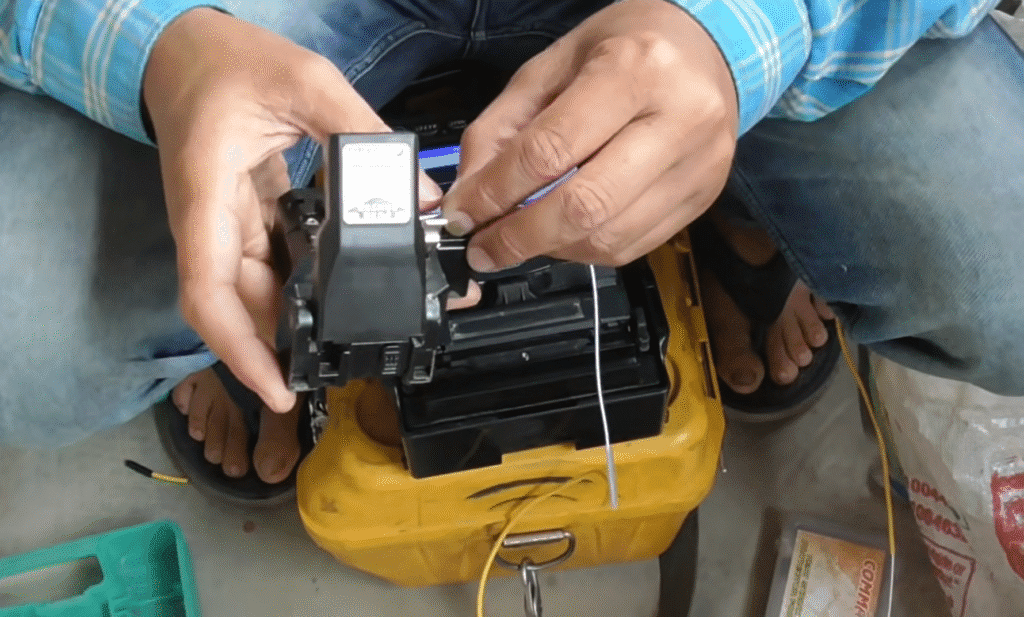
ISP installs fiber line & ONT
- This is done professionally using FTTH (Fiber-to-the-Home) setup.
Connect Ethernet cable from ONT to router’s WAN port
- Use a high-quality CAT6 or CAT5e cable for best performance.
Power on your wireless router
- Wait for it to initialize and recognize the WAN input.
Configure router settings (if needed)
- Login to the router dashboard via IP (usually 192.168.0.1 or 192.168.1.1)
- Set up PPPoE credentials if required by your ISP
Start using Wi-Fi or connect via LAN
- Enjoy blazing-fast fiber speeds across all your devices.
If the connection works, you are all set. Enjoy your high-speed internet!
Advantages Of Fibre Optic Connection
Connecting a fibre optic cable to your wireless router brings many benefits. It can enhance your internet experience significantly.
Enhanced Speed
Fibre optic connections offer much faster speeds. This is because they use light signals. These signals travel incredibly fast. Traditional cables cannot match this speed. Faster speeds mean quicker downloads and uploads. This is especially important for streaming and online gaming.
Improved Reliability
Fibre optic cables are more reliable. They are less prone to interference. This means a more stable connection. Weather conditions do not affect them as much. So, you get consistent performance. Fibre optics also have a longer lifespan. This makes them a great investment.
Common Mistakes to Avoid
- Don’t try to force fiber connectors into Ethernet ports – Fiber connectors like SC or LC are physically incompatible with router ports
- Don’t skip the ONT – Unless you have a router with a fiber SFP port, the ONT is mandatory
- Check your ISP’s requirements – Some ISPs use VLAN tagging or PPPoE that require router configuration
Troubleshooting Common Issues
Connecting a fibre optic cable to a wireless router can be tricky. Users often face connection problems and performance issues. This guide will help troubleshoot these common issues effectively.
Connection Problems
Sometimes, the fibre optic cable does not connect to the wireless router properly. Here are a few steps to resolve this:
- Check the physical connections: Ensure all cables are securely plugged in.
- Verify the router settings: Access the router’s settings page. Ensure it is configured for a fibre optic connection.
- Restart the router: Power off the router for a few seconds. Turn it back on.
- Inspect the fibre optic cable: Look for any visible damage. Replace if necessary.
If the connection issue persists, it might be a hardware problem. Consider contacting your ISP for further assistance.
Performance Issues
Even after a successful connection, you might experience slow internet speeds. Here are some steps to troubleshoot performance issues:
- Check for interference: Ensure the router is placed away from other electronic devices.
- Update the router firmware: Visit the manufacturer’s website for the latest firmware update.
- Limit connected devices: Too many devices can slow down your network. Disconnect unnecessary devices.
- Use a wired connection: For critical tasks, connect your device directly to the router using an Ethernet cable.
These steps should help improve your internet speed. Consistent performance issues might indicate a need for a router upgrade or ISP support.
Tips for Optimizing Your Fibre Optic Router Setup
- Centralize the Router: Place the router in an open, elevated location to maximize Wi-Fi coverage.
- Update Firmware: Regularly update your router’s firmware to improve performance and security.
- Secure the ONT: Keep the ONT in a well-ventilated, accessible area to prevent overheating or accidental damage.
- Use Quality Cables: Invest in high-quality Ethernet cables and avoid bending fibre optic cables beyond their minimum radius to prevent signal loss.
- Monitor Performance: Use speed test tools to ensure you’re getting the speeds promised by your ISP.
Frequently Asked Questions
Can You Plug Fiber Optic Cable Directly Into a Router?
No, you typically cannot plug a raw fiber optic cable directly into a standard wireless router. Most consumer-grade routers do not have a built-in fiber port (SFP module or optical interface). Instead, the fiber cable connects to an ONT (Optical Network Terminal)—a device that translates the fiber signal into Ethernet.
The connection process usually looks like this:
Fiber Line → ONT → Ethernet Cable → Wireless Router
So, while your router can manage your Wi-Fi and internal network, it needs the ONT to interface with the fiber connection.
Can You Connect Fiber Optic To A Wireless Router?
Yes, use a fiber optic modem to connect to the router.
What Equipment Is Needed For Fiber Optic Internet?
A fiber optic modem and a compatible wireless router are required.
Do I Need A Special Router For Fiber Optic?
Yes, ensure the router supports high-speed fiber optic connections.
How Do You Set Up Fiber Optic Internet?
Connect the fiber optic modem to the router, then configure the network settings.
What If My Router Doesn’t Support Fiber Internet?
If your existing router doesn’t support gigabit Ethernet or doesn’t have a WAN port, you may experience bottlenecks. In that case:
- Upgrade to a dual-band gigabit router
- Choose routers with 1 Gbps+ WAN ports and Wi-Fi 6/6E support
- Brands like TP-Link, ASUS, Netgear, and Linksys offer fiber-compatible routers under $100
Conclusion
Connecting a fibre optic cable to a wireless router boosts internet speed and stability. Ensure compatibility between devices for optimal performance. Proper installation is crucial for achieving desired results. Enjoy faster internet and improved connectivity with the right setup. Your online experience will be significantly enhanced with this upgrade.