Windows Ink Workspace is a feature in Windows 10 for pen-enabled devices. Disable it via Settings > Devices > Pen & Windows Ink.
Windows Ink Workspace enhances productivity for users with stylus-equipped devices by offering tools like sticky notes, sketchpad, and screen sketch. It allows for quick and easy note-taking, drawing, and annotating. Users can access these features directly from the taskbar. Some users might find it unnecessary or distracting, preferring a cleaner interface.
Disabling Windows Ink Workspace can also save system resources and reduce background processes. Follow simple steps in the Settings menu to turn off this feature. This guide will show you how to disable Windows Ink Workspace efficiently.
About Windows Ink Workspace
Windows Ink Workspace is a feature in Windows 10. It allows users to write, draw, and annotate using a digital pen. This feature makes it easy for artists, students, and professionals to express their ideas.
Purpose And Features
The main purpose of Windows Ink Workspace is to enhance productivity. It offers several tools that make writing and drawing easy:
- Sticky Notes: Create and organize notes quickly.
- Sketchpad: Draw or sketch with various pen options.
- Screen Sketch: Capture your screen and annotate it.
These tools help users to brainstorm, plan, and illustrate ideas. Windows Ink Workspace also integrates with apps like OneNote and Microsoft Edge.
Supported Devices
Not all devices support Windows Ink Workspace. Here are the types of devices that do:
| Device Type | Example Models |
|---|---|
| Tablets | Microsoft Surface Pro, Surface Go |
| 2-in-1 Laptops | HP Spectre x360, Lenovo Yoga |
| Touchscreen PCs | Dell XPS, Acer Aspire |
To use these features, you need a compatible pen. Microsoft Surface Pen and Wacom Bamboo Ink are popular choices.
Benefits Of Using Windows Ink Workspace
Windows Ink Workspace is a set of tools for pen-enabled devices. It offers many benefits for users. Let’s explore how it can boost productivity and creativity.
Productivity Enhancements
Windows Ink Workspace boosts productivity for many users. It allows quick note-taking with Sticky Notes. The Screen Sketch tool lets users capture and annotate screenshots easily.
- Sticky Notes: Quickly jot down ideas or tasks.
- Screen Sketch: Capture and annotate screenshots.
- Sketchpad: Draw and brainstorm freely.
These tools help you manage tasks efficiently. They make multitasking easier and more effective.
Creative Applications
Windows Ink Workspace offers many creative tools. Artists and designers can benefit greatly. Sketchpad is perfect for digital drawing.
- Sketchpad: Ideal for digital sketches and drawings.
- Screen Sketch: Annotate images and create visual notes.
These tools allow creative expression and innovation. They provide a digital canvas for various creative activities.
Windows Ink Workspace enhances both productivity and creativity. It offers versatile tools for different needs. Users can benefit from its features in multiple ways.
Common Issues With Windows Ink Workspace
Windows Ink Workspace is a powerful tool for digital note-taking and drawing. But, it comes with its own set of problems. Users often face performance issues and compatibility problems. These issues can hinder the overall user experience.
Performance Concerns
One major concern is performance. Many users report that Windows Ink Workspace can slow down their system. This is especially true for older hardware. The tool consumes a significant amount of system resources. This can lead to lag and unresponsiveness. Users often notice a delay in pen input. This makes the tool less effective for real-time tasks.
Another performance issue is battery drain. Windows Ink Workspace can consume a lot of power. This is especially problematic for laptop users. The constant background processes can lead to faster battery depletion. Users may find their devices running out of power quickly.
Compatibility Problems
Compatibility is another major issue. Many users face problems with incompatible devices. Some older styluses do not work well with Windows Ink Workspace. This limits the functionality of the tool. Users may need to buy new hardware.
Software compatibility is also a concern. Some applications do not support Windows Ink Workspace. This can be frustrating for users who rely on specific software. They may not be able to use the tool as intended. This limits its overall usefulness.
Below is a table summarizing the common issues:
| Issue | Description |
|---|---|
| Performance | Slows down system, causes lag, battery drain |
| Compatibility | Incompatible devices and software |
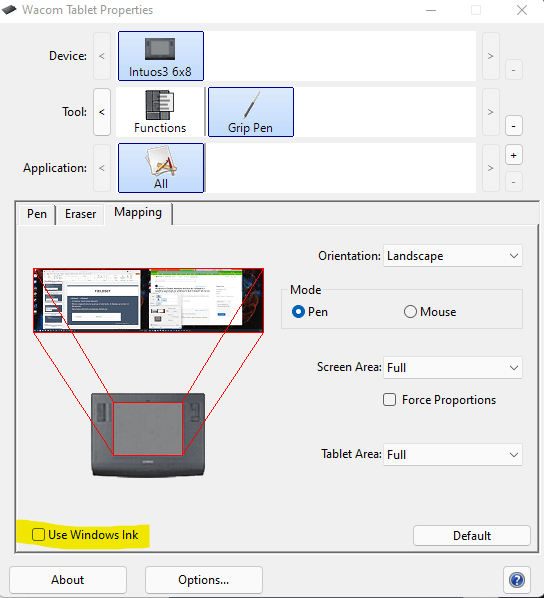
How to disable Windows ink on Windows 11?
Windows Ink Workspace is a feature in Windows 10 designed for touch and stylus interactions. It provides tools like Sticky Notes, Sketchpad, and Screen Sketch. Some users may want to disable it for various reasons. Below are the steps to disable Windows Ink Workspace using different methods.
Method 1: Using Group Policy Editor
The Group Policy Editor is a powerful tool for managing system settings. Follow these steps to disable Windows Ink Workspace:
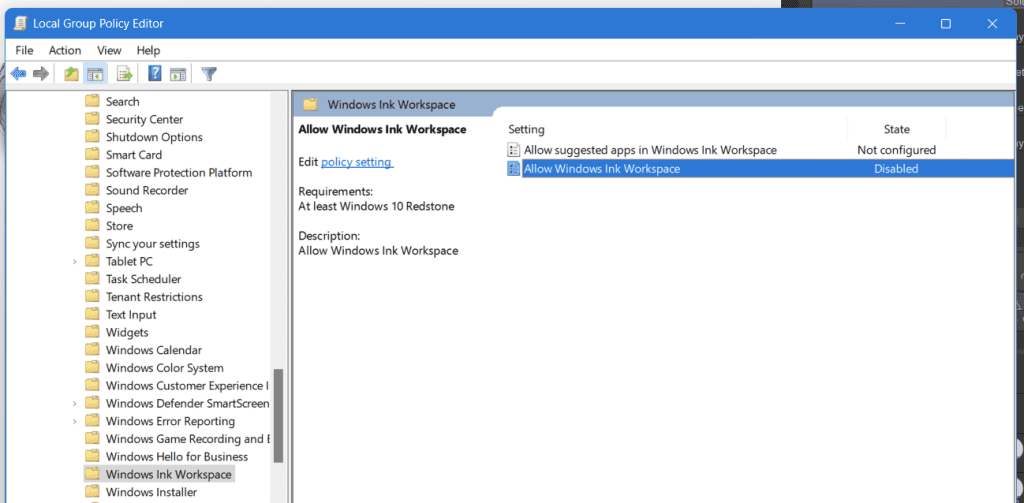
- Press Win + R to open the Run dialog.
- Type
gpedit.mscand press Enter. - Navigate to
Computer Configuration > Administrative Templates > Windows Components > Windows Ink Workspace. - Double-click on Allow Windows Ink Workspace.
- Select the Disabled option and click Apply.
- Click OK to save your changes.
Method 2: Using Registry Editor
For those who prefer the Registry Editor, follow these steps:
- Press Win + R to open the Run dialog.
- Type
regeditand press Enter. - Navigate to
HKEY_LOCAL_MACHINE\SOFTWARE\Policies\Microsoft\WindowsInkWorkspace. - Right-click on the right pane and select New > DWORD (32-bit) Value.
- Name it
AllowWindowsInkWorkspace. - Double-click on
AllowWindowsInkWorkspaceand set its value to 0. - Click OK to save your changes.

By following these steps, you can easily disable Windows Ink Workspace using either the Group Policy Editor or the Registry Editor. This ensures a more streamlined experience for users who don’t need this feature.
Alternative Tools And Solutions
Exploring alternatives to Windows Ink Workspace can help you find better solutions. There are various options available that may suit your needs perfectly.
Third-party Applications
Third-party applications offer powerful features to replace Windows Ink Workspace. Here are some popular options:
- Adobe Photoshop: Great for drawing and editing.
- CorelDRAW: Ideal for professional designers.
- Autodesk SketchBook: Suitable for artists and illustrators.
These applications provide more advanced tools compared to Windows Ink Workspace. They are designed for specific tasks, making them more efficient for certain users.
Built-in Windows Features
Windows itself offers built-in features that can serve as alternatives. Here are some:
- Snip & Sketch: Useful for quick annotations and screenshots.
- Microsoft OneNote: Excellent for note-taking and organizing ideas.
- Paint 3D: A good choice for basic 3D modeling and drawing.
These built-in tools are easy to use and come pre-installed. They provide sufficient functionality for basic tasks without needing third-party software.
Frequently Asked Questions
What Is Windows Ink Workspace?
Windows Ink Workspace is a feature in Windows 10 for stylus and touch input.
How Does Windows Ink Workspace Work?
It provides tools like Sticky Notes, Sketchpad, and Screen Sketch for pen input.
Why Disable Windows Ink Workspace?
Disabling it can improve system performance and prevent accidental pen input.
How To Disable Windows Ink Workspace?
Go to Settings > Devices > Pen & Windows Ink, and turn off the Workspace option.
Conclusion
Disabling Windows Ink Workspace can enhance your device’s performance and reduce clutter. Follow the steps mentioned to disable it easily. This guide helps both beginners and advanced users. For a streamlined Windows experience, consider turning off unnecessary features like Windows Ink Workspace.
Enjoy a more efficient and faster computer.