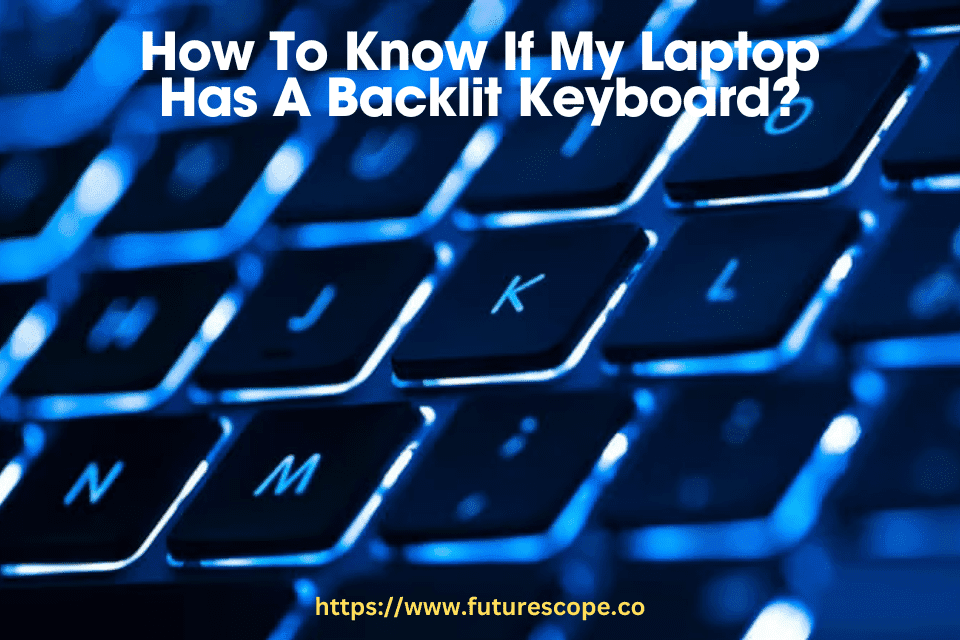

To know if your laptop has a backlit keyboard, simply look at the keyboard and check for any symbols or icons indicating keyboard backlighting.
Understanding Backlit Keyboards
A backlit keyboard is a feature on many laptop models that allows the keys to be illuminated, providing better visibility in low-light conditions. It is a useful feature for those who frequently work or play on their laptops in dimly lit environments. In this blog post, we will explore what a backlit keyboard is, the benefits it offers, and why you might want a laptop with this feature.
What is a backlit keyboard?
A backlit keyboard is a type of keyboard that has built-in illumination. It features lighting behind or underneath the keys, which can be adjusted or turned on/off according to the user’s preference. The illumination is typically provided by LED lights, allowing for different brightness levels.
Benefits of a backlit keyboard
- Improved visibility: One of the primary benefits of a backlit keyboard is improved visibility, especially in low-light or dark environments. The illuminated keys make it easier to find and press the correct keys, reducing eye strain and improving accuracy.
- Atmospheric aesthetic: Backlit keyboards add a visually appealing element to your laptop. The soft glow from the keys can create a stylish and modern look, enhancing the overall aesthetic of your device.
- Work/play in any lighting condition: Whether you’re working late at night or gaming in a dark room, a backlit keyboard ensures that you can see the keys clearly and continue with your tasks without any hindrance.
- Customization options: Some backlit keyboards offer customizable lighting effects and colors. This allows users to personalize their keyboard’s appearance and create a unique and personalized setup.
- Enhanced productivity: With a backlit keyboard, you can work or type more efficiently in low-light conditions. The improved visibility can help speed up tasks, reduce errors, and increase overall productivity.
Why you might want a laptop with a backlit keyboard?
If you often find yourself working or using your laptop in environments with poor lighting, a laptop with a backlit keyboard can greatly enhance your user experience. It allows you to comfortably use your laptop without straining your eyes or struggling to see the keys.
Additionally, a backlit keyboard can be a beneficial feature for those who value aesthetics and want to add a stylish touch to their laptop setup. The ability to customize the lighting effects and colors can also provide a unique and personalized visual experience.
In conclusion, a laptop with a backlit keyboard offers improved visibility, an appealing aesthetic, and enhanced productivity. Consider this feature when choosing your next laptop to ensure a comfortable and efficient computing experience, even in low-light conditions.
Identifying Backlit Keyboards
Do you ever find yourself working late at night or in dimly lit environments, struggling to see the keys on your laptop? If so, you may benefit from a backlit keyboard. Backlit keyboards are an excellent feature that allows you to easily see the keys in low light conditions. Many modern laptops come equipped with backlit keyboards, but how do you know if your laptop has one? In this article, we will explore different methods to help you identify if your laptop has a backlit keyboard. Read on to find out more!
How to check if your laptop has a backlit keyboard
If you are unsure whether your laptop has a backlit keyboard, here are a few methods you can try to determine its presence.
Look for the backlight symbol on your keyboard
One of the easiest ways to check if your laptop has a backlit keyboard is to look for a symbol on the keyboard itself. This symbol typically looks like a sun or a light bulb, and it is usually located on one of the function keys or the space bar. Look for any keys that have a symbol similar to the ones described above. If you find the symbol, it means your laptop has a backlit keyboard.
Checking the manufacturer’s specifications
Another reliable method to find out if your laptop has a backlit keyboard is to check the manufacturer’s specifications. You can usually find this information on the manufacturer’s website or in the user manual that came with your laptop. Look for any mention of a backlit keyboard in the specifications or features section. If your laptop is listed as having a backlit keyboard, you can be confident that it does.
Using system settings to check for backlight options
If you have tried the previous methods and still aren’t sure if your laptop has a backlit keyboard, you can check the system settings on your computer. Here’s how:
- Open the “Settings” menu on your laptop.
- Click on “System” or “Device Settings.”
- Look for an option related to the keyboard or keyboard backlight settings.
- If you find an option to adjust the keyboard backlight, it means your laptop has a backlit keyboard.
By following these simple steps, you will be able to determine whether your laptop has a backlit keyboard or not. Remember, having a backlit keyboard can greatly improve your typing experience in low-light conditions, so if you often find yourself working in such environments, it may be worth considering a laptop with this feature.
Now that you know how to identify a backlit keyboard, you can make an informed decision when purchasing your next laptop. Happy typing!
Different Symbols For Backlit Keyboards
Common symbols used for backlit keyboards
Backlit keyboards are a handy feature on laptops, especially for users who often work in low-light environments. However, it can be confusing to understand the symbols used to indicate the presence of a backlit keyboard. Let’s take a look at some common symbols we may find:
| Symbol | Description |
|---|---|
| Fn + F3/F4/F5/F6 | Some laptops use function keys combined with the function numbers, such as F3, F4, F5, or F6, to control the backlight brightness levels. Pressing Fn and the respective function key adjusts the brightness accordingly. |
| Keyboard Icon with Light | This is a commonly used symbol on laptop keyboards. It usually appears on one of the function keys, such as F5, F6, or F12, and highlights a keyboard icon with a light shining beneath it. Pressing this key activates or deactivates the backlight. |
| Backlight Icon | Some laptops have a dedicated backlight button, which features an icon depicting a lightbulb or backlight. Pressing this button turns the backlight on or off. |
Understanding the different levels of brightness
Backlit keyboards often come with multiple brightness levels. These levels allow you to adjust the backlight according to your comfort and ambient lighting conditions. Here are some common terms used to describe the different brightness levels:
- Low brightness: This setting is ideal for dimly lit or completely dark environments.
- Medium brightness: A balanced setting suitable for most situations, providing enough illumination without being too bright.
- High brightness: A bright setting that is useful in brightly lit environments or for those who prefer a brighter backlight.
Special symbols for specific functions
Aside from controlling brightness, backlit keyboards may also feature special symbols for specific functions. These symbols allow you to perform actions at the touch of a button, without the need to navigate through software menus. Here are some common special symbols you may come across:
- Media control symbols: Look for symbols representing play, pause, forward, rewind, volume control, and mute buttons.
- Function lock symbol: This symbol, often represented by a padlock, allows you to lock the function keys in their secondary mode, enabling easier access to media controls, screen brightness adjustment, and more.
- Shortcut symbols: Some keyboards have symbols that indicate specific application shortcuts, such as launching email, web browsers, or calculator.
By understanding the different symbols used for backlit keyboards, you can easily identify and make the most out of this convenient feature on your laptop.
Troubleshooting Backlit Keyboards
Common issues with backlit keyboards
Backlit keyboards are a great feature for laptop users, providing convenience and ease of use in low-light environments. However, like any other technology, backlit keyboards can encounter issues that prevent them from functioning properly. Some common issues you may experience with your backlit keyboard include:
- Backlight not working
- Backlight flickering or pulsating
- Inconsistent backlight brightness
- Backlight not turning off or staying on
If you’re facing any of these problems with your backlit keyboard, don’t worry! There are several troubleshooting steps you can take to resolve these issues and get your backlight working again.
How to troubleshoot backlight not working
If your backlit keyboard is not functioning, there are a few steps you can follow to troubleshoot and fix the issue. Try these methods to get your backlight back up and running:
- Check the keyboard settings: Ensure that the backlight feature is enabled in your laptop’s settings. Navigate to the keyboard settings and make sure the backlight is turned on.
- Restart your laptop: Sometimes, a simple restart can fix minor software glitches that may be causing the backlight to malfunction.
- Fn key combination: Some laptops have a specific key combination, usually involving the Fn key, to control the backlight. Refer to your laptop’s user manual or manufacturer’s website to find the correct key combination for adjusting the backlight.
- Check hardware connections: Inspect the connection between the keyboard and the laptop. Ensure that the cable is properly connected and not damaged.
If none of these steps resolve the issue, you may need to seek professional assistance or contact your laptop’s manufacturer for further support.
Adjusting backlight brightness and timeout settings
Sometimes, you may find that your backlit keyboard’s brightness level is too high or too low. Additionally, the backlight timeout setting might be shorter or longer than you prefer. Here’s how you can adjust these settings:
- Brightness adjustment: Most laptops have dedicated function keys for adjusting brightness. Look for icons on your keyboard that resemble a sun or a light bulb. Press and hold the Fn key, then press the corresponding brightness adjustment key to increase or decrease the backlight brightness.
- Timeout settings: To change the timeout settings for your backlight, go to your laptop’s settings and navigate to the keyboard section. Look for options related to backlight timeout and adjust the duration according to your preference.
Updating keyboard drivers can also help resolve backlight issues. Make sure you have the latest keyboard drivers installed by visiting your laptop manufacturer’s website and downloading the appropriate drivers for your model.
By following these troubleshooting steps and adjusting the backlight settings, you should be able to resolve any issues you encounter with your backlit keyboard. Enjoy the convenience and functionality of your backlit keyboard, even in low-light conditions.
Alternatives For Non-Backlit Keyboards
Having a backlit keyboard on your laptop can make typing in low-light conditions much easier. However, not all laptops come with this feature. If you find yourself with a non-backlit keyboard, don’t worry – there are alternatives available to improve your typing experience. In this section, we will explore a few options to help you type efficiently even without a backlit keyboard.
External keyboard options with backlighting
If you frequently work in low-light environments but still want the convenience of a backlit keyboard, one option is to invest in an external keyboard with backlighting. These keyboards typically connect to your laptop via USB or Bluetooth and offer the flexibility of adjusting the backlight intensity or color according to your preferences.
Here are a few popular external keyboards with backlighting options:
| Keyboard | Features |
|---|---|
| Logitech K800 Wireless Illuminated Keyboard |
|
| RAZER BlackWidow Chroma Mechanical Gaming Keyboard |
|
| Microsoft Surface Keyboard |
|
Adding backlighting to your existing keyboard
If you’re not ready to invest in a new keyboard, you can consider adding backlighting to your existing laptop keyboard. Keep in mind that this option might require some technical knowledge and may not be suitable for all laptop models. Here’s a general outline of the process:
- Research your laptop model: Check if your laptop has a compatible replacement keyboard available with backlighting.
- Consult a professional: If you’re not confident in your technical skills, it’s advisable to seek professional assistance to avoid any damage to your laptop.
- Purchase a backlit keyboard: Order a compatible backlit keyboard from a reputable retailer or directly from the laptop manufacturer.
- Replace the keyboard: Follow the manufacturer’s instructions or seek professional help to replace the existing keyboard with the backlit keyboard.
Remember that this process may void your warranty, so it’s crucial to proceed with caution or consult your laptop manufacturer for advice.
How to type in low-light conditions without a backlit keyboard
If you find yourself in a situation where neither an external keyboard nor adding backlighting to your existing keyboard is a feasible option, there are still ways to type efficiently in low-light conditions. Try these alternatives:
- Use a desk lamp or portable reading light to illuminate the keyboard area.
- Increase the screen brightness to create a contrast between the keys and the background.
- Practice touch typing: By familiarizing yourself with the keyboard layout, you can type without relying solely on the backlighting.
- Use keyboard stickers: These stickers are designed to enhance visibility in low-light conditions by reflecting light.
While these alternatives may not provide the same convenience as a backlit keyboard, they can help improve your typing experience until you have access to a backlit keyboard.
The importance of a backlit keyboard for productivity and convenience cannot be overstated. Whether you are working late into the night or in a dimly lit room, a backlit keyboard can significantly enhance your typing experience. So, how can you determine if your laptop has this feature? Here are a few simple ways to find out:
1. Look for the light symbol:
One of the easiest ways to check if your laptop has a backlit keyboard is to look for a light symbol on one of your keyboard keys. Typically, this symbol looks like a tiny light bulb or a keyboard icon with rays radiating from behind it. On most laptops, this symbol is located on the F5 key. To activate the backlit keyboard, you may need to press the Fn or Fn Lock key along with the specific key with the light symbol.
2. Check your laptop’s specifications:
If you’re unable to locate the light symbol on your keyboard, another option is to check your laptop’s specifications. You can do this by going to the manufacturer’s website or referring to the user manual. Look for any mention of a backlit keyboard or keyboard illumination feature in the specifications. If your laptop does have a backlit keyboard, it should be mentioned here.
3. Use system settings:
An alternative method to verify if your laptop has a backlit keyboard is to access the system settings. On Windows laptops, you can do this by navigating to the Control Panel or Settings and searching for “Keyboard.” Within the keyboard settings, you might find an option to enable or disable the keyboard backlight. If this option is available, it confirms that your laptop does come with a backlit keyboard.
Final thoughts and recommendations:
If you discovered that your laptop does have a backlit keyboard, consider experimenting with different settings to find the brightness level that suits your preferences. Additionally, always remember to adjust the backlight intensity to conserve battery life when not needed.
Frequently Asked Questions Of How To Know If My Laptop Has A Backlit Keyboard?
Do All Laptops Have Backlit Keyboard?
Not all laptops have a backlit keyboard. To check if your laptop has this feature, look at the keyboard itself and see if there are symbols or indicators for backlighting. If you don’t see any, then your laptop does not have a backlit keyboard.
Can You Get A Backlit Keyboard On Any Laptop?
Not all laptops have a backlit keyboard. If your laptop doesn’t have one, it’s difficult to install it unless you’re a computer engineer. The laptop needs the right components and programming to operate a backlit keyboard.
How Do I Get My Laptop Keyboard To Light Up?
To check if your laptop keyboard has a backlight, look for symbols on the keyboard itself. If you see any symbols indicating a keyboard backlight, then your laptop keyboard is capable of lighting up.
How Do I Know If My Hp Laptop Keyboard Is Backlit?
To determine if your HP laptop keyboard is backlit, look at the keyboard itself. If you see symbols or icons on certain keys that resemble a lightbulb or sun, it means your keyboard is backlit.
Conclusion
To determine if your laptop has a backlit keyboard, you can simply look at the keyboard itself. Check for symbols or indicators near the function keys that resemble a glowing bulb. These symbols usually represent the presence of a backlit keyboard.
If you see these symbols, congratulations! You have a laptop with a backlit keyboard, allowing you to type comfortably even in low-light environments. Enjoy the convenience and style it brings to your laptop experience.