
You designed something beautiful on your screen. The colors glowed. The blues were electric. The greens were crisp and vivid. You hit print. And what came out of your inkjet printer looked… flat. Muddier. A different shade of everything.
This is the most common — and most preventable — frustration in printing. And it has a single root cause: the difference between how your screen creates color and how your inkjet printer creates color. One uses light. The other uses ink. They are fundamentally different systems, and until you understand that, you will keep getting surprised by your prints.
I have spent over a decade working with inkjet printers — from home desktop models to wide-format production units — and this question comes up every single week: “Do inkjet printers print in CMYK or RGB?” The short answer is CMYK. But the full answer — and the practical implications for everything you ever print — is what this guide is actually about.
| “The screen and the printer are not speaking the same language. RGB is the language of light. CMYK is the language of ink. Your job as a designer or printer user is to be the translator — and this guide teaches you how.” — Dana Kessler |
Color Printing Facts Worth Knowing in 2026
| 16.7M colors displayable on screen via RGB (24-bit) | ~1M colors reproducible in CMYK with standard inks | 300 DPI minimum recommended resolution for CMYK print output | 61% cases where Google rewrites meta tags — same principle: wrong input = wrong output |
Those numbers tell the core story. RGB displays 16.7 million colors because it is built on light — an infinitely flexible medium. CMYK reproduces approximately 1 million colors because it is built on physical ink applied to physical paper, and physics has limits. The gap between those numbers is exactly where print surprises happen — in the colors that exist beautifully on your screen but have no equivalent in ink.
Understanding this is not just academic. Every time you print a photograph, a flyer, a business card, a logo, or a product label, this color gap is either working with you or against you. Let us go through exactly how each system works, and then give you the practical rules to make them work together.
What Is CMYK? Why Inkjet Printers Use It
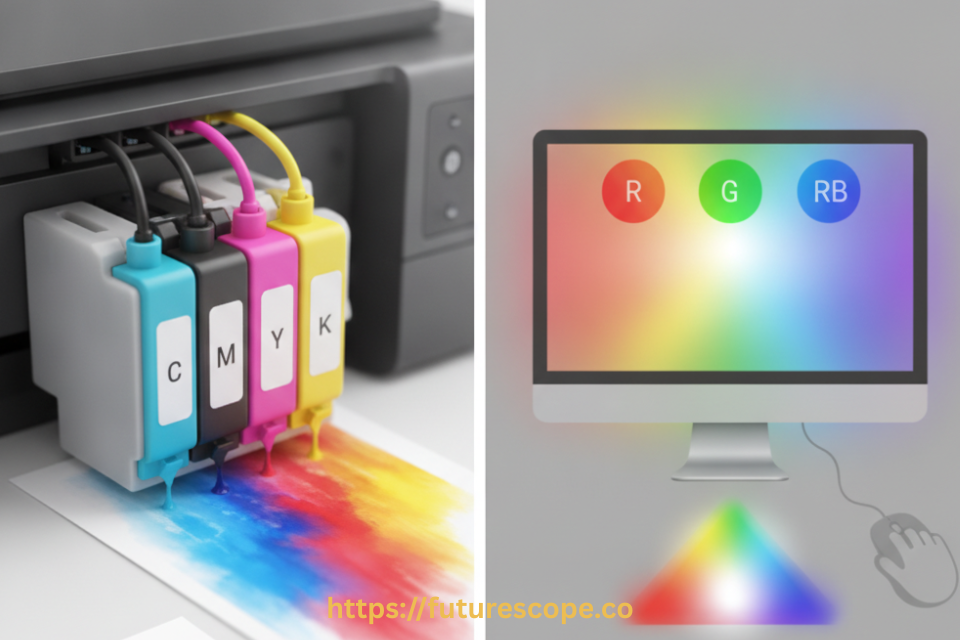
| C CYAN | M MAGENTA | Y YELLOW | K KEY (BLACK) |
CMYK stands for Cyan, Magenta, Yellow, and Key (Black). It is a subtractive color model — meaning it works by starting with a white surface (your paper) and subtracting light by layering ink on top. Each ink absorbs certain wavelengths of light and reflects others. The color you see is what is left over after the ink has done its absorbing.
Here is why the four inks are necessary:
- Cyan, Magenta, and Yellow mixed together theoretically produce black. In practice, they produce a muddy dark brown — not a true black.
- Key (Black) ink is added as the fourth channel specifically to produce deep, sharp blacks. Text, outlines, and shadow areas require true black that CMY alone cannot achieve.
- Advanced inkjet printers add even more ink channels: Canon’s PIXMA PRO range uses up to 12 inks, adding photo cyan, photo magenta, red, and blue to compensate for the limitations of pure CMY mixing and extend the printable color gamut.
When your inkjet printer receives a file, its driver software takes the color information — whether it arrives as RGB or CMYK — and converts everything into the CMYK ink percentages it will apply to the page. Those percentages are then sprayed as microscopic dots of ink — sometimes as small as 2 picoliters in precision photo printers — overlapping in patterns that your eye perceives as continuous color from a normal viewing distance.
This dot-based process is called halftoning. Larger, closely spaced dots create darker areas. Smaller, more spread-out dots create lighter shades. By varying dot size and placement with extraordinary precision, modern inkjet printers produce photo-quality output that is genuinely difficult to distinguish from a traditional chemical photograph.
What Is RGB? Why Your Screen Uses It
| R RED | G GREEN | B BLUE |
RGB stands for Red, Green, Blue. It is an additive color model — meaning it works by starting with darkness (a switched-off screen) and adding light. Each pixel in your monitor is a tiny cluster of red, green, and blue light sources that combine in varying intensities to produce every color you see.
- When all three colors are at full intensity: you see white
- When all three are off: you see black (darkness)
- When only red and green are on at full intensity: you see yellow
- By adjusting the intensity of each channel (0-255 per channel): you get 16.7 million possible colors
This is why digital cameras, smartphones, computer monitors, tablets, and televisions all use RGB. They are all light-emitting devices. RGB is the native language of light.
And this is why RGB cannot be directly printed by an inkjet printer. Paper does not emit light. It reflects it. An RGB file sent to an inkjet printer is received by the driver, converted to CMYK, and then printed. The question is whether that conversion happens intelligently (because you managed it) or automatically (because you did not — and the printer made guesses).
RGB vs CMYK: The Complete Comparison
Here is every important difference between the two color models side by side:
| Feature | RGB (Screen) | CMYK (Print) |
| Color model type | Additive — adds light to black | Subtractive — removes light from white |
| Primary colors | Red, Green, Blue | Cyan, Magenta, Yellow, Black |
| Result of all colors | White (max light) | Dark brown/black (all ink absorbed) |
| Color gamut | Very wide — millions of vivid colors | Narrower — limited by physical ink |
| Best for | Screens, monitors, digital media | Printers, physical printed materials |
| Neon/fluorescent colors | Displays beautifully | Cannot replicate — no equivalent ink |
| Color mode in design | Default in Photoshop, Canva, Figma | Must set manually for print projects |
| Black creation | Absence of all light | Separate K (black) ink cartridge |
| Who uses it | Cameras, TVs, phones, websites | Inkjet, laser, commercial printers |
The Color Gamut Guide: What Survives the Screen-to-Print Translation
Not every RGB color can be reproduced in CMYK. When a printer encounters an RGB color outside the CMYK color gamut, it performs gamut mapping — finding the closest printable equivalent. This is where color surprises happen.
| Vivid blues & purples (e.g. #0000FF) → Shift to muted navy or indigo in CMYK |
| Neon/lime green (e.g. #00FF00) → Loses intensity significantly — cannot replicate |
| Hot pinks & electric magentas → Become less vivid and electric in print |
| Neon or fluorescent tones → Do not exist in CMYK — no equivalent ink |
| Earth tones, browns, dark colors → Translate very well — minimal shift |
| Standard reds, oranges, warm tones → Translate reliably — generally safe for print |
| Expert Tip: In Adobe Photoshop, go to View > Proof Colors (Ctrl/Cmd+Y) to see a soft-proof preview of how your RGB image will look when converted to CMYK. This takes 10 seconds and can prevent hours of reprinting. |
Do Printers Prefer RGB or CMYK? The Honest Answer
Here is the nuanced truth that most generic guides miss: it depends on the printer type and the software driving it.
How Different Printer Systems Handle Color
Home inkjet printers (HP, Canon PIXMA, Epson EcoTank): The printer driver processes images in RGB by default. The Windows or macOS driver converts to CMYK internally. For casual printing — photos, documents — this works reasonably well. For professional output, you need more control.
Professional photo printers (Canon PRO-200, Epson SureColor P-series): These printers benefit significantly from ICC profile-managed color workflows. You specify the paper type and ICC profile; the driver or RIP software performs a precise, profiled conversion from RGB or CMYK to the printer’s specific ink set.
Large format printers with RIP software: These use dedicated Raster Image Processor software (RIP) that handles color conversion with precision — specifying exact ink percentages for each output condition. The RIP is the professional answer to uncontrolled auto-conversion. Commercial print shops: Always supply CMYK files. Commercial presses (offset lithography) use CMYK exclusively, and auto-converting your RGB file gives the press operator no control over the conversion. Unexpected shifts in professional print jobs almost always trace back to RGB source files.
The practical rule: always convert to CMYK manually before sending to any professional printer. Use Adobe Photoshop (Image > Mode > CMYK) or Illustrator (File > Document Color Mode > CMYK) to perform the conversion with a specific ICC profile for your paper type. This gives you control over how colors shift — rather than letting the printer decide.
Why CMYK Is the Industry Standard for All Printing?
The dominance of CMYK in inkjet and commercial printing is not arbitrary. There are specific physical and economic reasons it became — and remains — the standard:
- Physics of ink: Inks absorb light rather than emit it. The subtractive nature of CMYK matches exactly how ink behaves on paper. RGB, as a light-emission model, has no physical equivalent in the world of pigments and dyes.
- Ink economy: Using separate cyan, magenta, yellow, and black inks allows precise control over ink usage per channel. Running out of one color does not waste the others. Replacing individual ink tanks is economical.
- Industry standardization: Print shops, commercial presses, packaging manufacturers, and sign printers globally operate in CMYK. A universal color standard eliminates ambiguity between designers, clients, and printers.
- Predictability: CMYK with proper ICC profiles produces consistent, repeatable results across different print runs, different machines, and different operators — something RGB-to-auto-converted output cannot guarantee.
- Dye vs Pigment inks: CMYK works with both dye-based inks (vibrant, ideal for indoor photo prints) and pigment-based inks (UV-resistant, ideal for outdoor displays). Both ink types operate within the CMYK model.
The 5-Step Color Workflow for Perfect Inkjet Prints Every Time
| Professional Print Color Workflow Step 1 — Design in RGB first. Screens display RGB and design software like Photoshop, Illustrator, Canva, and Figma use RGB by default. Design in the medium you can see most accurately. Step 2 — Soft-proof before converting. In Photoshop: View > Proof Setup > Custom > choose your printer ICC profile. This shows you how CMYK will look before committing. Step 3 — Convert to CMYK with the right profile. Image > Mode > CMYK Color. Choose a profile matching your printer and paper (e.g., GRACoL 2013 for professional offset, or your Epson/Canon printer ICC profile). Step 4 — Adjust shifted colors. After conversion, check soft-proof highlights: brighten any colors that went muddy, reduce saturation in areas that converted poorly. Step 5 — Export at 300 DPI minimum. For professional print output, 300 DPI is the minimum. For large-format signage viewed from distance, 150 DPI may suffice. Never export at screen resolution (72-96 DPI) for print files. |
Optimizing Images For Inkjet Printing
Optimizing images for inkjet printing is vital to ensure your prints accurately reflect the vibrant colors from your digital files. Whether it’s for professional photographs, marketing materials, or personal projects, understanding how inkjet printers interpret color is the first step to outstanding print results.
Best Practices For Preparing Images
To achieve the best prints, follow these best practices:
- Choose proper color profiles: Work with the CMYK color space for accurate color reproduction.
- High-resolution images: Ensure images are at least 300 DPI for clarity.
- Correct tonal adjustments: Adjust brightness, contrast, and saturation for balance.
- Preview prints: Use soft-proofing to anticipate how colors will print on paper.
Software Tools For Color Management
Effective color management demands reliable software tools:
| Software Tool | Purpose |
|---|---|
| Adobe Photoshop | For editing and converting images to CMYK. |
| Lightroom | To manage photo libraries and color settings. |
| Printer Manufacturer Software | Custom profiles for specific printer-paper combinations. |
Select tools that align with your printer’s capabilities and the paper type used.
Frequently Asked Questions
Can I send an RGB file to my inkjet printer and get acceptable results?
For home printing — family photos, casual documents, school projects — yes, sending an RGB file is usually fine. Your printer driver performs an automatic conversion that is adequate for everyday use. Where this fails is professional printing: marketing materials, business cards, packaging, and anything where color accuracy matters. In those cases, the printer’s auto-conversion can shift colors unpredictably between print runs, and you lose control over the outcome. The rule of thumb: casual prints = RGB is fine. Professional prints = always convert to CMYK first.
Why does my printed photo look duller than on screen, even after converting to CMYK?
This is normal — and it is physics, not a printer defect. Your monitor emits light and can display vivid, luminous colors that ink physically cannot replicate. Electric blues, neon greens, and fluorescent tones exist in the light-emission world of RGB but have no direct equivalent in physical ink pigments. Calibrating your monitor to simulate paper’s white point (rather than the default bright screen white) using a hardware colorimeter will give you a more accurate preview of how prints will look. Additionally, using a matte paper profile for matte paper and a glossy profile for glossy paper significantly improves color matching.
What does ‘K’ stand for in CMYK — and why is it not just ‘B’ for black?
K stands for ‘Key’ — referring to the key plate in traditional offset lithography printing, which was the black ink plate that carried the key detail (outlines and text) of an image. The letter B was already taken by Blue in the RGB model, so K was used to avoid confusion. Additionally, ‘key’ reflects the historical significance of black as the foundational ink that defines sharpness, text clarity, and shadow depth in printed output. Some sources also say K comes from ‘blacK,’ using the last letter to avoid the B/Blue conflict.
Should I use dye-based or pigment-based ink for CMYK color accuracy?
Both operate within CMYK, but they have different strengths. Dye-based inks (used in most Canon PIXMA and Epson photo models) produce more vibrant colors and are typically better for indoor photo prints on glossy paper — the dyes permeate the paper surface and produce a wider color gamut. Pigment-based inks are more waterproof, UV-resistant, and longer-lasting — ideal for outdoor signage, heat transfer, and archival prints. They can appear slightly more muted than dye inks but offer significantly better longevity. For professional photographers: use dye for exhibition prints. For product displays or outdoor graphics: always use pigment.
What is an ICC profile and do I really need one?
An ICC profile is a standardized file that describes the color characteristics of a specific device — your monitor, your printer, or your paper type. Using ICC profiles is the professional way to ensure that what you see on screen matches what comes out of the printer. For home printing, your printer’s manufacturer-supplied driver handles this automatically with reasonable accuracy. For professional print work, using a custom ICC profile for your specific printer, ink, and paper combination produces significantly more accurate results. You can download free ICC profiles from Epson, Canon, and HP for their paper lines, or commission custom profiles from color management specialists.
Print With Confidence. Nail Your Colors Every Time.
Now that you understand the difference, you have the knowledge to set up every print file correctly from day one — no more color surprises, no more wasted paper, no more reprints.
SHOP INK, PAPER & PRINTER GUIDES: EPSON.COM | CANON.COM | HP.COM
Pro tip: Always calibrate your monitor and use ICC profiles for the most accurate color match between screen and print.