
No, a blue screen does not damage a computer.
What Is A Blue Screen Of Death (BSOD)?
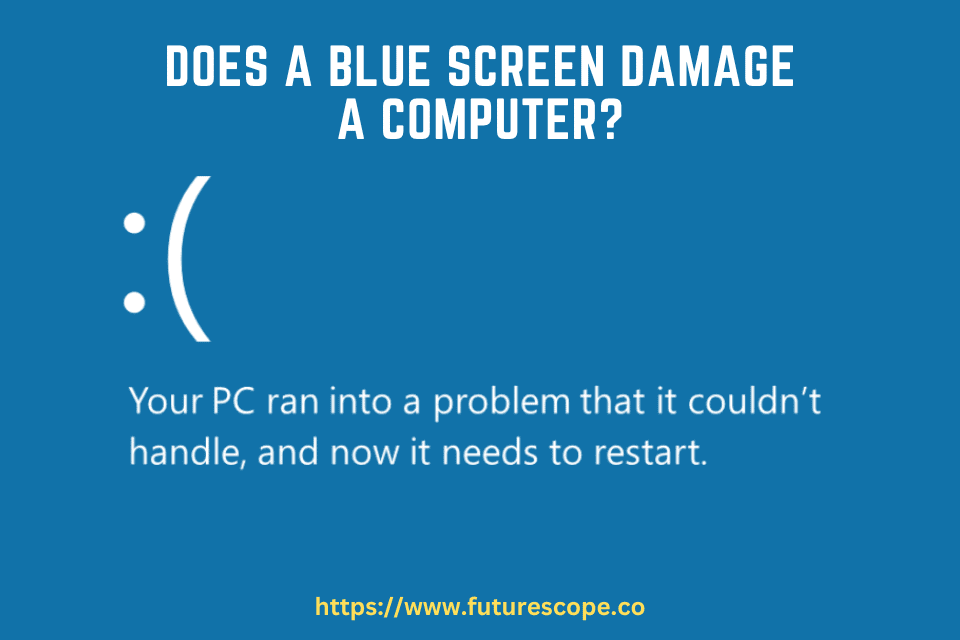
The Blue Screen of Death (BSOD) is a dreaded error screen that appears on Windows computers when the operating system encounters a critical error that it cannot recover from. It is often accompanied by a series of stop codes or error messages that provide insights into the specific cause of the error.
Definition and explanation of a blue screen of death
The blue screen of death, also known as a stop error or system crash, is an error screen displayed by the Windows operating system when it encounters a critical error. This error causes the system to shut down to prevent further damage and potential data loss.
When a blue screen of death occurs, it is usually accompanied by a stop code, such as “IRQL_NOT_LESS_OR_EQUAL” or “PAGE_FAULT_IN_NONPAGED_AREA.” These stop codes provide important information about the specific error that caused the blue screen, allowing users to identify and troubleshoot the underlying issue.
Role of QR code in understanding BSOD
The role of QR codes in understanding the blue screen of death is crucial for efficient troubleshooting. QR codes are scannable codes that can be generated by certain tools or software specifically designed to analyze blue screen errors. By scanning the QR code displayed on the blue screen, users can access detailed information about the error, potential solutions, and resources for further assistance.
QR codes eliminate the need for users to manually transcribe or search for error codes and messages, saving time and enabling quicker resolution of system issues. They provide a convenient way to access relevant knowledge bases, forums, or websites where users can find comprehensive guides on how to fix specific blue screen errors.
Additionally, QR codes streamline the process of reporting and documenting blue screen errors, as they can be easily shared with technical support teams or posted on support forums for further analysis and assistance.
Overall, the presence of QR codes on blue screens of death enhances the user experience by simplifying the troubleshooting process and facilitating access to valuable resources.
Causes Of Blue Screen Of Death
Overview of common causes of BSOD
A Blue Screen of Death (BSOD) is a frustrating error encountered by computer users that can result in system crashes and data loss. It is important to understand the common causes of BSOD in order to effectively troubleshoot and prevent future occurrences.
Impact of outdated drivers and Windows system
Outdated drivers and an outdated Windows system can significantly impact the stability of your computer, leading to frequent BSOD errors. It is crucial to regularly update both drivers and the Windows operating system to ensure optimal performance and minimize the risk of encountering BSOD.
Importance of checking for malware or virus
Malware and viruses can cause severe damage to your computer’s system files, resulting in BSOD errors. Regularly running antivirus scans and ensuring your computer is protected from malicious threats is essential to prevent such issues.
Booting Windows into Safe Mode to troubleshoot BSOD
When encountering a BSOD, booting Windows into Safe Mode can be a helpful troubleshooting step. Safe Mode allows you to diagnose and repair software or driver-related issues that may be causing the BSOD. It provides a clean environment by loading only essential drivers and services.
Hardware failure as a potential cause
Hardware failure, such as faulty RAM, a failing hard drive, or overheating components, can also lead to BSOD errors. Regular maintenance, including cleaning dust from fans and monitoring system temperatures, is crucial in preventing hardware-related issues.
The need for reinstalling Windows in certain cases
In certain cases, when other troubleshooting methods fail, reinstalling Windows may be necessary to resolve persistent BSOD errors. This process ensures a clean installation of the operating system, eliminating any corrupted system files or conflicts that may be causing the BSOD.
Different Types Of Blue Screens Explained
Blue Screens of Death (BSODs) are an unfortunate occurrence that can cause frustration and panic for computer users. They are often accompanied by error messages and can indicate various issues with your system. Understanding the different types of blue screens can help identify the underlying problem and find a solution.
IRQ not less or equal
This type of blue screen occurs when a hardware device or driver requests more resources than the system can allocate. It can be caused by outdated or incompatible drivers, faulty hardware, or conflicts between devices. Resolving this issue usually involves updating drivers, checking hardware compatibility, and removing any conflicting devices.
Page Fault In Non-Paged Area
A page fault error happens when the system attempts to access a non-existent or invalid page of memory. This can be caused by faulty RAM, driver issues, or disk errors. To fix this error, you can try running a memory diagnostic test, updating drivers, or repairing disk errors using the chkdsk utility.
Data Bus Error
A data bus error occurs when there is a problem with communication between the processor and the RAM modules. This can be caused by faulty RAM, overclocking, or hardware compatibility issues. Resolving this error may involve inspecting the RAM modules for physical damage, adjusting overclocking settings, or replacing faulty RAM.
RAM Management
This type of blue screen usually indicates issues with the computer’s random access memory (RAM). It can be caused by faulty RAM modules, incompatible hardware, or incorrect RAM settings. To fix this error, you can try reseating the RAM modules, running a memory diagnostic test, or adjusting RAM settings in the BIOS.
FAT File System Error
A FAT file system error occurs when there are issues with the file system used by the computer’s hard drive. This can be caused by disk corruption, improper shutdowns, or software conflicts. To resolve this error, you can try running the chkdsk utility to fix disk errors, updating the file system drivers, or repairing the operating system.
Inaccessible Boot Device
This blue screen error indicates that the system is unable to access the boot device, such as the hard drive or SSD. It can be caused by faulty storage devices, disk corruption, or driver issues. To fix this error, you can try reconnecting or replacing the storage device, running disk repair utilities, or updating storage drivers.
System Thread Exception Not Handled
This blue screen error occurs when a system thread encounters an exception that it cannot handle. It can be caused by faulty drivers, incompatible software, or issues with the operating system. To resolve this error, you can try updating drivers, uninstalling recently installed software, or performing a system restore to a previous stable state.
Blue screens are not inherently damaging to a computer’s hardware. However, they often indicate underlying issues that can lead to further problems if left unresolved. It is important to address blue screen errors promptly to ensure the stability and performance of your computer.
How do I fix a blue screen on my computer?
Introduction to common causes and easy fixes
If you’ve ever experienced the dreaded blue screen of death (BSOD) on your computer, you know how frustrating and alarming it can be. A blue screen typically indicates a critical system error that causes your computer to crash. While blue screens can be stressful, the good news is that they don’t usually cause permanent damage to your computer’s hardware.
When it comes to fixing and preventing blue screens, it’s important to understand the common causes and easy fixes. In this article, we’ll explore some of the most common causes of blue screens and provide you with practical solutions to resolve them. So, let’s dive in!
Utilizing stop code and event logs for debugging
When you encounter a blue screen, Windows displays a stop code that provides valuable information about the underlying problem. By deciphering the stop code, you can gain insights into the specific issue and take appropriate steps to resolve it.
Another useful tool for debugging blue screens is the event logs. Event logs record important system events, including the details of blue screen errors. By analyzing the event logs, you can identify patterns, potential triggers, and additional information that can help in troubleshooting and resolving the issue.
Importance of analyzing memory dumps
In addition to the stop code and event logs, analyzing memory dumps can be immensely helpful in diagnosing and fixing blue screens. A memory dump is a snapshot of a computer’s memory at the time of a crash, and it contains information about the state of the system when the error occurred.
By analyzing memory dumps, you can identify the driver or system component responsible for the blue screen. This information enables you to take targeted actions, such as updating the problematic driver or performing a system restore, to eliminate the issue and prevent future crashes.
Fixing driver and hardware faults to prevent BSOD
Outdated or incompatible drivers and faulty hardware are common culprits behind blue screens. To prevent BSOD, it’s essential to regularly update your drivers to the latest version provided by the manufacturer. You can typically find these updates on the manufacturer’s website or through Windows Update.
In addition, ensuring that your hardware components, such as RAM, graphic cards, and hard drives, are functioning properly can help prevent blue screens. Running hardware diagnostic tests and checking for any physical damage or loose connections can go a long way in maintaining the stability of your system.
Steps to take when Windows won’t start
At times, a blue screen can prevent Windows from starting up, leaving you stuck at the starting screen. In such cases, there are a few steps you can take to troubleshoot the issue and get your computer back up and running.
- Try performing a hard reset by disconnecting the power source and removing the battery (if applicable). Then, hold down the power button for about 15 seconds to discharge any residual power.
- Run a hardware diagnostic test to check for any underlying hardware issues that might be causing the blue screen. Many computer manufacturers provide built-in diagnostic tools that can be accessed during startup.
- Disconnect any external devices, such as USB drives or printers, as they can sometimes interfere with the booting process and cause blue screens.
- If you’re able to access the advanced startup options, try booting into safe mode with networking. This allows you to troubleshoot and fix any driver or software conflicts that may be causing the blue screen.
- If all else fails, you can use the blue screen troubleshooter provided by Windows SupportAssist or seek professional help to diagnose and resolve the issue.
Repairing filesystem corruption
Filesystem corruption can also lead to blue screens. When system files or operating system components become corrupted, it can disrupt the smooth functioning of your computer and cause crashes.
To repair filesystem corruption, you can utilize the built-in Windows tools like Check Disk (chkdsk) or System File Checker (sfc). These tools scan and repair the filesystem, ensuring the integrity of crucial system files and reducing the risk of blue screens caused by corruption.
Repairing system files for overall stability
Finally, repairing system files can contribute to the overall stability of your computer and help prevent blue screens. Windows provides the Deployment Image Servicing and Management (DISM) tool, which can be used to repair corrupted system files that might be causing issues.
By scanning and fixing system files, you can ensure that your operating system is in a healthy state, minimizing the chances of encountering blue screens and other critical errors.
Can A Blue Screen Of Death Damage Computer Hardware?
A Blue Screen of Death (BSOD) is a dreaded sight for any computer user. It signifies a system crash and forces your computer to shut down abruptly. While a BSOD can cause frustration and loss of unsaved work, many people wonder if it can actually damage computer hardware. In this article, we will discuss the relationship between a BSOD and hardware damage and provide tips on how to identify potential hardware issues.
Discussion on the Relationship between BSOD and Hardware Damage
A BSOD itself does not directly damage computer hardware. Instead, it is often a symptom of an underlying hardware problem. When a critical component of your computer, such as the memory (RAM) or hard drive, fails to function properly, it can trigger a BSOD. In such cases, the BSOD is a warning sign that hardware is not functioning as intended.
It’s important to note that not all BSODs are caused by hardware issues. Software conflicts, outdated drivers, and malware infections can also trigger a BSOD. However, if you are experiencing frequent and recurring BSODs, it is advisable to investigate the hardware components of your computer to ensure that they are not causing the crashes.
How to Identify Potential Hardware Issues
To identify potential hardware issues that may be causing BSODs, you can follow these steps:
- Check for any recent hardware changes or installations. Sometimes, incompatible or faulty hardware can lead to BSODs. If you recently added or upgraded any hardware components, try removing or replacing them to see if the BSODs stop.
- Run a diagnostic test on your computer’s hardware. Most computer manufacturers provide diagnostic tools that can help you identify hardware problems. These tests can check the functionality of your memory, hard drive, and other components.
- Monitor the temperature of your computer’s CPU and ensure that it is operating within normal parameters. Overheating can cause hardware instability and lead to BSODs. Use software utilities or specialized hardware monitors to keep an eye on the temperature.
- Update your device drivers. Outdated or incompatible drivers can cause hardware-related issues, including BSODs. Visit the website of your computer manufacturer or the individual hardware component’s manufacturer to download and install the latest drivers.
- Consider seeking professional help. If you are unsure how to identify or resolve potential hardware issues, it may be wise to consult a knowledgeable technician. They can perform a thorough hardware inspection and provide recommendations based on their findings.
By following these steps, you can proactively identify and address potential hardware issues that may be causing BSODs. Remember, while a BSOD can be alarming and disruptive, it is usually a symptom of an underlying problem rather than a direct cause of hardware damage.
Frequently Asked Questions For Does A Blue Screen Damage A Computer?
Can A PC Recover From A Blue Screen?
A PC can recover from a blue screen, but if the error is caused by a system file rather than a device driver, reinstalling Windows may be necessary. The blue screen indicates that a crucial file, related to either the device or operating system, has likely become corrupted.
While a blue screen does not directly damage hardware, it can be a symptom of hardware damage. Additionally, a hard restart during a blue screen can potentially damage the hard disk of the computer.
Can Blue Screen Of Death Damage Hardware?
No, a blue screen of death (BSOD) does not damage computer hardware, but it can be a sign of hardware damage.
Should I Ignore BSOD?
A BSOD can cause data loss and may be a symptom of hardware damage. Ignoring it can lead to further issues and potential data loss. It is important to identify and address the underlying issues to prevent any catastrophic failure or damage to your computer.
How Do I Fix A Blue Screen On My Computer?
To fix a blue screen on your computer, try these steps:1. Perform a hard reset. 2. Run a hardware diagnostic test. 3. Disconnect external devices. 4. Boot into safe mode with networking. 5. Run the blue screen troubleshooter using SupportAssist.
6. Repair the missing or corrupted Windows system files. 7. Update the BIOS and drivers. 8. Restore the computer using Windows System Restore. These steps can help resolve the issue and prevent any hardware damage.
Conclusion
The blue screen of death (BSoD) can be a worrisome occurrence, but it does not actually damage computer hardware. Instead, it serves as a symptom of potential hardware damage. In most cases, a BSoD is caused by a corrupted system file or device driver.
While a BSoD may not directly harm your computer, it can lead to data loss if your system crashes during a critical operation. Monitoring for BSoDs and taking appropriate action can help prevent any catastrophic failures and potential data loss.
Troubleshooting and fixing BSoDs can ensure the smooth functioning of your computer in the long run. Remember, a little proactive maintenance goes a long way in keeping your computer healthy and your data secure.