Plugged in an ethernet cable to your device but appears to have no internet connection? Well, you are not the only one in such trouble. A wired connection should always be easy and fast. Sometimes, that might not happen.
But that should not keep you worried. Some outlined and successful methods will help you resolve internet access problems. One of the quick tests is to turn off the Wi-Fi. Switching off Wi-Fi tests will help your connected device in establishing the primary cause of the problem.
Another quick check is ensuring the ethernet cable connection is well connected on both ends. Try connecting your ethernet cable to other ports of the router. You can also try connecting your device with a new cable to see if the problem is fixed.
Meanwhile, the problem of ethernet connection but no internet access can be caused by many reasons. In this article, you will learn various ways of fixing connected ethernet cable but no internet problem.
Why is Ethernet connected but no internet?
When your Ethernet connection shows as connected but you have no internet access, it can be frustrating. Here are several potential reasons for this issue, along with troubleshooting steps you can take:
1. IP Address Conflicts
- Explanation: If two devices on the same network are assigned the same IP address, it can cause connectivity issues.
- Solution: Restart your router to reassign IP addresses or manually set a static IP for your device.
2. Network Configuration Issues
- Explanation: Incorrect network settings, such as DNS configuration or incorrect gateway settings, can lead to connectivity problems.
- Solution: Check your network settings and ensure that the IP address is set to obtain automatically. You can also try using public DNS servers like Google’s (8.8.8.8 and 8.8.4.4).
3. Router or Modem Issues
- Explanation: A malfunctioning router or modem can prevent internet access even if the Ethernet connection is active.
- Solution: Restart your modem and router. If the problem persists, consider resetting them to factory settings or updating their firmware.
4. ISP Problems
- Explanation: Sometimes, the issue may lie with your Internet Service Provider (ISP). They may be experiencing outages or maintenance work.
- Solution: Check with your ISP for any reported outages or service issues in your area.
5. Faulty Ethernet Cable or Port
- Explanation: A damaged Ethernet cable or port can result in a connected status without internet access.
- Solution: Try using a different Ethernet cable or connecting to a different port on your router to see if the problem resolves.
6. Firewall or Security Software
- Explanation: Overly aggressive firewall settings or security software can block internet access while allowing local network connectivity.
- Solution: Temporarily disable any firewalls or security software to see if they are causing the issue. If the internet works, adjust the settings to allow access.
7. Device-Specific Issues
- Explanation: Sometimes, the problem may be isolated to the device itself, due to misconfiguration or software issues.
- Solution: Restart the device and check for any software updates. If the issue persists, consider troubleshooting the network adapter settings.
8. Network Adapter Issues
- Explanation: Outdated or corrupt network drivers can prevent proper connectivity.
- Solution: Update the network adapter drivers through the Device Manager or reinstall them to ensure they are functioning correctly.
How to fix Ethernet connected but no internet access?
Method 1:Reboot your Wi-Fi Gadget
By turning off your Wi-Fi, you will get to know whether the Ethernet connection is working or not. Your device has both access to Wi-Fi and Ethernet connection, and when the internet connection is on, the PC will prioritise ethernet connection over Wi-Fi. If no internet connection is detected, you should consider checking the ethernet cable connection.
Method 2: Ensure Ethernet connection is Enabled
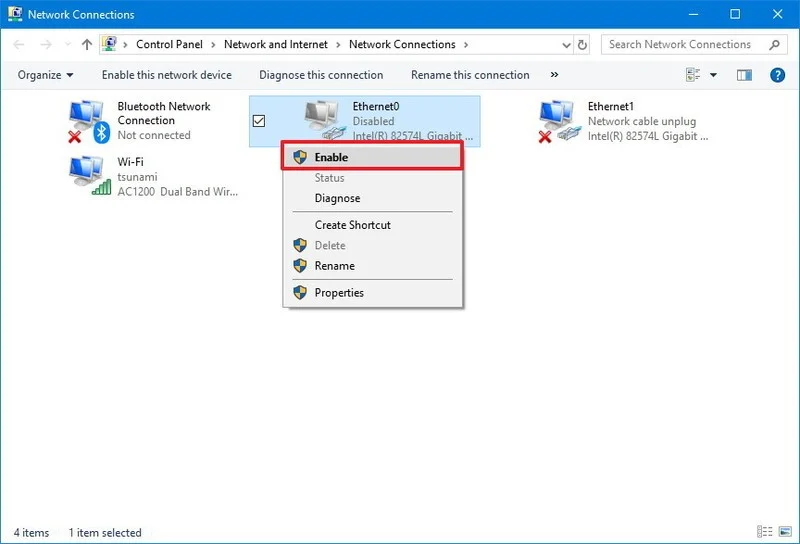
In instances where you do not get internet access, consider checking whether the ethernet connection is disabled. Here is how you do it:
- Right click <Wi-Fi Icon> in the taskbar
- Go to <Open Network and Internet Setting>
- Click on <Status option>
- Select < Change adapter options>
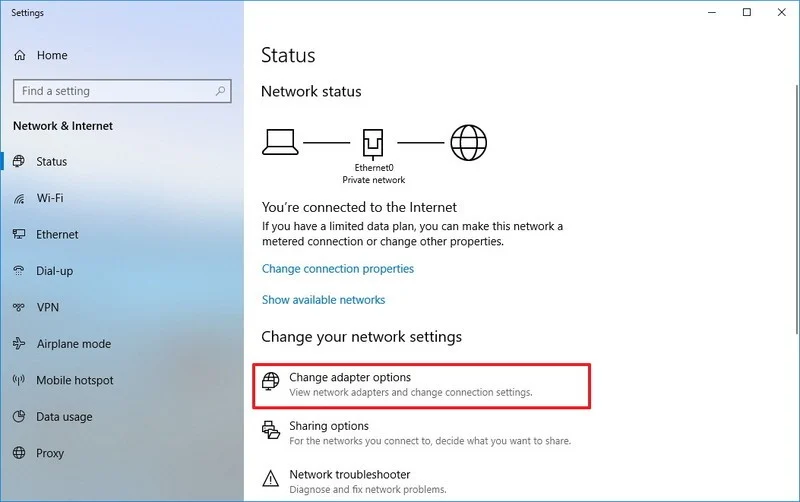
- Under < Network connections> identify < Ethernet and Right click>
- select <Enable option> from the pop-up menu.
Method 3: Check If other Devices can Connect to the Internet
Test if other devices have access to the internet using the same ethernet cable before troubleshooting your PC.
In case the optional device connects appropriately without any problem, the issue might be your device. Where the devices have joined and have no internet access, consider checking your network equipment. If the problem is not yet solved, try the following solution.
Method 4: Reset your network settings
Here is a reset procedure for Window Users.
- Press <Win+R>
- On the pop up window Type <cmd> and Press < Ctrl+Shift+Enter>
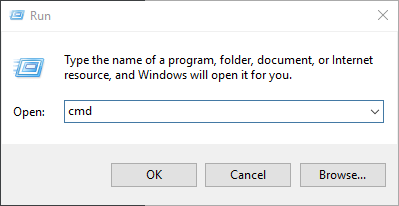
- Now enter the commands below
ipconfig /flushdns
ipconfig /renew
ipconfig /registerdns
- Close windows and Reboot your computer. After reboot, try whether the problem is resolved. If the issue is still unresolved, try out the following solutions.
Method 5: Check your DNS settings
A Domain Name System (DNS) allows you to access the web, and without it configured correctly, internet surfing would be a nightmare. By carrying out DNS check and setting, you are required to ensure your device obtains a valid IP address.
Here are the correct steps on checking DNS on windows through a control panel network settings.
- Tap on <Start> and select <Control Panel> on the taskbar.
- Tap on <Network and Internet>
- Tap on <Network and Sharing Center>
You can follow a short process for the above steps by:
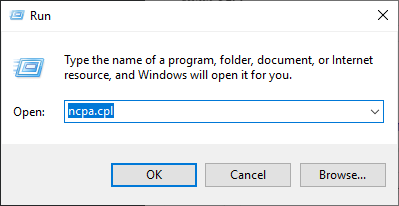
- Press <Win+R>
- Type <ncpa.cpl> and tap <Enter>
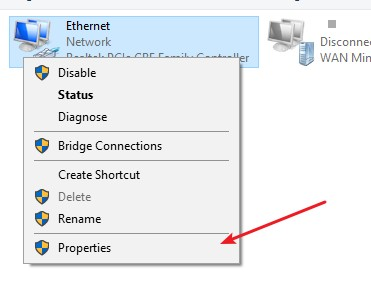
- Right click on <Ethernet> and select <Properties>
- Select <Internet Protocol Version 4(TCP/IPv4) and tap on <Properties>
- Ensure you have enabled <Obtain an IP automatically> and <Obtain DNS server address automatically> on Internet Protocol Version 4(TCP/IPv4) Properties window.

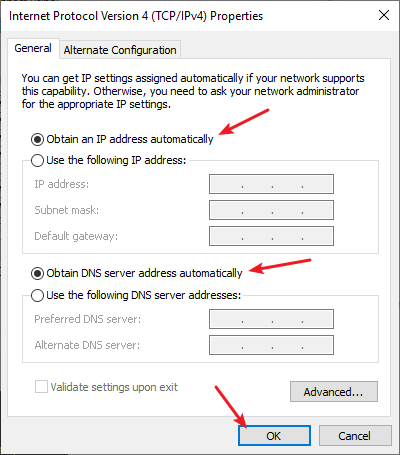
- Now check if the process fixed your ethernet connection problem. If not yet, proceed by following step 8
- Select < Use the following DNS server addresses> and then set the server address to a public DNS server address (8.8.8.8 / 8,8.4.4).
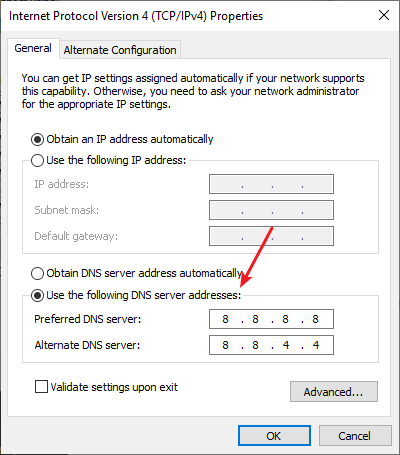
- Now click <Ok> and check whether the network connection is fixed or not.
Method 6: Check and Update the Drivers
Faulty network drivers can cause your internet connection problem. Therefore you need to check for new updates manually or activate automatic updates. You can carry out the process by visiting the manufacturer’s website, check for the latest drivers updates.
You will download the updates and run them on your device. On finishing the process, connect the ethernet cable and establish whether the problem is solved. Here are steps that will help you update ethernet easily.
- Press <Window+X> on your keyboard to open the system menu
- Click on <Device Manager> option
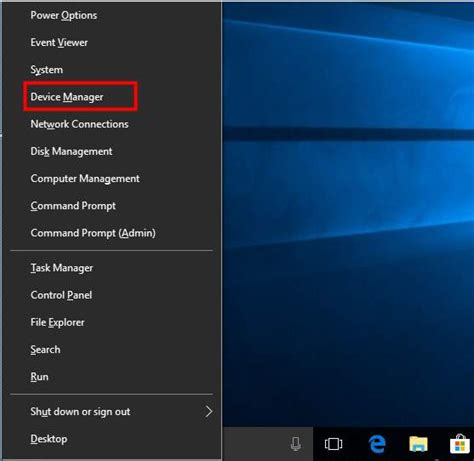
- Under the Device Manager window, a list of drivers will appear.
- Go to <Network Adapters> and click on it to expand
- Select <Ethernet> driver
- Right, Click ethernet to get the <Update Driver Software> option.
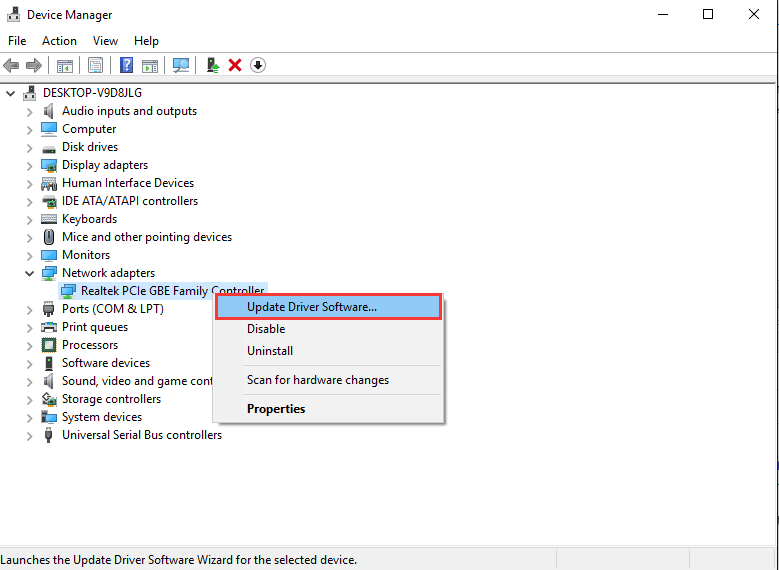
- On clicking the Update driver, a new window opens.
- Click on <Search automatically for updated driver softwares>
Your window device will begin searching for an updated ethernet driver. The latest update will replace the drivers once they are found.
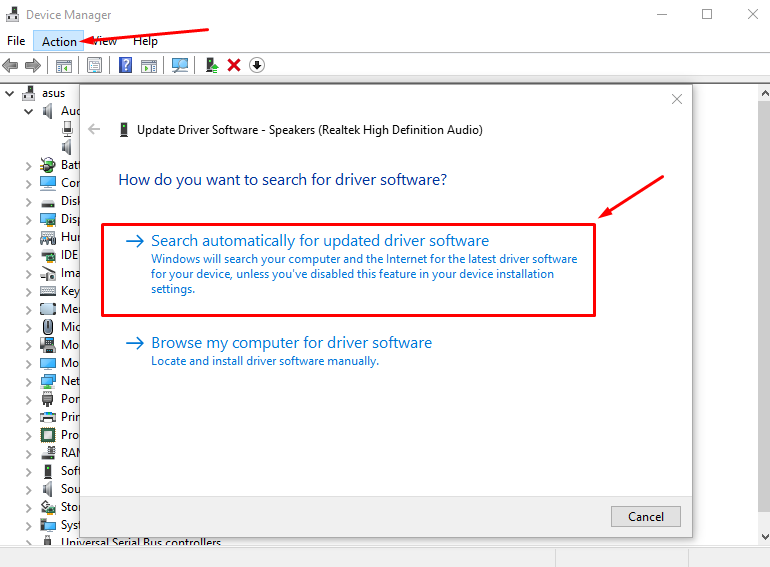
After the update is entirely done, reboot your device. Now connect your ethernet cable after reboot and confirm if the problem is fixed. If not yet, follow the following method.
Method 7: Turn off Antivirus or firewall temporarily
Some internet connection problems can be interfered with by any antivirus software on your device. To establish the problem, consider disabling your antivirus software temporarily and confirming if the problem still exists.
Method 8: Use Windows Troubleshooter
Your windows device has an inbuilt troubleshooter that can help you diagnose issues. Therefore, for you to troubleshoot connected ethernet but no internet problem, you can follow these steps:
- Press <Windows+I> to access settings.
- On Setting Window, Click on <Update & security> option
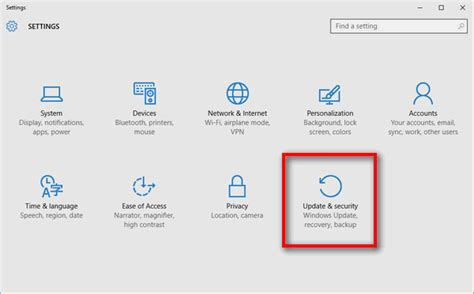
- On the left panel of the new window launched, click on <Troubleshoot>
- On the New options menu that appears, click on the <Run the Troubleshooter> option.
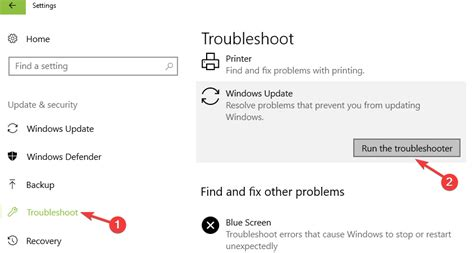
If your window device has any issue related to ethernet, the troubleshoot will detect the problem and fix it. Connect the ethernet and check if the problem is solved.
Conclusion
Most users have experienced the same problem. However, there is no perfect solution to fixing connected ethernet but no internet access issue. By following each of the listed solutions you will get your device running correctly with no more issues.
If you tried each of the listed solutions and the problem still exists, contact your internet provider to identify if the problem is on their end.
Frequently Ask Question
Why is my Ethernet cable not being detected?
If your Ethernet cable is not being detected, several factors could be at play:
- Loose Connections: Ensure that both ends of the Ethernet cable are securely plugged into the device and the router or modem.
- Faulty Cable: The cable itself might be damaged. Try using a different Ethernet cable to see if the issue persists.
- Disabled Network Adapter: Check your device’s network settings to ensure that the Ethernet adapter is enabled.
- Driver Issues: Outdated or corrupt network drivers can prevent detection. Update the network drivers through the Device Manager.
- Router or Modem Issues: Restart your router or modem, as they may need a reset to recognize the cable.
- Port Issues: The Ethernet port on your device or router could be malfunctioning. Try connecting to a different port or device to identify the problem.
- Network Settings: Incorrect network settings can also affect detection. Resetting network settings on your device may help resolve the issue.
By checking these factors, you can determine the cause of the Ethernet cable not being detected and take appropriate action.
Can Ethernet cables go bad?
Yes, Ethernet cables can go bad over time due to various factors such as physical damage, wear and tear, environmental conditions, or manufacturing defects. Common issues include fraying, kinks, or breaks in the cable, which can lead to signal loss or connectivity problems.
Additionally, exposure to extreme temperatures or moisture can also degrade the cable’s performance. Regularly inspecting cables and replacing any that show signs of damage can help maintain a reliable network connection.
How do I fix Ethernet no IP?
To fix the “Ethernet no IP” issue, follow these steps:
- Restart Your Devices: Reboot your computer, router, and modem to refresh the connection.
- Check Connections: Ensure the Ethernet cable is securely connected to both your computer and router.
- Release and Renew IP Address: Open Command Prompt as an administrator and type the following commands:
ipconfig /releaseipconfig /renew
- Update Network Drivers: Go to Device Manager, find your network adapter, and check for driver updates.
- Set IP Address Manually: Go to your network settings, select your Ethernet connection, and set a static IP address.
- Disable and Re-enable Adapter: In the Network Connections settings, disable the Ethernet adapter, then re-enable it.
- Reset TCP/IP Stack: In Command Prompt, type
netsh int ip resetto reset the TCP/IP stack.
If the issue persists, consider contacting your ISP for further assistance.