
Laptop overheating is a common issue, but if your laptop gets excessively hot while charging, it’s a red flag that shouldn’t be ignored. Overheating can cause performance issues, reduce battery life, and even damage internal components over time.
This common issue may arise from several factors, including blocked vents, heavy multitasking, or a faulty charger. Understanding the root cause is essential to prevent long-term damage.
In this article, we’ll explore the main causes of laptop overheating during charging and provide practical steps on how to fix and prevent the issue for both Windows and Mac users.
You’ll find tips to keep your laptop running smoothly and safely. So, if you’re facing this problem, read on to learn how to tackle laptop overheating while charging.
Signs Your Laptop Is Too Hot
- Fans constantly running at high speed
- System lag or sudden performance drops
- Unexpected shutdowns or restarts
- Laptop feels extremely hot to the touch
- Battery swelling or depleting quickly
If you notice these signs regularly while charging, it’s essential to address the overheating immediately to avoid long-term damage.
Why Does a Laptop Overheat While Charging? Common Causes
Laptops generate heat as their components, including the processor (CPU), graphics card (GPU), and battery, work together. Charging increases power consumption, which naturally raises temperatures. However, excessive heat can stem from specific issues. Below are the primary causes, based on insights from reliable sources like Dell and Windows Report:
| Cause | Description |
|---|---|
| Dust and Debris Buildup | Dust, dirt, or hair can clog air vents and fans, restricting airflow and causing heat to build up inside the laptop. |
| Poor Ventilation | Using the laptop on soft surfaces like beds, couches, or laps blocks vents, trapping heat. |
| High Workload | Running resource-intensive tasks (e.g., gaming, video editing) while charging increases heat output from the CPU and GPU. |
| Faulty Battery or Charger | An old, damaged, or incompatible battery or charger can generate excessive heat during charging. |
| Outdated Software/Drivers | Corrupted or outdated drivers, especially for graphics cards, or an outdated BIOS can lead to inefficient performance and overheating. |
| Background Processes | Too many applications running in the background increase the processor’s workload, raising temperatures. |
| Environmental Factors | Operating in a warm room or direct sunlight can exacerbate heat issues. |
If your laptop is overheating while charging, you’re not alone. This issue can be frustrating and might even damage your device over time. Understanding the common causes of laptop overheating can help you address the problem effectively.
High Power Draw During Intensive Tasks
Charging and running heavy programs (like gaming, video editing, or multiple apps) simultaneously increases CPU/GPU activity and battery charging, leading to heat buildup.
Blocked Vents
One of the leading causes of laptop overheating is blocked vents. Vents are crucial for allowing heat to escape from your laptop. If they’re blocked by dust, dirt, or even your lap, your laptop can’t cool itself properly.
Regularly check and clean the vents. Use a can of compressed air to blow out any dust. Ensure your laptop is on a hard, flat surface to allow for proper airflow.
Faulty or Incompatible Charger
Using a charger that provides the wrong wattage or is not the original brand-approved charger can cause overheating.
Aging Battery or Poor Thermal Paste
Old batteries, too much Thermal Paste or dried-out thermal paste on the processor can reduce the laptop’s ability to dissipate heat efficiently.
Heavy Software Usage
Running heavy software can also cause your laptop to overheat. Applications like video editing software, games, or even multiple browser tabs can put a strain on your system.
Consider closing unnecessary programs to reduce the load on your CPU. You might also want to check your Task Manager to see which applications are using the most resources. Sometimes, simply updating your software can make a big difference.
Have you ever noticed your laptop getting hot when you have too many tabs open? Try limiting your multitasking and see if it helps.
Dealing with an overheating laptop isn’t just about comfort; it’s about protecting your investment. Take these common causes seriously and give your laptop the care it needs.
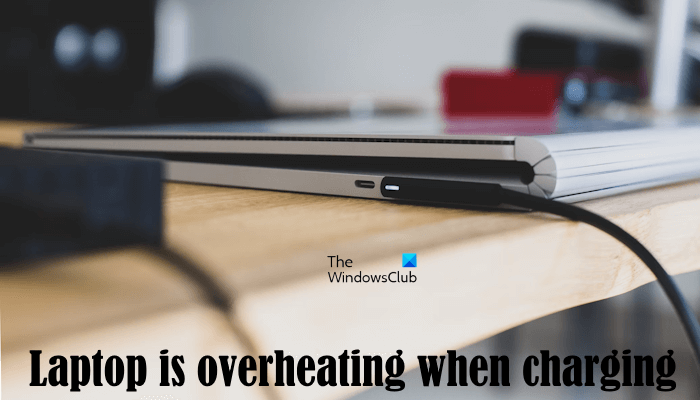
What to Do If Your Laptop Is Overheating While Charging? Immediate Steps To Cool Down
Overheating can lead to poor performance. Or even damage your laptop. You need to act quickly to cool it down. Here are some immediate steps you can take.
Shut Down And Reboot
The first step is to shut down your laptop. This helps it cool off faster. Wait for a few minutes. Then, reboot your laptop. This can resolve temporary glitches causing the overheating. It’s a quick fix that often works.
Remove Excess Items
Check the area around your laptop. Remove any items that might block airflow. This includes papers, books, and other objects. Your laptop needs good ventilation to cool down. Ensuring a clear space around it can help.
By following these steps, you can quickly cool down your laptop. This helps prevent damage and keeps it running smoothly.
Check The Charging Adapter
If your laptop is overheating while charging, one of the first things you should do is check the charging adapter. The adapter plays a crucial role in maintaining the optimal temperature of your laptop. A faulty adapter can cause your device to overheat, leading to potential damage and decreased performance.
Inspect For Damage
Take a close look at your charging adapter. Are there any visible signs of wear and tear? Frayed wires, exposed cables, or bent prongs can all contribute to overheating issues. Even minor damage can affect the adapter’s ability to regulate power properly.
If you spot any damage, it’s a good idea to replace the adapter immediately. Using a damaged charger not only risks overheating but also poses a fire hazard. So, do yourself a favor and invest in a new one if you need to.
Use Correct Wattage
Another important factor is using the correct wattage for your laptop. Each device has specific power requirements, and using an underpowered or overpowered adapter can lead to overheating. Check your laptop’s manual or the manufacturer’s website for the recommended wattage.
If you’re unsure, look at the label on your original adapter. It usually mentions the voltage and amperage. Make sure the replacement matches these specifications. Using the wrong wattage can not only cause overheating but also damage your laptop’s battery over time.
Have you ever had your laptop overheat because of a wrong adapter? I once used a friend’s charger, thinking it would be fine. My laptop became extremely hot within minutes. Lesson learned: always use the correct charger.
So, what do you do if your laptop is overheating while charging? Start by checking the charging adapter. Inspect it for damage and ensure you’re using the correct wattage. These simple steps can make a big difference in keeping your laptop cool and functional.
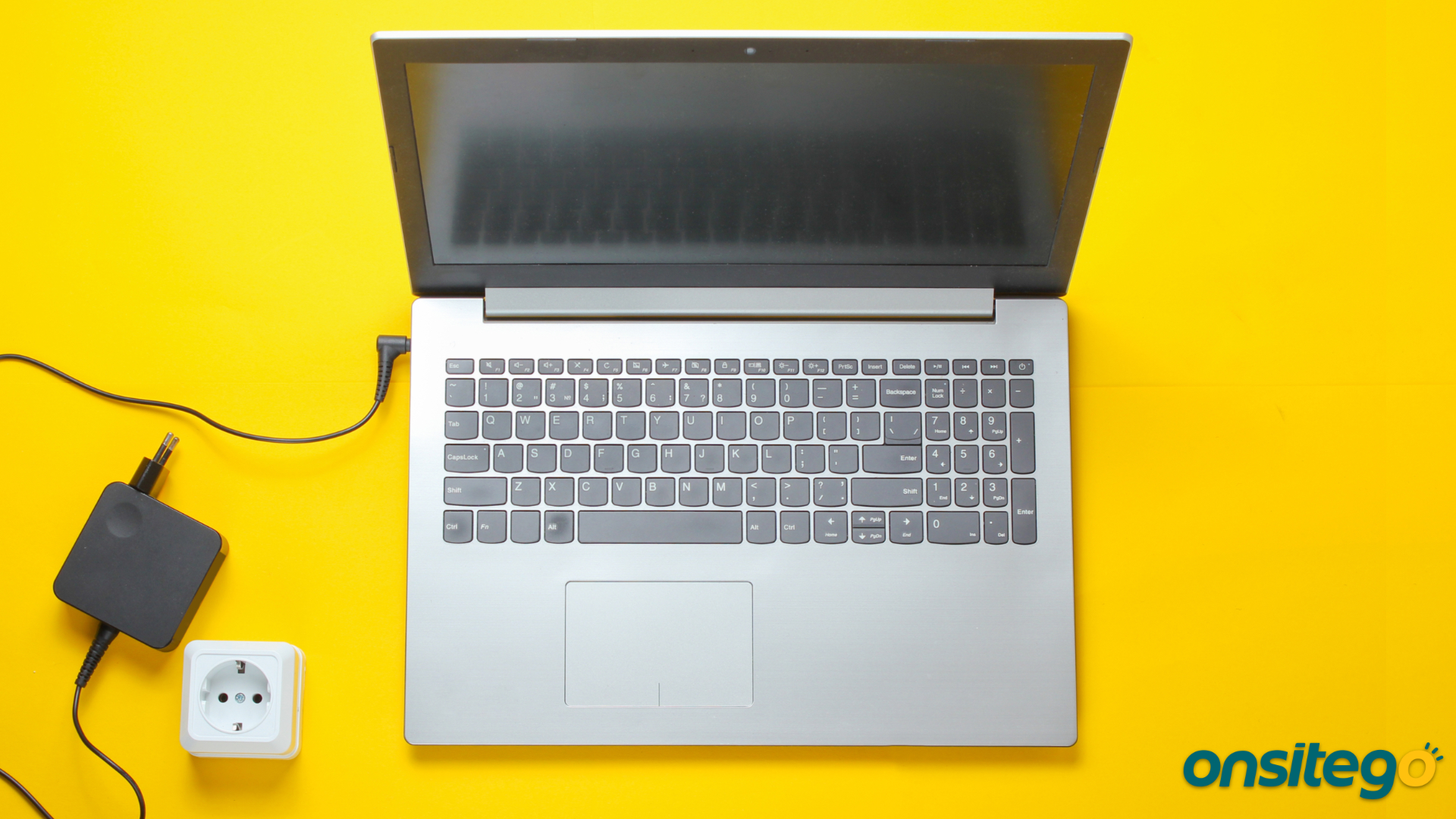
Clean The Laptop
Is your laptop overheating while charging? It might need a good cleaning. Dust and debris can clog vents and fans, causing your laptop to overheat. Cleaning your laptop can improve airflow and prevent overheating. Let’s start with some essential steps.
Clear Dust From Vents
Dust can block the air vents, restricting airflow. Use a can of compressed air to blow out the dust. Hold the can upright and spray short bursts into the vents. Avoid using a vacuum cleaner as it can damage the components.
If you don’t have compressed air, a soft brush can help. Gently brush the dust away from the vents. Be careful not to push dust further inside the laptop.
Clean The Fan
The fan is crucial for cooling your laptop. Dust buildup can slow it down or stop it. To clean the fan, you may need to open the laptop. Check your laptop’s manual for instructions.
Once you access the fan, use compressed air to blow away the dust. Hold the fan in place to prevent it from spinning. This can avoid damage. A soft brush can also be used to gently clean the fan blades.
After cleaning, reassemble your laptop. Power it on and see if it runs cooler while charging. Regular cleaning can keep your laptop running smoothly and prevent overheating.
Update System Software
Your laptop overheating while charging can be a real headache, but don’t panic. One effective way to mitigate this issue is by updating your system software. Keeping your system software up-to-date ensures that your laptop runs smoothly and efficiently, reducing the chances of overheating. Here are some practical steps you can take:
Install Latest Drivers
Drivers act as the communication bridge between your laptop’s hardware and its operating system. Outdated drivers can cause your laptop to overheat. Regularly check for the latest drivers on your laptop manufacturer’s website.
Many manufacturers offer driver update tools that simplify this process. Download these tools to automatically find and install the necessary updates. This can save you time and ensure you don’t miss any critical updates.
Have you ever noticed your laptop running hot while watching a movie or playing a game? Updating your graphics driver can make a significant difference. Improved performance means less strain on your system, which in turn reduces heat generation.
Check For BIOS Updates
The BIOS (Basic Input/Output System) is the software that starts your laptop and manages data flow between the operating system and attached devices. An outdated BIOS can lead to overheating issues.
Visit your laptop manufacturer’s support page to check for BIOS updates. Follow the provided instructions carefully, as updating the BIOS can be a delicate process. Some manufacturers offer BIOS update tools to make the process easier.
Is your laptop’s fan running constantly? A BIOS update can sometimes improve fan management, helping to keep your laptop cool. Keeping your BIOS updated ensures optimal hardware performance and compatibility.
Have you ever had a software update fix an annoying bug? The same principle applies here. Regularly updating your system software can prevent overheating and improve your laptop’s overall health.
So, what’s stopping you from keeping your laptop’s software up-to-date? Take these steps today to ensure your laptop stays cool and performs at its best. You’ll be surprised at how much of a difference it can make!

Optimize Power Settings
Is your laptop overheating while charging? One effective way to tackle this issue is to optimize your power settings. This adjustment can significantly reduce the strain on your laptop, keeping it cooler and more efficient.
Adjust Power Plan
Start by adjusting your laptop’s power plan. Go to the Control Panel and click on “Power Options”. Choose a balanced or power saver plan instead of high performance. This can help lower your laptop’s energy consumption, reducing the heat generated.
Opting for a balanced power plan ensures your laptop uses resources efficiently. This not only helps with overheating but also prolongs battery life. It’s a simple step that can make a big difference.
If you’re unsure which plan to choose, experiment with different settings. Observe which one keeps your laptop cooler while still meeting your performance needs.
Enable Battery Saver Mode
Enabling battery saver mode can further help in managing the overheating issue. This mode automatically reduces the power usage of non-essential apps and services.
To enable it, click on the battery icon in your taskbar and select “Battery Saver”. This mode is particularly useful when your laptop is plugged in and charging, as it can prevent excessive heat build-up.
Battery Saver mode also dims your screen and limits background activity, both of which contribute to lowering the temperature. It’s a handy tool for maintaining optimal performance without overheating.
Have you ever found yourself frustrated with an overheating laptop during an important task? Optimizing your power settings could be your solution. Give these tips a try and notice the improvement.
Use Cooling Pads
A cooling pad can help keep your laptop’s temperature down while charging. It provides additional airflow to prevent overheating. This simple accessory can prolong your laptop’s lifespan.
Is your laptop overheating while charging? You’re not alone. This common issue can be frustrating and potentially harmful to your device. One effective way to manage this problem is by using cooling pads. Let’s dive into how cooling pads can help and which ones are worth considering.
When To Seek Professional Help?
Professional help is necessary if your laptop continues to overheat despite cleaning and proper ventilation. Frequent overheating can cause serious damage. Seek expert advice to avoid costly repairs or data loss.
If your laptop overheats while charging, it can be a sign of a deeper issue. Sometimes, the best solution is to seek professional help. But how do you know when it’s time to call an expert?
Signs Of Hardware Issues
If your laptop is frequently overheating, it could indicate a hardware problem.
Is your laptop making strange noises or shutting down unexpectedly?
These are warning signs that something might be wrong inside your device. You may also notice that your laptop is slower than usual.
If you experience any of these issues, it’s time to consult a technician.
Finding A Reliable Technician
So, you’ve decided you need professional help. But how do you find the right technician?
Look for someone with good reviews and ask friends for recommendations.
A reliable technician will diagnose the problem quickly and offer a reasonable solution. Always check their credentials and make sure they have experience with your laptop brand.
Have you ever ignored a minor issue, only to have it turn into a major problem later?
Don’t let that happen with your laptop. Seeking professional help can save you time and money in the long run.
Additional Tips
- Monitor Temperatures: Use tools like HWMonitor (Windows) or smcFanControl (Mac) to track laptop temperatures.
- Fan Control Settings: Some laptops allow fan speed adjustments via BIOS or third-party apps (Asurion).
- Restart Regularly: A simple reboot can clear memory and close errant processes, reducing heat (Dell).
Frequently Asked Questions
Why Is My Laptop Overheating While Charging?
Your laptop may overheat while charging due to blocked vents, dust buildup, or running intensive applications. Ensure proper ventilation and clean regularly.
How To Cool Down A Laptop When Charging?
Place the laptop on a hard, flat surface. Use a cooling pad or external fan. Keep the charging area ventilated. Avoid direct sunlight. Reduce running applications.
Can Overheating Cause A Laptop To Stop Charging?
Yes, overheating can cause a laptop to stop charging. High temperatures can damage the battery or charging components. Ensure proper ventilation to avoid overheating.
How Do I Fix My Laptop From Overheating?
Clean the cooling vents and fan. Use a cooling pad. Keep your laptop on hard surfaces. Update your software regularly. Avoid blocking the vents.
Conclusion
Overheating while charging is more than just a minor inconvenience—it’s a warning signal that your laptop may not be cooling itself properly. Whether it’s poor ventilation, charging habits, or hardware issues, taking proactive steps can extend the life of your device, improve performance, and prevent potential damage. Make sure to clean your laptop regularly, use proper charging equipment, and monitor temperatures during use. With a few smart habits, your laptop will run cooler, charge safely, and last longer.