To fix Twitch Error 2000, troubleshoot your internet connection and flush DNS. Additionally, clear your browser cache and try using OperaGX as an alternative browser solution.
Twitch Error 2000 can be resolved by addressing network issues and refreshing your browser cache.
Understanding The Twitch Error 2000
If you’re an avid Twitch user, chances are you’ve encountered the frustrating Error 2000 at some point. This error occurs when there is a network connectivity issue between your browser and the Twitch servers, preventing you from accessing streams and content. To help you resolve this issue quickly and get back to enjoying Twitch, it’s important to understand the nature of Twitch Error 2000 and its impact on your user experience.
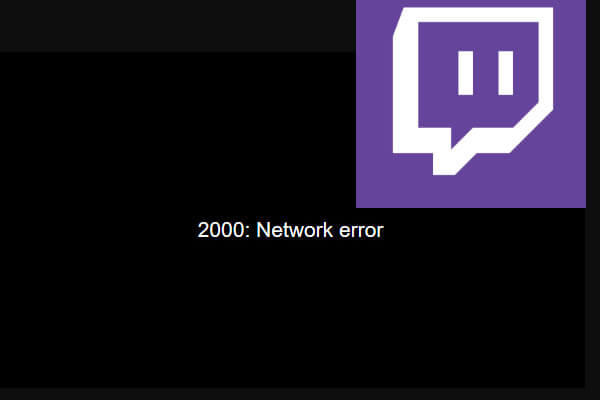
What Is Twitch Error 2000 And Why Does It Occur?
Twitch Error 2000 is a common error message that appears when there is a problem with your network connection while trying to access Twitch. It typically occurs due to issues such as slow or unstable internet connectivity, DNS problems, browser caching issues, or conflicts with browser extensions. When Twitch encounters this error, it is unable to establish a stable connection with the Twitch servers, resulting in the network error message.
How Does Twitch Error 2000 Affect The User Experience?
Twitch Error 2000 can severely impact your user experience on the platform. When this error occurs, you are unable to watch live streams, chat with other viewers, or interact with the Twitch community. This can be particularly frustrating if you were in the middle of watching an exciting stream or participating in a chat discussion. Additionally, experiencing frequent network errors can lead to a loss of interest and engagement with the platform, potentially causing you to seek alternative streaming options.
The Importance Of Resolving Twitch Error 2000 Quickly
Resolving Twitch Error 2000 as soon as possible is crucial for a seamless Twitch experience. By resolving the error promptly, you can regain access to Twitch content and continue enjoying your favorite streams without interruptions. It also ensures that you don’t miss out on any exciting live events or discussions happening on the platform. Additionally, resolving the error quickly can help prevent frustration and maintain your enthusiasm for Twitch, ensuring you have a positive user experience every time you visit the platform.
Troubleshooting Steps To Fix Twitch Error 2000
Twitch Error 2000 can be frustrating when you’re trying to enjoy your favorite streams. Luckily, there are several troubleshooting steps you can take to fix this error and get back to watching Twitch content. In this guide, we’ll walk you through each step, from checking your internet connection to contacting Twitch Support for assistance. Let’s dive in!
Step 1: Check Your Internet Connection
Before diving into more technical solutions, it’s worth checking your internet connection to ensure it’s stable. Troubleshoot common internet connection issues by following these tips:
- Restart your router and modem to refresh the internet connection.
- Connect your device directly to the router using an Ethernet cable for a more stable connection.
- Ensure that your internet speed meets Twitch’s recommended requirements.
Step 2: Flush Dns
DNS (Domain Name System) is responsible for translating website addresses into IP addresses. If DNS issues are contributing to Twitch Error 2000, you can flush the DNS cache on your device. Follow these steps based on your operating system:
| Operating System | Steps to Flush DNS |
|---|---|
| Windows | Open Command Prompt and type “ipconfig /flushdns”. Press Enter. |
| Mac | Open Terminal and type “sudo killall -HUP mDNSResponder”. Press Enter. |
| Linux | Open Terminal and type “sudo /etc/init.d/nscd restart”. Press Enter. |
Step 3: Clear Browser Cache
Browser cache can sometimes interfere with the proper loading of Twitch streams. Clearing the cache can help resolve Twitch Error 2000. Here’s how to do it on popular web browsers:
- Google Chrome: Press Ctrl+Shift+Delete, select “Cached images and files”, and click “Clear data”.
- Mozilla Firefox: Press Ctrl+Shift+Delete, select “Everything” from the time range, and click “Clear Now”.
- Microsoft Edge: Press Ctrl+Shift+Delete, select “Cached images and files”, and click “Clear”.
Step 4: Check For Browser Updates And Disable Extensions
Using an outdated browser version or having incompatible extensions can cause Twitch Error 2000. Make sure to update your browser and disable any extensions that might be interfering. Here’s how:
- Google Chrome: Click the three-dot menu, go to “Help”, and select “About Google Chrome”. Update if available. To disable extensions, type “chrome://extensions/” in the address bar, toggle off the respective extensions.
- Mozilla Firefox: Click the three-line menu, go to “Help”, and select “About Firefox”. Update if available. To disable extensions, click the three-line menu, go to “Add-ons”, and disable the extensions from the “Extensions” tab.
- Microsoft Edge: Click the three-dot menu, go to “Help and Feedback”, and select “About Microsoft Edge”. Update if available. To disable extensions, click the three-dot menu, go to “Extensions”, and toggle off the respective extensions.
Step 5: Try Using A Different Browser Or Device
If Twitch Error 2000 persists, trying a different browser or device can help identify if the issue is specific to your current setup. Follow these steps:
- Use a different browser, such as Google Chrome, Mozilla Firefox, or Microsoft Edge.
- If possible, try accessing Twitch on a different device, such as a smartphone or tablet.
Step 6: Change Dns Settings
Changing DNS (Domain Name System) settings can help bypass network issues causing Twitch Error 2000. Follow these steps based on your platform:
| Platform | Steps to Change DNS Settings |
|---|---|
| Windows | Go to Control Panel > Network and Internet > Network and Sharing Center. Click on your connection, select “Properties”, and double-click on “Internet Protocol Version 4 (TCP/IPv4)”. Choose “Use the following DNS server addresses” and enter the preferred DNS Server. Click “OK”. |
| Mac | Go to System Preferences > Network. Select your connection, click “Advanced”, and go to the “DNS” tab. Click the “+” button to add new DNS servers, enter the addresses, and click “OK”. |
| Linux | Edit the “/etc/resolv.conf” file using a text editor and add the desired DNS server addresses. |
Step 7: Use A Vpn
If network issues are causing Twitch Error 2000, using a VPN (Virtual Private Network) can help bypass them. Follow these steps to set up and use a VPN for Twitch:
- Choose a reliable VPN service and sign up for an account.
- Download and install the VPN software/app on your device.
- Launch the VPN and connect to a server in a location where Twitch services are not restricted.
- After establishing a VPN connection, try accessing Twitch to see if the Error 2000 is resolved.
Step 8: Contact Twitch Support
If none of the previous steps have resolved Twitch Error 2000, it’s time to reach out to Twitch Support for assistance. They can provide further troubleshooting steps and investigate any potential issues on their end. Here’s how to contact them:
Visit the Twitch Support website and navigate to the “Contact Us” page. Fill out the necessary information and describe your issue in detail. Submit the form, and Twitch Support should get back to you with a resolution or further instructions.
Step 9: Additional Solutions And Tips
If you’re still experiencing Twitch Error 2000, there are a few additional solutions and tips you can try:
- Restart your device to refresh all system processes.
- Check Twitch’s service status to see if there are any reported issues.
- Try using a different internet connection, such as a mobile hotspot or public Wi-Fi.
- Disable VPN if you’re using one, as it may cause conflicts with Twitch services.
With these troubleshooting steps and tips, you should be able to fix Twitch Error 2000 and enjoy uninterrupted Twitch streaming. If you have any other questions or need further assistance, don’t hesitate to reach out to Twitch Support.
Frequently Asked Questions Of How To Fix A Twitch Error 2000
Why Do I Keep Getting Error 2000 On Twitch Reddit?
If you keep getting error 2000 on Twitch Reddit, try the following troubleshooting steps: – Clear your browser cache and cookies – Update your browser to the latest version – Disable any extensions or plugins – Restart your browser and try again – Check if Twitch servers are experiencing any issues.
What Is Error 2000 On Twitch With VPN?
Error 2000 on Twitch with VPN occurs when there is a network error. To fix it, try disabling the VPN and reconnecting.
Why Is Twitch Error 3000 Only On One Stream?
Twitch Error 3000 is only on one stream because there might be network issues with that specific stream.
How Do I Fix Twitch On Chrome?
To fix Twitch on Chrome, follow these steps:1. Make sure your browser is up to date. 2. Disable any extensions. 3. Clear your cache and cookies. 4. Restart your browser. 5. Try again. If the issue persists, Twitch servers may be undergoing maintenance or experiencing their own problems.
Consider checking Twitch’s service status or trying on a different device.
Conclusion
To fix a Twitch Error 2000, ensure your browser is up to date, disable any extensions, clear your cache and cookies, and restart your browser. If the problem persists, try reloading the stream, switching to a different browser, or using a VPN.
Additionally, check the Twitch service status and consider changing your DNS settings or rebooting your router. By following these troubleshooting steps, you can overcome Twitch Error 2000 and enjoy uninterrupted streaming on the platform.