
Few things are more frustrating than sitting down to enjoy a game, stream a video, or complete an important task, only to face constant lag on your PC. Lag makes your computer feel sluggish, unresponsive, and slow to process commands. Whether you’re gaming or just using your PC for everyday tasks, lag can ruin productivity and enjoyment.
Fortunately, lag is not a permanent problem. With the right troubleshooting steps and optimizations, you can dramatically improve your PC’s performance. This guide will explain the main causes of lag and provide detailed, practical steps to fix it, covering hardware, software, and system-level solutions.
What Is Lag on a PC?
Lag refers to a noticeable delay in system response. It can manifest in various ways:
- Slow boot times
- Programs taking too long to open
- Stuttering during video playback or gaming
- Mouse or keyboard input delays
- Freezing or crashing during multitasking
Lag can be caused by hardware limitations, software conflicts, background processes, malware, or outdated drivers. Identifying the root cause is the first step toward fixing it.
What Causes Lag on a PC?
Lag can come from many sources. Before applying fixes, it’s important to understand the common reasons:
- Insufficient RAM – Running too many programs without enough memory.
- Outdated hardware – Older CPUs, GPUs, or hard drives struggle with modern tasks.
- Background processes – Apps like updaters, cloud syncs, or antivirus scans eat up resources.
- Overheating – High temperatures throttle performance to prevent hardware damage.
- Malware or viruses – Harmful software consumes CPU and memory resources.
- Slow hard drives – Mechanical HDDs often cause stuttering compared to SSDs.
- Network issues – Poor internet speeds or high ping result in online lag.
- Software misconfigurations – Outdated drivers, corrupted system files, or mismanaged settings.
Once you identify where the problem comes from, fixing lag becomes much easier.
How to Fix Lag on PC: Step-by-Step Solutions
Let’s break down the most effective ways to fix lag and boost your PC’s performance.
Step 1: Free Up System Resources
Lag often occurs because your PC is overwhelmed by too many background tasks.
- Open Task Manager (Ctrl + Shift + Esc) and check which processes are consuming CPU, RAM, or disk space.
- End unnecessary tasks such as browsers with multiple tabs, game launchers, or unused applications.
- Disable startup programs by navigating to Task Manager > Startup and turning off apps you don’t need on boot.
- Uninstall bloatware or unused programs that slow down the system.
Freeing up system resources ensures your PC can focus power on the tasks that matter most.
Step 2: Upgrade Your Storage Drive
If your PC still uses a traditional hard disk drive (HDD), switching to a solid-state drive (SSD) is one of the best lag fixes. SSDs drastically reduce boot times, program load speeds, and in-game stuttering. Even an entry-level SSD is significantly faster than the fastest HDD.
Installing your operating system and games on an SSD ensures smooth responsiveness and fewer slowdowns.
Step 3: Upgrade Your RAM
If you notice your memory usage is constantly at 80–100%, it means your PC doesn’t have enough RAM to handle your workload. This is especially common when gaming, multitasking, or running memory-heavy software.
- For basic use: 8GB of RAM is usually enough.
- For gaming and multitasking: 16GB is the sweet spot.
- For professional workloads: 32GB or more may be necessary.
Upgrading RAM is a simple and cost-effective way to reduce lag significantly.
Step 4: Keep Your PC Cool
Overheating causes thermal throttling, where your CPU or GPU lowers performance to reduce heat. Symptoms include sudden FPS drops, stutters, or overall sluggishness.
- Clean dust from fans and vents.
- Apply new thermal paste if your CPU is overheating.
- Improve airflow with additional case fans.
- Consider a better CPU cooler or laptop cooling pad.
Maintaining proper temperatures ensures consistent performance without lag spikes.
Step 5: Update Drivers and Windows
Outdated or corrupted drivers can cause compatibility issues and performance drops. Always keep your system up to date:
- Update GPU drivers via NVIDIA GeForce Experience or AMD Adrenalin software.
- Update chipset and motherboard drivers from the manufacturer’s website.
- Keep Windows updated with the latest patches and fixes.
Updated drivers improve stability, reduce lag, and fix bugs in games and applications.
Step 6: Optimize Internet Connection for Online Lag
If lag only occurs in online games or video calls, your issue might be network-related.
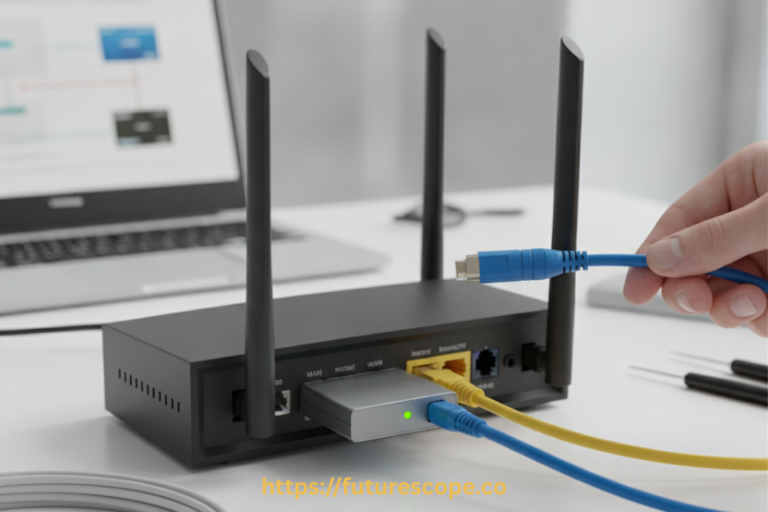
- Use Ethernet instead of Wi-Fi: Wired connections are more stable.
- Close bandwidth-heavy apps: Streaming, torrenting, or downloads can eat bandwidth.
- Restart your router regularly to clear temporary issues.
- Select the nearest server region in online games for the lowest ping.
- Upgrade your internet plan if your speeds are too low for modern needs.
A stable, fast internet connection reduces online lag and ensures smoother experiences.
Step 7: Scan for Malware and Viruses
Malware can run in the background, hogging system resources and causing severe lag. To protect your PC:
- Run a full scan using Windows Defender or a trusted antivirus.
- Use anti-malware tools like Malwarebytes to remove hidden threats.
- Keep your antivirus definitions updated.
Removing malicious software can instantly restore lost performance.
Step 8: Adjust In-Game Settings
For gamers, lag often appears as FPS drops or stuttering during gameplay. Adjusting graphics settings helps balance visuals and performance:
- Lower resolution to reduce GPU load.
- Turn off unnecessary effects like shadows, motion blur, and anti-aliasing.
- Enable performance-enhancing features such as NVIDIA Reflex or AMD Anti-Lag.
- Cap your frame rate to reduce stuttering.
Optimized game settings ensure smoother, more responsive gameplay.
Step 9: Tweak Windows Settings
Windows has built-in options to improve performance.
- Enable Game Mode under Settings > Gaming > Game Mode.
- Switch to High Performance Power Plan under Power Options.
- Disable visual effects (like animations and transparency) under System > Advanced Settings > Performance Options.
- Defragment HDDs (not SSDs) to improve data access speeds.
These tweaks reduce background processes and prioritize performance for smoother operation.
Step 10: Consider Hardware Upgrades
If your PC is still lagging despite optimizations, the hardware itself may be outdated.
- CPU upgrade: Essential for multitasking and running modern games smoothly.
- GPU upgrade: Critical for gaming performance and graphics-heavy applications.
- Motherboard upgrade: Allows for faster components and new technologies.
While upgrades require investment, they deliver the most dramatic improvements in eliminating lag.
Step 11: Clean and Maintain Your PC Regularly
Lag often builds up over time due to system clutter. Regular maintenance keeps your PC running efficiently:
- Run disk cleanup tools to remove temporary files.
- Clear browser caches and unnecessary downloads.
- Keep your desktop organized to reduce startup load.
- Restart your PC regularly to clear memory.
Routine care prevents lag from creeping back.
Conclusion | Lag-Free PC Starts with Smart Maintenance
Lag can make your PC feel outdated, but in most cases, the problem is fixable. By addressing both hardware and software causes, you can bring your system back to life and enjoy smooth, responsive performance.
Start with the easy fixes like closing background apps, updating drivers, and checking for malware. If the problem persists, consider upgrading your RAM, switching to an SSD, or improving your cooling system. Gamers should also adjust in-game settings to balance visuals with performance.
With the right steps, you’ll not only fix lag on your PC but also extend its lifespan and make everyday computing or gaming more enjoyable.
Frequently Asked Questions
Why is my PC lagging all of a sudden?
Sudden lag can be caused by overheating, malware, too many background programs, outdated drivers, or failing hardware. Checking system performance in Task Manager is a good first step.
Does adding more RAM fix lag?
Yes. If your PC runs out of memory, it will rely on slower disk storage, which causes lag. Upgrading RAM improves multitasking and reduces system slowdowns.
Will an SSD stop my PC from lagging?
Switching to an SSD dramatically reduces stutters, load times, and overall sluggishness compared to a hard drive. While it won’t fix all lag issues, it provides a huge performance boost.
How do I fix lag in online games?
Use a wired Ethernet connection, close bandwidth-heavy apps, and select the closest game server. Optimizing your internet connection is the key to reducing online lag.
Can overheating cause lag on PC?
Yes. When your CPU or GPU overheats, the system lowers performance to prevent damage. Cleaning dust, improving cooling, and reapplying thermal paste can solve this problem.


![How to Fix YouTube Server Connection Error [400] on Android](https://www.futurescope.co/wp-content/uploads/2021/09/How-to-Fix-YouTube-Server-Connection-Error-400-on-Android-150x150.png)