
Windows 10 has been a trusted operating system for over a decade. Millions of users around the world rely on it daily. But now, Microsoft has officially ended support for Windows 10 as of October 14, 2025. This marks a major shift in how users interact with their PCs. So, the big question is: Is Windows 10 really dead? And is it still safe to use?
Let’s explore the facts, risks, and smart ways to keep using Windows 10 safely even after its official end of life.
What Does “End of Support” Mean?
When Microsoft ends support for an operating system, it stops providing:
- Security updates: No more patches for new threats.
- Bug fixes: System issues won’t be resolved.
- Feature updates: No new tools or improvements.
- Technical support: Microsoft won’t help with problems.
Your PC won’t stop working. But it will become more vulnerable over time. Without updates, hackers can exploit unpatched flaws. That’s why Microsoft recommends upgrading to Windows 11.
Is Windows 10 Really Dead?
Technically, yes. Microsoft has stopped supporting it. But practically, no. Windows 10 still works. You can browse the web, run apps, and use your files. However, you need to be cautious. Without updates, your system is exposed to security risks.
Think of it like driving an old car. It still runs, but it needs extra care to stay safe.
Can You Still Use Windows 10 Safely?
Yes, you can. But you must take extra steps to protect your system. Here’s how:
1. Use Extended Security Updates (ESU)
Microsoft offers Extended Security Updates (ESU) for Windows 10. This is a paid program that provides security patches for up to three more years.
- Available until October 2028
- First year may be free for some users
- Ideal for businesses and individuals who need more time
ESU is a great way to stay protected while you plan your next move.
2. Install Reliable Antivirus Software
With no built-in updates, antivirus software becomes essential.
- Choose a trusted antivirus that supports Windows 10
- Enable real-time protection
- Run regular scans
- Use firewall tools to block threats
Top choices include Bitdefender, Norton, and Malwarebytes.
3. Keep Your Apps and Drivers Updated
Even if Windows 10 isn’t updated, your apps can be.
- Update your web browser regularly
- Keep drivers and third-party software current
- Avoid outdated plugins and extensions
Modern browsers like Chrome and Firefox will support Windows 10 for a while. But support may fade over time.
4. Practice Safe Browsing Habits
Most threats come from the internet. Be cautious.
- Don’t click on suspicious links
- Avoid downloading unknown files
- Use ad blockers and privacy extensions
- Enable HTTPS-only mode in your browser
Safe browsing reduces your exposure to malware and phishing attacks.
5. Use a Standard User Account
Avoid using an administrator account for daily tasks.
- Create a standard user account
- Use admin rights only when needed
This limits the damage if malware tries to install itself.
6. Backup Your Data Regularly
Always have a backup plan.
- Use external drives or cloud storage
- Schedule automatic backups
- Keep multiple copies of important files
If your system crashes or gets infected, backups save your data.
7. Disable Unused Features
Turn off features you don’t need.
- Disable Remote Desktop
- Turn off file sharing on public networks
- Remove unused apps and services
Fewer features mean fewer vulnerabilities.
8. Consider Offline Use
If possible, keep your Windows 10 PC offline.
- Use it for local tasks like printing or file storage
- Avoid connecting to the internet unless necessary
No internet means no online threats.
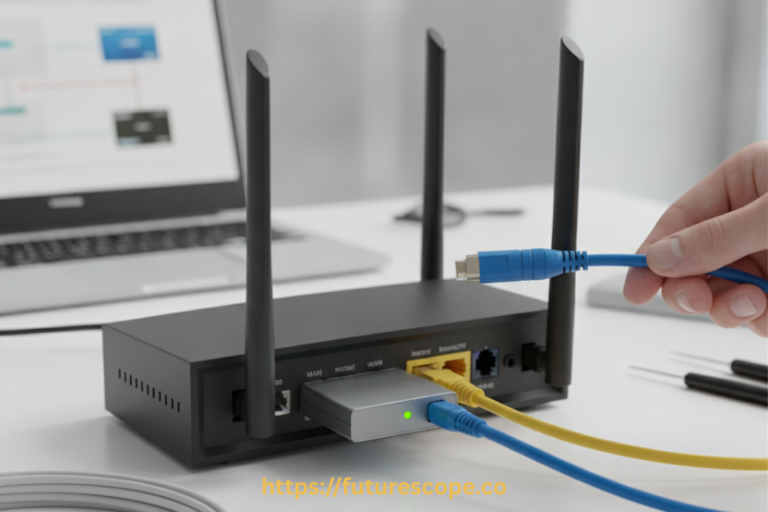
9. Use a Hardware Firewall
Add an extra layer of protection.
- Many routers have built-in firewalls
- You can also buy dedicated firewall devices
This helps block unwanted traffic before it reaches your PC.
10. Monitor System Health
Keep an eye on your system.
- Check for unusual behavior
- Review startup programs
- Use tools like Process Explorer or Autoruns
Early detection helps prevent bigger problems.
What Are the Risks of Staying on Windows 10?
Using an unsupported OS comes with risks:
- Security vulnerabilities: No patches for new threats
- Software incompatibility: Apps may stop working
- Hardware issues: New devices may not be supported
- Compliance problems: Businesses may face legal risks
Cybercriminals often target outdated systems. That’s why Microsoft urges users to upgrade.
Should You Upgrade to Windows 11?
If your PC supports it, upgrading is the best option.
- Windows 11 gets regular updates
- It has better security features
- Most modern PCs are compatible
Upgrading ensures long-term safety and performance.
What If Your PC Can’t Run Windows 11?
Some older PCs can’t run Windows 11. In that case:
- Use ESU for extra protection
- Follow all safety tips above
- Consider switching to Linux or ChromeOS Flex
These are free, secure alternatives that run well on older hardware.
How Long Can You Keep Using Windows 10?
There’s no fixed timeline. But here’s a rough guide:
- 2025–2028: Safe if you use ESU and follow best practices
- 2028 onward: Risk increases as software support fades
Eventually, apps and browsers will stop supporting Windows 10. That’s when it becomes truly unsafe.
Best Alternatives by Use Case
| Use Case | Best Alternative | Why It Works |
|---|---|---|
| General productivity, Office apps | Windows 11 | Seamless upgrade if your PC supports it. Familiar interface and full app compatibility. |
| Web browsing, email, streaming | ChromeOS Flex | Lightweight, fast, and secure. Great for older PCs. |
| Coding, customization, privacy | Linux Mint / Ubuntu | Free, open-source, and highly customizable. Excellent for developers and tech-savvy users. |
| Lightweight use on old hardware | Lubuntu / Xubuntu | Minimalist Linux distros that run well on low-spec machines. |
| Creative work (design, video, music) | macOS (on Apple devices) | Premium experience with strong creative app support. Requires switching hardware. |
| Gaming | Windows 11 or Linux with Steam Proton | Windows 11 supports most games. Linux with Proton can run many Windows games too. |
To find the best alternative to Windows 10 based on your PC specs and usage needs, here’s a breakdown of options tailored to different types of users and hardware:
Know Your PC Specs
Before choosing an alternative, check:
- Processor type (Intel/AMD, 64-bit or 32-bit)
- RAM size (4 GB, 8 GB, or more)
- Storage type (HDD or SSD)
- Graphics capability (integrated or dedicated GPU)
- Secure Boot & TPM 2.0 (required for Windows 11)
You can find this info in Settings > System > About or use tools like Speccy or CPU-Z.
Match Your Usage Needs
Ask yourself:
- Do you need Microsoft Office or Adobe apps?
- Do you mostly browse the web and stream?
- Are you into gaming or video editing?
- Do you prefer speed and simplicity?
Here are some solid future alternatives to Windows 10 that users can consider after its support ends:
1. Windows 11
- Best for: Users with compatible hardware
- Why switch: It’s Microsoft’s latest OS with ongoing updates, enhanced security, and a modern interface.
- Bonus: Familiar layout with improved performance and support for newer apps and devices.
2. Linux Distributions (Ubuntu, Fedora, Linux Mint)
- Best for: Users who want a free, secure, and customizable OS
- Why switch: Linux is open-source, lightweight, and great for older hardware.
- Bonus: No license fees, strong community support, and regular updates.
3. ChromeOS Flex
- Best for: Users who mostly use web apps and cloud services
- Why switch: It’s fast, secure, and designed for older PCs.
- Bonus: Easy to install, minimal system requirements, and backed by Google.
4. macOS (on Apple devices)
- Best for: Users ready to switch to Apple hardware
- Why switch: macOS offers excellent performance, security, and integration with Apple’s ecosystem.
- Bonus: Long-term support and premium hardware experience.
5. Virtual Machines or Dual Boot Setups
- Best for: Users who want to keep Windows 10 but try other OSes
- Why switch: You can run Linux or Windows 11 alongside Windows 10.
- Bonus: Flexibility without losing access to your current setup.
Example Scenarios
- You have 8GB RAM, SSD, and TPM 2.0 → Go for Windows 11
- You have 4GB RAM, old CPU, no TPM → Try Linux Mint or ChromeOS Flex
- You use mostly Google apps and cloud storage → ChromeOS Flex is perfect
- You want full control and privacy → Choose Ubuntu or Fedora
- You’re a gamer with a mid-range GPU → Stick with Windows 11 or explore SteamOS
Final Thoughts
Windows 10 may be “dead” in terms of support, but it’s not useless. You can still use it safely—if you’re careful. The key is to stay proactive. Use antivirus software, update your apps, and avoid risky behavior.
Frequently Asked Questions (FAQ)
1. When did Windows 10 support end?
Microsoft ended support for Windows 10 on October 14, 2025. After this date, no more security updates or bug fixes are provided.
2. Can I still use Windows 10 after support ends?
Yes, you can continue using Windows 10, but it becomes more vulnerable to security threats without regular updates.
3. What are the risks of using Windows 10 after support ends?
The main risks include exposure to malware, lack of security patches, software incompatibility, and potential data breaches.
4. How can I stay safe on Windows 10 after support ends?
Use strong antivirus software, keep apps updated, avoid risky websites, back up your data regularly, and consider enrolling in Microsoft’s Extended Security Updates (ESU) program.
5. What is the Extended Security Updates (ESU) program?
ESU is a paid service from Microsoft that provides critical security updates for Windows 10 through October 2028.
6. What are the best alternatives to Windows 10?
Depending on your needs and hardware, alternatives include Windows 11, Linux distributions (like Ubuntu or Linux Mint), ChromeOS Flex, or macOS (if switching to Apple hardware).
7. Should I upgrade to Windows 11?
Yes, if your PC meets the system requirements. Windows 11 offers better security, performance, and long-term support.