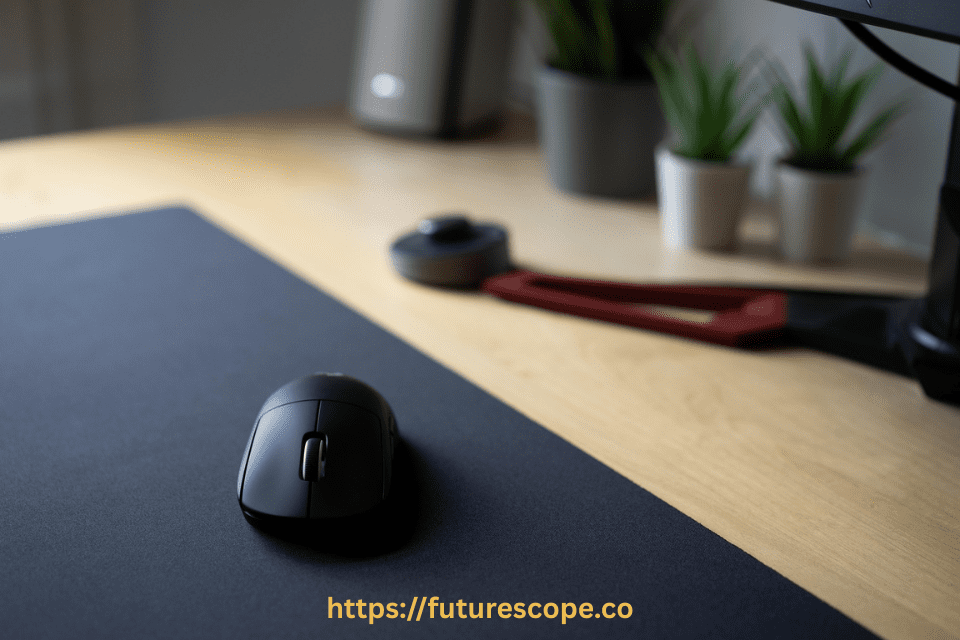

Wireless accessories make using laptops much easier, and a Bluetooth mouse is one of the most convenient tools for work, study, or gaming. Normally, many wireless mice come with a USB dongle (also called a receiver) that must be plugged into your laptop to work. But what if you don’t have the dongle? Can you still use your Bluetooth mouse?
The good news is yes — you can connect most Bluetooth mice directly to your laptop without a dongle if your device already supports Bluetooth. In this article, we’ll explain the step-by-step process for Windows, macOS, and Linux laptops, along with troubleshooting tips and key facts you should know.
Do You Need a Dongle for a Bluetooth Mouse?
Not always. It depends on the type of wireless mouse you own:
- RF Wireless Mouse (with Dongle):
- Uses a 2.4 GHz USB receiver.
- Cannot connect without the dongle because it does not use Bluetooth.
- Bluetooth Wireless Mouse (no Dongle Needed):
- Uses built-in Bluetooth technology.
- Can connect directly to your laptop’s Bluetooth without any extra hardware.
If your laptop has Bluetooth and your mouse is Bluetooth-enabled, you can connect them directly without the dongle.
Prerequisites for Connecting a Bluetooth Mouse
Before pairing your Bluetooth mouse, ensure you have the following:
- Bluetooth-Enabled Laptop: Most laptops post-2015 include built-in Bluetooth. Check your device specs or settings to confirm.
- Bluetooth Mouse: Verify the mouse uses Bluetooth (not RF) and is compatible with your operating system (Windows, macOS, Linux, etc.).
- Power Supply: Ensure the mouse has fresh or charged batteries (AA/AAA or rechargeable).
- Bluetooth Version: Confirm compatibility between your laptop’s Bluetooth version (e.g., 4.0, 5.0) and the mouse. Newer versions improve performance but are backward compatible.
- Updated Drivers: Ensure your laptop’s Bluetooth drivers are current to prevent connectivity issues.
Step-by-Step Guide to Connect a Bluetooth Mouse
Follow these steps to pair your Bluetooth mouse with your laptop, tailored for different operating systems in 2025.
Step 1: Prepare Your Bluetooth Mouse
- Power On the Mouse: Locate the power switch, typically on the bottom, and turn it on. Some mice, like the Logitech MX Master 3S, have a dedicated Bluetooth pairing button.
- Activate Pairing Mode: Press and hold the pairing button (check the manual) until the LED indicator flashes, indicating the mouse is discoverable. For example, the Microsoft Bluetooth Mouse uses a blinking LED to signal pairing mode.
- Check Battery Level: Replace batteries or charge the mouse if it’s rechargeable to avoid interruptions during pairing.
Step 2: Enable Bluetooth on Your Laptop
- Windows 11/10:
- Open Settings via the Start menu (Windows key) and navigate to Devices > Bluetooth & other devices.
- Toggle Bluetooth to On. Alternatively, use the Action Center (Windows key + A) and click the Bluetooth icon to enable it.
- Click Add Bluetooth or other device, then select Bluetooth.
- macOS:
- Click the Apple menu > System Settings (or System Preferences on older macOS versions) > Bluetooth.
- Ensure Bluetooth is enabled and set to discoverable mode.
- Linux (e.g., Ubuntu):
- Open Settings > Bluetooth.
- Turn Bluetooth on and scan for nearby devices.
Step 3: Pair the Mouse with Your Laptop
- Scan for Devices: In your laptop’s Bluetooth settings, wait for your mouse to appear (e.g., “Logitech MX Anywhere” or “Bluetooth Mouse”).
- Select and Connect: Click the mouse’s name to start pairing. Some mice may prompt for a PIN (try 0000 or 1234 if required). Others pair automatically.
- Verify Connection: The mouse’s LED should stop flashing or turn solid, and the cursor should move when you use the mouse.
Step 4: Install Optional Software or Drivers
Some Bluetooth mice offer companion software for advanced customization, such as button mapping or sensitivity adjustments. For example:
- Logitech Options: Customizes buttons and gestures for models like the MX Master 3S.
- Microsoft Mouse and Keyboard Center: Enhances settings for Microsoft Bluetooth mice. Download the software from the manufacturer’s website (e.g., Logitech or Microsoft) and install it. This step is optional but recommended for feature-rich mice.
Step 5: Test and Customize Settings
Test the mouse by moving the cursor and clicking. Adjust settings for optimal performance:
- Windows: Go to Settings > Devices > Mouse to tweak cursor speed or scroll settings.
- macOS: Navigate to System Settings > Mouse or Trackpad to adjust tracking or scrolling direction.
- Linux: Use Settings > Mouse & Touchpad to configure preferences.

Troubleshooting Common Bluetooth Mouse Issues
If your Bluetooth mouse doesn’t connect or experiences issues, try these fixes:
- Bluetooth Not Enabled: Verify Bluetooth is on in your laptop’s settings and the mouse is in pairing mode.
- Update Drivers: On Windows, open Device Manager, locate Bluetooth, and update drivers. On macOS, check for system updates via Software Update.
- Minimize Interference: Move Wi-Fi routers, cordless phones, or other Bluetooth devices away to reduce signal interference.
- Re-Pair the Mouse: Remove the mouse from your laptop’s Bluetooth device list and repeat the pairing process.
- Check Battery: Low battery can cause connectivity issues. Replace or recharge as needed.
Comparison of Top Bluetooth Mice
Based on reviews from TechRadar and PCMag, here are some of the best Bluetooth mice for 2025:
| Mouse Model | Key Features | Price (Approx.) | Best For |
|---|---|---|---|
| Logitech MX Master 3S | Multi-device pairing, ergonomic, 70-day battery | $99 | Professionals, multi-device users |
| Microsoft Bluetooth Mouse | Compact, affordable, 12-month battery | $19-$25 | Budget users, basic tasks |
| Apple Magic Mouse 2 | Multi-touch surface, rechargeable, macOS optimized | $79 | Mac users, creative workflows |
| Logitech M720 Triathlon | Multi-device, 24-month battery, durable | $39 | Versatile, long battery life |
Frequently Asked Questions
Can I use a Bluetooth mouse without the USB dongle?
Yes. If your mouse supports Bluetooth and your laptop has built-in Bluetooth, you can connect directly without using a dongle.
What if my mouse only works with a dongle?
If it is an RF wireless mouse, it will not connect without the dongle. Only Bluetooth-enabled mice can connect directly.
How do I put my Bluetooth mouse in pairing mode?
Turn on the mouse, then press and hold the pairing button (usually at the bottom) until the LED light starts blinking.
Why won’t my Bluetooth mouse connect to my laptop?
Check if Bluetooth is enabled, restart your laptop, update Bluetooth drivers, and make sure your mouse has enough charge or fresh batteries.
Can I connect a Bluetooth mouse to multiple devices?
Yes, many modern Bluetooth mice support multi-device pairing. You can switch between laptops, tablets, and phones easily.
How Do I Connect My Wireless Mouse To My Laptop Without A Dongle?
Enable Bluetooth on your laptop. Turn on the wireless mouse. Pair the mouse with your laptop via Bluetooth settings.
Can A Bluetooth Mouse Work Without A Dongle?
Yes, a Bluetooth mouse can work without a dongle. Ensure your device has built-in Bluetooth capability. Pair the mouse directly with your device via Bluetooth settings.
How Do I Manually Connect My Bluetooth Mouse?
Turn on your Bluetooth mouse. Open your device’s Bluetooth settings. Select “Add Bluetooth or other device. ” Choose your mouse from the list. Follow on-screen instructions to connect.
How To Connect A Wireless Mouse If You Lost The USB?
Use Bluetooth pairing or connect through the manufacturer’s app. Check if your mouse supports Bluetooth. Alternatively, purchase a replacement USB receiver.
Conclusion
You don’t always need a dongle to connect a wireless mouse. If your laptop has built-in Bluetooth and your mouse supports it, you can connect them directly in just a few steps. Simply enable Bluetooth, put your mouse in pairing mode, and connect through your laptop’s settings.
If your mouse is RF-only (dongle required), then unfortunately, you cannot connect it without the receiver. But if it’s a Bluetooth-enabled mouse, you can enjoy a cleaner, faster, and more portable experience without needing an extra dongle.
In short: Check your laptop’s Bluetooth, enable it, and pair your mouse. That’s all you need to use your Bluetooth mouse without a dongle in 2025.