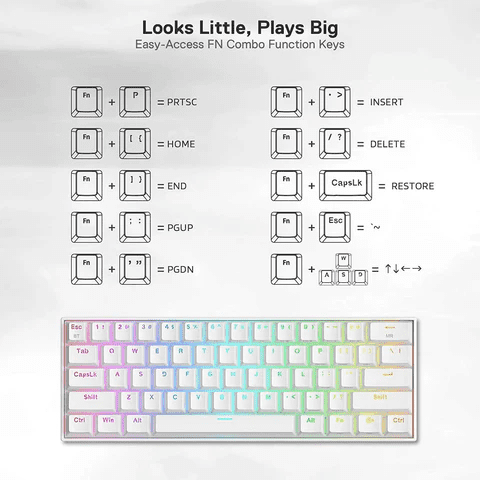
To use Fn keys on a 60% keyboard, press the Fn key and the corresponding function key simultaneously. This combination activates secondary functions.
A 60% keyboard is a compact, streamlined option favored by many for its portability and efficiency. It lacks dedicated function keys, arrow keys, and a number pad, making it smaller and easier to handle. Despite its size, it still offers full functionality through the use of the Fn key.
By pressing the Fn key along with other keys, you can access functions like volume control, media playback, and other shortcuts. This setup maximizes desk space and enhances typing ergonomics. Understanding how to efficiently use the Fn key on a 60% keyboard can significantly improve your productivity and overall user experience.
Introduction To 60% Keyboards
Many users love 60% keyboards. They are small and powerful. These keyboards lack the number pad, function row, and arrow keys. But they still have all the main keys. People enjoy their compact design and easy use. They save space on desks and are great for travel.
Compact Design And Functionality
60% keyboards have a compact design. They are about 60% the size of a full keyboard. This makes them small and portable. You can fit them in bags easily.
Despite their size, they have many functions. You can use Fn keys to access many features. These keys let you control volume, brightness, and more. You can also use them to type special characters. This makes the keyboard very functional despite its small size.
Popularity Among Enthusiasts
Many keyboard enthusiasts love 60% keyboards. They enjoy the small size and powerful features. These keyboards are great for gamers and coders. They give you more space for your mouse. This can help you play games better.
Customizing these keyboards is also fun. You can change keycaps and switches. Many people like to build their own 60% keyboards. This makes each keyboard unique and special. Enthusiasts often share their builds online. This creates a community of keyboard lovers.
| Feature | Description |
|---|---|
| Size | 60% of a full keyboard |
| Portability | Easy to carry and travel with |
| Functionality | Full features through Fn keys |
To sum up, 60% keyboards are small, powerful, and loved by enthusiasts.
The Lack Of Dedicated Fn Keys
Using a 60% keyboard means fewer dedicated keys. This can be challenging for new users. The lack of dedicated function keys (Fn) is notable. But, you can still access these functions. This requires understanding layering and key combinations.
Layering And Key Combinations
With a 60% keyboard, you rely on key layers. This means the same key can perform different functions. For example, the ‘1’ key might also be ‘F1’ in another layer.
To access these layers, you often use a special function key. This key might be labeled ‘Fn’ or something similar. Pressing ‘Fn’ plus another key activates the second layer function.
| Key Combination | Function |
|---|---|
| Fn + 1 | F1 |
| Fn + 2 | F2 |
| Fn + Q | Media Control |
Learning these combinations takes practice. Soon, it will become second nature.
Customizing Your Layout
Many 60% keyboards allow customization. You can reassign keys to different functions. This makes your keyboard fit your specific needs.
Software tools help with this customization. Some popular tools include:
- QMK Firmware
- Via
- Karabiner-Elements (for Mac users)
By using these tools, you can set up your ideal keyboard layout. This might include:
- Reassigning the ‘Caps Lock’ key to ‘Fn’
- Creating custom layers for gaming
- Setting up macros for repetitive tasks
Customizing your layout enhances your typing experience. It makes your 60% keyboard more versatile and user-friendly.
Mastering Shortcuts On A 60% Keyboard
Using a 60% keyboard can boost your productivity. These compact keyboards save space and improve efficiency. But, fewer keys mean more reliance on Fn keys for shortcuts. Let’s explore how to use them effectively.
Common Fn Key Operations
Most 60% keyboards have essential functions like volume control, media playback, and brightness adjustment assigned to Fn key combinations.
- Volume Control:
Fn + 1to decrease,Fn + 2to increase. - Media Playback:
Fn + 3for play/pause,Fn + 4for next track. - Brightness Adjustment:
Fn + 5to decrease,Fn + 6to increase.
These shortcuts make daily tasks quicker. You can control your system without reaching for the mouse.
Advanced Shortcuts For Power Users
For advanced users, the 60% keyboard offers more sophisticated Fn key combinations. Here are some examples:
- Window Management:
Fn + Qto switch windows,Fn + Wto close the current window. - Clipboard Operations:
Fn + Cto copy,Fn + Vto paste. - Text Editing:
Fn + Ato select all,Fn + Zto undo.
These shortcuts enable faster text editing and window management. Power users can streamline their workflow significantly.
Below is a table summarizing the common and advanced shortcuts:
| Function | Shortcut |
|---|---|
| Volume Down | Fn + 1 |
| Volume Up | Fn + 2 |
| Play/Pause | Fn + 3 |
| Next Track | Fn + 4 |
| Brightness Down | Fn + 5 |
| Brightness Up | Fn + 6 |
| Switch Window | Fn + Q |
| Close Window | Fn + W |
| Copy | Fn + C |
| Paste | Fn + V |
| Select All | Fn + A |
| Undo | Fn + Z |
By mastering these shortcuts, you can make the most of your 60% keyboard.

Practical Tips And Tricks
Using Fn keys on a 60% keyboard can boost your productivity. With fewer keys, you need to master shortcuts. Here are practical tips and tricks to help you.
Software Tools To Enhance Functionality
Specific software can make your 60% keyboard more versatile. Software like AutoHotkey lets you create custom shortcuts. This can save time and make tasks easier.
Another useful tool is SharpKeys. This software allows you to remap keys. You can change key functions based on your needs.
Here’s a comparison table of popular software:
| Software | Key Features | Platform |
|---|---|---|
| AutoHotkey | Custom shortcuts, scripting | Windows |
| SharpKeys | Key remapping | Windows |
| Karabiner-Elements | Key remapping, device-specific profiles | macOS |
Maintaining Efficiency In Daily Use
To stay efficient, learn the most-used shortcuts. Here are some common ones:
- Fn + 1: F1 key
- Fn + 2: F2 key
- Fn + W: Arrow Up
- Fn + A: Arrow Left
- Fn + S: Arrow Down
- Fn + D: Arrow Right
Practice these shortcuts daily. Soon, they will become second nature.
Using a 60% keyboard efficiently also involves good posture. Keep your wrists straight to avoid strain. A wrist rest can help.
Use these tips and software to master your 60% keyboard. This will make your workflow smoother and faster.

Frequently Asked Questions
How Do You Toggle The Fn Key On A 60 Keyboard?
Press the “Fn” key and “Esc” key simultaneously to toggle the Fn key on a 60% keyboard.
Do 60% Keyboards Have Fn Keys?
Yes, 60% keyboards have FN keys. These keys allow access to secondary functions and shortcuts.
How To Unlock Fn Key?
Press the “Fn” key and “Num Lock” key simultaneously to unlock the Fn key. Use BIOS settings if needed.
How To Use F4 On 60%?
To use F4 on a 60% keyboard, press the Fn key and the 4 key simultaneously. This activates the F4 function.
How Do I Activate Fn Keys On A 60 Keyboard?
To activate Fn keys, hold the “Fn” key while pressing the desired function key.
Conclusion
Mastering the Fn keys on a 60% keyboard enhances your typing efficiency. Practice makes perfect. Customize key mappings for your needs. Soon, these compact keyboards will feel natural. Enjoy the extra desk space and sleek design. Happy typing!