
To use Copilot to generate images, select the Copilot feature in your design software and input your desired parameters. Then, let Copilot create the visual content based on your specifications.
Exploring the innovative world of automated design, Copilot stands as a revolutionary tool that streamlines the image creation process. This AI-driven feature, integrated into various design platforms, empowers users to craft visuals with unprecedented ease. By simply providing Copilot with specific criteria and creative direction, individuals can watch as the software brings their vision to life.
The technology behind Copilot harnesses machine learning to interpret instructions and generate images that align with the user’s intent. This not only saves time but also opens up new possibilities for creativity without the need for extensive design experience. With its intuitive interface and user-friendly operation, Copilot is transforming how we approach graphic design, making it accessible to a broader audience.
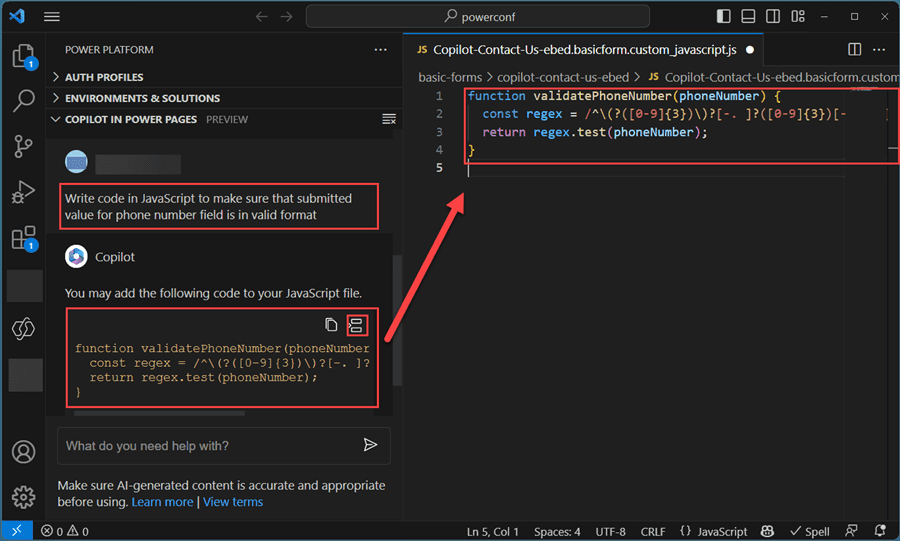
Introducing Copilot For Image Generation
Imagine creating stunning images with just a few clicks! Copilot, the new AI tool, makes this possible. It transforms ideas into visual masterpieces effortlessly.
What Is Microsoft Copilot?
Copilot is an AI-powered tool designed to generate images based on textual descriptions. Users simply input text, and Copilot crafts corresponding visuals. This technology is ideal for artists, marketers, and content creators who need quick, beautiful images.
The Rise Of AI In Creative Fields
AI is changing how we create art. Tools like Copilot are leading this transformation, offering new ways to innovate and express creativity without traditional barriers.
- Increased efficiency in producing visuals
- Enhanced creativity through AI collaboration
- Accessible art creation for all skill levels
Embrace the future of image creation with Copilot and watch your ideas come to life!
Setting Up Your Workspace
Embarking on a creative journey with Copilot to generate images begins in your workspace. A well-organized workspace streamlines your creative process. Let’s start by installing the essential tools.
Installing The Necessary Tools
To get started with Copilot, ensure your computer has the right software. Follow these simple steps:
- Choose the Copilot software compatible with your operating system.
- Download the installer from the official website.
- Run the installation by following on-screen instructions.
- Agree to the terms and select the installation directory.
- Complete the setup and launch Copilot.
Understanding The User Interface
Once Copilot is up and running, familiarize yourself with the user interface. Here’s what to expect:
- Menu Bar: Access all features and settings here.
- Tool Panel: Find tools for creating and modifying images.
- Workspace: The canvas where your images take shape.
- Layers Panel: Manage different elements of your images.
Take a moment to click around. Explore the various functions and settings. Remember, a solid grasp of the workspace enhances your image generation experience.
How Copilot is used? Mastering The Basics Of Image Creation With Copilot
Mastering the Basics of Image Creation with Copilot opens a world of visual storytelling. Whether you are a blogger, a graphic designer, or just love creating, Copilot acts as your digital artist’s brush. It transforms your ideas into visual masterpieces with ease. Grasping the fundamentals is the first step to unleashing Copilot’s full potential. Let’s dive in.
Choosing The Right Parameters
Parameters are crucial in guiding Copilot to produce the images you envision. Think of parameters as instructions for the image you want to create. They define aspects like style, color, and composition.
- Style: Set the artistic style such as cartoon or photorealistic.
- Color: Choose a color scheme that fits your project’s mood.
- Composition: Define the layout and elements within the image.
Experiment with different combinations to see how Copilot interprets your input. Adjusting parameters is key to achieving desired results.
Learning To Interpret Prompts
Prompts are simple descriptions that guide Copilot in generating images. Writing clear prompts is essential for effective communication with the tool.
| Tip | Example |
|---|---|
| Be specific | “A sunny beach with palm trees” |
| Include details | “A red apple on a wooden table” |
| Set the mood | “A cozy cabin at dusk” |
Understanding the nuances of your prompts improves the accuracy of the images generated. Practice crafting prompts to get a feel for how Copilot responds.
Advanced Techniques And Tips
Ready to take your image generation with Copilot to the next level? Let’s explore some advanced techniques and tips that can help you create even more stunning visuals. These methods will help you fine-tune your creations, making them truly unique.
Experimenting With Styles And Textures
Unlock the full potential of Copilot by experimenting with various styles and textures. This can dramatically change the look and feel of your generated images.
- Start by choosing a base style. This could be anything from watercolor to pixel art.
- Adjust texture settings to add depth and realism to your images.
- Combine styles to create something entirely new.
Remember, the key is to test different combinations and see what works best for your vision.
Incorporating Feedback Loops
Feedback loops can significantly improve the quality of your generated images. They allow Copilot to learn from each iteration and refine the output.
- Generate an initial image and analyze the results.
- Provide specific feedback to Copilot on what to change.
- Repeat the process until you achieve the desired outcome.
With each loop, Copilot gets better at understanding your preferences, leading to more precise results.
Frequently Asked Questions
Can I Generate Images With Copilot?
No, Copilot cannot generate images; it’s designed for code suggestions and assistance. For image creation, consider AI-based graphic design tools.
How To Use Bing Copilot To Create Images?
To use Bing Copilot for creating images, first access the Bing Copilot platform. Next, enter your image creation request into the input field. Review the generated image and adjust parameters as needed to refine the results.
Can Copilot Generate An NSFW Image?
No, Copilot cannot generate NSFW images as it adheres to strict content guidelines that prohibit explicit or adult content.
Conclusion
Harnessing the power of Copilot for image generation is a game-changer for creatives and professionals alike. With the steps outlined, you’re now equipped to bring visuals to life effortlessly. Embrace this innovative tool, enhance your projects, and let your imagination soar.
Start creating; the possibilities are endless.