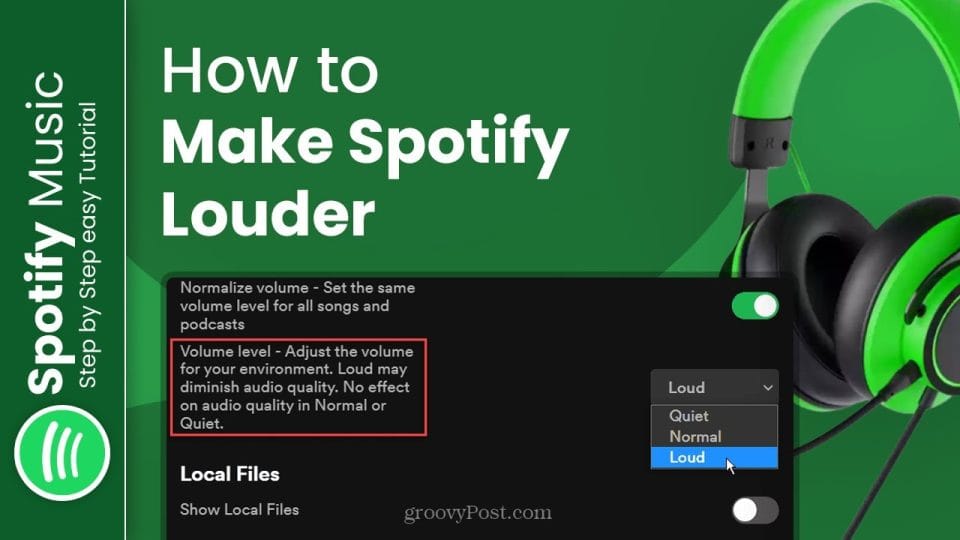

To make Spotify louder, open the settings menu and choose the “Loud” option from the “Volume Level” drop-down menu. By selecting this option, you can increase the volume of Spotify to your desired level.
In today’s digital age, music streaming platforms have become increasingly popular, with Spotify being one of the leading services. However, one common issue that users often face is the low volume of music on Spotify. Whether you want to pump up the volume for a workout session or simply enjoy your favorite tunes at a higher level, increasing the volume on Spotify can enhance your overall listening experience.
We will explore a simple and effective method to make Spotify louder and enjoy your music at a higher volume.
Why Does Spotify Sound Quiet?
Spotify uses a volume normalization feature to ensure consistent loudness across tracks, preventing jarring volume changes between songs. While this improves the listening experience, it can make some tracks seem quieter, particularly in loud environments like gyms or public transport. Additionally, device-specific volume limits, low-quality headphones, or app settings may contribute to perceived low volume. Understanding these factors is key to addressing the issue effectively.
How to make Spotify louder by adjusting sound quality settings?
Adjusting the volume settings in Spotify is crucial to enhance your listening experience and make your favorite tracks louder. Fortunately, Spotify provides you with an easy way to control the volume of your music within the app. In this section, we’ll walk you through the steps to adjust the volume settings in Spotify for a louder music playback.
Use Spotify’s Built-in Volume Settings
Spotify includes its own volume control, independent of your device’s system volume. Here’s how to adjust it:
- On desktop, click the volume bar at the bottom-right corner of the app.
- On mobile, tap the speaker icon while playing a track.
Make sure the volume slider is all the way up. It’s common for users to overlook this setting, especially if Spotify’s volume was reduced previously.
Enable “Loud” in Spotify’s Volume Level Settings
Spotify offers three volume level modes: Quiet, Normal, and Loud. These are essentially dynamic range compression settings that affect how audio is balanced across different tracks.
To increase loudness:
- Go to Settings in the Spotify app.
- Scroll down to Audio Quality or Playback.
- Find Volume Level and select Loud.
This setting compresses the dynamic range, making quieter sounds more prominent and the overall output louder.
Adjust System and Device Volume Controls
Sometimes the issue isn’t with Spotify itself but with your device’s sound settings:
- On Windows, right-click the sound icon → Open Volume Mixer → Make sure Spotify’s slider is maximized.
- On Mac, go to System Preferences > Sound, and boost both output and application volume.
- On mobile devices, use hardware volume buttons or check the app’s background volume settings.
Make sure your output device (Bluetooth speaker, headphones, etc.) is also turned up fully.
Use an Equalizer for Better Perceived Loudness
Spotify provides an equalizer (EQ) feature on mobile devices that can help enhance specific frequencies, making your music sound louder and clearer.
To access:
- Go to Spotify Settings > Playback > Equalizer.
- Try presets like Loudness, Rock, or Pop, which boost bass and treble.
Custom EQ settings can also help emphasize the frequencies your headphones handle best, resulting in richer, louder sound.
Enable “Audio Normalization” for Consistent Loudness
In Spotify’s settings, Audio Normalization ensures all tracks play at the same relative volume level, avoiding sudden drops or spikes.
To turn it on:
- Open Settings.
- Find Audio Normalization (under Playback or Audio Quality).
- Toggle it on and set the preferred level to Loud.
This helps maintain consistent loudness across albums and artists.
Use External Volume Booster Tools or Apps
There are third-party apps and tools that can amplify Spotify sound beyond your device’s limits:
- For Windows, try tools like Boom 3D, Equalizer APO, or FxSound Enhancer.
- For Mac, use Boom 2 or eqMac.
- On Android, volume booster apps like Precise Volume can help—though be cautious to avoid distortion or speaker damage.
These apps allow granular control over frequency bands, audio enhancements, and pre-amp gains for Spotify and other apps.
Use Better Audio Device
If you’re still struggling with low volume, your speakers or headphones might be limiting your experience.
- Upgrade to high-sensitivity headphones or external DACs/amplifiers.
- Use Bluetooth speakers with built-in volume amplifiers.
- Avoid using low-quality earbuds bundled with phones, as they often have low output.
Better audio hardware can significantly improve Spotify’s perceived loudness and audio quality.
Disable Volume-Limiting Features (If Safe)
Many smartphones have volume limiters enabled to prevent hearing damage. You can adjust or disable these:
- On iOS, go to Settings > Sounds & Haptics > Headphone Safety → Disable Reduce Loud Sounds.
- On Android, search Sound settings > Disable any volume limiting or media volume sync.
⚠️ Use caution and keep safe listening habits in mind.

Additional Ways to Maximize Spotify Volume
To ensure Spotify plays at its loudest, consider these additional steps:
| Tip | Description |
|---|---|
| Check Device Volume | Ensure your device’s volume is at maximum. On mobile, use physical volume buttons; on desktop, check the system volume mixer (TechViral). |
| Disable Volume Normalization | In Spotify’s Settings, turn off “Enable Audio Normalization” to prevent automatic volume leveling, which can reduce loudness (Tom’s Guide). |
| Update Spotify | Use the latest app version to benefit from audio playback improvements. Check for updates in your app store or desktop app. |
| Restart the App | Close and reopen Spotify to fix temporary glitches affecting volume. |
| Use Premium | Premium accounts offer higher audio quality (up to 320kbps), which can sound clearer and louder compared to the free version’s lower bitrates (wikiHow). |
| Upgrade Audio Equipment | High-quality headphones or speakers with better dynamic range can make music sound louder and clearer without software tweaks. |
Boosting Spotify Volume On Android: Check Your Settings
To boost the volume on Spotify for Android, open the app and go to Settings. Under Playback, adjust the Volume Level to Loud, Normal, or Quiet depending on your preference. This simple tweak can help you enjoy your music louder on the go.
If you’re an Android user who loves jamming to music on Spotify, you may have encountered the issue of low volume. Fortunately, there’s a simple solution to make your Spotify experience louder and more enjoyable. In this section, we’ll guide you through the steps to boost the volume on your Android device within the Spotify app.
Launch The Spotify App On Your Android Device
To begin, ensure that you have the Spotify app installed on your Android device. Locate the Spotify icon on your home screen or app drawer, and tap on it to launch the app.
Tap The Gear Icon In The Upper Right Corner Of The App’s Home Screen
Once you have opened the Spotify app, look for the gear icon in the upper right corner of the app’s home screen. This gear icon represents the Settings menu, where you’ll find various customization options.
In The Settings Menu, Select Playback
After tapping the gear icon, a menu will appear with different settings options. Scroll down and find the option labeled “Playback.” Tap on it to access the playback settings.
Tap “loud” To Set It As Your Preferred Volume Level
In the Playback settings menu, you’ll see a setting for volume level. By default, it is set to “Normal.” To make Spotify louder, simply tap on “Loud” to set it as your preferred volume level. This will ensure that your music plays at a higher volume.
And there you have it! By following these simple steps, you can boost the volume on your Spotify app for Android, and enjoy your favorite tunes at a louder and more immersive level.
Check Your Settings On iOS: Increase Volume on Spotify
Increase the volume of your Spotify on iOS devices by following these simple steps: Open the Spotify app, tap the gear icon for Settings, select “Playback,” and choose “Loud” from the Volume Level options. Enjoy your music at a louder level with a quick adjustment.
Open The Spotify App On Your iPhone Or iPad
To enhance the volume of Spotify on your iOS device, start by opening the Spotify app on your iPhone or iPad. Look for the recognizable green icon with three curved lines and tap to launch the app.
Tap The Gear Icon In The Upper Right Corner Of The App’s Home Screen
Once you have opened the Spotify app, you will see the app’s home screen. In the upper right corner of the screen, you will find a gear icon. This gear icon represents the settings menu of the Spotify app. Tap on it to proceed.
Navigate To The Settings Menu And Select Playback
After tapping the gear icon, a menu will appear with various options. Look for the option labeled “Settings” and tap on it. This will take you to the settings menu of the Spotify app. Scroll through the settings until you find the option called “Playback” and select it.
Tap “loud” To Set It As Your Preferred Volume Level
Within the Playback menu, you will find various volume level options. Look for the option labeled “Loud” and tap on it to set it as your preferred volume level. This will ensure that Spotify plays at a higher volume than the default setting, allowing you to enjoy your music at a louder and more immersive level.
By following these simple steps, you can enhance the volume of Spotify on your iOS device and enjoy your favorite music with an added boost. Remember to adjust the volume level based on your personal preference and the environment you are in.
Amplifying Spotify Volume On Other Devices
To make Spotify louder on other devices, open the app’s settings and choose “Loud” from the “Volume Level” options. This simple adjustment can help amplify the volume and enhance your listening experience.
When it comes to enjoying your favorite music on Spotify, having a loud and immersive audio experience can make all the difference. Whether you’re hosting a party or simply want to enhance your personal listening experience, there are several ways to amplify the volume on other devices and make your Spotify sessions louder. In this article, we’ll explore three effective methods to boost the volume when using Spotify on various devices.
Adjust The Volume Settings Directly On Your Device
One of the easiest ways to increase the volume of Spotify on your device is by adjusting the volume settings directly. By simply navigating to the settings menu on your device, you can make sure that the volume is set to its maximum level. Follow these simple steps to adjust the volume settings on your device:
- Open the settings menu on your device.
- Locate the volume control settings.
- Slide the volume slider or use the volume buttons to increase the volume to the desired level.
Connect Spotify To External Speakers Or Headphones For Increased Volume
If you want to take your Spotify listening experience to the next level, connecting your device to external speakers or headphones is a great option. This allows you to enjoy your favorite tracks with enhanced sound quality and increased volume. To connect Spotify to external speakers or headphones, follow these steps:
- Connect your external speakers or headphones to your device using the appropriate cable or wireless connection.
- Open the Spotify app on your device.
- Go to the settings menu and navigate to the audio output section.
- Select the connected external speakers or headphones as the output device.
Use Third-party Volume Booster Apps: Boost The Volume Output Of Your Device While Using Spotify
If Spotify’s built-in settings don’t provide enough volume, third-party apps or extensions can amplify sound output. However, use these cautiously, as excessive amplification may cause distortion or hearing damage.
- Mobile Apps:
- Equalizer FX (Android): Available on the Google Play Store, this app boosts volume and offers sound effects like bass boost (VolumeBooster).
- SonicMax Pro (iOS): This paid app can increase volume by up to 10 decibels (VolumeBooster).
- Desktop Solutions:
- Volume Booster Chrome Extension: Boosts web audio by up to 500%, compatible with Spotify’s web player (VolumeBooster).
- Third-Party Software: Apps like Boom 3D or Equalizer APO can enhance audio output on Windows or Mac.
Caution: Over-amplification can damage speakers or headphones and pose risks to hearing health. Always test at moderate levels first.
Troubleshooting Common Issues
- Volume Still Low: If “Loud” mode doesn’t help, check for app-specific volume limits in your device’s settings. On Android, go to Settings > Sound > Volume to adjust Spotify’s levels. On iOS, disable any volume restrictions.
- Audio Distortion: If boosting volume causes distortion, lower the equalizer settings or avoid third-party boosters. Ensure your headphones or speakers are compatible with high volumes.
- Free Account Limitations: Free users may lack access to the “Loud” setting or high-quality streaming, limiting volume options. Consider upgrading to Premium for more control.
Responsible Listening
While increasing Spotify’s volume can enhance your experience, excessively loud audio can harm your hearing over time. The World Health Organization recommends keeping volume below 85 decibels for prolonged listening. Use high-quality headphones or speakers to achieve clear sound without pushing volume to unsafe levels. If using third-party boosters, start with moderate settings and monitor for discomfort.
Frequently Asked Questions
How Do I Increase Spotify Volume?
To increase Spotify volume on an Android device, open the app, tap the gear icon for Settings, go to Playback, and adjust the Volume Level to Loud, Normal, or Quiet based on your preference and surroundings.
Does Spotify Have Volume Settings?
Yes, Spotify does have volume settings. Open Spotify, tap on the Settings icon, scroll down to Playback, and find Volume Level. You can choose between Loud, Normal, and Quiet depending on your surroundings.
How Do I Make Spotify Louder On Bluetooth?
To make Spotify louder on Bluetooth, open the Spotify app on your Android device. Tap the gear icon for settings and go to Playback. There, you’ll find Volume Level with options for Loud, Normal, and Quiet. Just select the Loud option to increase the volume.
How Do I Make My Volume Louder?
To make your volume louder on Spotify, open the app, tap the gear icon for settings, go to Playback, and choose the Loud option for Volume Level.
Conclusion
Making Spotify louder is achievable through simple adjustments in the app’s settings, equalizer tweaks, and device optimizations. By setting the volume level to “Loud,” enhancing bass or treble via the equalizer, and ensuring your device’s volume is maximized, you can enjoy a more powerful listening experience. Premium users benefit from additional audio quality options, while free users can still apply many of these tweaks.
For those needing extra volume, third-party apps offer a solution, but use them cautiously to avoid distortion or hearing damage. With these steps, you’ll be rocking out to your favorite Spotify playlists at the perfect volume in no time.



![How to Fix YouTube Server Connection Error [400] on Android](https://www.futurescope.co/wp-content/uploads/2021/09/How-to-Fix-YouTube-Server-Connection-Error-400-on-Android-150x150.png)