
Not all graphics cards work with all motherboards. It is important to ensure compatibility between the two to avoid performance issues or damage to your hardware.
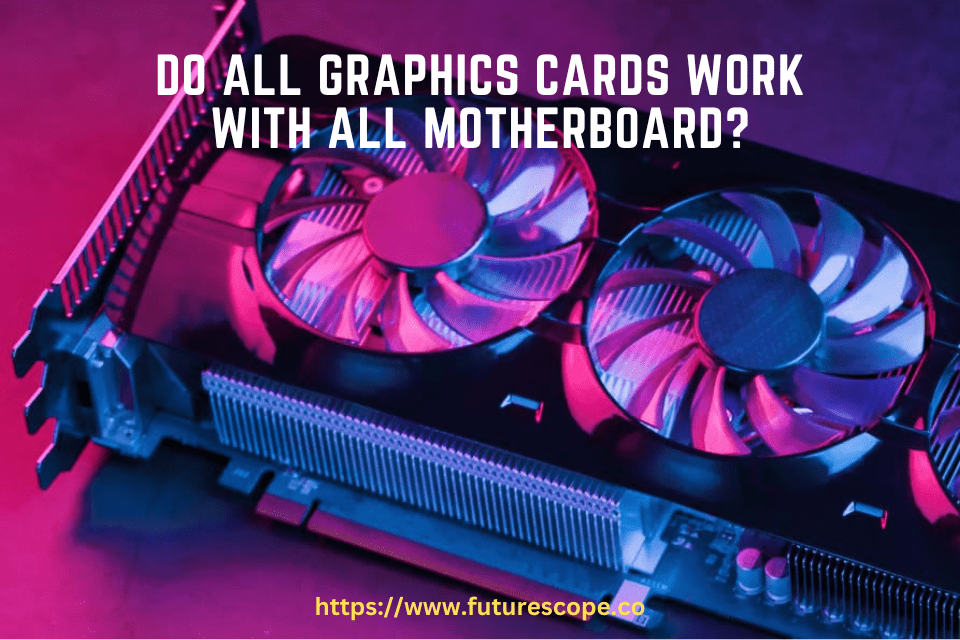
When upgrading your PC with a new graphics card, it is crucial to check whether your motherboard is compatible with it. Using an incompatible graphics card can result in errors, reduced performance, or even hardware damage. To determine compatibility, check the physical dimensions of the GPU on the manufacturer’s website and verify if it fits within the clearance and spacing inside your computer case, specifically the PCIe slot and surrounding components.
Being conscious of compatibility will help ensure a smooth and successful upgrade process for your graphics card.
Checking Graphics Card Compatibility
To ensure compatibility between your graphics card and motherboard, you need to check if your motherboard has the necessary PCIe slot for the graphics card and if it can provide enough power. Different motherboards have different slot types and power requirements, so it’s important to verify compatibility before upgrading.
Understanding The Importance Of Graphics Card Compatibility With Your Motherboard:
- The compatibility between your graphics card and motherboard is crucial for optimal performance and smooth operation of your system.
- Using an incompatible graphics card can lead to compatibility issues, such as driver conflicts, system crashes, or even damage to your hardware.
- It is essential to ensure that your graphics card is compatible with your motherboard to avoid any potential problems and make the most of your system’s capabilities.
How To Check If A Graphics Card Is Compatible With Your Motherboard:
- Before purchasing a new graphics card, there are a few steps you can take to determine if it’s compatible with your motherboard.
- Check the specifications of your motherboard, including the PCIe slot version, form factor, and power supply requirements.
- Cross-reference these specifications with the requirements of the graphics card you’re considering to see if they match.
- You can find the specifications of your motherboard in the user manual or by searching for the model number online.
- If you’re unsure about the compatibility, you can consult with the manufacturer’s support or seek assistance from knowledgeable experts.

Factors To Consider When Checking Compatibility:
Form factors and physical dimensions:
- Graphics cards come in different form factors, such as ATX, mini-ITX, or micro-ATX. Ensure that the physical dimensions of the graphics card match the available space in your computer case.
- Some graphics cards may have additional cooling components, such as large heatsinks or fans, which can affect compatibility with smaller cases.
PCIe slot versions and bandwidth:
- Check the PCIe slot version on your motherboard, such as PCIe 3.0 or PCIe 4.0, and verify if it aligns with the graphics card’s requirements.
- The PCIe slot version determines the bandwidth and speed at which data is transferred between the graphics card and the motherboard. Using an incompatible PCIe slot version may result in reduced performance.
Power requirements:
- Graphics cards require a certain amount of power to operate correctly. Check the power supply unit (PSU) in your system and ensure that it can supply enough power for the graphics card.
- Verify the power connectors required by the graphics card and make sure your PSU has the appropriate cables.
BIOS compatibility:
- Some graphics cards may require a specific version of the BIOS to function correctly. Check the motherboard manufacturer’s website for any BIOS updates and ensure that your motherboard’s BIOS is up to date.
By following these steps and considering these factors, you can ensure that your graphics card is compatible with your motherboard, allowing for a smooth and efficient gaming or computing experience.
Types Of Graphics Card Connectors
Not all graphics cards are compatible with all motherboards. It is important to check the compatibility between the two to avoid performance issues or hardware damage.
Overview Of Different Graphics Card Connectors:
- Graphics cards come with different types of connectors to connect them to the motherboard and display devices.
- Each connector has its own advantages and compatibility requirements.
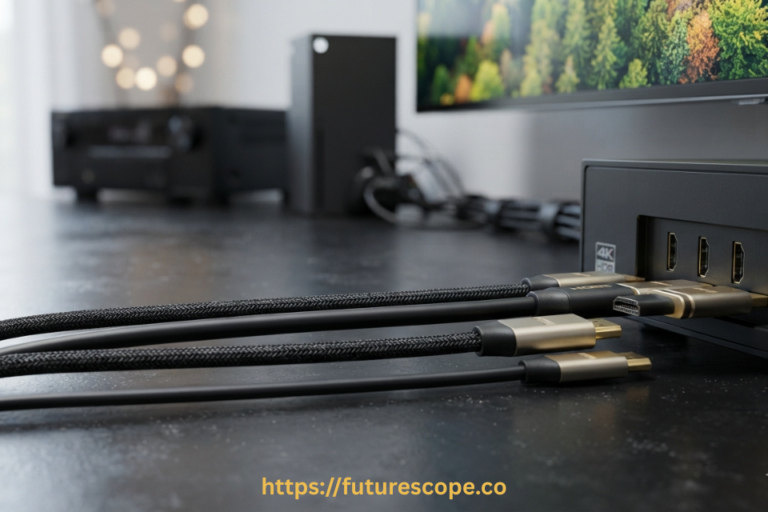
- The most common graphics card connectors are DVI, HDMI, DisplayPort, and VGA.
DVI, HDMI, Displayport, And VGA Connectors Explained:
- DVI (Digital Visual Interface): DVI connectors are capable of transmitting both digital and analog video signals. They come in different variations like DVI-I (integrated), DVI-D (digital), and DVI-A (analog).
- HDMI (High-Definition Multimedia Interface): HDMI connectors are widely used for transmitting high-definition audio and video signals. They support high resolutions and can carry both audio and video signals in a single cable.
- DisplayPort: DisplayPort connectors are designed to handle high-resolution displays and support both audio and video signals. They are commonly found on modern graphics cards and monitors.
- VGA (Video Graphics Array): VGA connectors are older analog connectors that are still used in some systems. They have limited capabilities compared to digital connectors and are gradually being phased out.
Compatibility Issues With Different Connector Types:
- Not all graphics cards and motherboards support the same types of connectors.
- It’s important to check the specifications of both your graphics card and motherboard to ensure compatibility.
- If your graphics card has a different connector than your motherboard, you may need to use an adapter or converter to make them compatible.
- Some graphics cards may have multiple connectors of different types, providing more compatibility options.
Adapters And Converters For Compatibility:
- Adapters and converters can be used to bridge the compatibility gap between different connector types.
- HDMI to DVI adapters allow you to connect a DVI monitor to a graphics card with an HDMI port.
- DisplayPort to HDMI adapters enable you to connect an HDMI monitor to a graphics card with a DisplayPort output.
- VGA to DVI adapters can be used to connect a DVI monitor to a graphics card with only VGA output.
- It’s important to choose high-quality adapters and converters to ensure optimal performance and compatibility.
Remember to research and refer to the specifications of your specific graphics card and motherboard to determine compatibility before making any purchases or connections.
Compatibility Issues And Solutions
Ensure graphics card compatibility with your motherboard to avoid performance issues and potential hardware damage. Check physical dimensions and clearance inside your case for the PCIe slot and spacing between the GPU and other components.
Common Compatibility Issues Between Graphics Cards And Motherboards:
- Size and form factor mismatch: Graphics cards come in various sizes and form factors, such as PCIe, AGP, or PCI. It’s crucial to ensure that the graphics card you choose fits into the available slot on your motherboard.
- Power supply compatibility: Some high-end graphics cards require additional power connectors. Make sure your power supply has the necessary connectors to support the graphics card’s power requirements.
- PCIe version mismatch: Graphics cards use the PCIe (Peripheral Component Interconnect Express) slot on motherboards. Different generations of PCIe (e.g., PCIe 3.0, PCIe 4.0) offer varying bandwidths. Ensure that your graphics card and motherboard support the same PCIe version for optimal performance.
Bios And Firmware Updates For Improved Compatibility:
- Check for motherboard BIOS updates: Manufacturers release BIOS updates to improve compatibility with new hardware. Visit the motherboard manufacturer’s website and download the latest BIOS version to ensure compatibility with the graphics card.
- Update graphics card firmware: Graphics card manufacturers may release firmware updates to address compatibility issues or enhance performance. Visit the manufacturer’s website or use their dedicated software to update the graphics card firmware.
Troubleshooting Guide For Resolving Compatibility Issues:
- Updating drivers and firmware:
- Download and install the latest graphics card drivers from the manufacturer’s website.
- Update motherboard chipset drivers for improved compatibility.
- Update other device drivers, such as audio and network drivers.
- Adjusting BIOS settings:
- Enable the correct PCIe slot in the BIOS settings.
- Disable integrated graphics if using a dedicated graphics card.
- Adjust memory and power-related settings as per manufacturer recommendations.
Checking For Physical Compatibility:
- Ensure the graphics card’s length, width, and height fit within the available space in the PC case.
- Check for clearance issues with other components, such as CPU coolers or RAM modules.
- Verify that the power supply has sufficient wattage to support the graphics card’s power requirements.
Remember, while most graphics cards are compatible with a wide range of motherboards, it’s essential to confirm compatibility to avoid any potential issues. Always consult the motherboard and graphics card manufacturer’s specifications and documentation for accurate information.
Frequently Asked Questions Of Do All Graphics Cards Work With All Motherboard?
Can You Use Any Graphics Card With Any Motherboard?
No, not all graphics cards are compatible with all motherboards. It is important to check compatibility before installing.
How Do I Know What Graphics Card Is Compatible With My Motherboard?
To determine graphics card compatibility with your motherboard, check the GPU’s dimensions on the manufacturer’s website or product specifications. Additionally, consider clearance inside your case, including the length of the PCIe slot and space between the GPU and other components.
Does It Matter What Motherboard You Have For A Graphics Card?
Yes, it does matter what motherboard you have for a graphics card. Compatibility is crucial to avoid issues and damage to your hardware.
How Do You Know If A Gpu Will Fit In My Case?
To determine if a GPU will fit in your case, check the manufacturer’s website for physical dimensions and product specifications. Also consider the clearance inside your case, including the length of the PCIe slot and space between the GPU and other components.
Conclusion
To ensure compatibility between your graphics card and motherboard, it’s crucial to consider factors such as physical dimensions, PCIe slot length, and clearance inside your PC case. Check the GPU’s manufacturer website or product specifications for detailed information on physical dimensions.
Additionally, measure the space between the GPU and other components to prevent any potential interference. By conducting these checks, you can ensure a seamless and compatible integration between your graphics card and motherboard. Neglecting to verify compatibility could result in performance issues, errors, or even damage to your hardware.
So, before upgrading your graphics card, take the time to ensure that it is compatible with your motherboard. This will help optimize your system’s performance and prevent any complications in the future.