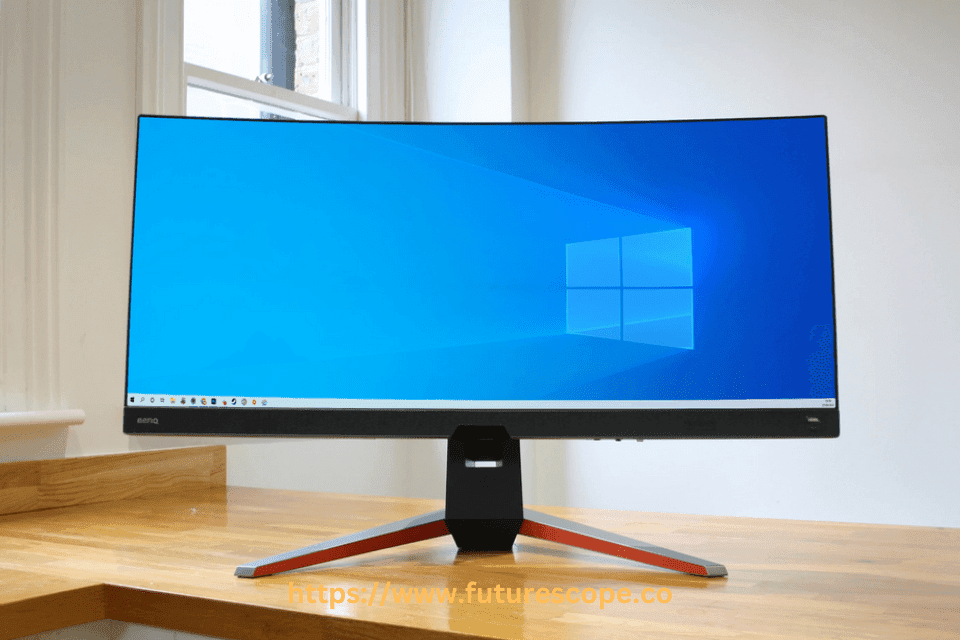

In today’s tech-driven world, many users ask the common question: “Can a monitor work without a PC?” The short answer is yes, a monitor can function without being connected to a traditional desktop computer—but with some limitations and specific use cases. Monitors are essentially display devices, and whether they work independently depends on what you connect to them.
All modern monitors provide digital connections like DVI, HDMI, or DisplayPort for connecting them to computers and other video sources. However, it is possible to use these same connections to power on an independent display with no computer attached at all! This provides great flexibility in how you set up your workspace as well as more options for viewing multimedia content without having to rely solely on your PC.
In this article, we’ll explore the different ways a monitor can be used without a PC, common scenarios, and key facts you should know.
Monitors as Display Devices: What They Really Do
A monitor is not a computer—it is a visual output device that displays data received from another source. On its own, a monitor does not have the ability to process data, run applications, or access the internet unless it is classified as a smart monitor or smart TV with built-in hardware and operating systems. This means that while a monitor can’t perform computing tasks solo, it can still work perfectly when connected to various external input sources.
Understanding How Monitors Work
A monitor is a display device that receives and displays video signals from an external source. Typically, this source is a computer, but monitors are not limited to PCs. They can accept inputs from a wide range of devices, including gaming consoles, smartphones, tablets, streaming devices, and more, as long as the device provides a compatible video signal Arzopa.
Without an input signal, a monitor cannot generate or display content on its own, as it lacks a built-in CPU or GPU for processing data Tech4Gamers. Essentially, a monitor acts as a visual output device, relying on another device to handle the processing and content delivery.
Smart Monitor: How to work from home without a PC | Samsung
Devices You Can Connect to a Monitor Without a PC
There are many devices that can use a monitor as a screen without needing a full desktop PC:
- Laptops – Use the laptop monitor as an external display via HDMI, USB-C, or DisplayPort.
- Gaming Consoles – PlayStation, Xbox, and Nintendo Switch can all connect directly to monitors for high-quality gaming.
- Media Streaming Devices – Devices like Amazon Fire Stick, Roku, Chromecast, or Apple TV can stream video through a monitor (if the monitor has HDMI and audio output).
- Smartphones & Tablets – With USB-C to HDMI adapters or wireless display features (like Samsung DeX), modern smartphones can mirror their screen to a monitor.
- Security Cameras – DVR/NVR systems for CCTV can connect directly to monitors to display live camera feeds.
- Streaming Boxes & Mini PCs – Lightweight computing devices like Raspberry Pi or Android TV boxes can use a monitor as their primary display.
These use cases prove that a monitor can be versatile and useful even without a desktop tower.
Ways to Use a Monitor Without a PC
Monitors are incredibly versatile, and there are several ways to use them without a PC. Below, we outline the most common methods, each offering unique benefits depending on your needs.
1. Connecting to Gaming Consoles
One of the most popular ways to use a monitor without a PC is by connecting it to a gaming console, such as an Xbox, PlayStation, or Nintendo Switch. Most modern consoles use HDMI outputs, which can be easily connected to a monitor’s HDMI input port. This setup allows you to enjoy your favorite games on a larger, high-quality screen, often providing a more immersive experience than a standard TV. For example, monitors like the LG UltraGear series are favored by gamers for their high refresh rates and low response times, making them ideal for console gaming CGDirector. To ensure the best performance, verify that your monitor supports the console’s resolution (e.g., 1080p or 4K) and refresh rate (e.g., 60Hz or 120Hz).
2. Pairing with Smartphones and Tablets
You can transform your monitor into a productivity or entertainment hub by connecting it to a smartphone or tablet. Many modern smartphones, such as Samsung Galaxy devices, support features like Samsung DeX, which turns your phone into a desktop-like environment when connected to a monitor via a USB-C or HDMI cable Vocal.media. This setup is perfect for tasks like editing documents, browsing the web, or even watching videos on a larger screen. For other devices, you may need adapters (e.g., USB-C to HDMI) to mirror the screen. iPads can also be connected to monitors to boost productivity, allowing users to work on a larger display for tasks like graphic design or note-taking.
3. Using Streaming Devices
Streaming devices like Roku, Amazon Fire TV Stick, Google Chromecast, or Apple TV can turn your monitor into a smart TV. By connecting these devices to your monitor’s HDMI port, you can stream movies, TV shows, and other online content directly on the larger screen Medium. This is an excellent option for creating a compact home theater setup or for use in spaces where a traditional TV isn’t available. Simply plug in the streaming device, select the correct input source on your monitor, and start enjoying your favorite content.
4. Leveraging Smart Monitors
Some modern monitors, known as smart monitors, come with built-in features that allow them to function independently of a PC. Brands like Samsung and LG offer models, such as the Samsung M70B series, that can connect to the internet, run apps, and even support voice assistants without requiring an external device Home Theater Shack. These monitors operate similarly to smart TVs, enabling you to stream content from platforms like Netflix or YouTube, browse the web, or use productivity apps directly on the monitor. This makes them a versatile choice for users who want a standalone display solution.
5. Connecting Other Devices
Beyond gaming consoles, smartphones, and streaming devices, monitors can be used with a variety of other devices. For example, you can connect a DVD or Blu-ray player to watch movies, a security camera system to monitor feeds, or a Raspberry Pi for DIY projects and lightweight computing tasks. Some older monitors even have built-in tuners or AV inputs, allowing them to display TV signals with an aerial connection Tom’s Hardware. The key is to ensure that the device’s output (e.g., HDMI, VGA, or DVI) is compatible with the monitor’s input ports.
Benefits of Using a Monitor Without a PC
Repurposing a monitor for use without a PC offers several advantages:
- Versatility: A monitor can serve multiple purposes, from gaming and streaming to productivity and DIY projects, making it a valuable tool in various scenarios.
- Space-Saving: In setups where a PC isn’t needed, a monitor can replace a TV or other display, saving space in small environments.
- Enhanced Experience: Using a monitor with devices like smartphones or consoles provides a larger, higher-quality display, improving gaming, viewing, or working experiences.
- Cost-Effective: Repurposing an existing monitor for alternative uses can save you from purchasing additional devices like a TV.
Practical Tips for Success
To make the most of your monitor without a PC, follow these practical tips:
| Tip | Description |
|---|---|
| Check Port Compatibility | Ensure the monitor’s input ports (e.g., HDMI, VGA) match the device’s output ports. Use adapters (e.g., USB-C to HDMI) if necessary. |
| Adjust Display Settings | Select the correct input source on your monitor and adjust resolution or refresh rate settings to match the connected device for optimal performance. |
| Plan for Audio | If your monitor lacks speakers, connect external speakers or headphones to the device’s audio output for sound. |
| Verify Power Supply | Ensure the monitor is plugged into a power source, as it won’t receive power from non-PC devices. |
| Test Resolution and Refresh Rate | Confirm that your monitor supports the resolution and refresh rate of the connected device to avoid display issues. |
Common Questions
Will using a monitor with a non-PC device affect its performance when reconnected to a PC?
No, monitors are designed to switch between input sources seamlessly. Using a monitor with a console, smartphone, or other device will not impact its performance when reconnected to a PC, as long as the connections are properly managed.
Do I need special cables or adapters?
It depends on the ports available. Most modern devices use HDMI, which is common in newer monitors. For older monitors with VGA or DVI ports, you may need adapters, such as a VGA-to-HDMI converter, to connect to modern devices.
Can a monitor run software like a PC?
Standard monitors cannot run software independently, as they lack processing capabilities. However, all-in-one monitors or smart monitors with built-in systems can run apps and function like a PC to some extent.
Conclusion
In summary, a monitor can indeed work without a PC by connecting to alternative devices that provide a video signal, such as gaming consoles, smartphones, streaming devices, or even smart monitors with built-in features. By understanding the compatibility requirements, setting up the correct connections, and following practical tips, you can unlock the full potential of your monitor for gaming, entertainment, productivity, and more. Whether you’re repurposing an old monitor or investing in a smart monitor, the possibilities are vast, making monitors a versatile addition to any tech setup.
Frequently Asked Questions
Can You Use a Monitor Without a PC for PS4?
If you’re looking to upgrade your gaming setup, one of the first things that may come to mind is a new monitor. But can you use a monitor without a PC for PS4? The answer is yes!
It’s actually quite simple and cost-effective to connect your PlayStation 4 console directly to any compatible computer or HDTV display. In this blog post, we will discuss how exactly you can use a monitor without a PC for PS4. We’ll cover what type of connection cable you need, as well as some additional tips on optimizing your experience with the setup.
Let’s jump right in! First off, it should be noted that depending on which version of the PlayStation 4 (PS4) console you have –the original “Fat” model released in 2013 or the slimmer redesign released in 2016–you will require either an HDMI or DisplayPort cable respectively for connecting your console directly to any compatible computer/HDTV display. Be sure to check beforehand if your chosen display has these ports available; most do nowadays but it never hurts to double-check before making any purchases .
Once everything is connected up properly, all that remains is configuring settings within both the game itself and from within the system menus so make sure those are set accordingly.
Can Monitor Work Without CPU?
Yes! Monitors are an important component of any computer setup, but they don’t necessarily need to be connected to a CPU in order to function. In fact, there are several ways that you can use your monitor with or without connecting it to a CPU.
The most common way for monitors to operate without needing a CPU is through external devices such as laptops, tablets, or gaming consoles. These devices have their own internal processors and graphics chips which allow them to run independently from the main PC. This means that all you need to do is plug in your device into the back of the monitor via HDMI cable and it will begin functioning right away – no extra hardware needed!
Another option is using dedicated video cards which allow users to connect directly from their PC tower into the monitor itself. With this method, all of your other components like RAM and hard drives stay inside the tower while only outputting visuals onto the screen through its GPU (graphics processing unit). This makes it possible for even low-end PCs with limited resources still capable of displaying images on larger displays at higher resolutions than what could normally be achieved just by relying on integrated graphics alone.