
If you’ve ever opened up a desktop PC, you’ve probably seen a handful of thin, flat cables connecting drives to the motherboard. They all look basically identical, so it’s a fair question: does it actually matter which one you use, or is a SATA cable just a SATA cable?
The short version is that the physical cable matters less than people assume, but it’s not completely irrelevant either. Here’s what’s actually true.
What a SATA Cable Actually Does?
A SATA (Serial ATA) data cable connects a storage drive, like a hard drive, SATA SSD, or optical drive, to your motherboard so data can move between them. It’s a thin, 7-pin cable with an L-shaped connector on each end.
- You’ll find SATA cables in desktop PCs and many laptops connecting internal drives to the motherboard’s SATA ports.
- They’re separate from power cables, which is something we’ll get into shortly.
- The connector itself has looked the same since SATA was introduced, which is part of why there’s so much confusion about compatibility.
Are SATA Cables Interchangeable Between Drives?
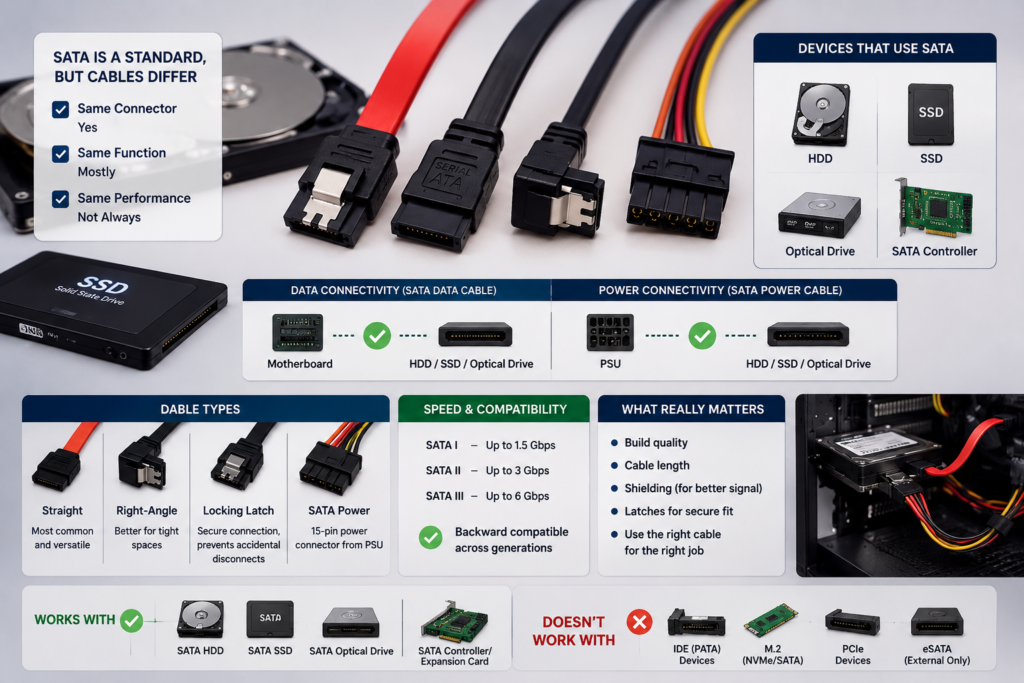
Yes. A standard SATA data cable works the same way whether you’re connecting a hard drive, a SATA SSD, or an optical drive.
- The connector and pin layout are identical across all of these device types.
- There’s no special “SSD cable” or “hard drive cable.” It’s the same physical cable doing the same job.
- This makes swapping drives around, or reusing an old cable for a new drive, generally straightforward.
SATA I, SATA II, and SATA III: What’s Actually Different
This is where a lot of the confusion comes from, so let’s clear it up.
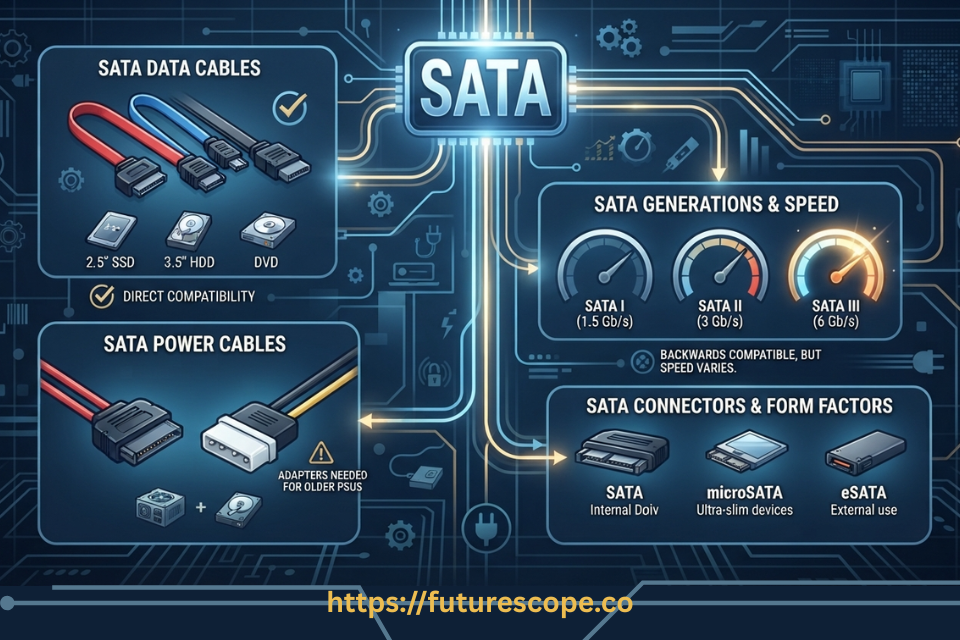
- SATA I supports speeds up to 1.5 gigabits per second.
- SATA II supports speeds up to 3 gigabits per second.
- SATA III supports speeds up to 6 gigabits per second, and it’s what most modern drives and motherboards use.
These numbers describe the maximum speed of the interface, meaning what the drive and motherboard controller are capable of, not a different cable design. The physical SATA cable connector hasn’t changed across these generations.
SATA Generations Are About the Interface, Not the Cable Shape
It’s worth repeating clearly: SATA I, II, and III describe speed capability, not three physically different cables.
- Any standard SATA cable can technically carry any of these speeds, since the actual speed negotiation happens between the drive and the motherboard controller, not the cable.
- You may see cables marketed as “SATA III” or “6Gbps” cables. This usually just signals the cable was built and tested with better shielding to reliably handle higher speeds, not that it uses a different connector.
- A drive and motherboard will automatically negotiate down to the lower of their two supported speeds, regardless of which “generation” label is printed on the cable.
Do You Need a SATA III Cable for a SATA III SSD?
Strictly speaking, no, any properly functioning SATA cable should support SATA III speeds. In practice, though, using a well-built cable, often labeled as SATA III or 6Gbps, is a reasonable and inexpensive way to reduce the odds of signal issues, especially with an old or lower-quality cable you’re not sure about.
- A modern, undamaged SATA cable from the last decade or so will almost always handle SATA III fine.
- If you’re pulling out a very old or already flaky cable, replacing it with a newer one is cheap insurance rather than a strict requirement.
Can an Older SATA Cable Limit Performance?
Usually not in the way people expect, but it’s not impossible either.
- In most cases, what actually limits speed is the drive’s own SATA generation, or the motherboard port it’s plugged into, not the cable itself.
- A damaged, low-quality, or failing cable can cause signal errors, which may lead to the connection dropping to a lower speed as a fallback, or cause intermittent errors and retries that hurt real-world performance.
- So while a cable rarely “caps” your speed on its own, a bad cable can absolutely cause problems that look like a performance issue.
SATA Data Cables vs. SATA Power Cables
These are two different cables that are easy to mix up if you’re new to building or upgrading a PC.
- The data cable is thinner, has a 7-pin connector, and carries information between the drive and motherboard.
- The power cable is wider, has a 15-pin connector, and comes from your power supply to give the drive electricity.
- Both connect to the drive, right next to each other, but they serve completely different purposes and aren’t interchangeable.
How Cable Quality and Condition Cause Real Problems?
This is genuinely where SATA cable issues show up in the real world, more so than speed differences between generations.
- A loose or partially disconnected cable is one of the most common reasons a drive suddenly isn’t detected.
- Bent pins, frayed wiring, or visible damage can cause intermittent connection drops, even if the drive shows up sometimes.
- Cheaply made cables with poor shielding are more prone to interference-related errors, especially in a case with a lot of other cables running nearby.
- Cables with locking clips on the connector are worth using where possible, since they’re less likely to work loose from vibration or movement over time.
Does Cable Length or Construction Matter?
A little, though it’s usually not something most home users need to worry about.
- The official SATA specification recommends a maximum cable length of about one meter, since signal quality can degrade beyond that.
- Most cables sold for consumer use stay within that recommended length, so this rarely becomes a practical issue.
- Thicker shielding and better-quality connectors can offer more reliable connections, particularly in cases with a lot of drives or cable clutter, but this matters more for durability than raw speed.
Why NVMe and M.2 SSDs Don’t Use a SATA Cable?
If you’ve upgraded to an NVMe SSD, you may have noticed there’s no cable involved at all, and that’s by design.
- NVMe drives typically plug directly into an M.2 slot on the motherboard, connecting straight to the board without any cable.
- These drives use the PCIe interface rather than the SATA interface, which is part of why they’re so much faster than SATA-based drives.
- Some M.2 SSDs actually do use the SATA protocol rather than NVMe, but even those connect directly into the M.2 slot without a separate SATA cable.
Choosing a Replacement SATA Cable Without Overspending
- There’s no need to pay extra for cables marketed with flashy branding or unnecessary features. A basic, well-made SATA cable is genuinely all you need.
- Look for a cable with a locking connector, since that small feature meaningfully reduces the odds of accidental disconnection.
- Choose a length appropriate for your case, long enough to route cleanly without excess slack bunched up inside.
- Buying from a reputable brand is more about avoiding flimsy build quality than paying for a performance boost you won’t notice.
What to Check If a Drive Isn’t Detected or Performance Seems Off
- Reseat both ends of the data cable firmly, since a loose connection is the single most common cause of detection issues.
- Check the power cable connection too, since a drive with a data connection but no power obviously won’t show up.
- Try a different SATA port on the motherboard, in case the port itself, rather than the cable, is the issue.
- Swap in a different cable entirely to rule out damage, especially if the current one looks old, bent, or worn.
- Check your BIOS or UEFI settings to confirm the drive is being detected at the hardware level, before assuming it’s a software or driver issue.
Practical Installation Tips
- Route cables away from sharp case edges or fan blades to avoid future wear and damage.
- Avoid tightly bending cables near the connector, since this is a common point of eventual failure.
- Push connectors in firmly until they click or seat fully, rather than leaving them loosely inserted.
- If you’re reusing old cables in a new build, a quick visual inspection for cracks or fraying takes only a few seconds and can save you a troubleshooting headache later.
Frequently Asked Questions
Are SATA I, SATA II, and SATA III cables different?
Not physically. All three use the same connector and cable design. SATA I, II, and III refer to interface speed capability at the drive and motherboard level, not a different cable shape.
Can I use the same SATA cable for an HDD and SSD?
Yes. SATA data cables are identical regardless of whether you’re connecting a hard drive, SATA SSD, or optical drive. There’s no drive-specific version of the cable.
Can an old SATA cable slow down an SSD?
It’s uncommon, since speed is mainly determined by the drive and motherboard controller. However, a damaged or poor-quality cable can cause errors or connection drops that create performance problems indirectly.
Do SATA cables affect transfer speed?
Generally not in a direct way, as long as the cable is functioning properly and meets the basic SATA specification. Speed is primarily set by the drive and motherboard’s supported SATA generation.
Is a SATA power cable the same as a SATA data cable?
No. The power cable is wider with 15 pins and delivers electricity from the power supply, while the data cable is thinner with 7 pins and transfers information. Both are needed, but they’re different cables.
Does SATA cable length matter?
It can, though it’s rarely an issue in practice. The official spec recommends staying under about one meter to avoid signal degradation, and most consumer cables are already within that range.
Can a damaged SATA cable cause an SSD to disappear?
Yes, this is one of the more common causes of a drive suddenly not being detected. A loose, bent, or frayed cable can cause intermittent or complete connection loss.
Does an NVMe SSD need a SATA cable?
No. NVMe SSDs typically connect directly into an M.2 slot on the motherboard using the PCIe interface, with no cable involved at all.
Check Your Setup Before You Buy a New Cable
SATA cables are more similar to each other than a lot of marketing might suggest, but cable condition and build quality still matter more than people expect. Before replacing or upgrading anything, check what kind of drive you have, confirm what your motherboard actually supports, and take a close look at your current cable’s condition. In most cases, a basic, well-made cable with a secure connection is all you need, no unnecessary upgrade required.