
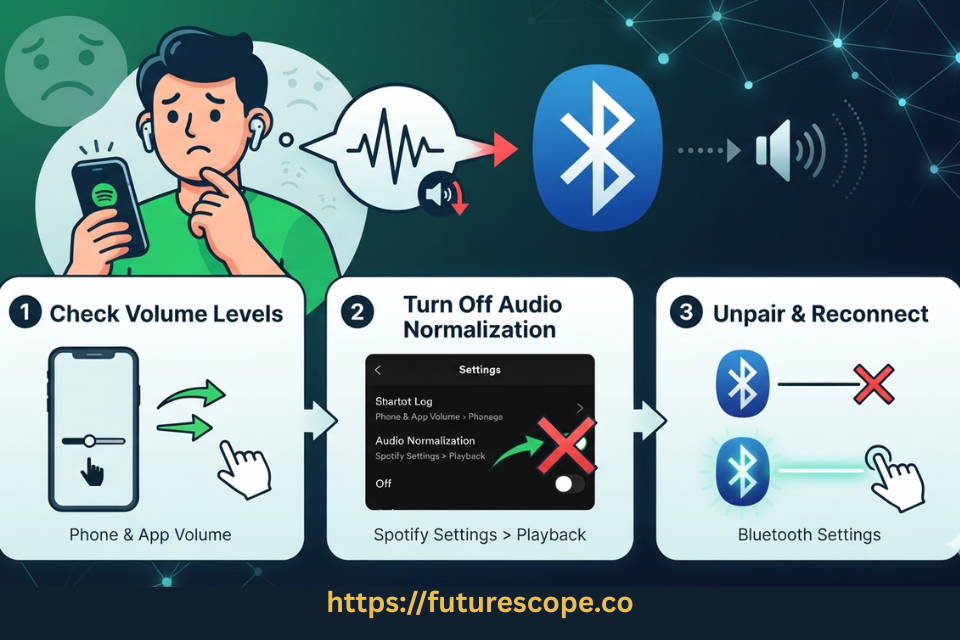

You’ve got your headphones or speaker connected, the volume looks maxed out, and Spotify is still barely audible. It’s a common problem, and it’s rarely because your device is broken — more often it’s a setting quietly working against you. Here’s how to track down the cause.
Common Reasons Spotify Sounds Too Quiet Over Bluetooth
A few things tend to be behind this:
- Your phone’s volume and your Bluetooth device’s own volume are set separately.
- Spotify’s Volume Normalization setting is lowering loud tracks to match a target level.
- Absolute Volume syncing between your phone and Bluetooth device is glitching.
- A phone setting is quietly capping your output.
- The Bluetooth device itself has a volume limit or low battery.
- A weak connection or codec mismatch is affecting audio quality.
Work through the sections below in order — most people find the fix in the first few steps.
Phone Media Volume vs. Bluetooth Device Volume
This is the most common culprit. Your phone has a media volume slider, but many Bluetooth headphones, earbuds, and speakers also have their own independent volume, controlled by physical buttons, a touch panel, or a companion app.
If one side is turned down, the other can’t compensate for it.
- Turn your phone’s media volume all the way up using the physical volume buttons.
- Separately, turn up the volume directly on the Bluetooth device, if it has its own controls.
- Check any companion app for the device for a hidden volume or EQ setting.
Once both are turned up, adjust down together to a comfortable level.
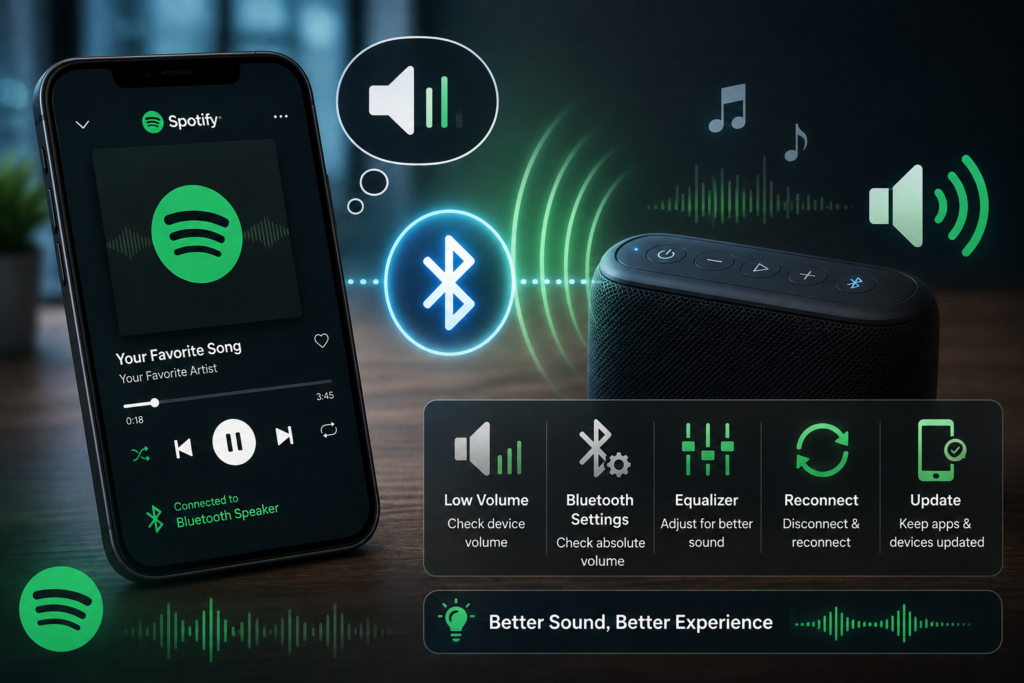
Spotify’s Volume Normalization Setting
Spotify has a feature called Volume Normalization that adjusts tracks so they play at a similar loudness, preventing sudden jumps between quiet and loud songs. It’s useful for consistency, but on some songs or setups it can make things sound quieter than expected, especially if it’s set to a lower target level.
- Open Spotify and go to Settings > Playback.
- Find Volume Normalization and check whether it’s turned on.
- If available, try changing the level between Loud, Normal, and Quiet to see what sounds best.
- Alternatively, turn it off entirely and see if that resolves the volume issue.
This setting affects perceived loudness specifically, so it’s worth checking early.
Bluetooth Absolute Volume and Device-Specific Controls
Many Android phones use a feature called Absolute Volume, which syncs your phone’s volume slider directly with your Bluetooth device, so one control adjusts both. It’s convenient, but on some phone-and-accessory combinations, it causes glitches — like volume getting stuck low or jumping unexpectedly.
- On Android, go to Settings > Developer options.
- If Developer options isn’t visible, go to Settings > About phone and tap Build number seven times to enable it.
- Find Disable absolute volume and toggle it on.
- Reconnect your Bluetooth device and test the volume again.
If disabling it doesn’t help, you can always turn it back off and try a different fix instead.
How Android and iPhone Settings Can Limit Volume?
A few settings buried in your phone can quietly affect output volume:
- On Android: check Settings > Sound & vibration to confirm Media volume isn’t lower than Ringtone or Notification volume.
- On Android: look at Settings > Accessibility for any “Sound amplifier” or hearing-related feature that might be adjusting output unexpectedly.
- On iPhone: go to Settings > Music > Volume Limit and make sure it isn’t capped.
- On iPhone: check Settings > Sounds & Haptics and confirm Change with Buttons is enabled, so volume buttons actually control media playback.
- On both: Do Not Disturb or Bedtime/Focus modes can sometimes reduce or mute media volume depending on your configuration.
These are easy to overlook since they’re not directly Bluetooth-related, but they can still cap what you hear.
Check the Bluetooth Speaker or Headphones for Their Own Controls
Some Bluetooth accessories — especially budget earbuds, kids’ headphones, and portable speakers — have a built-in volume limit or a low-power listening mode set at the hardware level.
- Check the manufacturer’s app for a volume limit, EQ, or “safe listening” toggle.
- Look for a physical switch on the device, common on kids’ headphones.
- Check for a firmware update, since manufacturers sometimes patch volume-related bugs.
If the device caps volume for safety reasons, that’s a hardware feature rather than a bug, but it explains why it sounds quieter than other headphones you’ve used.
Disconnect, Reconnect, Forget, and Re-Pair the Device
If none of the settings above fix it, refreshing the Bluetooth connection often helps.
- Go to your phone’s Bluetooth settings, tap the device, and select Disconnect. Wait a few seconds, then reconnect.
- If that doesn’t help, select Forget or Unpair the device entirely.
- Turn Bluetooth off and back on, and restart the headphones or speaker.
- Put the device back into pairing mode and reconnect it from scratch.
A full re-pair clears out any corrupted connection data that might be capping your volume or causing glitches.
Checking Spotify’s Audio Settings and Comparing With Another App
A quick comparison test can tell you a lot:
- Play the same song or a similar track in another app, like YouTube or a podcast app, at the same phone and device volume.
- If other apps sound noticeably louder, the issue is likely something within Spotify — its Volume Normalization setting or audio quality setting.
- In Spotify, also check Settings > Media Quality to make sure streaming quality isn’t set unusually low, which can sometimes affect perceived clarity and loudness.
- If every app sounds equally quiet, the issue is more likely your phone or Bluetooth device, not Spotify specifically.
This comparison step is one of the fastest ways to narrow down where the problem actually lives.
Bluetooth Codecs, Compatibility, Battery, and Connection Issues
A few technical factors can affect both volume and clarity:
- Codec mismatch: Bluetooth audio can use different codecs (SBC, AAC, aptX, LDAC), and a fallback to a lower-quality codec can sometimes come with reduced perceived loudness. On Android, check Settings > Developer options > Bluetooth Audio Codec and try switching options.
- Low battery: Many Bluetooth headphones and speakers reduce volume or performance as their battery gets low, as a way of conserving power.
- Weak connection: distance, walls, or interference from other wireless devices can weaken the Bluetooth signal, affecting both volume and audio quality.
- Device compatibility: an older Bluetooth accessory paired with a newer phone (or vice versa) can sometimes have a less efficient connection.
If you notice quietness alongside crackling, cutting out, or delay, a connection or codec issue is more likely than a simple volume setting.
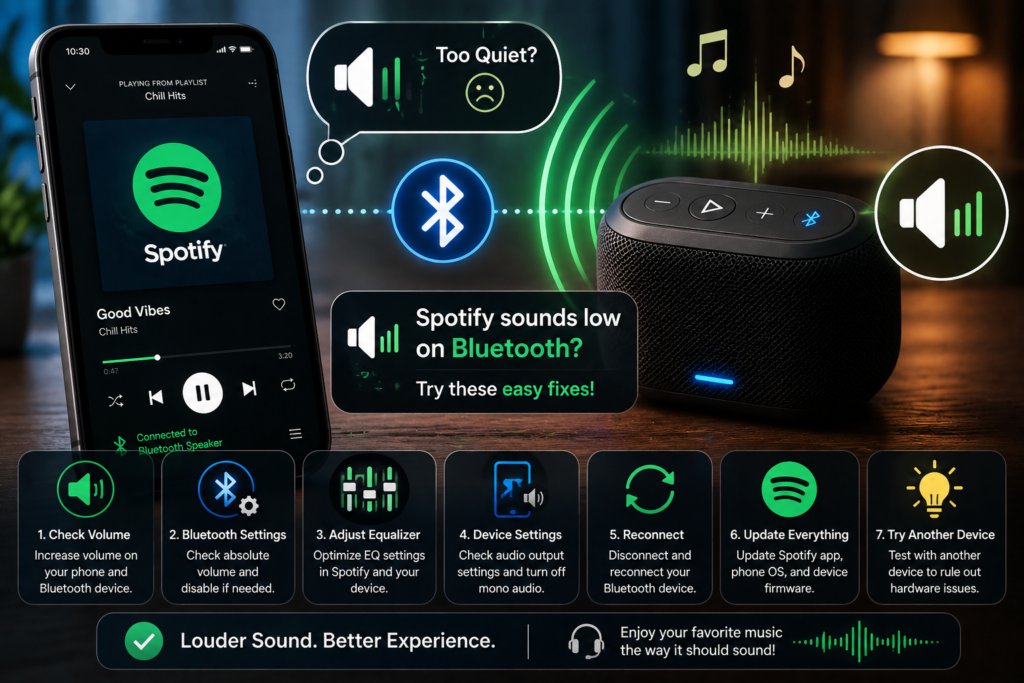
Checking for Software and Firmware Updates
Outdated software on any part of the chain — your phone, Spotify, or the Bluetooth device itself — can cause playback quirks, including volume issues.
- Check the Play Store or App Store for a pending Spotify update.
- Check your phone’s system settings for an available software update.
- Check the Bluetooth device’s companion app for a firmware update, if it has one.
Manufacturers often quietly fix volume and connectivity bugs in updates, so this step is worth doing periodically even if you’re not currently having problems.
When Resetting Bluetooth Settings or the Audio Device May Help
If the problem persists across multiple Bluetooth devices, or basic reconnecting hasn’t worked, a broader reset can clear out corrupted system-level settings.
- On Android, go to Settings > System > Reset options > Reset Wi-Fi, mobile & Bluetooth.
- On iPhone, go to Settings > General > Transfer or Reset iPhone > Reset > Reset Network Settings.
- Confirm the reset, keeping in mind it will remove saved Wi-Fi passwords and paired Bluetooth devices.
- Re-pair your Bluetooth device and test the volume again.
If your Bluetooth device has its own reset option (often a button combination, listed in its manual), that’s worth trying too, especially if it’s behaving oddly across multiple phones.
Is It Spotify, the Phone, the Bluetooth Device, or the Connection?
A quick process of elimination helps identify where the real problem is:
- Test another app at the same volume. If it’s also quiet, the issue isn’t Spotify specifically.
- Test the Bluetooth device with another phone or tablet. If it’s still quiet, the device itself is likely the cause.
- Test your phone with a different pair of Bluetooth headphones. If those sound normal, your original headphones may be the problem.
- Test with wired headphones or the phone’s speaker instead of Bluetooth. If that’s noticeably louder, the Bluetooth connection is the likely factor.
Once you know which part of the chain is involved, you can focus your troubleshooting there instead of guessing.
Getting Clearer, Louder Audio Safely
A few practical habits help going forward, without risking your hearing or your equipment:
- Keep both your phone and Bluetooth device’s volume at a reasonable middle-to-high range, rather than always maxing out one side.
- Avoid pushing volume past a comfortable level for long listening sessions, even if the device technically allows it.
- Keep Spotify, your phone, and your Bluetooth device’s firmware reasonably up to date.
- If a device consistently underperforms compared to others, it may simply be reaching the end of its useful life rather than something fixable.
Frequently Asked Questions
Why is Spotify quieter than YouTube over Bluetooth?
This is usually caused by Spotify’s Volume Normalization setting, which adjusts loudness to a consistent target level. YouTube doesn’t apply the same kind of normalization by default, so tracks can sound louder by comparison.
How do I make Spotify louder on Bluetooth headphones?
Turn up both your phone’s media volume and the headphones’ own volume. Then check Spotify’s Volume Normalization setting, and test whether disabling Absolute Volume in Developer options helps.
Does Spotify Volume Normalization reduce volume?
It can, especially for tracks that are naturally louder. Normalization lowers those tracks to match a target loudness level rather than boosting quieter ones, which can make overall playback feel quieter than expected.
Should I turn off Absolute Volume?
It’s worth testing. If your Bluetooth volume behaves unpredictably or feels stuck low, disabling Absolute Volume in Developer options often helps. If everything already works fine, there’s no need to change it.
Why are my Bluetooth earbuds suddenly quiet?
A sudden change usually points to a connection glitch, a recent update changing a setting, low battery in the earbuds, or a codec mismatch. Reconnecting or re-pairing the device resolves most sudden cases.
Can Bluetooth battery level affect volume?
Yes. Many Bluetooth headphones and speakers reduce volume or overall performance as their battery runs low, as a way to conserve remaining power.
Why is Spotify quiet on Android but normal on another device?
If Spotify sounds fine on a computer or another phone but quiet on your Android device, the issue is likely specific to that phone’s settings, such as Absolute Volume, accessibility features, or battery optimization.
When should I reset or replace my Bluetooth headphones?
Try resetting the device first, following the manufacturer’s instructions, especially if the issue is inconsistent. If volume stays low across multiple phones and after a reset, or the device is old and heavily used, replacement may be the more practical fix.
Try the Simple Fixes First
Quiet Bluetooth audio in Spotify is almost always something you can fix yourself. Before assuming your headphones or speaker are broken, check both volume controls, look at Spotify’s Volume Normalization setting, test Absolute Volume, and compare against another app to see where the problem actually lives.
Work through the steps in order, starting with the simplest checks. More often than not, the fix is a setting rather than a faulty device — and once you find it, your music should sound the way it’s supposed to again.