

Spotify offers a massive library of music, but not every track suits everyone’s taste — especially within curated playlists or recommended mixes. Fortunately, Spotify gives users the ability to hide or unhide songs to personalize their listening experience without permanently removing content from playlists. Whether you’re avoiding overplayed hits or skipping tracks that don’t match your vibe, understanding how to hide and unhide songs on Spotify can help you tailor your music sessions efficiently.
To hide and unhide songs on Spotify, open the app and tap the settings icon. Then, navigate to ‘Playback’ and disable the ‘Hide Unplayable Songs’ setting.
This guide provides detailed steps on how to hide and unhide songs on Spotify, explains the feature’s limitations, and offers additional tips to enhance your listening experience.
Why Hide Songs on Spotify?
Hiding songs helps improve music curation and recommendation accuracy. When you hide a song:
- It won’t play during shuffle or regular playback.
- Spotify learns your preferences to refine its algorithm.
- You can still access the track later if your tastes change.
This feature is especially useful in Spotify-curated playlists such as Discover Weekly, Daily Mixes, or genre-specific charts, where you don’t have full control over the tracklist.
Steps To Hide Songs On Spotify
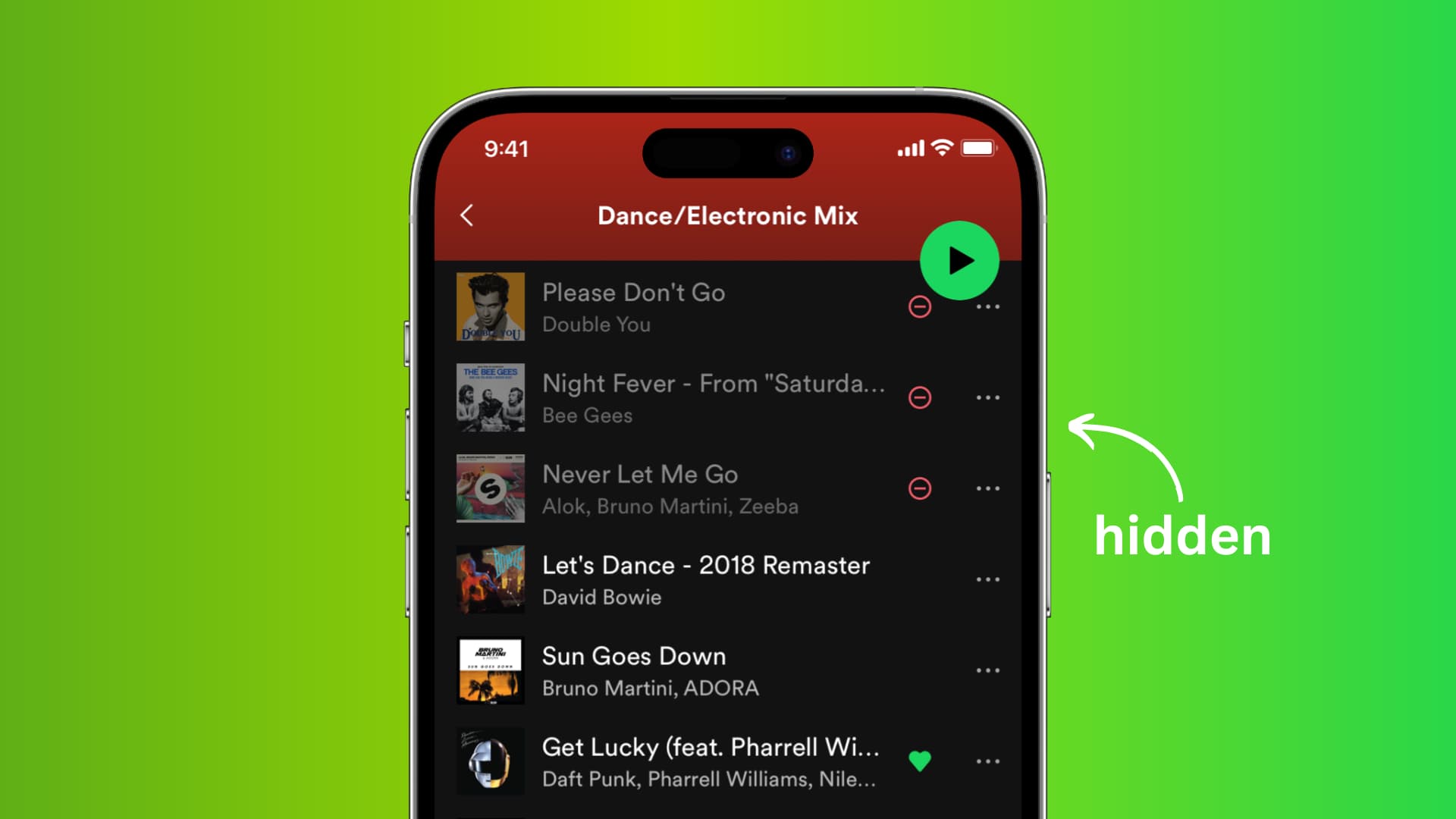
Learn how to hide and unhide songs on Spotify with these easy steps. Simply find the song you want to hide, select the three dots next to the song’s name, and choose the option to hide it. To unhide a song, go to the playlist or album, find the hidden song, and tap on it to unhide.
To hide a song on Spotify, follow these simple steps:
- Open Spotify and navigate to the song you want to hide.
- Select the three dots button next to the song’s name.
- Choose “Hide song” from the options.
To start, open Spotify on your device and search for the song you want to hide. You can also navigate to the song through a playlist. Once you’ve found the song, look for the three dots button located next to its name. Clicking on this button will open up additional options for the song. From the list of options, select the “Hide song” option.
By following these steps, you can effectively hide a song on Spotify. This feature is particularly useful if you want to remove certain songs from your playlists or hide them from your library.
Steps To Unhide Songs On Spotify
Learn how to unhide songs on Spotify with these simple steps. Open Spotify, tap on the settings icon, go to ‘Playback’, and disable the ‘Hide Unplayable Songs’ toggle. Once done, all hidden songs should appear again in your library.
If you have previously hidden songs on Spotify and now want to unhide them, follow these simple steps:
1. Open Spotify And Go To Your Profile
To begin, open the Spotify app on your device and navigate to your profile. This can usually be done by tapping on the profile icon located at the bottom right corner of the screen.
2. Tap On “settings” (gear Icon) In The Top-right Corner
Once you are on your profile page, look for the gear icon located at the top-right corner. This represents the “Settings” option. Tap on it to proceed.
3. Select “playback” And Find “hide Unplayable Songs”
In the Settings menu, scroll down until you find the “Playback” option. Tap on it to access the playback settings for your Spotify account. Within these settings, locate the “Hide Unplayable Songs” feature.
4. Disable The Toggle Switch To Unhide All Hidden Songs
Finally, to unhide all the songs that you have previously hidden on Spotify, simply disable the toggle switch next to the “Hide Unplayable Songs” option. By turning off this feature, all the hidden songs will once again be visible and available for playback on your Spotify account.
Now that you have successfully followed these steps, you can enjoy listening to your previously hidden songs on Spotify without any restrictions. Happy listening!
Tips For Managing Songs On Spotify
Spotify is a popular music streaming platform that offers users the ability to curate their own personalized playlists and albums. However, managing a large library of songs can sometimes be overwhelming. In this section, we will explore some useful tips on how to effectively manage your songs on Spotify.
Remove Songs From Playlists
If you want to remove a song from one of your playlists, you can easily do so by following these steps:
- Open your Spotify mobile app or desktop application.
- Navigate to the playlist that contains the song you want to remove.
- Find the song in the playlist and right-click on it (or tap the three dots icon on mobile).
- Select “Remove from playlist” from the options menu.
Remove Songs From Albums
Removing songs from albums can be done effortlessly with these simple steps:
- Launch the Spotify app on your device.
- Go to the album that includes the song you want to remove.
- Locate the song in the album tracklist and right-click on it (or tap the three dots icon on mobile).
- Choose “Remove from this album” from the menu.
Hide An Artist From Your Spotify Library
To hide an artist from your Spotify library and prevent their songs from appearing in your recommendations, follow these instructions:
- Open Spotify and navigate to the artist’s page.
- Click on the ellipsis icon (three dots) located next to the artist’s name.
- From the options menu, select “Don’t play this artist.”
Keep Recent Artist Plays Private On Mobile
If you wish to keep your recent artist plays private on the Spotify mobile app, follow these easy steps:
- Launch the Spotify app on your mobile device.
- Tap on the gear icon to access the settings.
- Scroll down to find the “Social” section and tap on it.
- Toggle off the option that says “Listening Activity.”
Prevent Recent Artist Plays From Showing On Desktop Profile
To prevent your recent artist plays from showing on your Spotify desktop profile, use the steps below:
- Open the Spotify application on your desktop.
- Click on your profile icon at the top-right corner of the screen.
- Select “Settings” from the drop-down menu.
- Scroll down to the “Social” section and toggle off the option for “Listening activity.”
Common Scenarios for Hiding Songs
- Overplayed Tracks: Hide songs you’ve heard too often, like a chart-topping hit, for a temporary break.
- Mood Shifts: Skip songs that don’t fit your current vibe without removing them.
- Accidental Hides: If you hide a song by mistake, unhiding is quick and reversible.
Troubleshooting
- Hidden Songs Reappear: Ensure you’re in the correct playlist, as hiding is playlist-specific. Update the app if issues persist.
- Feature Missing: The “Hide song” option may not appear in your own playlists or on desktop. Use the mobile app for this feature.
- Unavailable Songs: If songs are grayed out but not hidden, check Playback settings or regional availability.
Frequently Asked Questions
Why Can’t I Unhide Songs On Spotify?
To unhide songs on Spotify, first open the app and tap the settings (gear) icon. Go to ‘Playback’ and find ‘Hide Unplayable Songs’. If it’s enabled, disable it to make the hidden songs appear again.
Can You Hide Songs On Spotify?
Yes, you can hide songs on Spotify. Simply open the Spotify mobile app, find the song you want to hide, and select the three dots button. Then, tap “Hide song” to hide it. To unhide songs, go to the playlist or album where the hidden song is located, find the song, and tap “Hidden” to unhide it.
How Can I Hide Songs On Spotify?
To hide a song on Spotify, open your mobile app, find the song you want to hide, select the three dots button next to the song’s name, and tap “Hide song. “
How Do I Unhide A Song On Spotify?
To unhide a song on Spotify, go to the playlist or album where the hidden song is located, scroll down until you find the song, and tap on it. Then, tap “Hidden” to unhide the song.
Can You Hide/Unhide Songs on Desktop?
As of now, Spotify does not support the hide/unhide feature on the desktop app or web player. This functionality is limited to mobile devices only. However, any songs hidden on the mobile app will sync with your account, so they won’t play even if you’re using the desktop version — though they won’t appear grayed out either.
Conclusion
The hide and unhide song feature on Spotify is a small but powerful tool that lets users customize listening preferences without altering playlists permanently. Whether you’re skipping songs that don’t match your taste or fine-tuning your daily mixes, this feature enhances Spotify’s personalization potential. Just remember that this option is exclusive to mobile devices and Premium accounts, and hidden songs don’t disappear completely — they’re just skipped during playback. So the next time a song doesn’t sit right with your mood, don’t hesitate to hide it.
If you accidentally hide a song, you can also easily unhide it by accessing the hidden section in your library. By utilizing these features, you can customize your Spotify experience and ensure that only your favorite tunes are visible. Start organizing your music today and enjoy a clutter-free streaming experience on Spotify.