For online gamers, nothing is more frustrating than experiencing ping spikes. You’re in the middle of a heated battle, making quick moves, and suddenly your character freezes or lags. This often happens when your ping shoots up unexpectedly, causing delays between your actions and the game server’s response. But what exactly causes ping spikes, and how can you fix them in any game?
In this article, we’ll dive into the key facts about ping spikes, the most common causes, and the best ways to troubleshoot and fix them for smoother gaming.
What Are Ping Spikes?
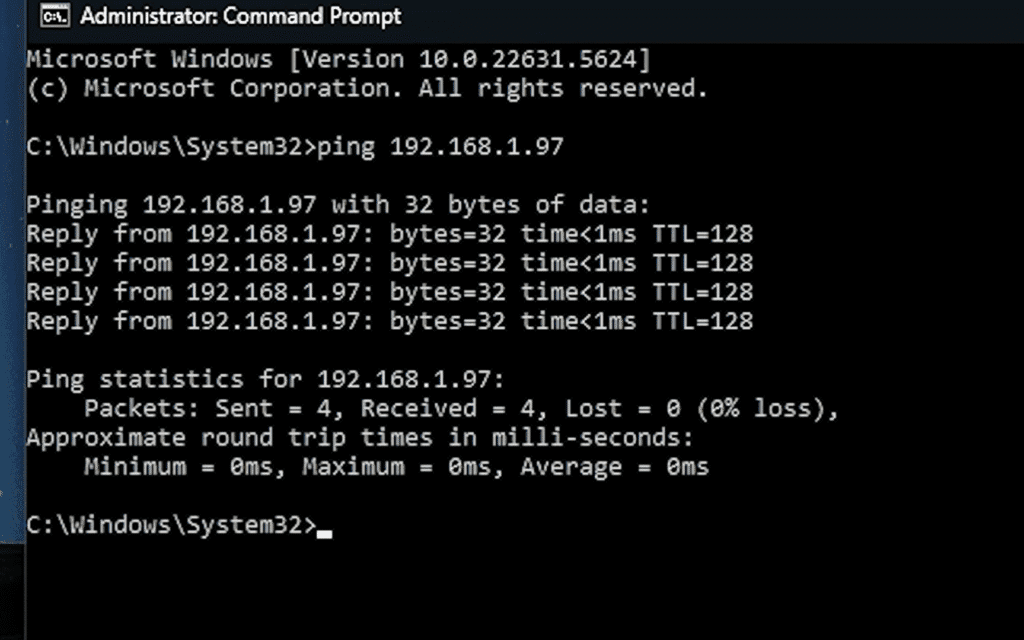
Ping measures the time it takes for data to travel from your device to the game server and back. It is measured in milliseconds (ms). Low ping means faster communication and smoother gameplay, while high ping results in lag.
- 0–50 ms: Excellent – near-instant responsiveness.
- 50–100 ms: Playable with minimal delay.
- 100–200 ms: Noticeable lag in fast-paced games.
- 200+ ms: Very high ping – frustrating to play.
Ping spikes occur when your ping suddenly jumps to a much higher number, even if your connection is usually stable. For example, you might be playing at 40 ms and then experience sudden jumps to 300 ms or higher. These spikes create lag spikes, rubber-banding, and delays that ruin gameplay. Ping spikes can cause:
- Disconnections or timeouts
- Rubber-banding (your character snaps back to a previous position)
- Delayed actions or inputs
- Stuttering or freezing
Common Causes of Ping Spikes in Games
Several factors can lead to ping spikes, and understanding them is the first step to solving the issue.
1. Wi-Fi Instability
Wi-Fi is convenient but prone to interference and signal degradation. Common issues include:
- Weak signal strength
- Channel congestion (especially on 2.4 GHz)
- Physical obstructions (walls, furniture)
- Interference from other devices (microwaves, Bluetooth)
Even if your speed test looks fine, unstable Wi-Fi can cause ping spikes during gameplay.
2. Background Applications
Apps running in the background can consume bandwidth and CPU resources, leading to spikes. These include:
- Streaming services (Netflix, YouTube)
- Cloud sync tools (Dropbox, OneDrive)
- Windows updates
- Torrent clients
- Browser tabs with auto-refresh or video playback
Multitasking during gaming can overload your network and cause latency surges.
3. ISP Routing and Congestion
Your internet service provider (ISP) may route traffic inefficiently or experience congestion during peak hours. This can result in:
- Longer data paths to game servers
- Packet loss and jitter
- Inconsistent latency
Even if your download speed is high, poor routing can cause ping spikes.
4. Network Hardware Issues
Old or faulty routers, modems, or cables can disrupt your connection. Symptoms include:
- Frequent disconnections
- Inconsistent speeds
- High jitter and packet loss
Upgrading your hardware or resetting your setup can resolve these issues.
5. Server-Side Problems
Sometimes, the game server itself is the problem. If the server is overloaded or poorly optimized, all players may experience ping spikes.
Check forums or server status pages to see if others are reporting similar issues.
6. VPN or Proxy Usage
Using a VPN or proxy can add extra hops to your connection, increasing latency. While some gaming VPNs optimize routing, others may cause spikes if not configured properly.
How to Diagnose Ping Spikes?
Before fixing the issue, you need to confirm it. Here’s how:
In-Game Net Graphs
Many games offer built-in tools to monitor ping, packet loss, and server sync. Examples:
- CS2:
net_graph 1 - Valorant: Network stats overlay
- Fortnite: Enable latency display in settings
Watch for sudden jumps in ping or packet loss indicators.
PingPlotter
PingPlotter is a powerful tool that visualizes your connection path to game servers. It shows:
- Ping over time
- Jitter and packet loss
- Problematic hops in the network
Use it to identify whether the issue is local, ISP-related, or server-side.
Windows Resource Monitor
Press Ctrl + Shift + Esc > Performance tab > Open Resource Monitor. Check:
- Network usage per app
- Latency and throughput
- Background processes consuming bandwidth
How to Fix Ping Spikes in Any Game?
Now that we know the causes, let’s go step by step through solutions you can use to stabilize your ping and reduce spikes.
1. Switch to a Wired Connection
Wi-Fi is convenient but unreliable for gaming. Switching to a wired Ethernet connection ensures a stable, interference-free link between your device and the router. This step alone can drastically reduce ping spikes.
2. Close Background Applications
Before starting a game, close all unnecessary applications. Pay special attention to apps like:
- Video streaming services (Netflix, YouTube)
- Cloud storage sync tools (Google Drive, OneDrive, Dropbox)
- Torrent or file download software
This frees up bandwidth and ensures your game gets priority.
3. Restart Your Router and Modem
Routers and modems can develop small issues over time. Restarting them refreshes the connection and often improves stability. For best results, restart your router once every week.
4. Update Network Drivers
On PC, outdated or corrupt network drivers can cause unstable ping. Go to your device manager, locate your network adapter, and update the drivers. This ensures your hardware communicates properly with your system.
5. Enable QoS on Your Router
Many modern routers have a Quality of Service (QoS) feature. This allows you to prioritize gaming traffic over other activities like streaming or downloads, which helps stabilize ping.
6. Reduce Wi-Fi Interference
If you must use Wi-Fi, place your device closer to the router and reduce interference by:
- Using the 5 GHz band instead of 2.4 GHz
- Moving your router to a central, open location
- Keeping the router away from microwaves, cordless phones, or walls
7. Limit Devices on the Network
Too many devices connected to the same network can cause congestion. Disconnect idle devices like smart TVs, tablets, or unused phones to free up bandwidth for gaming.
8. Choose the Closest Game Server
Most games allow you to manually select a region or server. Always choose the server geographically closest to your location for the lowest ping and minimal spikes.
9. Check Game Server Status
Sometimes the issue isn’t on your end. If multiple players report lag, it’s likely a server-side issue. Check the game’s official status page or community forums to confirm.
10. Contact Your ISP
If you’ve tried everything and still experience ping spikes, the issue may be with your ISP. Call their support team to check for routing problems, congestion, or outages in your area. In some cases, upgrading your plan may also help.
11. Use a Gaming VPN (With Caution)
While VPNs often increase ping, a gaming-optimized VPN can sometimes reduce ping spikes if your ISP has poor routing to the game server. Choose a VPN with servers close to the game server location for best results.
12. Optimize Your PC or Console
Ensure your device runs smoothly by:
- Updating operating system and firmware
- Closing unnecessary background processes
- Keeping your system cool and dust-free
- Running regular malware scans to prevent hidden bandwidth usage
Advanced Troubleshooting
If standard fixes don’t work, here are more advanced steps:
- Change DNS Servers: Switch to faster DNS providers like Google DNS (8.8.8.8) or Cloudflare DNS (1.1.1.1). This may slightly reduce ping and improve stability.
- Use Ping Monitoring Tools: Tools like PingPlotter or Windows Resource Monitor help track where spikes occur (local network, ISP, or server-side).
- Upgrade Hardware: If your router is more than 5 years old, consider upgrading to a modern gaming router designed to handle multiple devices and prioritize low-latency traffic.
Conclusion | Say Goodbye to Ping Spikes
Experiencing ping spikes can ruin the fun of online gaming, but the problem is often fixable with the right adjustments. By switching to a wired connection, managing your network traffic, updating hardware and drivers, and selecting the right game servers, you can significantly reduce latency issues.
While not every cause is under your control—like overloaded game servers—you can take steps to optimize your setup and minimize the impact of ping spikes. With consistent effort and the right tools, you can enjoy smoother, lag-free gaming in any title.
TL;DR Summary
- Ping spikes are sudden surges in latency that cause lag and rubber-banding
- Common causes include Wi-Fi instability, background apps, ISP routing, and hardware issues
- Fixes include using Ethernet, restarting router, updating drivers, changing DNS, and using gaming VPNs
- Optimize router settings and close bandwidth-heavy apps during gameplay
- Contact your ISP if issues persist and consider upgrading your internet plan
- Console and mobile gamers should use wired connections and disable background processes
Frequently Asked Questions
What causes ping spikes in games?
Ping spikes are usually caused by unstable internet connections, Wi-Fi interference, network congestion, background apps using bandwidth, or poor routing by your ISP.
Can using Wi-Fi cause ping spikes?
Yes. Wi-Fi is more prone to interference and instability compared to a wired Ethernet connection, which usually provides lower and more stable ping.
How can I reduce ping spikes quickly?
The fastest fixes include switching to Ethernet, closing background apps, restarting your router, and playing on the nearest game server.
Can a VPN help with ping spikes?
In most cases, VPNs increase latency. However, a gaming-optimized VPN may reduce ping spikes if your ISP uses poor routing to the game server.
Do DNS changes fix ping spikes?
Changing DNS servers won’t directly lower ping but can make your connection more stable by reducing lookup delays, which may help with minor spikes.