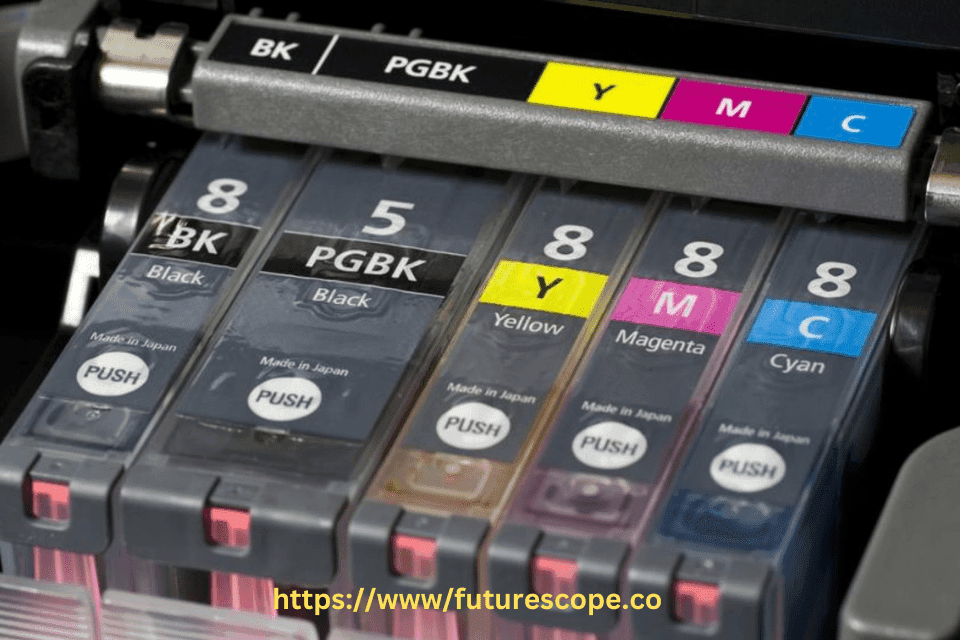

Keeping track of your printer’s ink level is essential to avoid last-minute surprises—especially when printing important documents. While many printers come with proprietary software that displays ink levels, not everyone prefers or has access to these utilities. Whether you’re using a Windows PC, Mac, or even managing from a standalone printer, you can still check ink levels without software using simple manual or system-based methods.
While many printers come with software to track ink, you may not always have access to it. Whether your software is missing or you prefer not to install it, there are still ways to check your ink levels.
In this article, we’ll explore how to check printer ink levels without installing additional tools — plus tips to maintain your cartridges and avoid low-ink frustrations
These methods are quick and can save you from unexpected ink shortages. Read on to learn how you can keep your printer running smoothly without any additional tools.

Credit: www.wikihow.com
Why Monitor Ink Levels Without Software?
Many users disable printer software due to system bloat, limited storage, or privacy concerns. Others use shared or network printers where software is not installed locally. Being able to check ink levels without relying on external applications keeps things lightweight and efficient — especially for small offices, schools, or mobile printing setups
✅ Common Ways to Check Ink Levels Without Printer Software
1. Using Printer’s Built-in Display Panel
Modern printers (especially from brands like HP, Canon, Epson, and Brother) often come with a built-in LCD or LED display panel. Here’s how to check:
Navigate to Menu or Settings
Look for “Ink Levels”, “Maintenance”, or “Supply Status”
The display will show a graphical or percentage indicator of remaining ink for each cartridge
Fact: According to Statista, over 58% of home users in the U.S. prefer using display panel diagnostics instead of software-based ink checks.
2. Printer Test Page / Self-Diagnostic Page
Printing a test page is one of the most reliable manual methods:
Go to the printer’s control panel (physical buttons or screen)
Locate the Maintenance or Tools menu
Select Print Test Page or Print Status Report
The resulting printout often includes ink level information or at least helps determine if a cartridge is running low (faded or missing colors).
️ Tip: If any color is significantly faded or missing from the test page, it’s a sign that the corresponding cartridge may be low or empty.
3. Windows Print Queue (Basic Estimation)
Even without manufacturer software, Windows offers basic ink info:
Open Control Panel > Devices and Printers
Right-click on your printer > Printing Preferences or Printer Properties
Check under the Maintenance or Services tab (not always available for all models)
Limitations: This method may not show ink levels for older printers or if drivers are generic/universal.
4. Mac System Preferences (for Some Printers)
Mac users can sometimes access ink levels via System Preferences:
Open System Settings > Printers & Scanners
Select your printer and click Options & Supplies
In the Supply Levels tab, ink information (if available) will be shown
Note: This works best with printers that support AirPrint or have native macOS support.
5. Visual Inspection of Ink Cartridges
For inkjet printers with translucent cartridges, a simple physical inspection works:
Carefully open the printer’s ink access door
Remove the cartridge and visually check the ink window
Compare the level to a full cartridge if unsure
⚠️ Warning: Always handle cartridges carefully and avoid touching nozzles or copper contacts.
Comparison of Methods
Method | Ease of Use | Requirements | Best For | Limitations |
|---|---|---|---|---|
Printer’s Control Panel | High | Printer with display | Quick checks without a computer | Not available on printers without displays |
Operating System Settings | Medium | Printer connected to computer | Users already on their computer | May not work for all models |
Printing a Test Page | Medium | Printer or computer access | Physical confirmation of ink levels | Requires paper and ink |
Printer’s Web Interface | Medium | Network-connected printer, IP address | Network printer users | Requires network setup and login credentials |
Pro Tip: Use Estimated Page Yields
Manufacturers often list estimated page yields (number of pages a cartridge can print). If you track print usage, you can estimate when a refill is due:
Standard black ink: ~200–500 pages
Color cartridges: ~150–400 pages depending on print density
✍️ Example: If your black cartridge yields 400 pages and you print 40 per week, you’ll need a refill in ~10 weeks.

Credit: support.hp.com
Methods Check Ink Levels Without Software
Using the Printer’s Control Panel
Most modern printers are equipped with a control panel or display that provides direct access to ink level information, making this one of the simplest methods to check ink status without software. The exact steps vary by brand and model, but the process generally involves navigating the printer’s menu.
HP Printers: Press the “Options and Supplies” button on the control panel, then select “Supplies Status” to view the ink levels for each cartridge. For touchscreen models, tap the ink droplet icon or navigate to the “Supplies” menu HP Tech Takes.
Canon Printers: Access the “Ink Levels” or “Maintenance” option in the control panel menu. Some models display a graphical representation of ink levels when you select the appropriate menu SmartInk.
Epson Printers: Look for a “Status Monitor” or “Ink Levels” option in the control panel. Epson printers often show estimated ink levels in a graph format when you access the maintenance settings Perfect Colours.
Brother Printers: Navigate to “Ink Management” or “Ink Volume” in the menu. For non-touchscreen models, use the arrow buttons to select “Ink Volume” and press OK to view levels LD Products.
If your printer has a touchscreen, the process is often more intuitive, with icons or menus clearly labeled for ink status. This method is ideal for quick checks without needing to power on your computer, though older or budget models may lack a display, limiting this option.
Accessing the Printer’s Web Interface
Many network-connected printers feature a built-in web server that allows you to access settings and status information, including ink levels, through a web browser. This method is software-free and ideal for printers connected via Wi-Fi or Ethernet.
Steps to Access:
Find your printer’s IP address, typically displayed in the printer’s network settings or found in your router’s device list.
Open a web browser (e.g., Chrome, Firefox, or Safari) and enter the IP address (e.g., http://192.168.1.100).
If prompted, log in with the printer’s admin credentials (check the manual for defaults, often “admin” for username and password).
Navigate to the “Supplies,” “Status,” or “Ink Levels” section to view the current ink status Digital Trends.
This method is highly effective for network printers but requires the printer to be online and accessible. If you don’t know the IP address or login credentials, consult your printer’s manual or contact the manufacturer’s support.
Manual Weighing
Checking printer ink levels without software can be challenging. Manual weighing offers a practical solution. This method involves weighing the ink cartridges to estimate ink levels. It is useful for printers without built-in display screens.
Comparing Cartridge Weight
Start by weighing a new ink cartridge. Record the weight. This serves as your reference. Next, weigh the used cartridge. Subtract the current weight from the new cartridge weight. This difference indicates the ink used.
Using A Scale
Use a precise digital scale. Ensure it can measure small weights accurately. Place the cartridge on the scale. Read the weight displayed. Compare it with the recorded new cartridge weight. This helps estimate the remaining ink.
Ink Residue Check
Checking your printer’s ink level without software can be simple. One method is the ink residue check. This involves a visual inspection of your printer and ink cartridges.
Ink Smears
Begin by checking for ink smears. Open your printer and look inside. If you see ink smears, it might indicate low ink levels. Ink smears usually appear when cartridges are running out.
Inspect the paper path and rollers for ink smears. Ink smears can also cause poor print quality. Cleaning these smears can help improve prints.
Cartridge Contacts
Next, examine the cartridge contacts. Remove the ink cartridges from the printer. Look at the contacts where the cartridge connects to the printer.
If the contacts have ink residue, it may mean the cartridge is near empty. Wipe the contacts clean with a lint-free cloth. Ensure the printer is turned off before cleaning.
Reinstall the cartridges and print a test page. Clean contacts can improve ink flow. This can also enhance print quality.
Paper Feed Issues
Dealing with paper feed issues can be incredibly frustrating when you’re trying to print something important. If your printer is having trouble grabbing the paper or producing clean prints, it might be time to check for some common problems. Let’s dive into some typical paper feed issues you might encounter and how to address them.
Frequent Paper Jams
Frequent paper jams can disrupt your workflow and waste your time. They often occur due to misaligned paper or debris inside the printer. Always make sure your paper stack is even and not overfilled.
One time, I was printing a report and the paper kept jamming. I discovered a small piece of torn paper lodged inside. Removing it fixed the issue instantly. Double-check inside your printer for any hidden pieces of paper. A flashlight can help spot tiny bits that might be causing trouble.
Incomplete Prints
Incomplete prints can be a real headache, especially when you need a complete document. This issue may happen if the paper isn’t feeding correctly. Ensure the paper tray is properly loaded and the paper guides are snug against the edges of the paper.
Once, my printer was only printing half of each page. Adjusting the paper guides fixed the problem. Sometimes, simple adjustments can make a huge difference. If that doesn’t work, try using a different type of paper as some printers are picky about paper quality.
Addressing these paper feed issues can save you from a lot of frustration. Have you ever had to deal with annoying paper jams or incomplete prints? What solutions worked best for you? Sharing your experiences can help others facing similar problems. Remember, a little troubleshooting can go a long way in ensuring smooth printing operations.
Professional Inspection
Professional inspection of your printer can help ensure everything runs smoothly. Sometimes, checking the printer ink level without software requires a skilled eye. This is where a professional inspection comes in handy.
Service Technician
A service technician can provide a thorough check of your printer. They have the expertise to assess the ink level accurately. They can also identify other potential issues.
Technicians have the right tools for the job. Their experience ensures they can spot problems quickly. They can also offer valuable advice on maintaining your printer.
Printer Maintenance
Printer maintenance is crucial for a smooth operation. Regular checks can prevent issues before they become serious. A professional inspection ensures your printer stays in top condition.
During maintenance, technicians check all parts of the printer. They clean it, check ink levels, and ensure everything works properly. This helps in extending the life of your printer.
Professional inspections and regular maintenance can save you time and money. They help prevent unexpected breakdowns and ensure your printer works efficiently.

Credit: www.wikihow.com
Frequently Asked Questions
How Do I Check My Printer Ink Levels Manually?
Open your printer software on your computer. Navigate to the “Maintenance” or “Tools” section. Select “Check Ink Levels. “
How Does My Printer Know How Much Ink Is Left?
Printers use built-in sensors to monitor ink levels. These sensors track ink usage and alert you when levels are low.
How Do I Check If My Hp Printer Is Low On Ink?
Open HP Printer Assistant, go to “Estimated Ink Levels” to check ink status. Alternatively, use the printer’s control panel.
How Do You Know If A Printer Needs Ink?
Check the printer’s display for low ink warnings. Print quality issues like faded or streaky prints also indicate low ink.
Conclusion
While software-based utilities may offer real-time, detailed ink status, checking printer ink levels without software is entirely possible — and in many cases, just as effective. Whether you’re relying on the printer’s built-in panel, printing a test page, or using system preferences, these methods ensure that your printing process stays smooth and uninterrupted.
Regular checks, combined with smart print habits, can help you avoid last-minute ink shortages and extend the life of your printer cartridges. Happy printing!