Have you ever wondered why your website isn’t performing as well as you’d hoped, despite your best efforts? Chances are, crawl errors might be holding it back.
You know how frustrating it can be when your site doesn’t appear in search results as expected. That’s where Semrush Site Audit comes into play. This powerful tool identifies crawl errors that could be affecting your site’s visibility and performance.
But spotting these issues is just the beginning. Understanding why they occur and how to fix them is crucial to ensuring your website’s success. We’ll find the reasons behind these crawl errors and guide you on how to resolve them effectively, so you can maximize your site’s potential and reach your audience effortlessly. Keep reading to transform your website into a well-oiled machine that attracts visitors and climbs the search engine ranks.
SEMrush Site Audit Tool
The Semrush Site Audit Tool is a powerful feature. It helps you maintain your website’s health. This tool identifies issues affecting your site’s performance. Crawl errors can negatively impact your SEO efforts. Understanding these errors is essential. Fixing them is even more critical. Let’s explore why Semrush shows crawl errors and how to address them.
What are Crawl Errors?
Crawl errors happen when a search engine bot tries to visit a page but fails. Semrush shows these problems during a site audit. Common crawl errors include:
- 404 Not Found – Page is missing or deleted.
- 5xx Server Errors – Your server is not responding.
- Blocked by robots.txt – Your site is telling Google not to visit some pages.
- Broken Internal Links – Links inside your site that lead to missing pages.
These errors can stop your website from being fully indexed by search engines. That means less visibility and lower traffic.
Why Does SEMrush Site Audit Show Crawl Errors?
SEMrush’s Site Audit tool checks your website for issues that might affect its performance in search engines. It looks at over 140 potential problems, including crawl errors. SEMrush uses its own crawler (like Googlebot) to scan your website. If SEMrush cannot access a page or sees a technical issue, it flags it. This helps you catch problems before Google does. When it shows crawl errors, it means there are specific issues stopping bots from accessing certain pages or parts of your site. These errors can come from your website’s setup, code, or server issues. SEMrush highlights these problems to help you improve your site’s SEO.
Try SEMrush Site Audit Tool
struggling to figure out why your traffic isn’t growing? With SEMrush, you can discover exactly what your competitors are doing right—and how you can beat them. Get started with SEMrush and turn insights into traffic.
Common Crawl Errors in SEMrush Site Audit
Here are the most common crawl errors you might see in a Semrush Site Audit report:
Robots.txt Blocking
Your website’s robots.txt file might tell bots not to crawl certain parts of your site. For example, a line like Disallow: / blocks all crawling.
Meta Tags (Noindex/Nofollow)
Some pages might have tags like <meta name=”robots” content=”noindex, nofollow”>. These tell bots not to index the page or follow its links.
IP Blocking
Your website’s security settings, like firewalls or CDNs (Content Delivery Networks), might block the Semrush crawler’s IP address (85.208.98.128/25).
Large Page Sizes
Pages bigger than 2Mb can be too large for bots to crawl fully, causing errors.
DNS Issues
Problems with your domain name system (DNS) can make it hard for bots to find your site.
JavaScript Rendering
If your content loads with JavaScript, bots might not see it unless they can render JavaScript.
Crawl Budget Exceeded
If your site has too many pages, bots might not have enough time or resources to crawl everything.
Broken Links
Links that don’t work (like 4xx errors) can lead bots to pages that don’t exist.
Server-Side Errors
Errors like 5xx (e.g., 500 Internal Server Error) mean your server has issues that stop bots from accessing pages.
Redirect Loops
When pages redirect to each other in a loop, bots can’t access the content.
Access Restrictions
Password-protected or restricted areas of your site can block bots.
URL Parameters
Too many URL parameters (e.g., ?page=1&sort=asc) can create duplicate content issues.
Duplicate Content
Multiple versions of the same page can confuse bots about which one to index.
Poor Mobile Experience
If your site isn’t mobile-friendly, it might not be crawled properly for mobile search results.
Causes Of Crawl Errors
Understanding the causes of crawl errors can improve your site’s visibility. Crawl errors can block search engines from indexing your site. This affects your site’s ranking. SEMrush Site Audit often reveals these issues. Fixing them can enhance user experience and SEO.
Broken Links
Broken links lead nowhere. They frustrate visitors and search engines. They occur when URLs change or pages are deleted. Regularly check your site for broken links. Use tools like Semrush to find them. Update or remove these links promptly.
Incorrect Redirects
Incorrect redirects mislead users and crawlers. They occur with wrong URL settings. This confuses search engines. Check your redirects for errors. Ensure they lead to the right pages. Use 301 redirects for permanent changes.
Server Configuration Issues
Server misconfigurations can block crawler access. They can occur due to technical issues. Check your server settings regularly. Ensure it allows search engine access. A well-configured server improves site performance.
How to Fix Crawl Errors?
Each crawl error has a specific fix. Here’s how to address them:
- Robots.txt Blocking
- Check your robots.txt file to ensure it allows crawling for important pages.
- Add User-agent: SiteAuditBot and Disallow: (leave blank) to allow Semrush’s bot.
- Use tools like Semrush’s Robots.txt Generator or Google’s Robots.txt Tester (Google Robots.txt Tester).
- Meta Tags (Noindex/Nofollow)
- Review your pages and remove noindex or nofollow tags from pages you want indexed.
- Use Semrush Site Audit’s “Issues” tab to find pages with these tags.
- IP Blocking
- Whitelist the Semrush crawler IP (85.208.98.128/25) in your firewall or CDN settings.
- Contact your hosting provider (e.g., Siteground, Cloudflare) for help. See Cloudflare IP Whitelisting.
- Large Page Sizes
- Optimize pages by compressing images, minifying CSS and JavaScript, and removing unnecessary elements.
- Keep pages under 2Mb. See Semrush Page Size Optimization.
- DNS Issues
- Ensure your domain is set up correctly (e.g., www.example.com vs. example.com).
- Use tools like WHOIS to check DNS settings or add redirects if needed.
- JavaScript Rendering
- Enable JavaScript rendering in Semrush (available in Guru or Business plans).
- Ensure critical content is not hidden behind JavaScript. See Semrush Configuring Site Audit.
- Crawl Budget Exceeded
- Prioritize important pages in your sitemap to use your crawl budget wisely.
- Upgrade your Semrush plan for a higher crawl limit (e.g., Pro: 100,000 pages/month).
- Broken Links
- Use Semrush Site Audit’s “Issues” tab to find broken links (search for “broken”).
- Fix them by updating links, restoring pages, or setting up 301 redirects. See Semrush 301 Redirects.
- Server-Side Errors
- Work with your web developer or hosting provider to fix 5xx errors.
- Check server logs for issues. Use Semrush’s “Issues” tab to find 5xx errors.
- Redirect Loops
- Use Semrush Site Audit to identify redirect loops in the “Issues” tab.
- Fix redirect chains to point to the correct page.
- Access Restrictions
- Ensure public parts of your site are not restricted.
- Use password protection only for sensitive areas and enable crawling for public pages.
- URL Parameters
- Block non-essential URL parameters in robots.txt.
- Use nofollow tags for links with parameters that don’t add value. See Semrush URL Parameters.
- Duplicate Content
- Add canonical tags to specify the preferred page version.
- Set up 301 redirects from duplicate pages to the main page. See Semrush Canonical URL Guide.
- Poor Mobile Experience
- Optimize your site for mobile with responsive design and fast loading times.
- Check mobile issues in Semrush Site Audit. See Semrush Mobile-First Indexing.
| Crawl Error | Cause | Fix |
|---|---|---|
| Robots.txt Blocking | File blocks bot from crawling parts of site | Update robots.txt to allow crawling |
| Meta Tags (Noindex/Nofollow) | Tags prevent indexing or following links | Remove noindex/nofollow from important pages |
| IP Blocking | Security blocks Semrush crawler IP | Whitelist IP 85.208.98.128/25 in firewall/CDN |
| Large Page Sizes | Pages over 2Mb slow down crawling | Compress images, minify CSS/JS, keep pages under 2Mb |
| DNS Issues | Domain setup issues prevent bot access | Verify DNS settings, add redirects if needed |
| JavaScript Rendering | Content hidden behind JS not crawled | Enable JS rendering or make content accessible without JS |
| Crawl Budget Exceeded | Too many pages for bot to crawl | Prioritize pages, upgrade Semrush plan |
| Broken Links | Links lead to non-existent pages | Update links, restore pages, or use 301 redirects |
| Server-Side Errors | 5xx errors block bot access | Fix server issues with developer/hosting provider |
| Redirect Loops | Pages redirect in a loop | Fix redirect chains to point to correct page |
| Access Restrictions | Password-protected areas block bots | Allow crawling for public pages, restrict only sensitive areas |
| URL Parameters | Parameters create duplicate content | Block non-essential parameters in robots.txt, use nofollow |
| Duplicate Content | Multiple page versions confuse bots | Use canonical tags, set up 301 redirects |
| Poor Mobile Experience | Site not optimized for mobile crawling | Use responsive design, improve mobile load speed |
Using SEMrush Site Audit to Fix Crawl Errors
SEMrush Site Audit is a powerful tool for finding and fixing crawl errors. Here’s how to use it:
- Run a Site Audit: Go to Semrush, enter your website’s URL, and start an audit.
- Check the Issues Report: In the “Issues” tab, look for crawl errors under categories like “Crawlability” or “Architecture.”
- Filter by Type: Sort by errors (most severe), warnings, or notices to prioritize fixes.
- Follow Recommendations: Semrush provides step-by-step suggestions for each issue.
You can also configure the audit to focus on specific parts of your site, like a subdomain or subfolder (e.g., blog.yoursite.com). Regular audits (weekly or monthly) help catch new issues early. For more details, see Semrush Configuring Site Audit.

Impact On SEO
Semrush Site Audit can reveal crawl errors affecting your site’s SEO. Crawl errors create challenges for search engines and users. Fixing these issues is essential for maintaining your site’s health and visibility. Let’s explore how crawl errors impact SEO in three key areas.
Search Engine Rankings
Search engines rank sites based on accessibility and content quality. Crawl errors hinder search engines from accessing your pages. These errors can lead to poor rankings. Search engines may skip indexing broken pages. This can reduce your site’s visibility on search results.
User Experience
User experience is crucial for retaining visitors. Crawl errors can result in broken links and missing pages. Users may leave your site if they encounter errors. This increases bounce rates and decreases engagement. A seamless experience keeps users interested and boosts site credibility.
Indexing Challenges
Proper indexing ensures your content appears in search results. Crawl errors disrupt indexing processes. Search engines might not list your pages correctly. This can prevent potential visitors from finding your content. Resolving crawl errors ensures complete and accurate indexing.

Tools For Identifying Errors
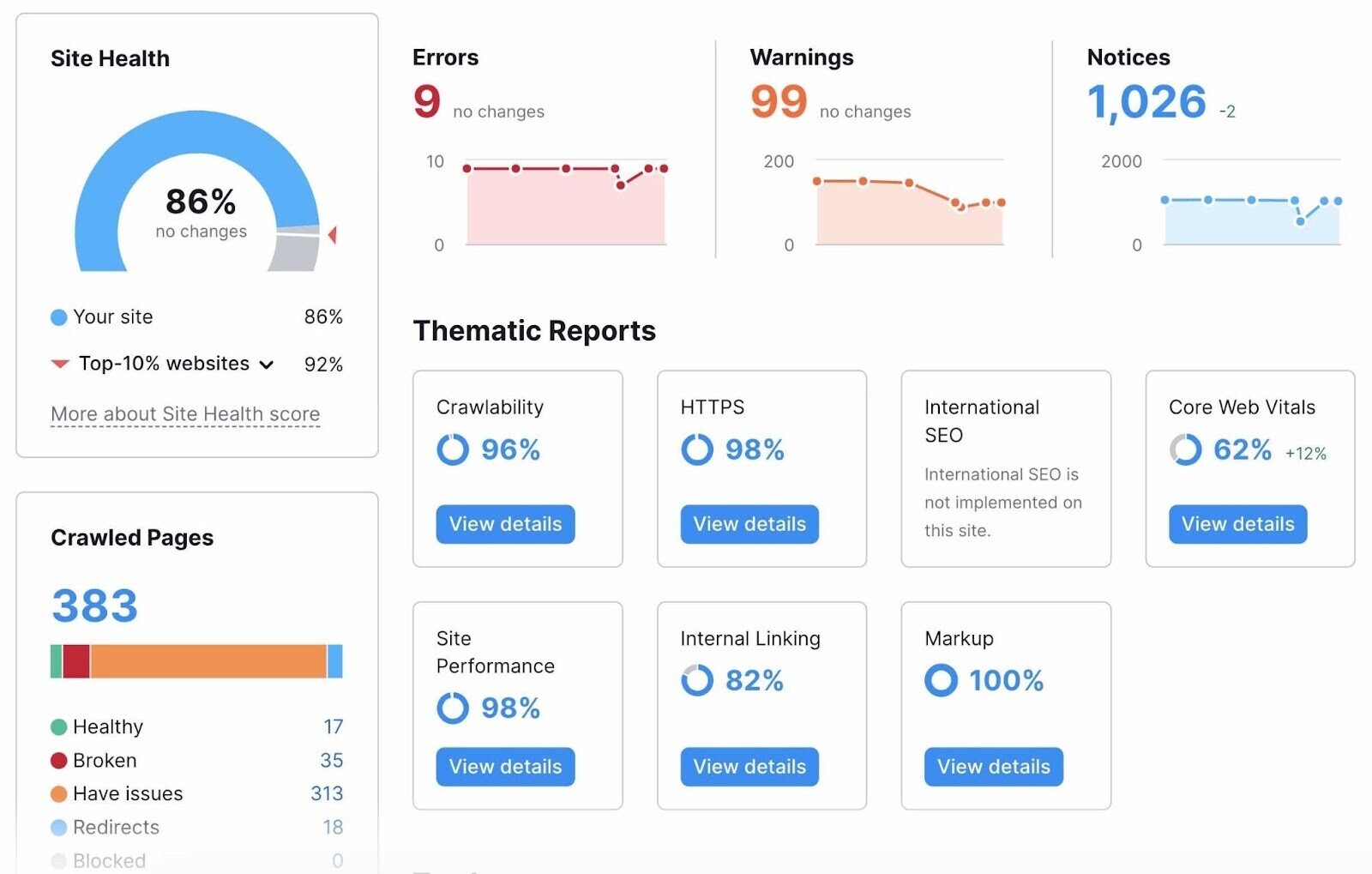
SEMrush Site Audit reveals crawl errors that impact website performance. Identifying these errors is crucial for SEO improvement. Fixing involves checking URL structures and updating broken links.
Identifying errors on your website is crucial for maintaining its health and ensuring a smooth user experience. Errors can negatively impact your site’s visibility and ranking in search engine results. Fortunately, there are tools designed to help you spot these issues before they become major problems. One such tool is SEMrush’s Site Audit feature, which provides a comprehensive overview of your site’s health and highlights potential errors. But how does it stack up against other tools in the market?
SEMrush Features
SEMrush offers a robust set of features that make identifying crawl errors straightforward. It provides a detailed audit report that breaks down errors into categories like warnings, errors, and notices. You can easily see which pages have issues and what types of errors are occurring, such as broken links or duplicate content.
The platform also allows you to schedule regular audits. This feature ensures you’re always aware of your site’s health without having to manually check it every time. SEMrush’s user-friendly interface and detailed insights make it a preferred choice for many SEO professionals.
>>> Now that you know how important SEO tools are for growth, it’s time to take action.< < <
Comparing With Other Tools
When comparing Semrush with other tools, such as Google’s Search Console or Ahrefs, you’ll notice some differences. Google’s Search Console is excellent for providing insights directly from Google, but it lacks the comprehensive breakdown that Semrush offers. It’s more limited in its error categorization.
Ahrefs, on the other hand, provides a strong competitor with its own set of features for site auditing. However, it can be more technical and less intuitive for beginners. Semrush balances ease of use with detailed insights, which makes it particularly appealing for small to medium-sized businesses.
So, how do you choose the right tool for your needs? Consider what you’re looking to achieve. Do you need detailed insights and an easy-to-understand interface? Or are you looking for direct Google insights? Each tool has its strengths, and understanding these can guide you to the best choice for your site’s health.
Investing in the right tool can save you time and resources in the long run. With the right insights at your fingertips, you can tackle errors effectively and improve your site’s performance. What tools have you found most effective for your site audits?
Frequently Asked Questions
What Causes Crawl Errors In SEMrush Site Audit?
Crawl errors happen due to broken links, server issues, or blocked resources. Fixing them improves site health.
How Do Crawl Errors Affect My Website?
Crawl errors can hurt SEO by preventing search engines from indexing your site properly. This reduces visibility.
How Can I Fix Crawl Errors?
Identify issues using SEMrush. Repair broken links, unblock resources, and ensure server stability for smooth crawling.
Can Crawl Errors Be Prevented?
Yes, regularly update your site, check links, and monitor server performance. Use tools like SEMrush for audits.
Why Is SEMrush Showing Crawl Errors Now?
SEMrush updates its data frequently. New errors might appear due to recent changes or issues on your site.
Conclusion
Crawl errors impact your website’s performance and visibility. Semrush Site Audit helps identify these issues. Fixing them improves user experience and search rankings. Start by reviewing the audit report. Address broken links, missing pages, and server errors. Ensure your sitemap and robots.
txt files are correct. Regular audits help maintain a healthy site. Use the insights to optimize and enhance your online presence. Remember, a well-maintained site attracts more visitors and keeps them engaged. Keep monitoring and updating your website. This ensures smooth navigation and improved performance for your users.