

Experiencing a laptop keyboard failure can be frustrating, especially when it happens unexpectedly. Whether you’re typing an important document or just browsing, a non-responsive keyboard disrupts productivity. Understanding the root causes and knowing what steps to take can help you resolve the issue quickly and efficiently.
A malfunctioning laptop keyboard can disrupt your work or play. Whether it’s a hardware issue or software glitch, you need a quick fix. This blog will guide you through several steps to diagnose and resolve keyboard problems. From checking for debris to updating drivers, we cover practical tips to get your keyboard working again.
Learn how to address common issues and avoid panic. With the right steps, you’ll be back to typing in no time. In this guide, we’ll explore the most common reasons a laptop keyboard stops working suddenly and offer step-by-step troubleshooting tips to fix the problem on both Windows and Mac systems.
Why Did My Laptop Keyboard Stop Working?
Before jumping into solutions, it’s crucial to identify the possible reasons behind a sudden keyboard failure:
- Software or Driver Glitches
Outdated, corrupted, or missing drivers are a leading cause of keyboard malfunctions. - Operating System Updates or Conflicts
A recent Windows or macOS update may cause compatibility issues with the keyboard. - Accidental Key Lock (Function Key or Filter Keys)
Pressing certain key combinations can unintentionally lock or disable the keyboard. - Physical Damage or Spillage
Water, coffee, or dust particles can damage internal circuits or keys. - Hardware Connection Issues
In some cases, the internal ribbon cable connecting the keyboard to the motherboard may come loose. - Malware or System Errors
Infections or corrupted system files can prevent hardware components from working correctly.
Common Causes of a Non-Working Laptop Keyboard
Understanding why your keyboard might have stopped working is the first step toward finding a solution. Here are some of the most common reasons:
| Cause | Description |
|---|---|
| Software Glitches | Temporary software issues, such as a frozen application or system error, can cause the keyboard to stop responding. A simple restart often resolves this. |
| Driver Problems | Outdated, corrupted, or incompatible keyboard drivers can lead to malfunctions. |
| Physical Damage | Spills, drops, or general wear and tear can damage the keyboard’s hardware. |
| Debris and Dust | Dust, crumbs, or other debris trapped under the keys can prevent them from registering properly. |
| Connection Issues | For external keyboards, a loose or faulty USB connection can cause problems. For built-in keyboards, a loose internal connection might be the culprit. |
| Settings and Conflicts | Incorrect keyboard settings, such as Filter Keys or Sticky Keys, or conflicts with other input devices can interfere with normal operation. |
Immediate Fixes to Try When Your Laptop Keyboard Stops Working
When your laptop keyboard stops working suddenly, it can be extremely frustrating. However, before you panic, there are a few initial troubleshooting steps you can take to potentially resolve the issue. These steps are simple and can often get your keyboard up and running again quickly. Let’s dive into the initial troubleshooting tips to address a non-functional laptop keyboard.
Check for Physical Issues/Obstruction
One of the first things you should do is check for debris. Dust, crumbs, and other small particles can get stuck under the keys and cause them to stop working. Gently turn your laptop upside down and give it a light shake to dislodge any debris.
You can also use compressed air to blow out any particles that might be stuck. Make sure to hold the can at an angle and spray in short bursts to avoid damaging the keys. If you notice any visible debris, carefully remove it with a soft brush or a toothpick.
Restart The Laptop
Sometimes, a simple restart can solve many technical problems, including an unresponsive keyboard. Save any open work and restart your laptop. This can help reset any software glitches that might be causing the issue.
If your keyboard is still not working after a restart, try shutting down your laptop completely. Leave it off for a few minutes before turning it back on. This can help clear out any temporary issues and give your system a fresh start.
Have you tried these steps and still facing issues? There might be deeper problems that need addressing. Stay tuned for more troubleshooting tips in the next section.
Software-Level Troubleshooting
Experiencing a sudden laptop keyboard failure can be frustrating. Start by checking for dust or debris under the keys. If that doesn’t work, try restarting your laptop or using an external keyboard.
Is your laptop keyboard not working? Don’t panic. It could be a software issue. Sometimes, the fix is simpler than you think. Let’s dive into some software solutions that can help.
Use Device Manager to Manage Keyboard Drivers
Outdated drivers can cause your keyboard to stop working. Updating them might solve the issue. Follow these steps:
1. Open Device Manager.
2. Find the “Keyboards” section.
3. Right-click your keyboard.
4. Select “Update driver.”
5. Choose “Search automatically for updated driver software.”
This will search for the latest drivers. Install them if available. Restart your laptop afterward.
Check For Software Conflicts
Some software can interfere with your keyboard. Check for any recently installed programs. These might be causing the problem. Try the following steps:
1. Open Control Panel.
2. Go to “Programs and Features.”
3. Look for recently installed programs.
4. Uninstall any suspicious software.
Restart your laptop. Check if your keyboard is working now. If not, consider reinstalling the operating system. This can solve deep software conflicts.
Hardware-Level Checks
Experiencing a sudden laptop keyboard malfunction can be frustrating. First, restart the laptop to refresh its system. If the issue persists, try updating or reinstalling keyboard drivers.
When your laptop keyboard stops working suddenly, hardware issues might be the cause. Before considering a replacement, try some simple hardware solutions. These steps can help you identify if the issue is with the keyboard itself or something else.
Inspect Keyboard Connections
First, check the keyboard connections. Turn off your laptop and disconnect any power sources. Remove the battery if possible. Carefully inspect the keyboard connection to the motherboard. Sometimes, the ribbon cable might be loose or disconnected. Reconnect it firmly and ensure it is secure. Reassemble your laptop and turn it on to see if the keyboard works.
Adjust Keyboard Settings
Check for settings that might be interfering with your keyboard:
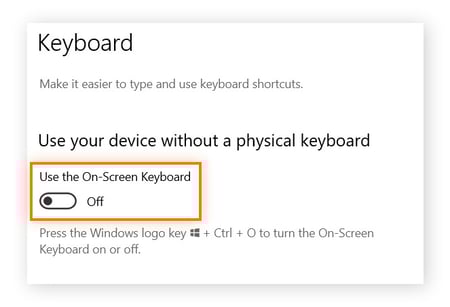
- On Windows, go to Settings > Ease of Access > Keyboard (or Accessibility in Windows 11) and ensure that Filter Keys and Sticky Keys are turned off.
- On macOS, go to System Settings > Accessibility > Keyboard and check for any enabled features that might affect typing.
- Verify that your keyboard layout is set correctly (e.g., US QWERTY) in Settings > Time & Language > Language (Windows) or System Settings > Keyboard (macOS). Remove any unused keyboard layouts to avoid confusion.
Test With External Keyboard
Another method is to test with an external keyboard. Plug in a USB keyboard and see if it works. If the external keyboard functions properly, the issue lies within the laptop’s keyboard. This test helps to confirm whether the problem is hardware-related or not. If the external keyboard also fails, the issue might be deeper within the laptop’s system or motherboard.
Remove the Battery (If Applicable)
If your laptop has a removable battery, shut it down, remove the battery, and try booting it with just the power cord. If the keyboard works without the battery, the battery might be causing the issue and may need replacement. Note that many modern laptops have non-removable batteries, so this step may not apply.
Consider Hardware Failure
If none of the above steps work, the issue might be with the keyboard’s hardware, such as a loose ribbon cable or a damaged keyboard module. In this case, you may need to contact a professional technician or the manufacturer for repair or replacement options, especially if your laptop is still under warranty.
Operating System Issues
Experiencing a sudden laptop keyboard malfunction can be frustrating. Firstly, restart your laptop to see if that fixes the issue. If not, check for any physical damage or dirt on the keyboard.
When your laptop keyboard stops working suddenly, it can be incredibly frustrating. Sometimes, the issue is rooted in the operating system. Understanding how to address these problems can save you a lot of headaches and potentially even a trip to the repair shop.
Run OS Troubleshooter
Running the built-in OS troubleshooter is one of the first steps you should take. Many operating systems, like Windows, have a dedicated troubleshooter for hardware and devices.
To access this in Windows, go to Settings > Update & Security > Troubleshoot. Select Keyboard and run the troubleshooter.
The troubleshooter will scan for common issues and attempt to fix them. This can resolve conflicts or bugs that may be causing your keyboard to malfunction.
If the troubleshooter finds an issue, it will provide steps to fix it. Follow these steps carefully.
Restore To Previous State
If the troubleshooter doesn’t solve your problem, restoring your system to a previous state might help. Sometimes, recent updates or software installations can cause unexpected issues.
To perform a system restore in Windows, type System Restore in the search bar and select Create a restore point. Click System Restore, then choose a restore point from before the keyboard stopped working.
This process will revert your system settings and files to a time when everything was functioning correctly. It won’t affect your personal files, but it’s always a good idea to back up important data.
Have you ever had a system update mess things up? Restoring to a previous state can often undo those changes, making your keyboard functional again.
Addressing operating system issues can seem daunting, but these steps are straightforward. By running the OS troubleshooter and restoring your system to a previous state, you can often resolve keyboard issues quickly. Have you encountered OS issues before? How did you handle them?
Check for Malware
Run a full system scan using your antivirus software to ensure no malware is interfering with your keyboard. Malware can sometimes cause unusual behavior, including keyboard malfunctions. Use a reputable antivirus program for the scan (Antivirus Recommendations).
Advanced Fixes
Experiencing a sudden laptop keyboard failure can be frustrating. After trying basic troubleshooting steps, you might need to explore advanced fixes. These methods often address deeper system issues. Below are some advanced techniques to get your keyboard working again.
Boot In Safe Mode
Booting your laptop in Safe Mode can help identify software conflicts. Safe Mode loads only essential drivers and services. Follow these steps:
1. Restart your laptop.
2. Press the F8 key repeatedly as it boots up.
3. Select “Safe Mode” from the menu that appears.
Once in Safe Mode, check if the keyboard works. If it does, a third-party application might be causing the issue. Uninstall recently added programs or updates to resolve the conflict.
Check BIOS Settings
Enter your laptop’s UEFI (Unified Extensible Firmware Interface) or BIOS (Basic Input/Output System) settings during startup, typically by pressing Delete, Esc, or F2, depending on your laptop model. If the keyboard works in UEFI/BIOS, the issue is likely with the operating system or software. If it doesn’t work, it could indicate a hardware problem. Refer to your laptop’s manual or manufacturer’s website for specific instructions on accessing UEFI/BIOS (BIOS Update Guide).
Accessing the BIOS can help ensure your hardware is correctly configured. Here’s how:
1. Restart your laptop.
2. Press the F2, F12, or Delete key during startup (this key varies by manufacturer).
3. Navigate to the “Keyboard” or “Integrated Peripherals” section.
4. Ensure that the keyboard is enabled.
Save any changes and exit the BIOS. If the keyboard is still unresponsive, there could be a hardware issue. Consider seeking professional help to diagnose and repair the problem.
When to Seek Professional Help?
Stuck with a non-working laptop keyboard? Seek professional help to diagnose and fix hardware or software issues quickly.
When your laptop keyboard stops working suddenly, professional help can be a lifesaver. This ensures that the issue is properly diagnosed and fixed. You might not have the expertise to handle complex hardware problems. Let’s explore how you can get professional assistance.
Consult A Technician
First, consult a technician. A skilled technician has the tools and knowledge. They can identify the root cause of the problem. Whether it’s a hardware issue or a software glitch, they can fix it. Technicians can also advise you on preventive measures. This helps avoid future problems.
Consider Warranty Options
Check your laptop’s warranty status. Many manufacturers offer free repairs. This can save you money. If your laptop is still under warranty, contact the manufacturer. They might replace the faulty keyboard at no cost. Always keep your warranty documents handy. This makes the process smoother and quicker.
Preventive Measures
To avoid future keyboard issues, consider these preventive measures:
- Keep Your Keyboard Clean: Regularly clean your keyboard with compressed air to remove dust and debris.
- Avoid Eating or Drinking Near Your Laptop: Spills are a leading cause of keyboard failure.
- Update Your Drivers Regularly: Keeping your drivers up to date can prevent compatibility issues.
- Handle Your Laptop with Care: Avoid dropping your laptop or subjecting it to physical stress that could damage the keyboard.
Useful Accessories: Keep A wireless keyboard
A wireless keyboard can quickly solve the issue of a non-working laptop keyboard. USB keyboards are also handy and affordable.
When your laptop keyboard stops working suddenly, it can be really frustrating, especially if you have urgent work. But don’t worry, there are useful accessories that can help you keep going without missing a beat. These accessories can be lifesavers, giving you the flexibility to continue your tasks while you figure out a permanent solution.
Use External Keyboard
One of the simplest solutions is to use an external keyboard.
These can be easily connected via USB or Bluetooth. If you already have a spare keyboard at home, plug it in and you’re good to go.
You can find compact and lightweight options that are easy to carry around. This makes it a great temporary or even permanent solution. I once had a similar issue and using an external keyboard got me through a week of important deadlines.
Invest In A Keyboard Cover
Another handy accessory is a keyboard cover.
If your laptop keyboard stops working due to dust or spills, a keyboard cover can help prevent future issues. They are easy to clean and can keep your keys in better condition.
Keyboard covers come in various styles and materials, so you can choose one that suits your needs. Have you ever spilled coffee on your laptop? A keyboard cover could save you from that headache next time.
By considering these accessories, you can quickly adapt and continue working without major disruptions. Have you tried any of these solutions before? What worked best for you?
Frequently Asked Questions
Why Did My Laptop Keyboard Suddenly Stop Working?
Your laptop keyboard may stop working due to driver issues, hardware failure, or software conflicts. Restart your laptop, update drivers, and check for physical damage.
How To Fix A Laptop Keyboard That Won’t Type?
Restart the laptop. Check for debris under the keys. Update or reinstall the keyboard driver. Use an external keyboard to test. If the problem persists, seek professional repair.
How Do I Unfreeze My Laptop Keyboard?
Restart your laptop. Check for stuck keys and clean the keyboard. Update or reinstall keyboard drivers.
How Do I Reset An Unresponsive Keyboard?
To reset an unresponsive keyboard, unplug it, wait 30 seconds, and then plug it back in. If issues persist, try updating or reinstalling the keyboard drivers.
Conclusion
A laptop keyboard that stops working suddenly is often fixable with a few diagnostic steps. From software tweaks to hardware checks, knowing what to do can save you time, money, and stress. Always start with basic troubleshooting, then dig deeper if needed. For quick relief, external keyboards are a handy backup. If you’re not confident dealing with internal components, don’t hesitate to seek expert help to prevent further damage.
This ensures smooth performance. Don’t panic; solutions are available. Stay calm and troubleshoot wisely. Your keyboard will be working soon.