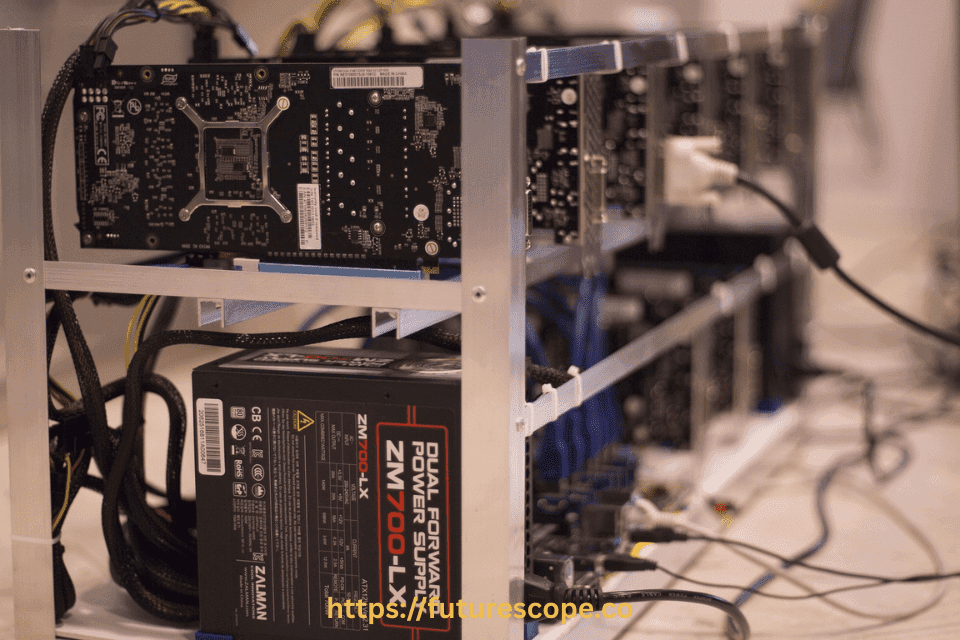

Mining cryptocurrency can be rewarding, but it also comes with challenges that frustrate many beginners and even experienced miners. One common issue is when a crypto miner shuts down after running for hours. Whether you are mining Bitcoin, Ethereum, or other altcoins, a sudden shutdown can mean lost earnings, wasted electricity, and possible hardware damage if the problem continues. Understanding why this happens and how to fix it is crucial for keeping your mining operation stable.
Why Does a Crypto Miner Shut Down Unexpectedly?
A miner that shuts down after hours of running is usually reacting to hardware, software, or environmental issues. Mining places a heavy load on equipment, and even small problems can become bigger over time. Here are the most common reasons miners stop working after running for hours:
- Overheating – Crypto mining generates extreme heat. If cooling systems fail or airflow is blocked, hardware will shut down to prevent permanent damage.
- Power Supply Issues – A weak or faulty power supply unit (PSU) cannot handle the continuous load of mining rigs, leading to forced shutdowns.
- Driver or Software Errors – Bugs in mining software, outdated GPU drivers, or misconfigured settings can cause crashes.
- Network Problems – If your internet connection is unstable, miners may stop communicating with the pool and eventually shut down.
- Overclocking Instability – Pushing GPUs or ASICs beyond safe limits often leads to overheating or unstable performance.
- Dust and Dirt – Accumulated dust in fans and heat sinks can reduce cooling efficiency, leading to gradual shutdowns.
- Operating System Limits – Some OS setups are not optimized for mining, leading to memory leaks or automatic shutdowns after extended use.

Step-by-Step Solutions When Your Miner Shuts Down
When your crypto miner shuts down after hours of operation, follow these actionable steps to diagnose and resolve the issue:
1. Verify Power Supply Stability
An inadequate or failing power supply is a common cause of mining rig shutdowns. For example, a 400W PSU may be insufficient for a rig with multiple GPUs, leading to overload and shutdowns. Check the following:
- PSU Capacity: Ensure your PSU’s wattage exceeds your rig’s total power draw (e.g., a rig with a 100W motherboard and 340W GPUs needs at least a 600-750W PSU for stability).
- Cable Integrity: Inspect power cables for loose connections, bent pins, or signs of melting, which can occur under high load.
- Quality: Use reputable PSU brands like Corsair, EVGA, or Seasonic, as low-quality units may fail under continuous 24/7 operation.
- Solution: If the PSU is underpowered, upgrade to a higher-wattage model (e.g., 1000W or more for multi-GPU rigs). Test with a spare PSU if available to rule out failure.
2. Monitor and Manage Temperatures
Overheating is a leading cause of mining rig shutdowns, as GPUs and CPUs can reach critical temperatures (above 80°C) without proper cooling.
- Check Temperatures: Use tools like MSI Afterburner, HWMonitor, or your mining software to monitor GPU and CPU temperatures. Aim for GPU temps below 75°C and CPU temps below 80°C.
- Clean Cooling Systems: Dust buildup on fans and heatsinks reduces cooling efficiency. Use compressed air to clean components every few months.
- Improve Ventilation: Ensure your rig has adequate airflow. Remove case side panels, add case fans, or relocate the rig to a cooler, well-ventilated area.
- Fan Speed: Increase fan speeds to 70-100% using MSI Afterburner or similar tools if temperatures are high.
- Solution: If temps exceed safe limits, stop mining, clean components, and test with higher fan speeds or improved ventilation. Consider reapplying thermal paste if GPUs are old.
3. Reset Overclock Settings
Overclocking GPUs to boost hash rates can cause instability, leading to crashes or shutdowns.
- Check Settings: Review overclock settings in tools like MSI Afterburner. High core clock, memory clock, or low power limits (e.g., 65% TDP) can destabilize GPUs.
- Reset to Stock: Set core clock, memory clock, and power limit to default values (e.g., 0 MHz core/memory, 100% TDP) and test for 24 hours.
- Gradual Overclocking: If stable, incrementally increase overclock settings (e.g., +50 MHz core, +100 MHz memory) and monitor for crashes over 48 hours.
- Solution: Resetting to stock settings often resolves instability. If crashes persist, the issue may lie elsewhere.
4. Update Drivers and BIOS
Outdated or faulty GPU drivers and motherboard BIOS can cause mining instability.
- GPU Drivers: Download the latest drivers from NVIDIA or AMD’s official websites. For example, older drivers like NVIDIA’s 470.05 may cause issues with newer mining algorithms.
- BIOS Settings: Update your motherboard BIOS to the latest version and ensure 4G decoding is enabled, as it’s critical for multi-GPU mining.
- Solution: Reinstall drivers and update BIOS, then test the rig for 24 hours. Check manufacturer forums for mining-specific BIOS settings.
5. Adjust Windows Settings
Windows settings can interrupt mining operations, especially on rigs running Windows 10 or 11.
- Power Settings: Navigate to “Power & Sleep” in Windows settings and set “Screen” and “Sleep” to “Never” to disable sleep and tablet modes.
- Windows Updates: Disable automatic updates, as they can restart your system. Go to “Windows Update Settings” and pause updates or set them to manual.
- Virtual Memory: Set virtual memory to 20,000 MB or higher for Ethereum mining to prevent crashes due to insufficient memory.
- Solution: Apply these settings and test the rig for 24 hours to ensure stability. Use tools like O&O ShutUp10 to disable unnecessary Windows features.
6. Review Miner Logs
Mining software logs provide valuable clues about shutdown causes.
- Access Logs: Check logs in your mining software (e.g., NiceHash, CGMiner, or NBMiner) for error messages, such as GPU failures, driver crashes, or network issues.
- Common Errors: Look for messages like “GPU #2 error” or “stale blocks,” which may indicate a failing GPU, riser, or network disconnection.
- Solution: If logs point to a specific GPU, disable it in Windows Device Manager and test the rig. Swap risers or GPUs to isolate faulty hardware.
7. Test Hardware Components
Faulty hardware, such as GPUs or risers, can cause shutdowns.
- Test GPUs: Disable one GPU at a time in Windows Device Manager and run the miner to identify a faulty card. Test suspect GPUs in another PCIe slot or rig.
- Test Risers: Swap risers between GPUs, as faulty risers are a common issue (about 2% failure rate). Use high-quality, powered risers for reliability.
- Solution: Replace any defective GPUs or risers. Test each component for 12-24 hours to confirm stability.
Preventive Measures for 24/7 Mining
To minimize future shutdowns and ensure continuous operation:
- Maintain a Clean Environment: Keep your mining area dust-free and well-ventilated to prevent overheating.
- Use Quality Power Strips: Avoid cheap power strips, as poor contact can cause voltage instability.
- Enable AC Power Recovery: In your motherboard BIOS, set “AC Power Recovery” to “On” to auto-restart after power outages.
- Invest in a UPS: An Uninterruptible Power Supply protects against voltage spikes and brief outages, maintaining rig stability.
- Regular Maintenance: Clean hardware quarterly, update software monthly, and monitor temps and logs daily to catch issues early.
When to Seek Professional Help?
If troubleshooting doesn’t resolve the issue, consider:
- RMA for Faulty Hardware: Contact your GPU or PSU manufacturer for a replacement if components are under warranty.
- Professional Repair: Consult a mining hardware specialist for complex issues, such as damaged hash boards or persistent crashes.
- Community Support: Seek advice on forums like Reddit’s r/BitcoinMining or r/EtherMining for rig-specific tips.
Final Thoughts
When your crypto miner shuts down after running for hours, it is usually a sign of heat, power, or software instability. While the issue can be frustrating, most shutdowns can be prevented with the right setup and maintenance plan. By carefully checking your hardware, cooling systems, software settings, and internet connection, you can keep your mining rigs running smoothly and maximize profits.
As mining difficulty rises and competition increases, even small amounts of downtime can significantly impact earnings. Taking the time to diagnose and fix shutdown problems ensures that your mining operation stays efficient, profitable, and long-lasting.
Frequently Asked Questions
How Long Does A Crypto Miner Last?
A crypto miner usually lasts between 3 to 5 years. Proper maintenance and cooling can extend its lifespan.
Why does my crypto miner shut down after hours?
Most shutdowns happen due to overheating, power supply issues, or unstable software/drivers.
How To Prevent Crypto Miner Shutdowns?
To prevent shutdowns, ensure proper ventilation, regularly update software, and monitor hardware performance. Regular maintenance can help avoid unexpected shutdowns.
What Are Common Crypto Miner Issues?
Common issues include overheating, hardware malfunctions, and software errors. Regular monitoring and maintenance can help identify and resolve these issues promptly.
How do I stop my miner from overheating?
Improve cooling with better airflow, regular cleaning, and keeping temperatures below safe limits.
Can unstable internet cause mining shutdowns?
Yes, unstable or disconnected internet can interrupt communication with the mining pool and lead to shutdowns.
Is overclocking safe for mining?
Moderate overclocking is fine, but extreme settings can cause instability and shutdowns.
What’s the best way to prevent future crashes?
Use quality hardware, maintain regular cleaning, update software, and monitor rigs remotely with AI-powered tools.