
Why need a Windows 10 migration tool?
Windows 10 migration involves the transfer of the operating system and data from one storage device to another. Many users opt to switch from HDD to SSD to enhance their system’s performance. Typically, there are two approaches to handling the installed OS and system settings during migration: clean install and system migration.
▶ Clean Install Windows 10: To perform a clean install, you first need to download the Windows 10 Media Creation tool and create an installation package on a USB drive or CD. Then, you must follow several practical steps to complete the installation process, which can be error-prone, especially for computer novices.
▶ Use Windows 10 Migration Tool: Alternatively, you can utilize the Windows 10 migration tool, which effectively addresses the limitations of a clean install. With just a few clicks, this tool enables you to transfer Windows 10 and its user profile to the target disk without requiring a reinstallation. Simply boot from the target disk, and you’ll find yourself in a familiar operating environment.
Does Windows 10 have a migration tool?
When discussing a Windows migration tool, Windows Easy Transfer deserves a mention. It proves to be an excellent choice for migrating settings and local user profiles from an old PC to a new PC. This utility was initially introduced in Windows Vista and later inherited in Windows XP, 7, 8, and 8.1.
In Windows 8 and onwards, migrating settings has become more straightforward. Signing in with the same Microsoft account on different devices allows for the transfer of many settings. However, in Windows 10, Windows Easy Transfer is no longer available and has been replaced by Laplink PCmover. This software is designed for transferring user profiles, files, and applications.
If you require both a Windows 10 profile migration tool and a Windows 10 OS migration tool, you may need to search for a more cost-effective solution that fulfills your specific needs.
Best Windows 10 migration tool – AOMEI Partition Assistant
When seeking the best Windows 10 OS migration tool, it’s essential to consider factors such as data transfer speed, ease of use, and the tool’s ability to handle complex configurations. A reliable migration tool can significantly impact the success of the migration process.
there are several essential aspects to consider:
- Supporting full system migration: The tool should be capable of moving all system-related drives to the target location, including System Reserved Partition, Recovery partition, or EFI system partition, as some Windows systems may have these additional partitions.
- Moving Windows 10 to SSD of different brands: The tool should facilitate the transfer of Windows 10 to a new solid-state drive, even if the disk configurations between the source and target disks differ.
- Cloning large drive to smaller drive: Intelligent sector cloning is crucial for efficiently cloning a large drive to a smaller one, especially when migrating to an SSD with better performance but smaller capacity.
Here, I highly recommend a powerful Windows manager called AOMEI Partition Assistant Profressional. It is precisely the Windows 10 transfer tool that fulfills these criteria. It is available to perform the OS migration on Windows 11/10/8/7/XP/Vista.
To help you know how to use this Windows migration tool well, let’s take transfer Windows 10 to a new drive as an example:
Step 1. First of all, install the SSD on your PC. Then install and boot AOMEI Partition Assistant. Click “Migrate OS” in the “Clone” column.

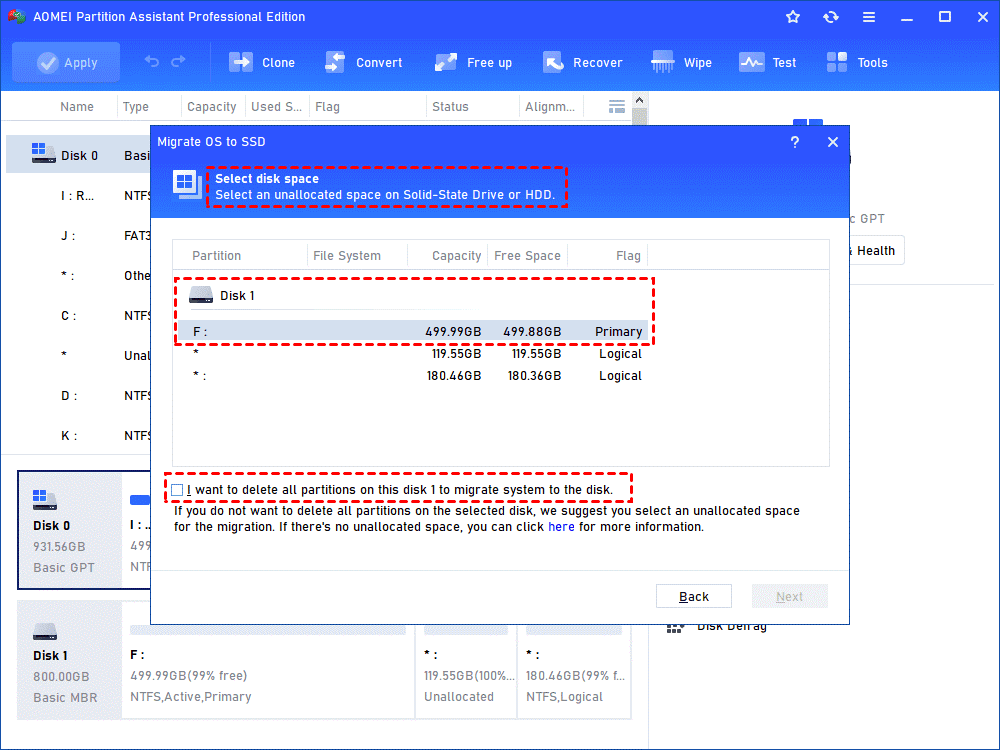
Step 2. Select an unallocated space on SSD and then click “Next”. If there is no unallocated space on the SSD, you can check “I want to delete all partitions on disk 2 to migrate system to the disk (all data on SSD will be erased)” and then click “Next”.
Step 3. Change the system partition size to your desired value in the new window and keep the new pop-out note in your mind.
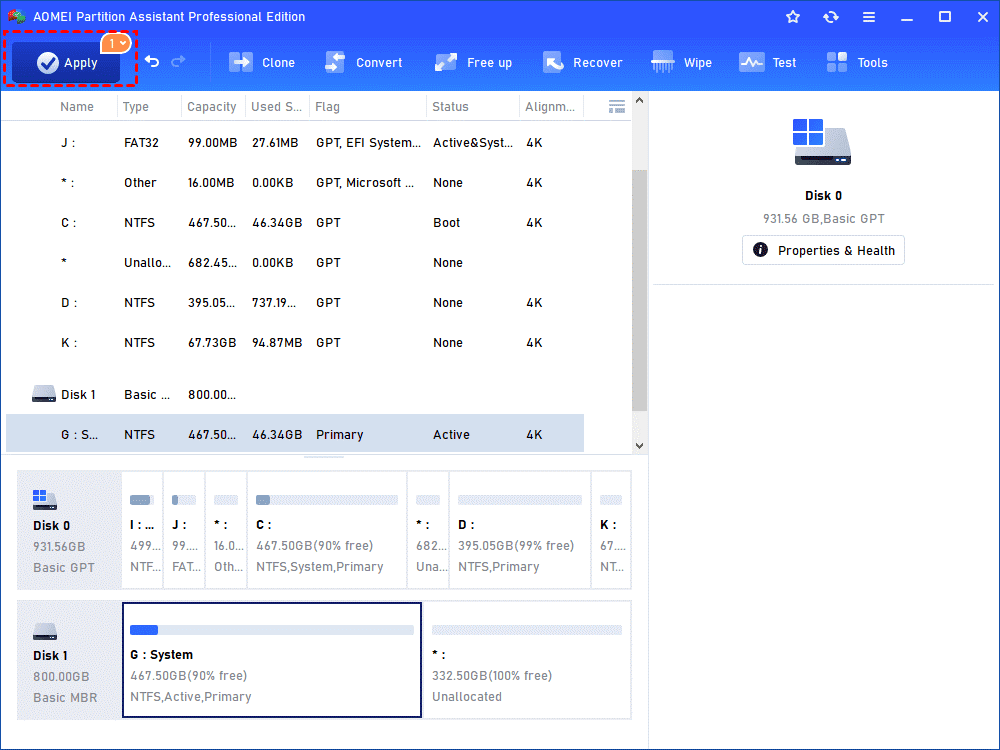
Step 4. If everything’s fine, click “Apply” > “Proceed” to execute it.
Conclusion
Windows 10 transfer is very useful for computers to maintain security, compatibility, and efficiency. By choosing the right Windows 10 migration tool like AOMEI Partition Assistant Professional and following its stepwise guide, you can seamlessly transfer the Windows operating system to a new hard drive and enjoy its numerous benefits.