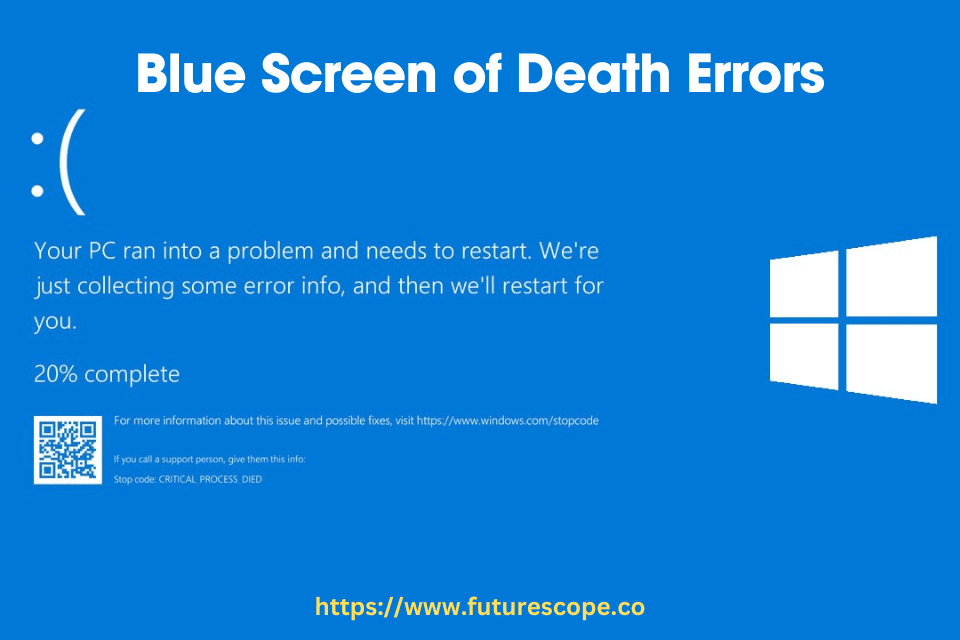

A blue screen doesn’t always indicate a virus on your computer. Sometimes referred to as the Blue Screen of Death (BSoD), it is a Windows error message that occurs due to various reasons, including hardware issues, software conflicts, or corrupted system files.
While viruses can potentially cause a blue screen, it is not the sole explanation for its occurrence. It is essential to investigate other possible causes and troubleshoot accordingly to identify and resolve the underlying problem.
What is Blue Screen Of Death? BSOD Explained
When it comes to computer errors, the dreaded Blue Screen of Death (BSOD) is one that no one wants to encounter. As its name suggests, this screen appears on your computer when an error has occurred that is so serious, it forces your system to shut down. But does a blue screen mean a virus? In this article, we will delve into the details of the Blue Screen of Death, exploring its causes, common error messages, and ultimately answering the question of whether it is a virus or not.
What is the Blue Screen of Death Errors?
The Blue Screen of Death (BSOD) is an error screen that appears on Windows-based systems when a critical system error occurs, resulting in a system crash. It is characterized by a blue background with white text, hence its name. This screen is designed to protect your computer from potential damage by shutting it down when a serious error is detected.
Causes of the Blue Screen of Death
The Blue Screen of Death can be triggered by a variety of factors, including:
- Hardware conflicts or failures
- Incompatible or outdated device drivers
- Software or system updates that were not installed correctly
- Corrupted system files
- Overheating of the computer
- Malware or virus infections
It is important to note that while viruses and malware can cause the BSOD, they are not the only possible cause. Therefore, seeing a blue screen does not necessarily mean that your computer is infected with a virus. It could be a result of hardware or software issues as well.
Common error messages displayed during the BSOD
When a Blue Screen of Death occurs, it is accompanied by an error message that provides information about the cause of the error. Some common error messages include:
- IRQL_NOT_LESS_OR_EQUAL
- MEMORY_MANAGEMENT
- SYSTEM_THREAD_EXCEPTION_NOT_HANDLED
- DRIVER_POWER_STATE_FAILURE
- Page Fault In Nonpaged Area
These error messages can give you an indication of what might be causing the Blue Screen of Death. It is important to pay attention to these messages when troubleshooting the issue.
In conclusion, seeing a blue screen on your computer does not automatically mean that you have a virus. While viruses and malware can cause the BSOD, there are other potential causes as well, such as hardware or software issues. Therefore, it is crucial to thoroughly diagnose the problem to determine the exact cause and take appropriate action to resolve it.
The Myth! Is A Blue Screen Always Indicative Of A Virus?
It’s a frustrating and alarming sight – your computer suddenly shows a blue screen with some cryptic error message. Immediately, we tend to jump to conclusions, assuming that a virus is responsible for this dreaded Blue Screen of Death (BSOD). However, the truth is that a blue screen error doesn’t always mean a virus is to blame. In this article, we will explore the misconceptions surrounding the BSOD and viruses, and discuss other factors that can trigger this error.
Exploring the misconceptions surrounding the BSOD and viruses
Contrary to popular belief, a blue screen error is not always indicative of a virus infecting your computer. The BSOD can be caused by a variety of issues, ranging from hardware malfunctions to software conflicts. While it’s true that some types of malware can trigger a blue screen error, it is not always the primary cause. It’s essential to debunk this myth and understand that the BSOD can occur due to a multitude of reasons.
Other factors that can trigger a blue screen error
A blue screen error can occur due to several factors other than a virus infection. Hardware problems, such as faulty memory modules, overheating components, or incompatible hardware can all lead to the dreaded BSOD. Similarly, software conflicts, incompatible device drivers, or issues with the operating system itself can also trigger this error. It’s vital to consider these possibilities and not immediately attribute a blue screen error to a virus without thorough investigation.
Differentiating between a virus-related blue screen and other causes
To accurately determine the cause of a blue screen error, it’s important to analyze the error code that appears on the screen. Each error code provides valuable information about the specific issue at hand. If a virus is indeed responsible for the BSOD, there may be additional symptoms such as unusual file corruption, sudden system slowdowns, or suspicious network activity. By carefully observing these indicators and analyzing the error codes, you can differentiate between a virus-related blue screen and other potential causes.
Remember, it’s crucial not to jump to conclusions when faced with a blue screen error. While viruses can indeed cause system crashes, they are not always the primary culprit. By remaining calm and systematically investigating the issue, you can accurately identify the root cause of the error and take appropriate actions to resolve it.
Identifying The Root Cause Of A Blue Screen Error
Experiencing a blue screen error, commonly known as the Blue Screen of Death or BSOD, can be a frustrating and confusing situation for any computer user. While it is not always an indication of a virus or malware infection, it is essential to identify the root cause to effectively troubleshoot and resolve the issue. Understanding the steps to diagnose and troubleshoot a blue screen error is crucial in determining whether it is caused by hardware malfunctions, driver issues, system errors, or other underlying factors.
Steps to troubleshoot and diagnose a blue screen error
When faced with a blue screen error, it is important to follow a systematic approach to identify and resolve the issue. The following steps can help you troubleshoot and diagnose the root cause:
- Check for hardware malfunctions or driver issues
- Analyze system logs and crash dump files for further insights
Checking for hardware malfunctions or driver issues
Hardware malfunctions and incompatible or outdated drivers can often be the culprits behind a blue screen error. To check for these issues, follow these steps:
- Ensure all hardware components, including RAM, hard drives, and graphics cards, are properly seated and connected.
- Update or reinstall drivers for all hardware devices, such as graphics cards, network adapters, and audio devices, as outdated or corrupted drivers can trigger blue screen errors.
- Run diagnostic tests, such as memtest86, to identify any faulty hardware components.
Analyzing system logs and crash dump files for further insights
System logs and crash dump files provide valuable information about the cause of a blue screen error. Follow these steps to analyze them:
- Access the Event Viewer tool in Windows to view system logs. Look for any critical or error messages related to the blue screen error and note down relevant details.
- Examine the crash dump files generated during the blue screen event. These files contain useful data that can help determine the root cause. Use tools like WinDbg or BlueScreenView to analyze the dump files and extract information about the error.
- Search online for error codes or error messages obtained from the system logs and crash dump files. This can provide further insights and potential solutions for the specific blue screen error.
In conclusion, a blue screen error does not necessarily indicate a virus or malware infection. Identifying the root cause requires a systematic approach, including checking for hardware malfunctions or driver issues and analyzing system logs and crash dump files. By following these steps, you can troubleshoot and resolve blue screen errors effectively, ensuring the stability and security of your computer system.
How to troubleshoot a Blue Screen of Death (BSOD) error?
Blue screen errors, also known as the blue screen of death (BSOD), can be a worrisome sight for any computer user. While these errors can be caused by a variety of factors, including hardware issues, software conflicts, or overheating, it’s important to address the possibility of a virus. Although not all blue screen errors are directly related to viruses, they can be indicative of malware or ransomware attacks. In this section, we will explore the best practices for preventing and minimizing blue screen errors, the importance of keeping your operating system and drivers up to date, and the necessity of running regular antivirus and malware scans.
Best Practices for Preventing and Minimizing Blue Screen Errors
To minimize the occurrence of blue screen errors and protect your system from potential viruses, it is crucial to follow these best practices:
- Ensure that your computer is adequately cooled to prevent overheating. Dust, defective fans, or overburdened hardware can lead to overheating, which in turn can trigger a blue screen error.
- Regularly clean your computer to remove dust and debris that can obstruct airflow and cause overheating.
- Avoid overloading your system by running too many resource-intensive programs simultaneously.
- Always properly shut down your computer rather than abruptly turning it off, as improper shutdowns can result in file system errors that contribute to blue screen errors.
- Be cautious when installing new software or drivers, as incompatible or faulty installations can lead to blue screen errors. Always download software from reputable sources.
Importance of Keeping Your Operating System and Drivers Up to Date
Maintaining an up-to-date operating system and drivers is crucial for preventing blue screen errors and enhancing the overall security of your system. Outdated software can contain vulnerabilities that can be exploited by viruses and malware. By regularly installing updates provided by the operating system and driver manufacturers, you can ensure that security patches and bug fixes are applied to your system.
Running Regular Antivirus and Malware Scans for Enhanced Protection
No matter how careful you are, there is always a risk of encountering viruses and malware. To mitigate this risk and protect your system from potential threats that could lead to blue screen errors, it is essential to run regular antivirus and malware scans. This will help detect and remove any malicious software that may have infiltrated your system, preventing it from causing further damage.
In conclusion, while blue screen errors may not always be directly caused by viruses, it is essential to take proactive measures to protect your system from potential threats. By following best practices for minimizing blue screen errors, keeping your operating system and drivers up to date, and running regular antivirus and malware scans, you can ensure the stability and security of your computer.
Steps To Resolve Blue Screen Errors And Virus Infections
The blue screen of death (BSOD) is a common and often alarming error that Windows users may encounter. While it can be a sign of a serious issue, such as a hardware problem, it doesn’t necessarily mean that your computer is infected with a virus. In this article, we will explore the steps to resolve blue screen errors and address any potential virus infections. By following these troubleshooting techniques and taking the necessary precautions, you can diagnose and resolve these issues effectively.
Troubleshooting techniques to fix common blue screen errors
If you encounter a blue screen error on your computer, there are several troubleshooting techniques you can try to fix the problem. These techniques can help you identify the root cause of the issue and resolve it accordingly. Here are some steps you can take:
- Restart your computer: Sometimes, a simple restart can resolve minor software glitches that cause the blue screen error.
- Disconnect all devices: Unplug any external devices connected to your computer, such as USB drives or printers, and then restart your computer. This can help determine if the error is caused by a specific device.
- Uninstall recently installed programs: If you recently installed any software or drivers, try uninstalling them to see if the blue screen error persists. Faulty or incompatible software can sometimes trigger these errors.
- Rollback or disable drivers: If you suspect that a specific driver is causing the blue screen error, you can try rolling back to a previous version or disabling the driver temporarily. This can help identify if the driver is the source of the problem.
- Scan your computer for malware: While blue screen errors are not necessarily caused by viruses, it’s important to ensure that your computer is free from malware. Use a reputable antivirus or antimalware software to scan your system thoroughly.
- Run an SFC scan: System File Checker (SFC) is a built-in Windows tool that can scan for and replace corrupted system files. Running an SFC scan can help fix any file-related issues that may be contributing to the blue screen error.
- Scan your hard drive: Blue screen errors can sometimes be caused by hard drive issues. Use a disk repair tool to scan and repair any errors on your hard drive.
Removing viruses and malware that may be causing the blue screen
While blue screen errors are not necessarily caused by viruses, it’s still important to ensure that your computer is free from malware. Viruses and malware can potentially disrupt your system and lead to various issues, including blue screen errors. To remove viruses and malware from your computer, follow these steps:
- Update your antivirus software: Make sure your antivirus software is up to date with the latest virus definitions. This will ensure that it can effectively detect and remove any malware present on your system.
- Perform a full system scan: Initiate a thorough scan of your computer using your antivirus software. This scan will identify and remove any viruses or malware that may be causing the blue screen error.
- Use additional malware removal tools: If your antivirus scan doesn’t detect or remove all malware, consider using other reputable malware removal tools. These tools can help detect and eliminate any remaining threats on your computer.
- Keep your operating system and software updated: Regularly update your operating system and software to protect against known vulnerabilities that viruses and malware can exploit.
- Enable a firewall: Ensure that your computer’s firewall is enabled to provide an additional layer of protection against unauthorized access and malware.
Seeking professional help if the issue persists
If you have followed the troubleshooting techniques and removed any viruses or malware but the blue screen error persists, it may be time to seek professional help. Professional technicians can diagnose and resolve complex hardware or software issues that may be causing the error. They have the expertise and tools to identify and fix problems that a regular user may not be able to address. Contacting a computer repair service or your computer manufacturer’s support team can help you find a solution and ensure that your computer is in good working condition.
Frequently Asked Questions For Does A Blue Screen Mean A Virus?
How Serious Is A Blue Screen?
A blue screen, also known as the Blue Screen of Death (BSoD), indicates a serious problem in Windows that causes the system to shut down or restart unexpectedly. It can be a symptom of a hardware issue and should be addressed if it occurs frequently.
However, it does not necessarily mean that your computer has a virus.
How Do I Fix The Blue Screen Virus?
A blue screen doesn’t always mean your computer has a virus. It can indicate a serious problem that causes Windows to shut down unexpectedly. To fix the blue screen of death, you should shut down the computer, disconnect all devices, restart in Safe Mode, uninstall recently installed programs, rollback or disable drivers, scan for malware, run an SFC scan, and scan your hard drive.
Should I Be Worried If My Computer Blue Screened?
No, you shouldn’t be worried if your computer blue screened once. However, if it happens frequently, it may indicate a hardware problem that needs to be addressed. A blue screen is not always caused by a virus.
Is Blue Screen Of Death A Bad Thing?
The Blue Screen of Death (BSOD) is a serious error that can occur if Windows shuts down unexpectedly. It is not inherently caused by a virus, but it can be a symptom of a hardware problem. If it happens occasionally, there is no need to worry.
However, if it occurs frequently, it should be addressed. The BSOD can result in the loss of unsaved work.
Conclusion
Experiencing a blue screen on your computer does not necessarily mean that you have a virus. While a blue screen, also known as the Blue Screen of Death (BSoD), can be caused by malware or corrupt system files, it can also be a result of hardware issues, overheating, or other software conflicts.
Therefore, it is important to thoroughly diagnose the problem and take the necessary steps to address it, such as running malware scans, checking hardware, and updating drivers.