No, all monitors are not compatible with all computers. Monitors use different types of connections, such as HDMI, DVI, or VGA, and some computers only have certain types of ports. Additionally, the resolutions and refresh rates of monitors can vary, so even if a monitor has the right type of connection for a computer, it might not display correctly if the resolution or refresh rate is not supported.
If you’re looking to buy a new monitor, you might be wondering if all monitors are compatible with all computers. The short answer is: no, not all monitors are compatible with all computers. There are a few different factors that come into play when determining compatibility, including the type of port on your computer and the resolution of your monitor.
In this blog post, we’ll break down everything you need to know about monitor compatibility so that you can make an informed purchase. When it comes to monitors, there are three main types of ports: VGA, DVI, and HDMI. VGA is the most common type of port and can be found on both PCs and Macs.
DVI is also common and is typically found on PCs. HDMI is the newest type of port and is found on newer models of PCs and Macs. If your computer only has one type of port (e.g., VGA), then you’ll need to purchase a monitor with that same type of port in order for it to be compatible.
The resolution of your monitor also needs to be taken into account when purchasing a new one. Resolution refers to the number of pixels that make up your screen; the higher the resolution, the sharper and more clear your image will be. Most new monitors have a resolution of 1080p (1920×1080), but some cheaper models may have a lower resolution like 720p (1280×720).
If you have a higher-end graphics card in your computer, you may even be able to get away with using a 4K (3840×2160) monitor for an even sharper image. When it comes to resolution, it’s important to match or exceed the native resolution of your graphics card; otherwise, you won’t see any benefit from upgrading to a higher-resolution monitor. To sum things up, not all monitors are compatible with all computers due largely in part to differing ports and resolutions between models.
Be sure to take these factors into account when shopping for a new monitor so that you end up with something that works well with your existing setup.
How to Easily Connect Up to 8 Monitors to a Windows Computer
How Do I Know If a Monitor is Compatible With My Computer?
When you go to purchase a new monitor, it is important to make sure that it is compatible with your computer. There are a few things that you will need to check before making your purchase. First, you will need to check the input ports on your computer and compare them to the input ports on the monitor.
Most monitors will have either DVI or HDMI inputs. If your computer only has VGA inputs, then you will need to purchase an adapter in order to connect the two devices. Next, you will need to check the resolution of both your computer and the monitor.
The resolution is measured in pixels and indicates how many dots per inch (DPI) are on the screen. A higher resolution means that there are more pixels and therefore more detail can be seen on the screen. Most monitors these days have a resolution of at least 1080p, which is full HD.
However, if you have a 4K monitor, then you will need a graphics card that supports 4K in order to take advantage of all those extra pixels. Finally, you’ll want to consider any special features that you might want from your monitor such as G-Sync or FreeSync support, HDR compatibility, or built-in speakers. Once you’ve considered all of these factors, then you can narrow down your choices and find the perfect monitor for your needs!
Can You Connect Any PC to Any Monitor?
Can you connect any PC to any monitor? The answer is yes, but with some caveats. Here’s what you need to know.
First, let’s talk about analog versus digital connections. Most modern monitors use digital connections, which means they have a DVI or HDMI port. Older monitors may use an analog connection, which means they have a VGA port.
If your computer has a DVI or HDMI port, you can usually connect it to any monitor with the same type of port. However, if your computer has a VGA port and the monitor only has DVI or HDMI, then you’ll need an adapter in order to make the connection. Second, we need to talk about resolution.
Resolution refers to the number of pixels that make up an image on a screen. The higher the resolution, the more detailed the image will be. Most computers these days are capable of outputting high resolutions (1080p or even 4K), but not all monitors can display those resolutions natively.
So if your computer is outputting a 1080p signal but your monitor can only handle 720p, the image on your screen will be downscaled and won’t look as sharp as it could be. Conversely, if your monitor has a higher resolution than your computer can output, then the image will be upscaled and might look a bit fuzzy around the edges. So it’s important to make sure that both your computer and monitor support the same resolution before making a connection.
Finally, we need to talk about refresh rate and response time. Refresh rate refers to how often the image on a screen is refreshed (usually measured in Hz). A higher refresh rate means less motion blur and smoother video playback; most gamers look for monitors with high refresh rates (144Hz or even 240Hz) for this reason.
Response time is how long it takes for individual pixels to change from one color to another; lower response times are better for gaming as well since there will be less ghosting effects when fast-moving objects are onscreen.
Can I Use an Old Monitor With a New Computer?
The answer to this question is, it depends. If your old monitor uses an analog VGA connection and your new computer only has a digital DVI or HDMI connection, then you will need to buy an adapter in order to use the old monitor with the new computer. However, if both the old monitor and the new computer have digital DVI or HDMI connections, then you should be able to simply connect them using a DVI or HDMI cable.
Can I Use the Monitor on a All-In-One Computer?
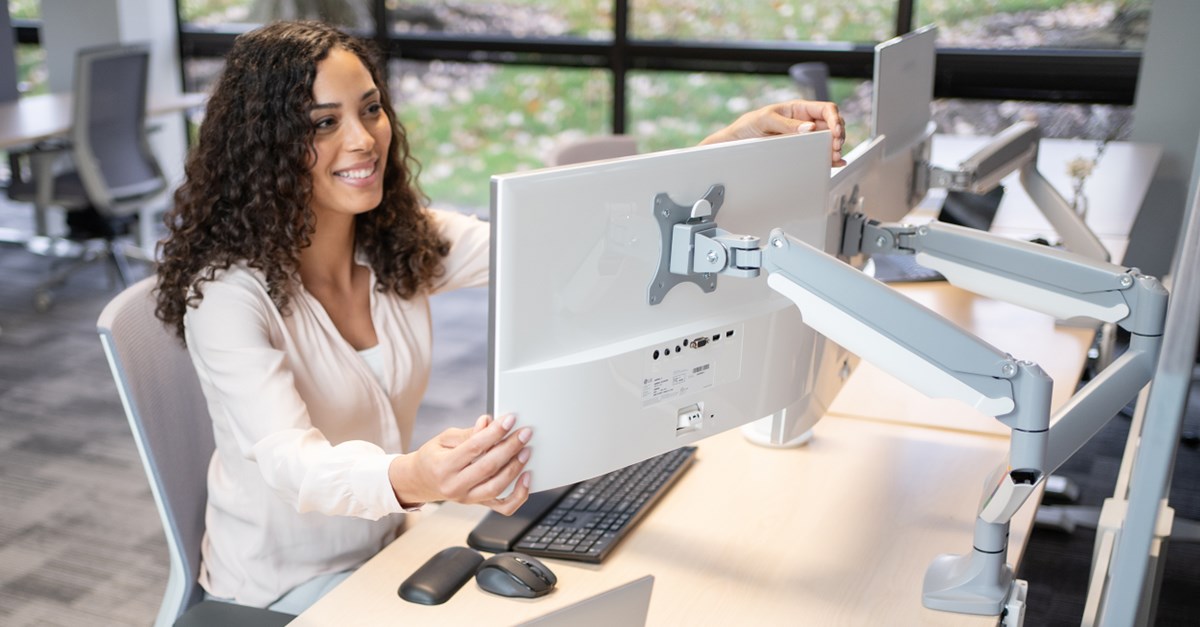
Yes, you can use the monitor on an all-in-one computer. All-in-one computers have a built-in monitor that cannot be removed. However, you can connect an external monitor to an all-in-one computer.
To do this, you will need to use a video cable that is compatible with your all-in-one computer’s video output port. The most common type of video output port on an all-in-one computer is HDMI.
Can You Use Any Monitor With a Gaming PC?
It is a common misconception that any monitor can be used for gaming. The reality is that there are certain types of monitors that are better suited for gaming than others. Here is a look at what to look for in a gaming monitor:
Size: A larger monitor will give you a more immersive gaming experience. Most gamers prefer monitors that are at least 24 inches.
Resolution: A higher resolution will give you a sharper image and more detailed graphics. Look for a resolution of 1080p or higher.
Refresh rate: A higher refresh rate means that the image on your screen will update more quickly, which is important for fast-paced games. Look for a refresh rate of 120 Hz or higher.
Old Computer New Monitor Compatibility
You’ve got an old computer, but you want to spruce it up with a new monitor. Is this possible? The answer is yes!
You can use a new monitor with your old computer as long as the monitor is compatible with your computer’s graphics card. If you’re not sure whether your graphics card is compatible with a new monitor, you can check the manufacturer’s website or ask someone at the store before you make your purchase. Once you have a compatible monitor, simply connect it to your computer using the appropriate cables.
Depending on your graphics card and monitor, you may be able to take advantage of features like higher resolutions and faster refresh rates. However, even if your old computer can’t take advantage of these newer features, you’ll still be able to enjoy an improved visual experience with a new monitor.
Are All Monitors Compatible With Laptops?
It’s a common question we get asked – can I use a laptop with an external monitor? The answer is yes, in almost all cases you’ll be able to connect your laptop to an external monitor and have it work just fine. However, there are a few things you need to keep in mind when doing this.
First, you need to make sure that the resolution of your laptop’s screen is lower than the resolution of the external monitor. This is because most laptops only support resolutions up to 1080p, while many monitors now support resolutions up to 4K. If you try to connect a 4K monitor to a 1080p laptop, you won’t be able to take full advantage of the higher resolution and things will look a bit blurry.
Second, you need to make sure that your laptop has the right ports for connecting to an external monitor. Most laptops these days have HDMI ports, which will work fine for most monitors. However, if your laptop only has VGA or DVI ports, you’ll need an adapter in order to connect it to an HDMI port on the monitor.
Third, keep in mind that not all features on your laptop will work with an external monitor connected. For example, if your laptop has a built-in webcam, it probably won’t work when connected to an external monitor (unless the monitor also has a webcam). And if your laptop has touch screen capabilities, they likely won’t work either when using an external display.
But other than those few exceptions, everything else should work just fine!
Conclusion
No, all monitors are not compatible with all computers. Each computer has a specific port that is required for the monitor to be compatible. For example, a DVI port is required for a DVI monitor, and an HDMI port is required for an HDMI monitor.
If a computer does not have the correct port, then a special adapter must be used in order to make the connection.